Table of Contents
Ad tracking in Chrome allows websites and advertisers to track your activity. This data is then used to serve ads to users. For more privacy, you should turn on Do Not Track mode. This feature sends a privacy-first signal to websites, reducing unwanted tracking. Here's how to turn off ad tracking in Google Chrome.
Instructions to turn off Google Chrome ad tracking on mobile
Step 1:
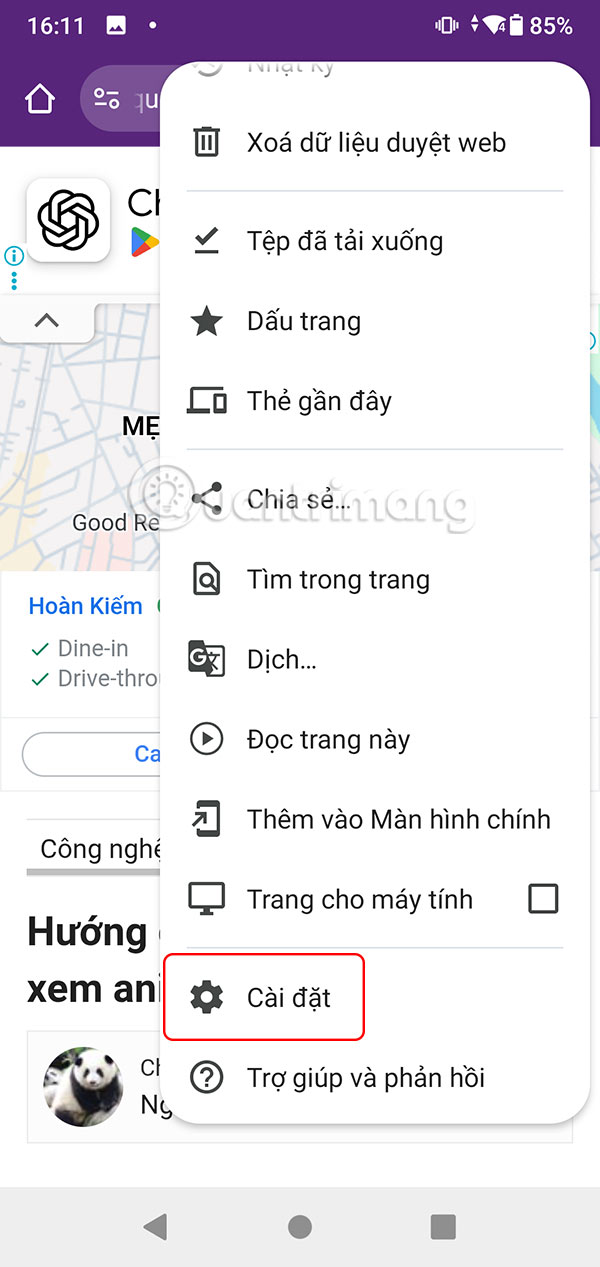
On the Google Chrome interface on your phone, select the 3-dot icon and select Settings in the displayed list.
Step 2:
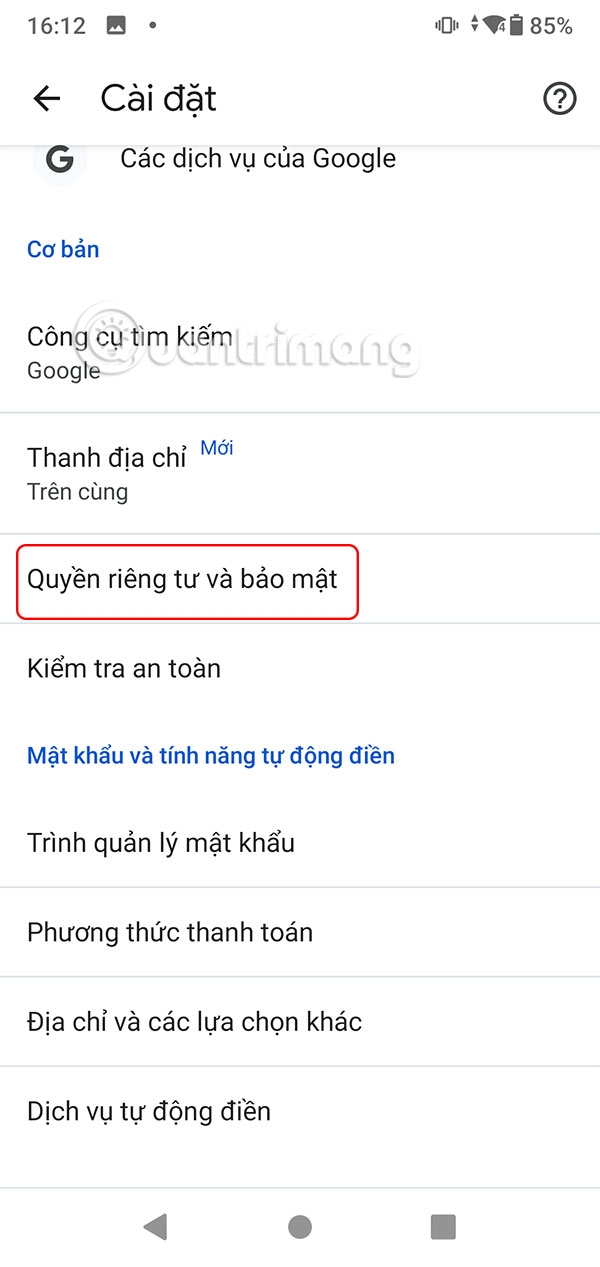
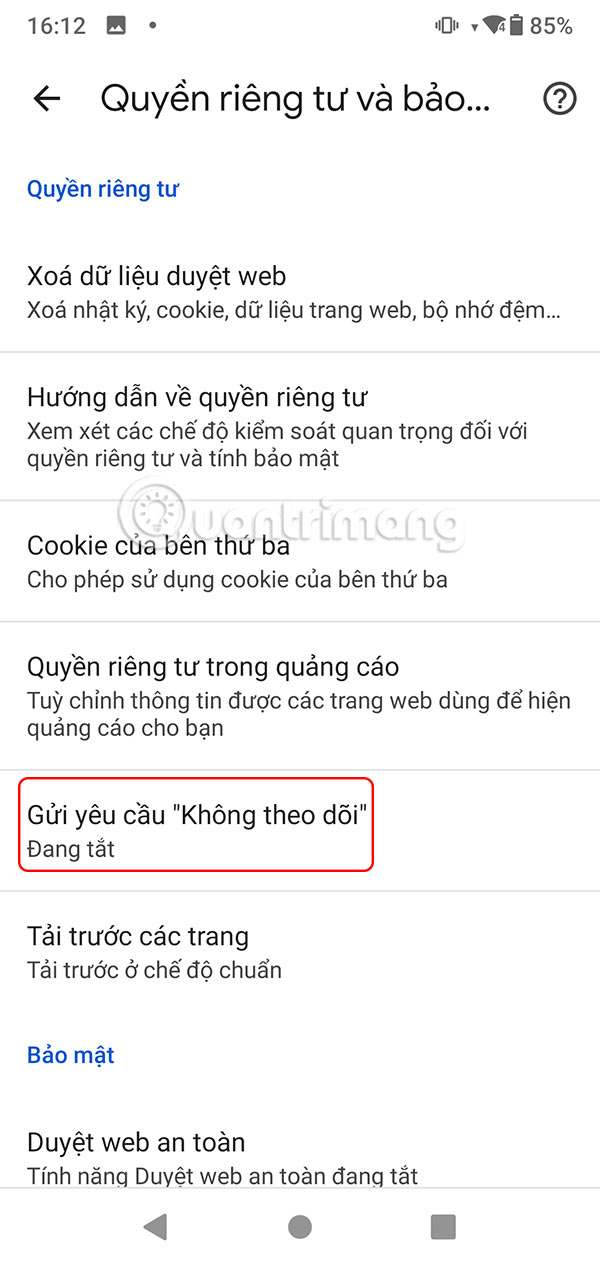
Go to the settings interface for the Chrome browser, the user continues to select Privacy and security . Now you select the setting Send 'Do Not Track' request .
Step 3:
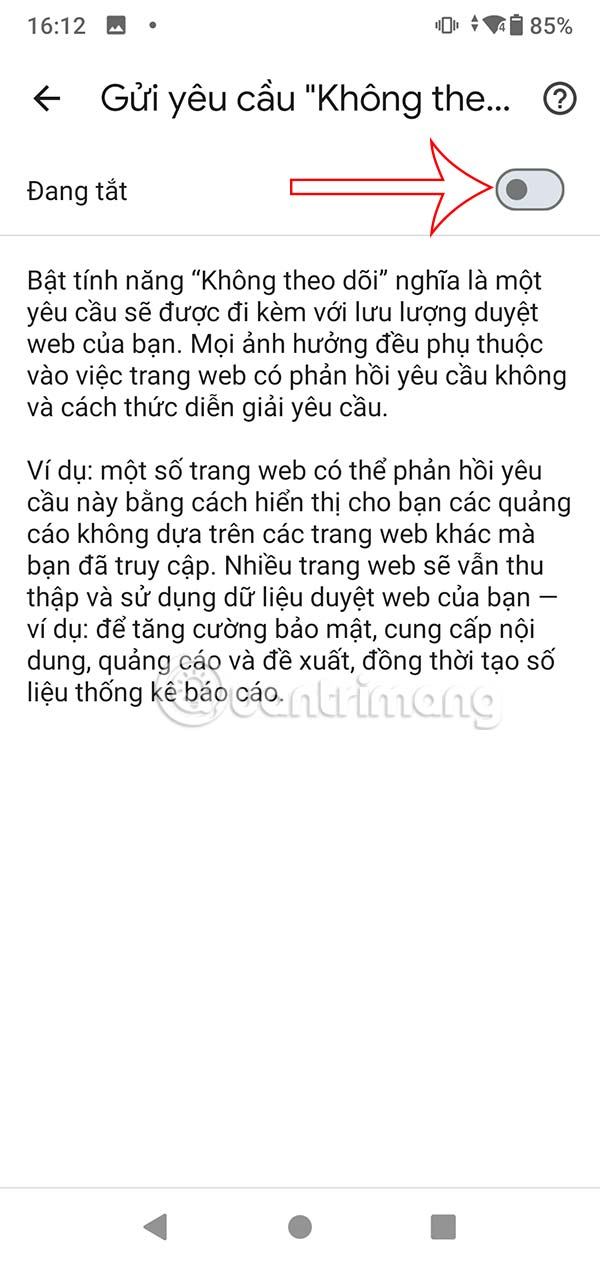
This feature is off by default, so you need to enable Do Not Track on Google Chrome to enhance your privacy.

How to enable Do Not Track on Chrome PC
Step 1:
On the Chrome browser interface on your computer, select the 3-dot icon and select Settings in the displayed list.
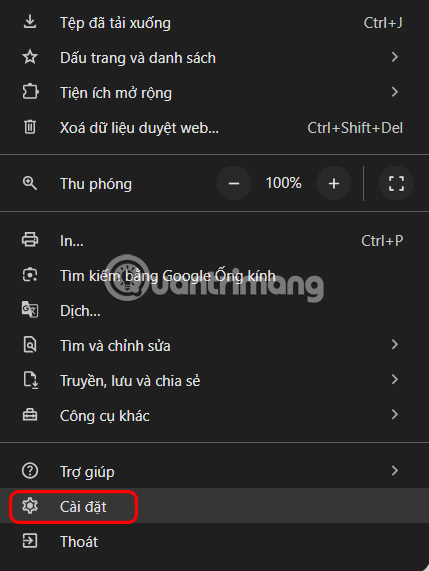
Step 2:
Switch to new settings for the browser, users select Privacy and security on the left side of the interface.
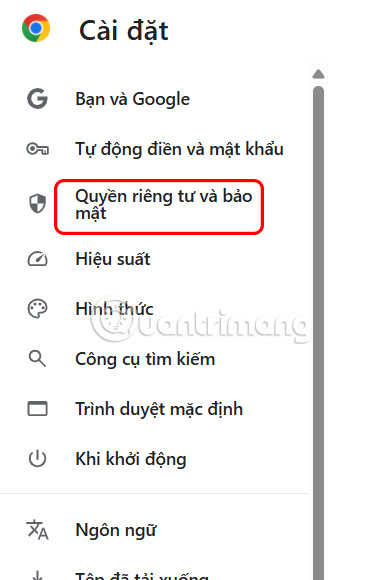
Step 3:
Next, you look to the side, we select Third-party Cookies to proceed with the adjustment.
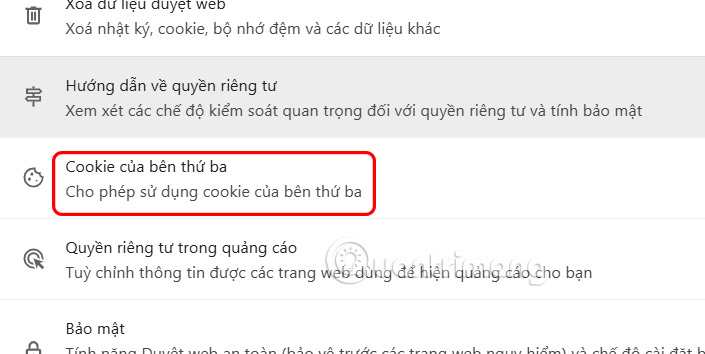
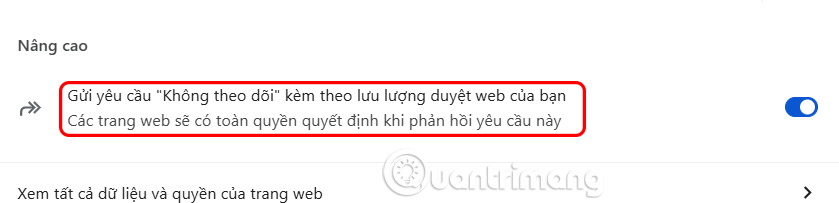
Switch to the new interface, you need to activate the setting Send "Do Not Track" request with your web browsing traffic. Then display the notification as shown, you click Confirm.

The Do Not Track feature has been enabled on Google Chrome desktop.
Final Thoughts
Following the steps in order and checking version-specific settings should make it easier to Turn Off Ad Tracking on Google Chrome. If an option looks different, verify the device, app, or operating-system version before changing additional settings.
FAQ
What is the best way to Turn Off Ad Tracking on Google Chrome?
Start with the requirements described in the article and follow the steps in order. Ad tracking in Chrome allows websites and advertisers to track your activity. This data is then used to serve ads to users. For more privacy, you should turn on Do Not Track mode.
What should you know about Instructions to turn off Google Chrome ad tracking on mobile?
On the Google Chrome interface on your phone, select the 3-dot icon and select Settings in the displayed list.
What should you do if the instructions do not match your screen?
Check the device, software version, account permissions, and regional settings. Interfaces can change after updates, so use the closest matching option and consult the official support documentation when necessary.
Related Articles
 3 Ways to Prevent Websites from Tracking Your Location on Google3 minutes read
 Turn Off This Hidden Panel to Stop Chrome from Tracking Your Browsing6 minutes read
 Google Plans to 'Purge' Third-party Tracking Cookies3 minutes read
 The 'Do Not Track' Feature Is Practically Useless: Take These5 minutes read
 Google Chrome Adds a 'No Tracking' Feature3 minutes read
 How to Prevent Google from Tracking Your Location8 minutes read
Reader Comments 0
Sign in with email or Google to join the discussion.