Table of Contents
This practical guide walks through how to transfer photos from iPhone to iPhone, explains the main requirements, and highlights common issues that may appear along the way.
Instructions to transfer photos from iPhone to iPhone
Step 1: To transfer photos from iPhone to iPhone we must first make sure that both devices must turn on Air Drop, first with the device switch (iPhone) or swipe up from the bottom to show up the menu bar. , in this you press and hold on the Bluetooth icon.
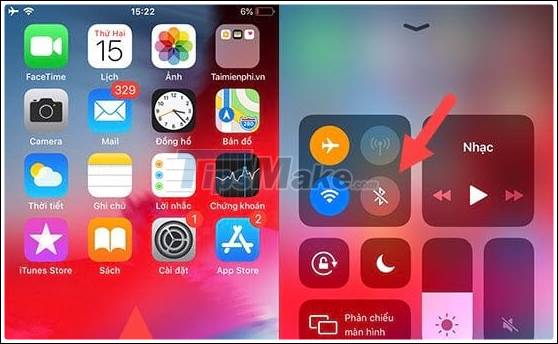
Step 2: Next, select AirDrop and set it to Everyone.
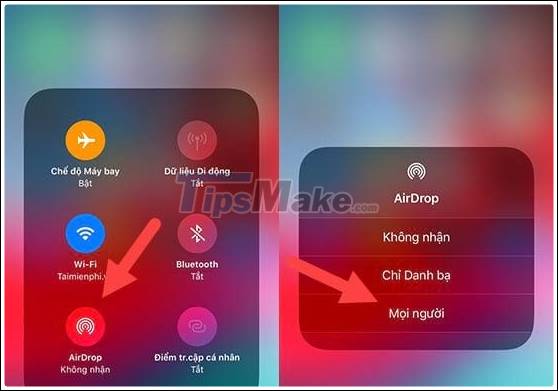
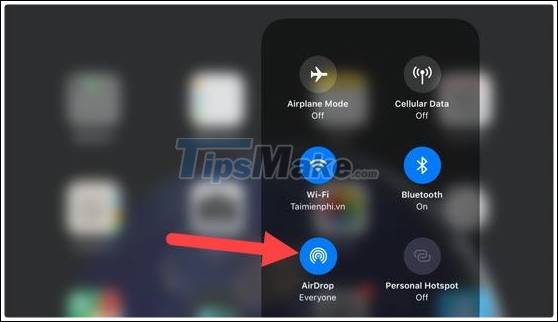
Similarly on the other device (Here we use an iPad) we also enable AirDrop and leave the Everyone mode on.
Step 3: Then on your iPhone go to photo store> click select and select the photos you want to transfer photos from iPhone to iPhone, then tap the icon in the left corner of the screen.
Step 4: Here you will see the interface in the photo transfer, namely AirDrop. What you need to do now is to let the 2 devices close together, wait a while you will see the device is activated and we click to transfer photos from iPhone to iPhone.
Step 5: On the receiving device, remember to open the screen, now there will be a notification that you want to transfer photos to you. Here we just need to click Accept to proceed to receive images as usual.
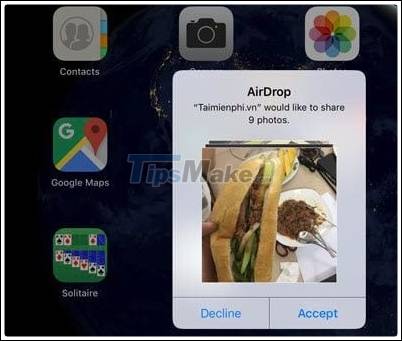
Step 6: Wait for a while and you check to see that all photos are transferred with super fast speed, the transfer of photos from iPhone to iPhone, iPad is completed.
So with just a few basic steps, we can transfer photos from iPhone to iPhone in the most complete way. The above trick not only helps you to transfer photos, but also transfer videos. However, with videos we need to note because the video size is quite long, so the transfer will take place longer than usual.
However, this is just the transfer of photos from iPhone to iPhone, but To transfer data from old iPhone to new iPhone this way is not a good solution. Readers can refer to how to transfer data from old iPhone to new iPhone and follow the instructions given on TipsMake.
Key Takeaways
Use the information above as a practical reference for how to transfer photos from iPhone to iPhone. Review each step carefully, confirm any requirements, and choose the option that best fits your situation.
FAQ
What does this guide explain about Transfer Photos from iPhone to iPhone?
It explains the main concepts, practical considerations, and useful steps related to transfer photos from iPhone to iPhone without requiring advanced knowledge.
Who can benefit from learning about Transfer Photos from iPhone to iPhone?
This information is useful for readers who want a clear overview, practical guidance, and reliable steps related to transfer photos from iPhone to iPhone.
What should I check before applying this information?
Review the requirements, confirm that your device, software, or situation matches the instructions, and back up important data before making major changes.
Related Articles
 8 Ways to Quickly Transfer Photos from iPhone to iPhone11 minutes read
 No Software Needed, This Is the Fastest Way to Transfer Images Between4 minutes read
 Instructions to Transfer Photos from iPhone to Macbook Extremely Fast3 minutes read
 How to Transfer Photos and Videos from iPhone iOS 11 to PC with5 minutes read
 How to Transfer Photos from iPhone to Mac: Step-by-Step Guide15 minutes read
 How to Transfer Images Directly from the Camera to iPhone7 minutes read
Reader Comments 0
Sign in with email or Google to join the discussion.