Table of Contents
Quick Tiles on Android are a feature we use often, but don't pay much attention to. However, there are some great Quick Settings tiles that we should use.
Quick Tiles on Android are a feature we use often, but don't always pay attention to. However, there are some great Quick Settings tiles that we should use. Some of them are easy to add right from the edit menu. But one tile is hidden off the screen. It takes a few extra steps and some digging to get it into the Quick Settings pane.
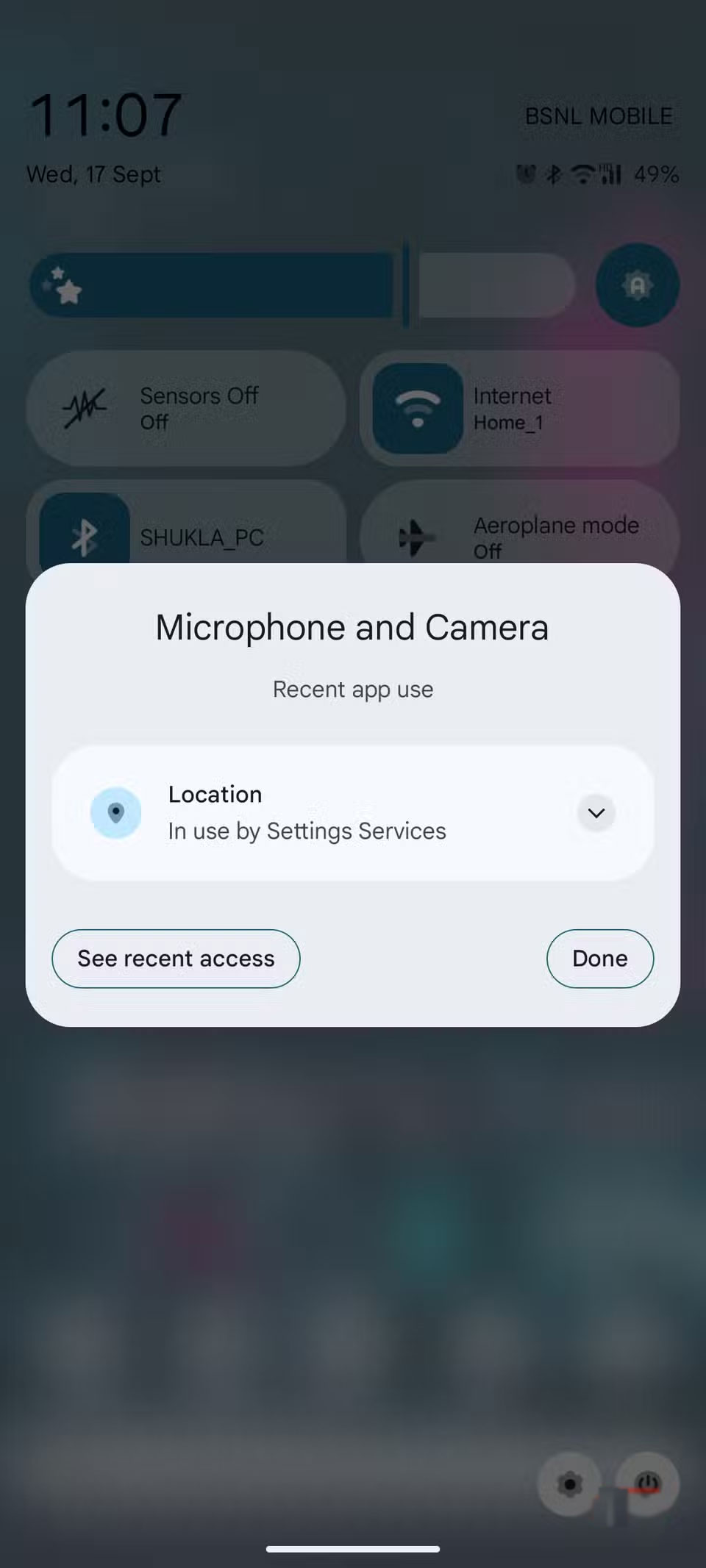
It's the Sensors Off tile hidden in the developer options on Android devices. You can't see it in the Quick Settings tweak menu unless you go into developer options and add it. This disables all sensors on the device, making it one of the most secure phones out there.
- 5 Annoying Android Problems and How to Fix Them
What is Tile Sensor off in Quick Settings?
Secret spies follow you without anyone noticing
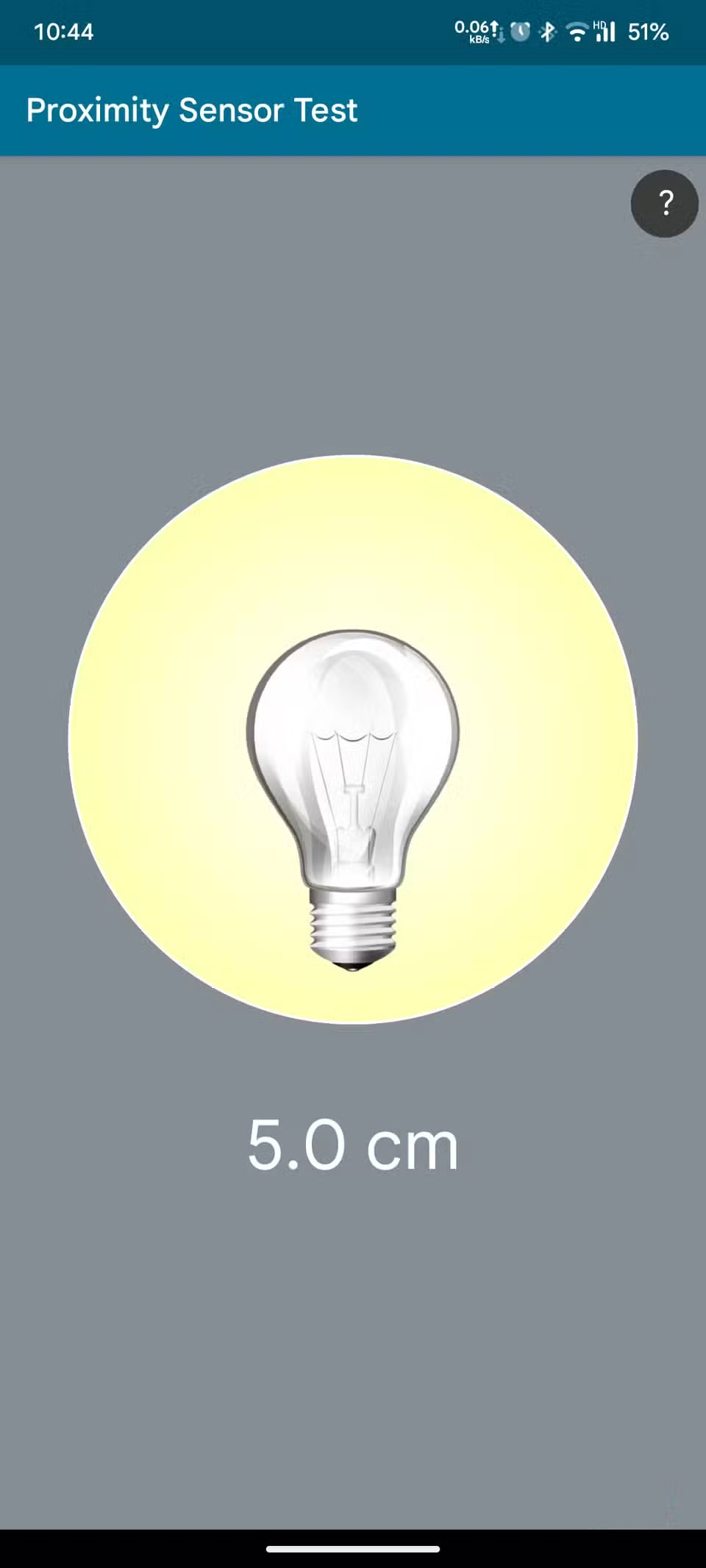
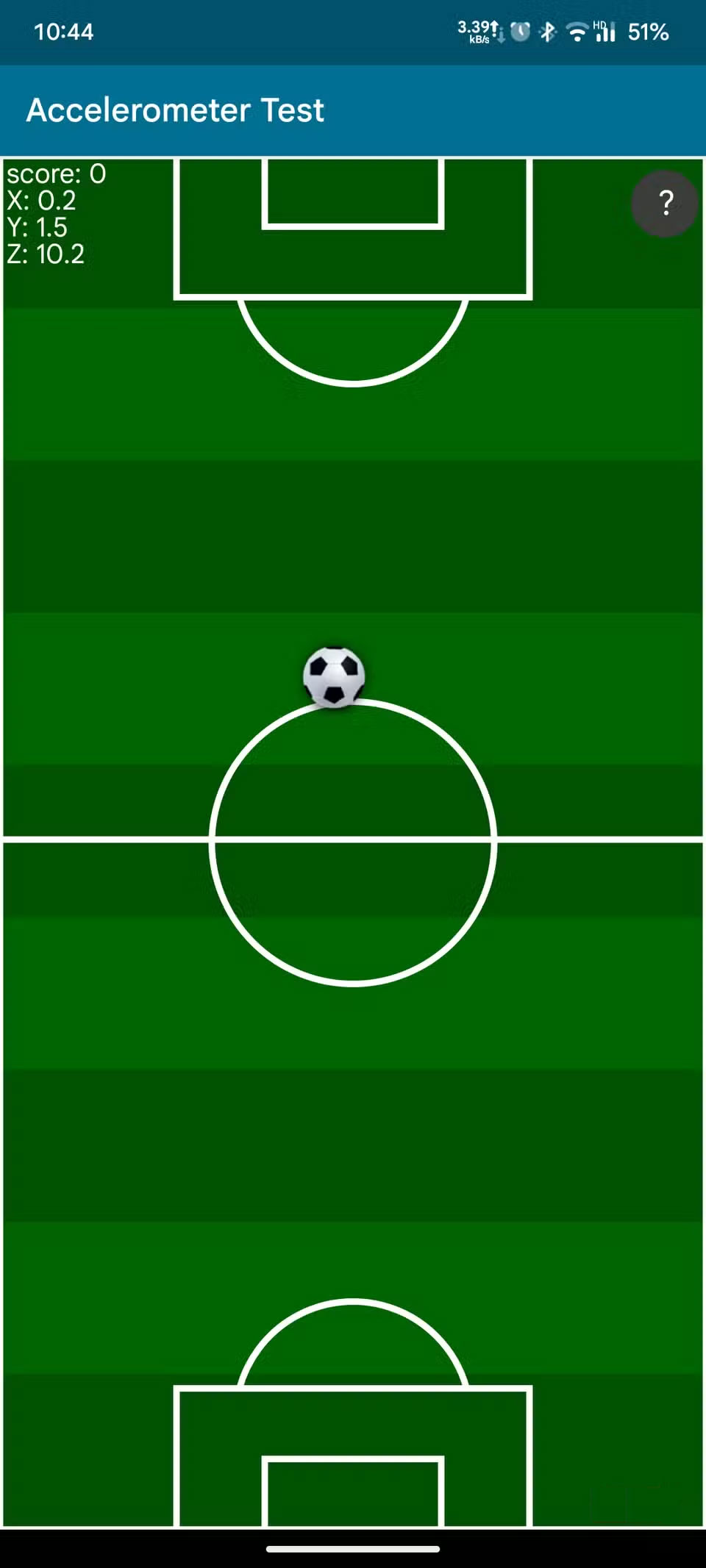
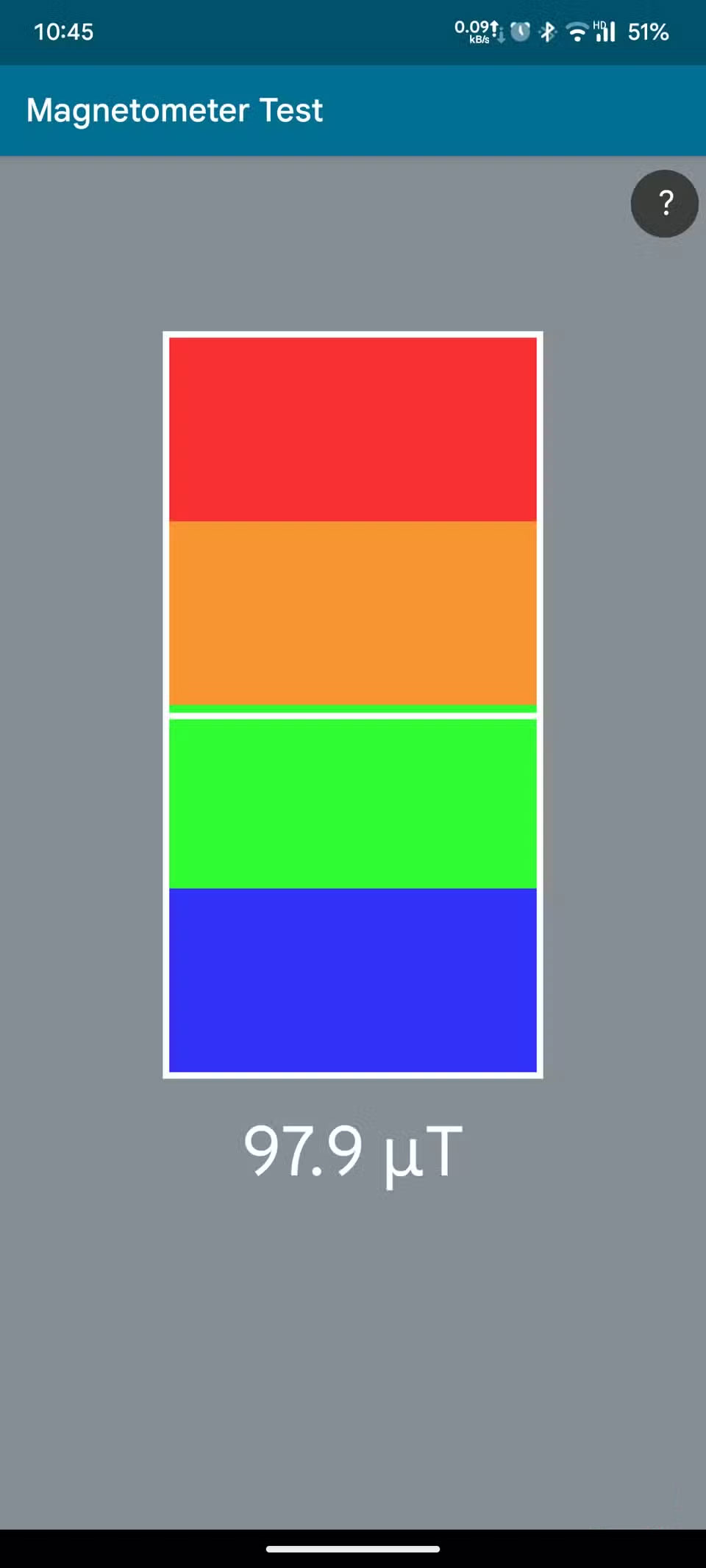
Our modern Android smartphones are equipped with a wide variety of sensors, including temperature, proximity, gyroscope, accelerometer, etc. These sensors allow the phone and installed applications to detect user activities, such as sitting, standing, walking, running, talking, outdoors or in a dark room, as if someone is watching us.
This makes many people nervous, especially in situations where they want to be more discreet or private, and don't want their phone to know what they're doing or saying. If you feel the same way, then the Sensor Off tile is for you.
When you tap the Sensor off tile, it turns off all the sensors on your phone. No matter what any app tries, it won't be able to access any of the sensors on your phone, making your phone more secure than ever. The Sensor off tile acts as a physical switch on your phone, adding an extra layer of security.
That said, as mentioned earlier, you can't find it directly in the Quick Settings tweak menu. Instead, you'll need to add it from the developer options menu in your phone's settings.
How to add Sensor off tile in Quick Settings
A few more steps to enhance privacy
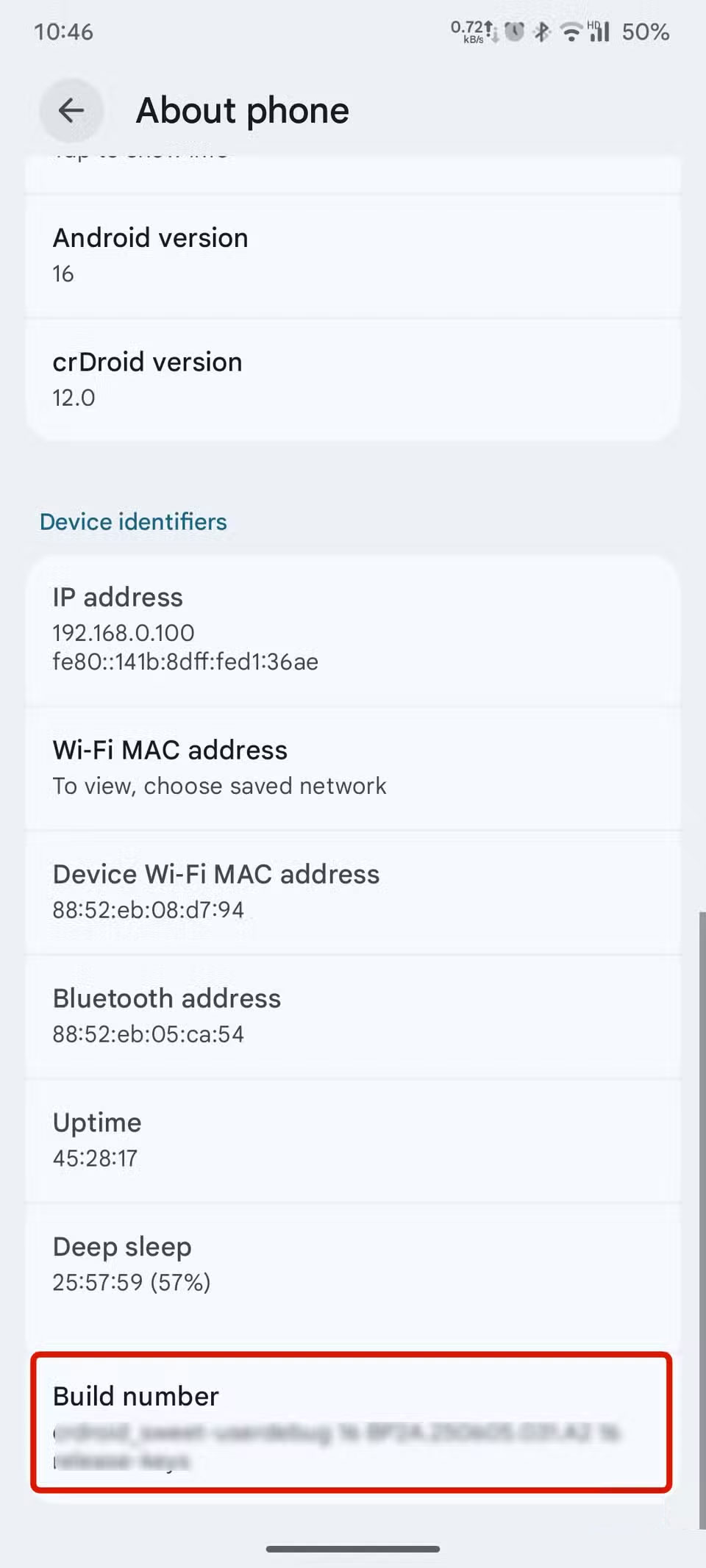
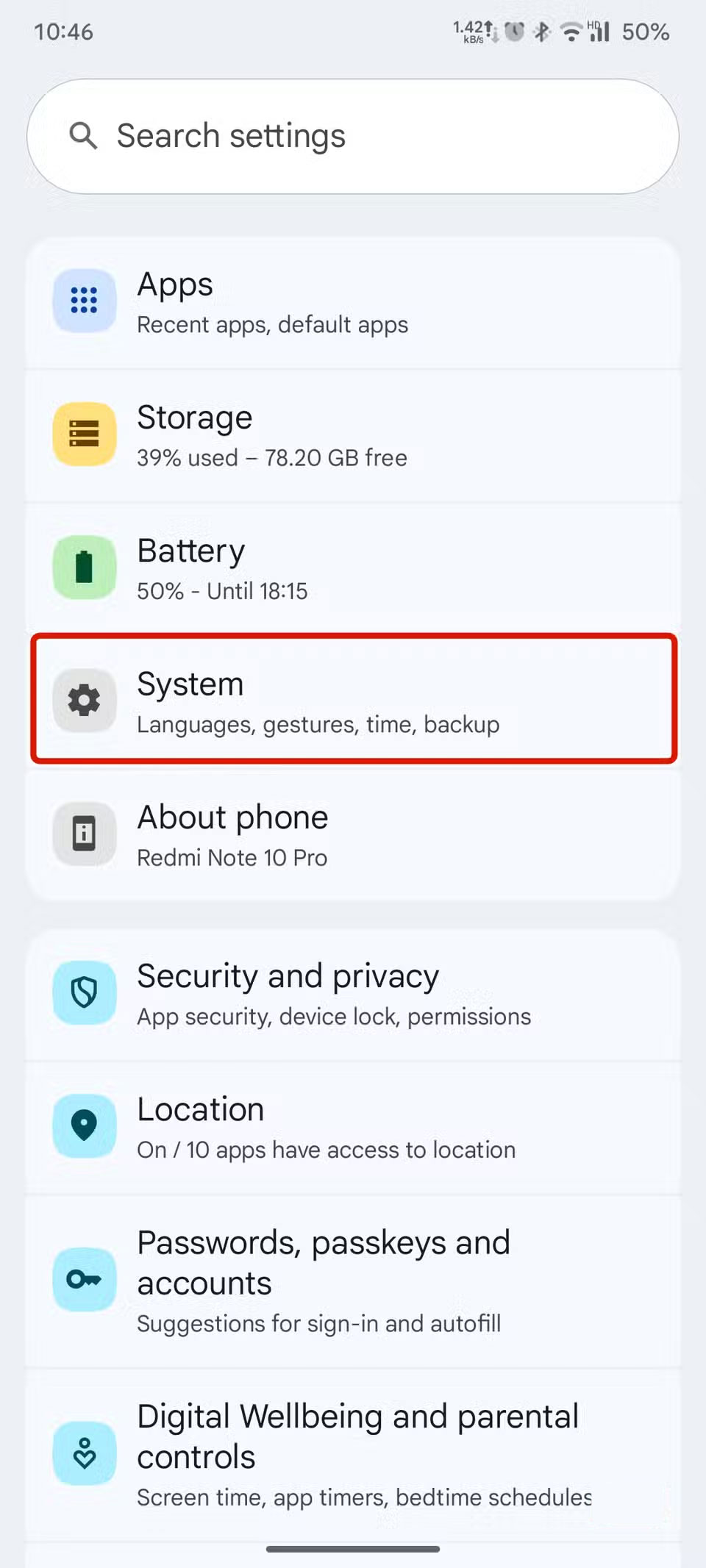
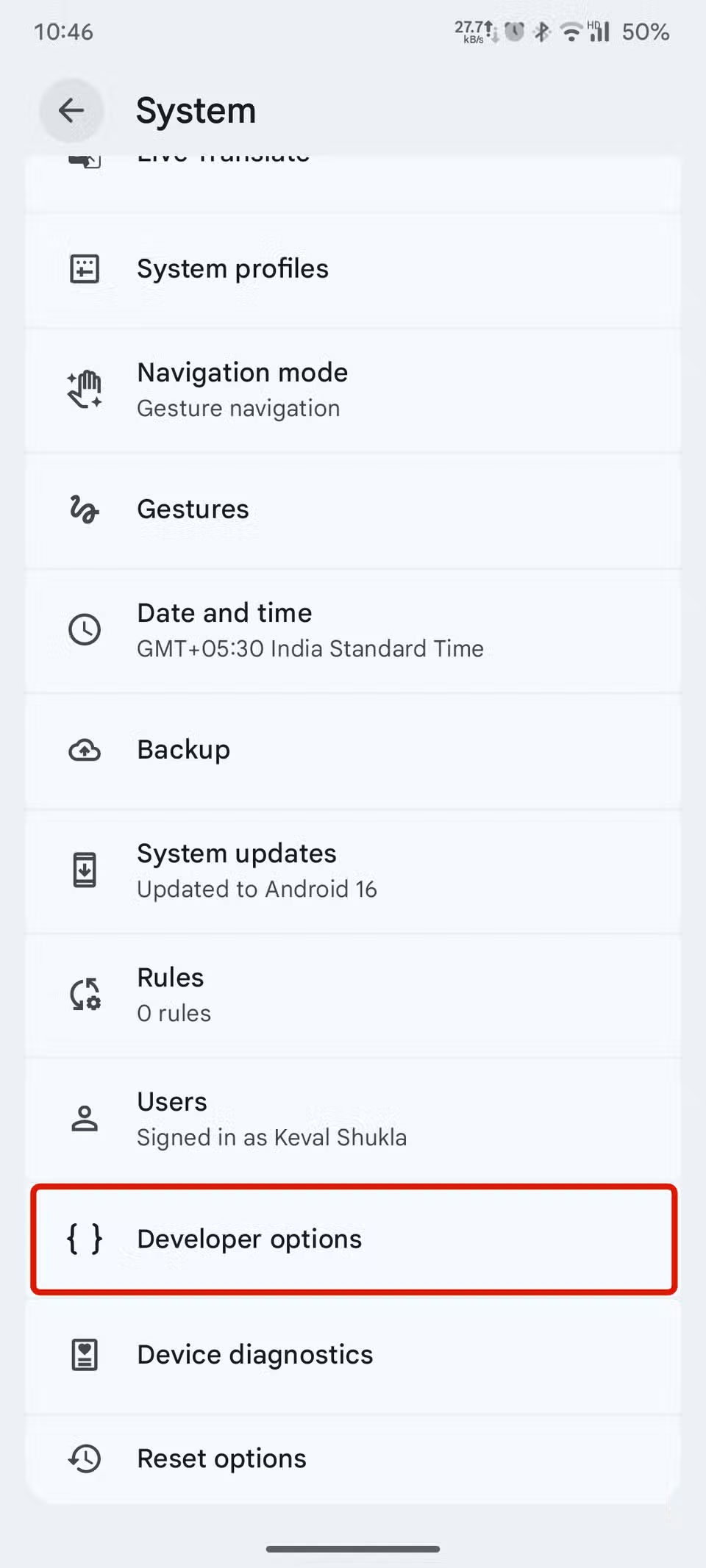
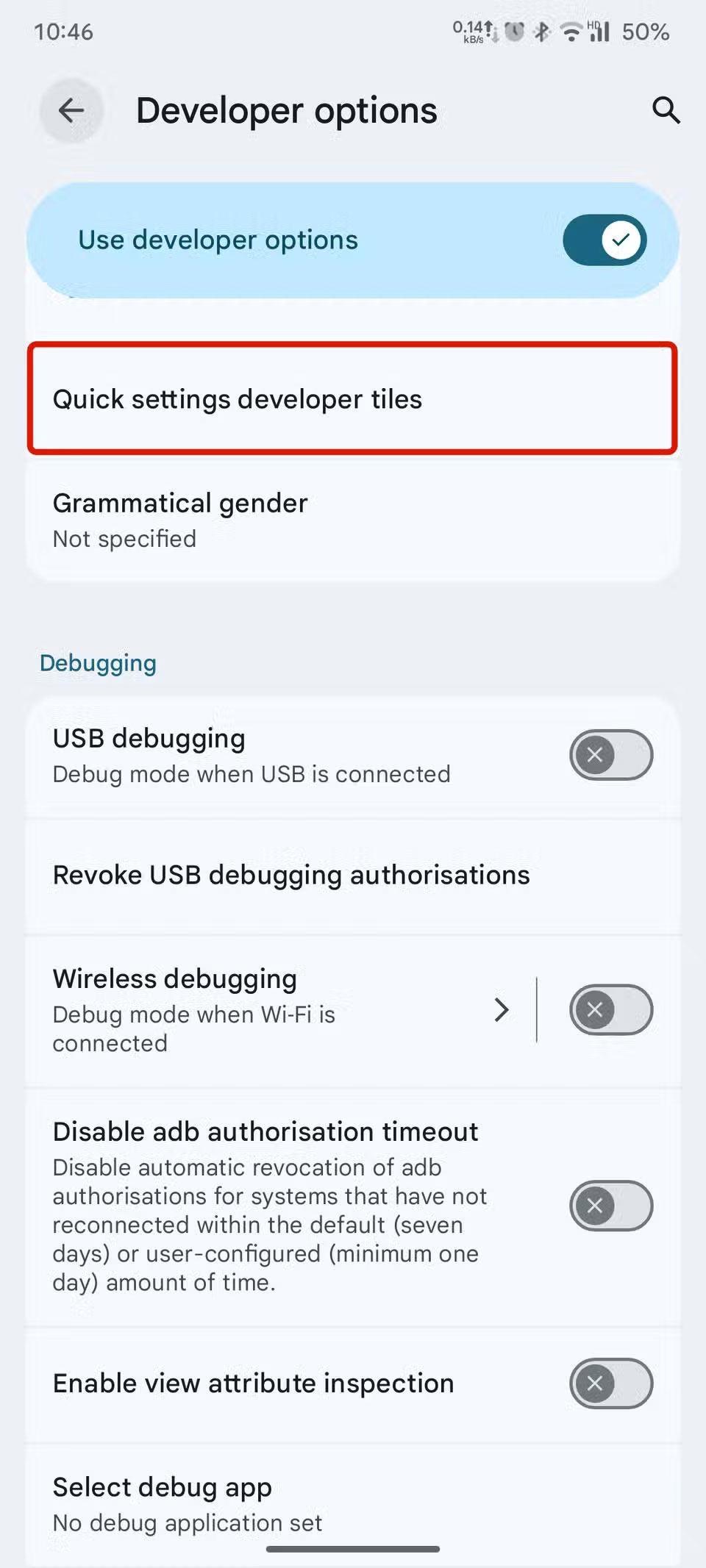
As discussed earlier, You should enable Developer mode on your Android device to add the Sensor off tile. Here is how you can enable Developer mode and add the Sensor off tile. These steps are for Android 16, but other versions of Android are similar. If you are unable to navigate to the settings mentioned above, you can always search in the Settings app.
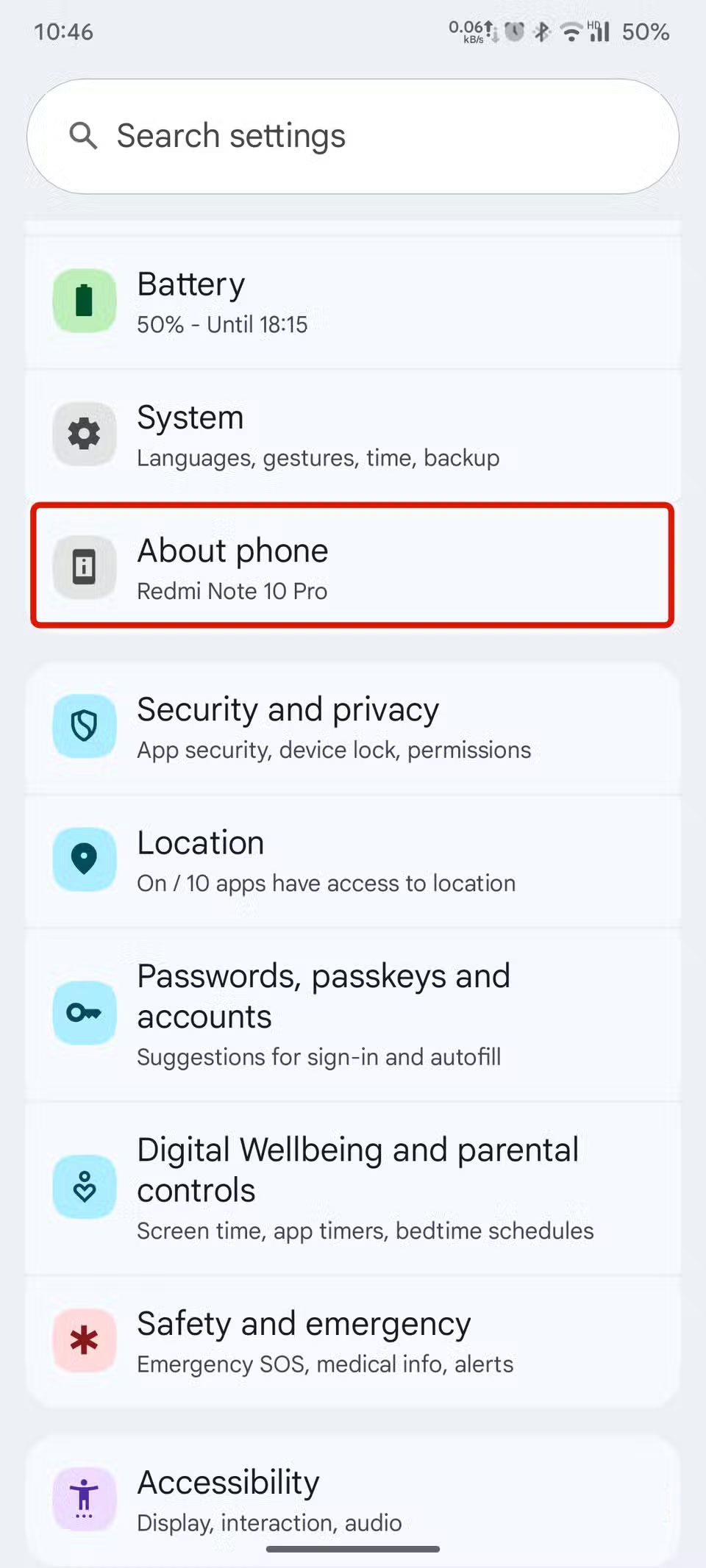
- Go to the Settings App on your device.
- Go to the About phone Tab in Settings.
- Scroll down and find Build number .
- Tap the build number 7 times.
- Now go back to Settings and go to System settings .
- Click on Developer options .
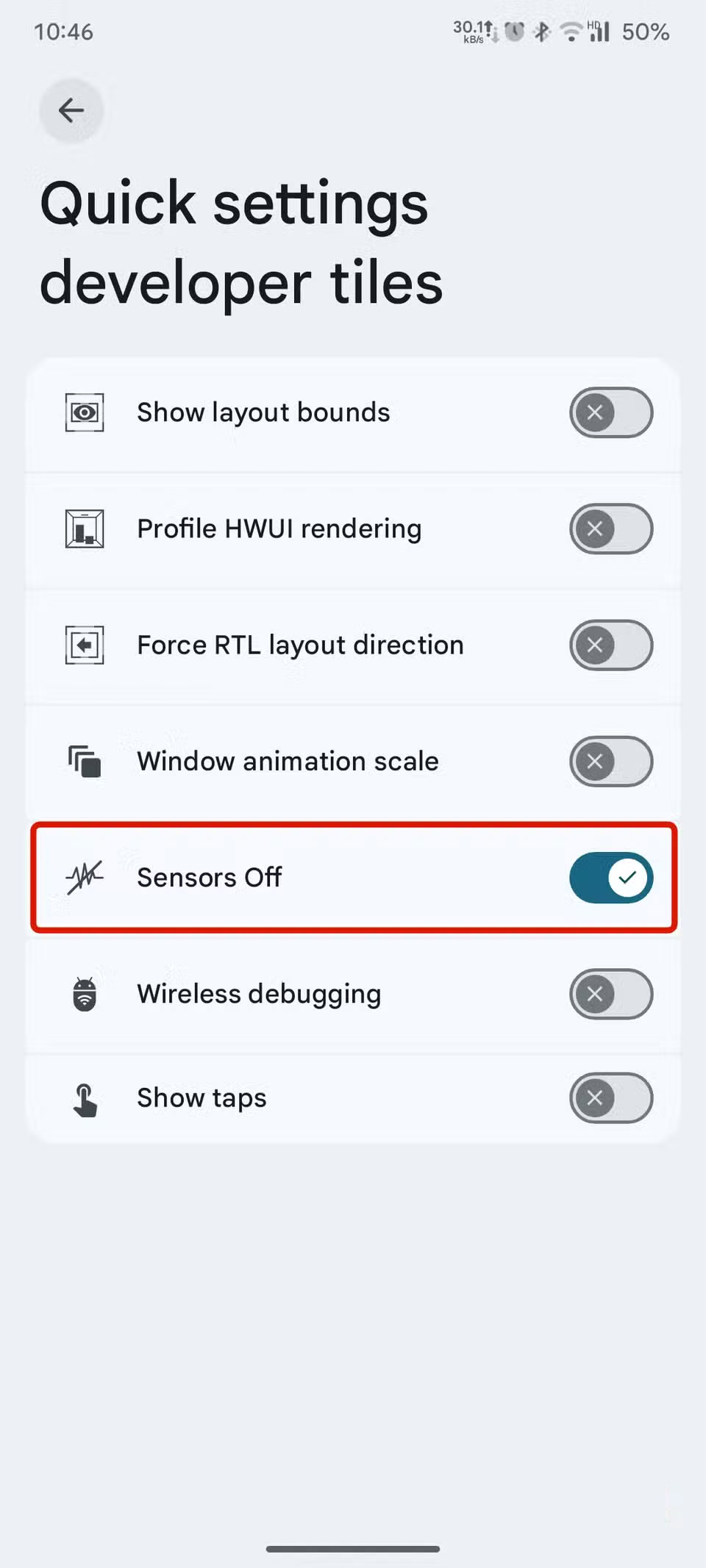
- In general developer options, find Quick settings developer tiles And tap on it.
- Now, turn the Sensor tile off .
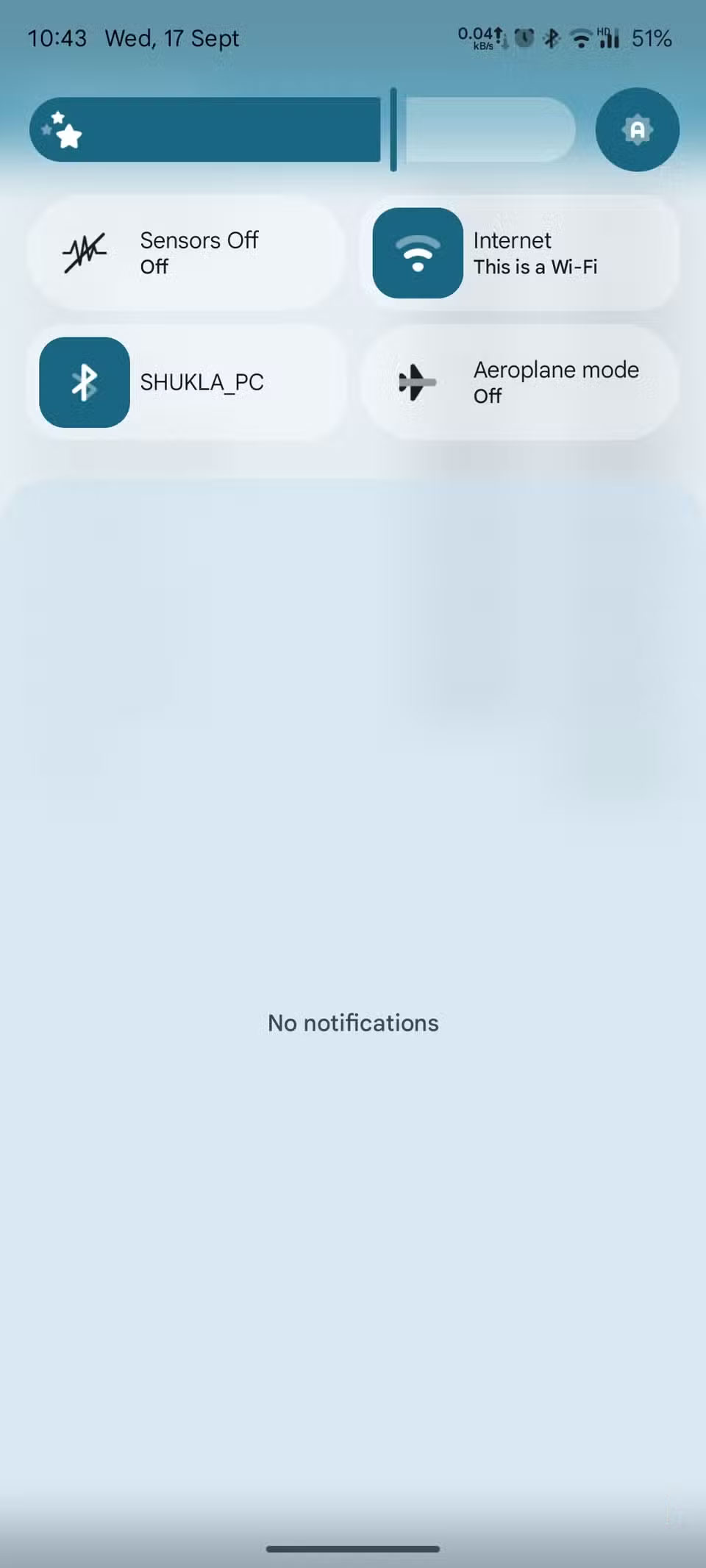
Once you turn on the Sensor off tile toggle, it will appear in the Quick Settings tile pane. If not, you can add the Sensor off tile from the edit menu now.
Warning : Avoid modifying any settings other than those mentioned above in Developer options, unless you know what you are doing, as it may damage the functionality of your phone.
What does Tile Sensor off do?
Tile makes Android more secure
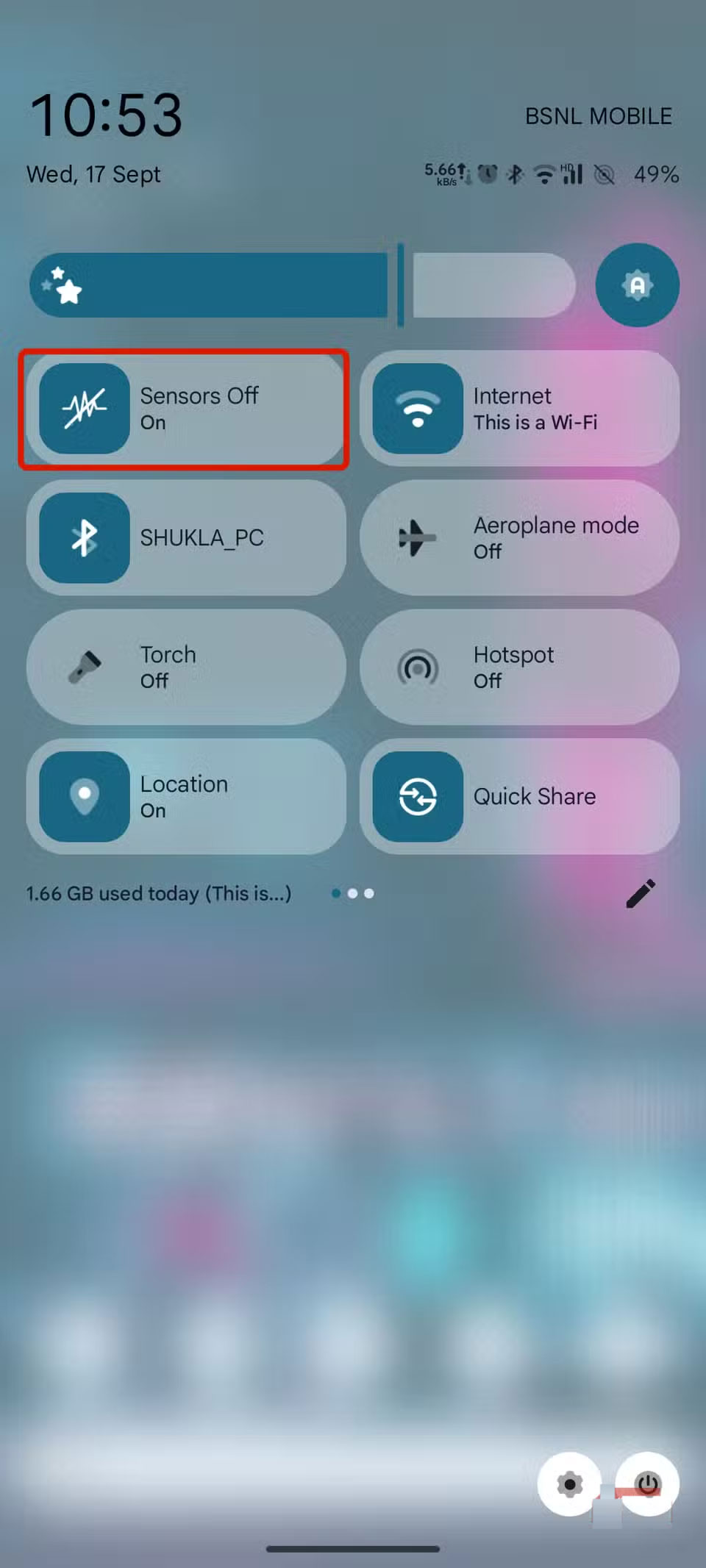
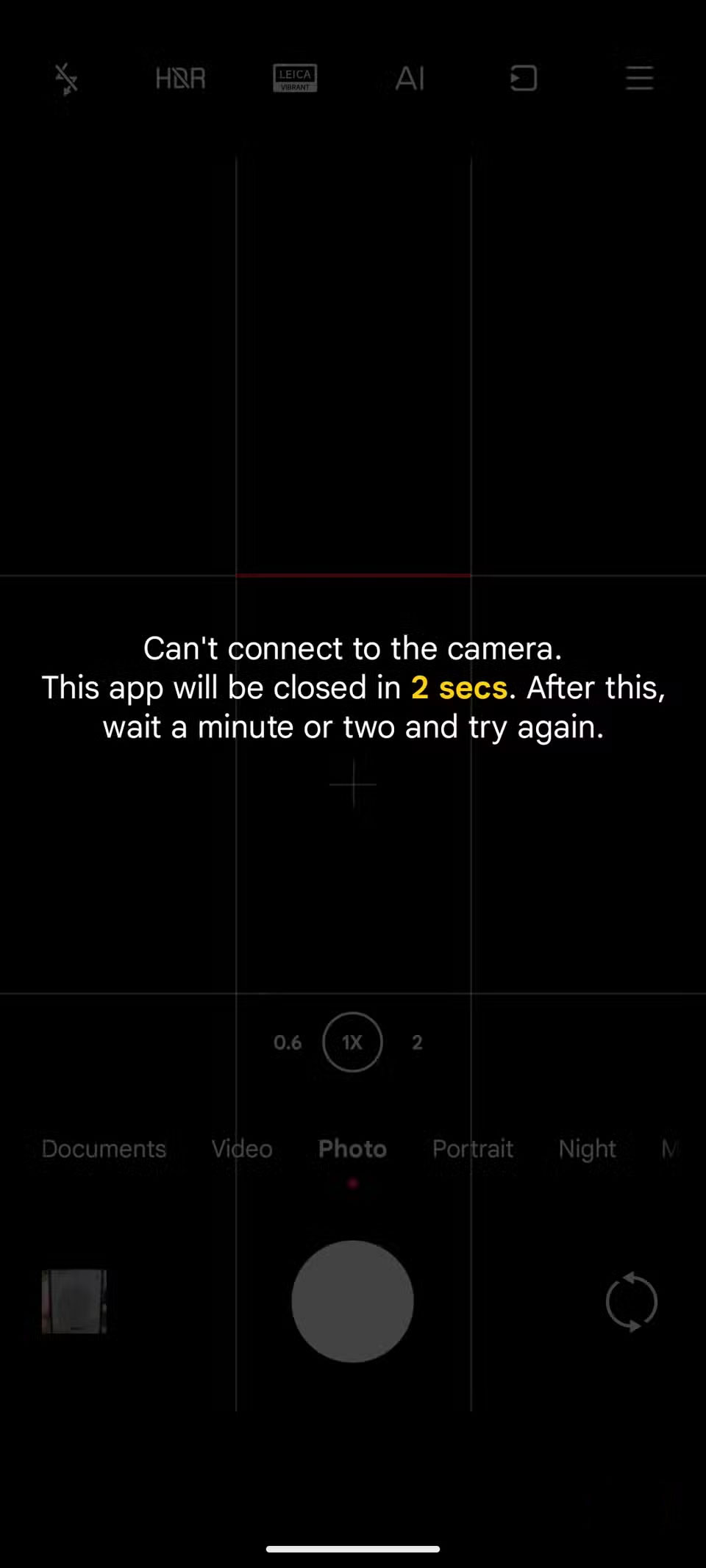
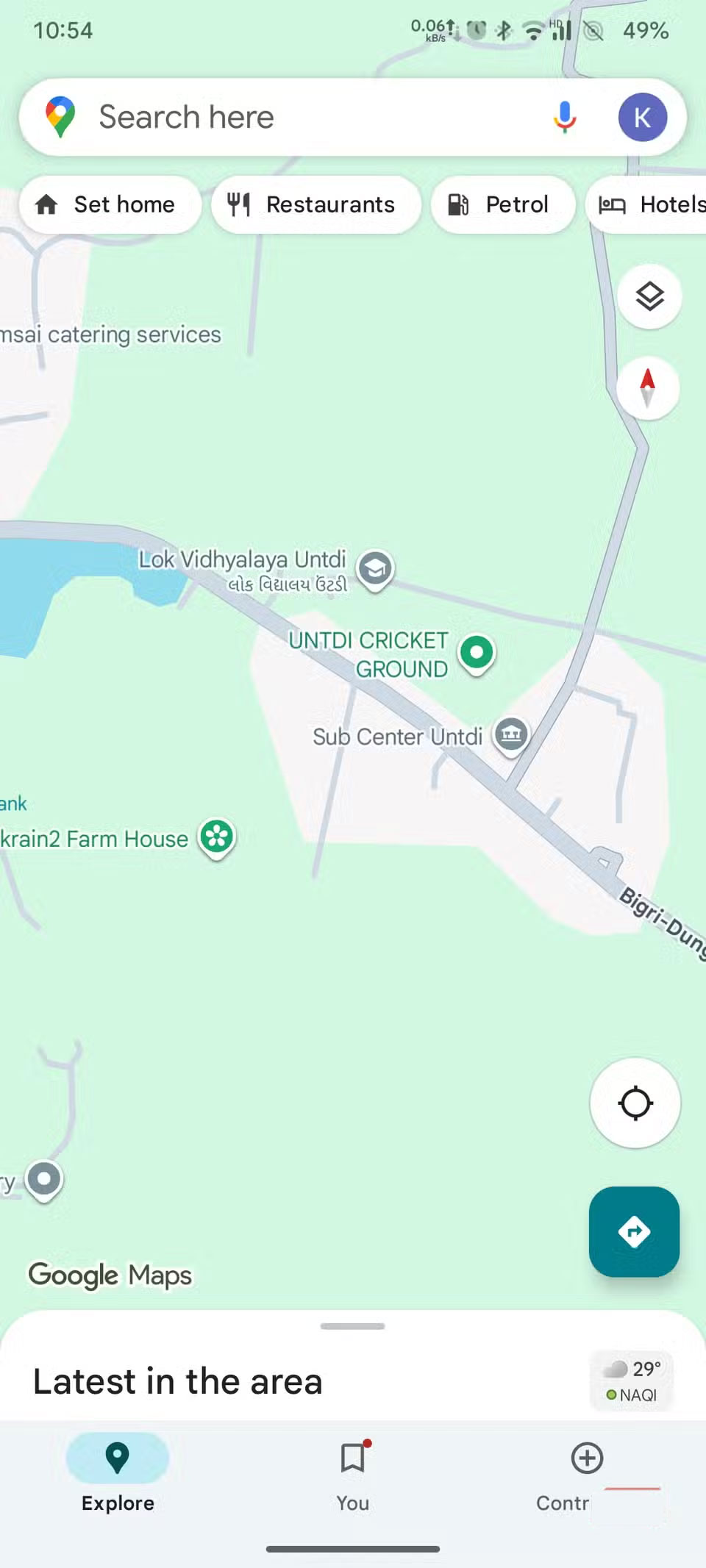
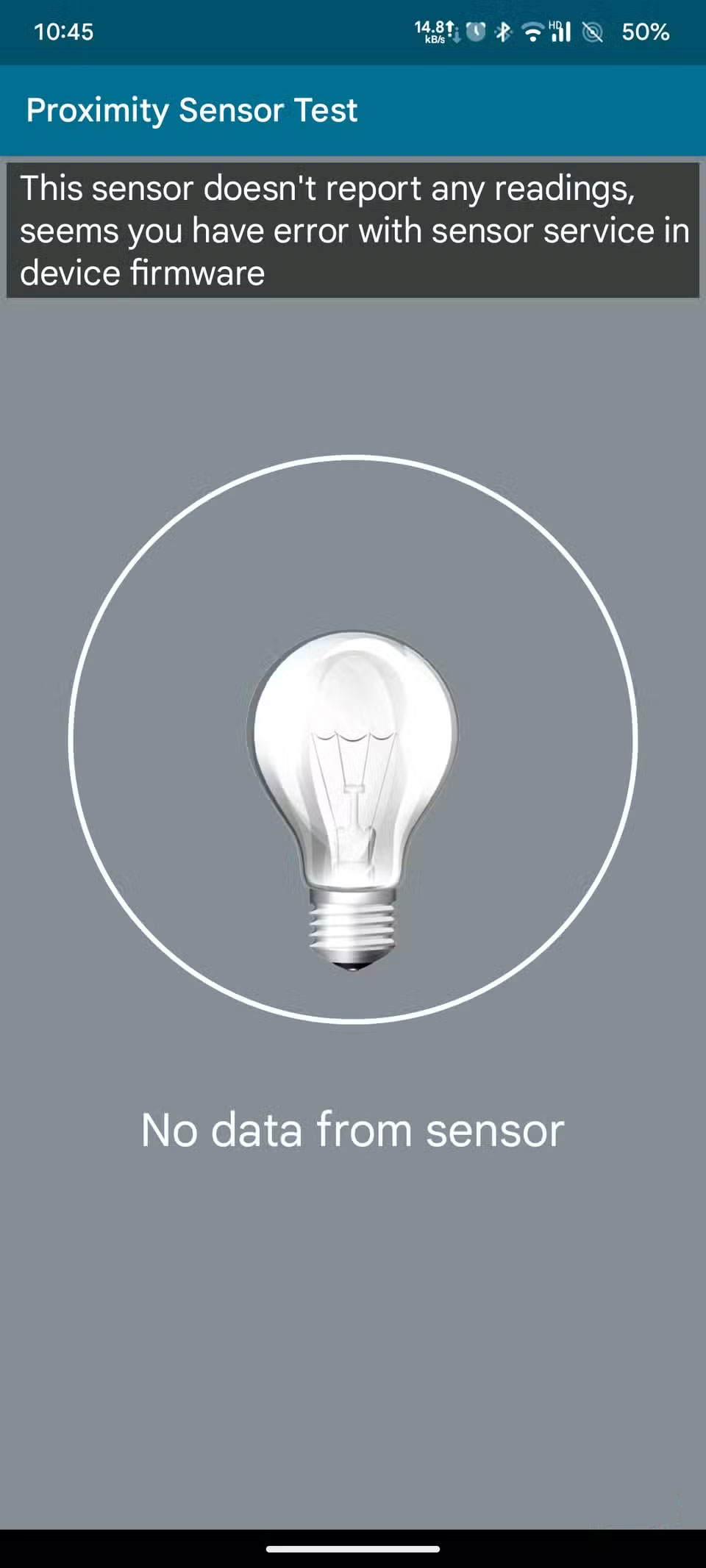
The Sensor Off tile acts as a toggle switch that turns off all the sensors at once. We usually have a Security and Privacy tile that lets us turn off the camera, location, and microphone. But that tile doesn't affect any other sensors on the phone.
Other sensors, such as the gyroscope, proximity sensor, and light sensor, continue to run in the background. Apps typically don't need permission to use these sensors, which means they continue to use them in the background. It's also impossible to keep track of each app's permissions all the time.
That's where the sensors on the Quick Settings tile come in. With just one tap, all the physical sensors available on your phone are disabled, as if they never existed. And since it's a Quick Settings tile, you can easily turn them on or off at will.
FAQ
Why Is Tile Sensors Off the Best Security Feature on Android: Explained?
In practical terms, quick Tiles on Android are a feature we use often, but don't pay much attention to. However, there are some great Quick Settings tiles that we should use.
What factors are most important?
The article highlights that 5 Annoying Android Problems and How to Fix Them What is Tile Sensor off in Quick Settings.
What is the main takeaway?
The main takeaway is that tile makes Android more secure The Sensor Off tile acts as a toggle switch that turns off all the sensors at once.
Related Articles
 Disable All Live Tile at the Same Time on Windows 10 Start Menu4 minutes read
 How to Create Impressive Tile in Windows 8?4 minutes read
 7 Quick Settings Tiles on Android That Make Your Phone More Useful6 minutes read
 How to Turn Off Sensors on an Android Phone3 minutes read
 Why Is It Great to Bring Windows Phone Tiles Back to Android: Explained6 minutes read
 New Security Feature on Android Allows Offline DNS Requests4 minutes read
Reader Comments 0
Sign in with email or Google to join the discussion.