Table of Contents
A reverse image search uses a picture—rather than only typed keywords—to find visually similar images, webpages that contain the picture, products, landmarks, text, and other clues. Google now handles this through Google Lens on computers and phones. You can upload a file, paste an image link, right-click a webpage image, use the camera, or choose a photo from your library.

Reverse image search on a computer
Upload an image to Google
- Go to Google in a desktop browser.
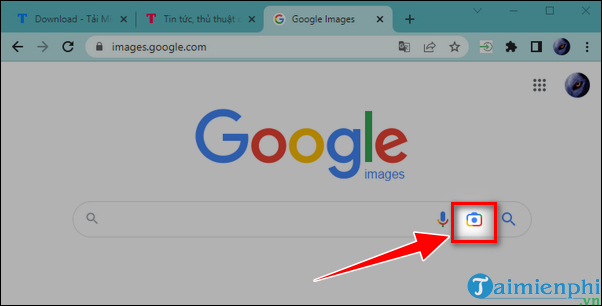
- Select the camera-shaped Search by image icon in the search box.
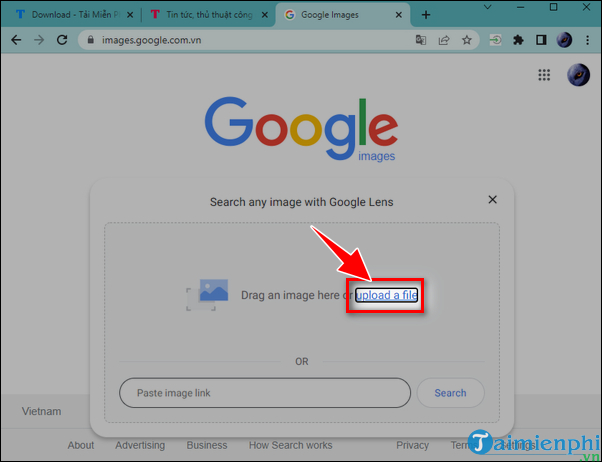
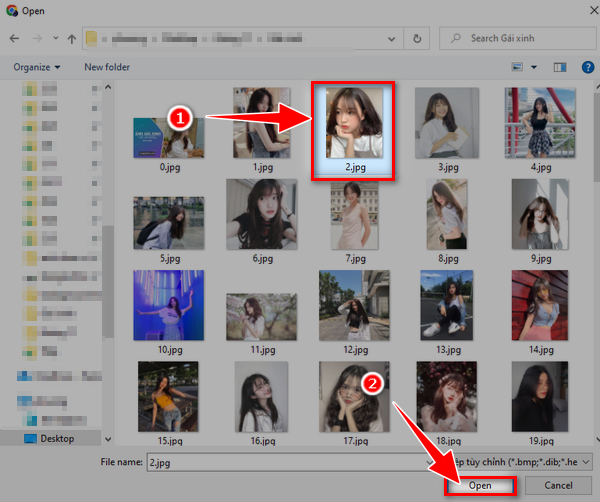
- Choose Upload a file, select the image, and open it.
- Adjust the selection box if you want Lens to analyze only one object or part of the picture.
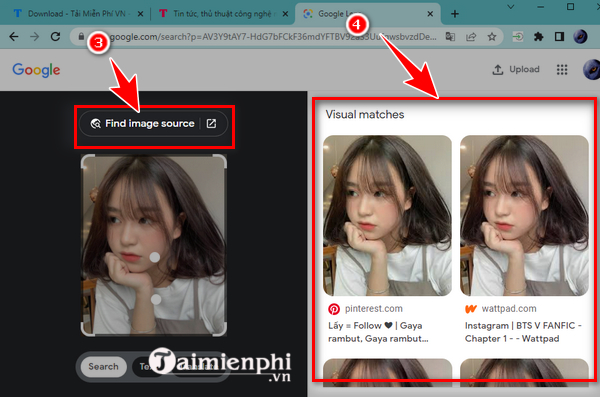
- Review visual matches and source pages. Add words in the search field to narrow the task, such as a model name, location, or date.
Lens may show visually similar items before pages that contain an exact copy. Look for an option such as Find image source or switch among the available result categories when your goal is to trace where the picture appeared online.
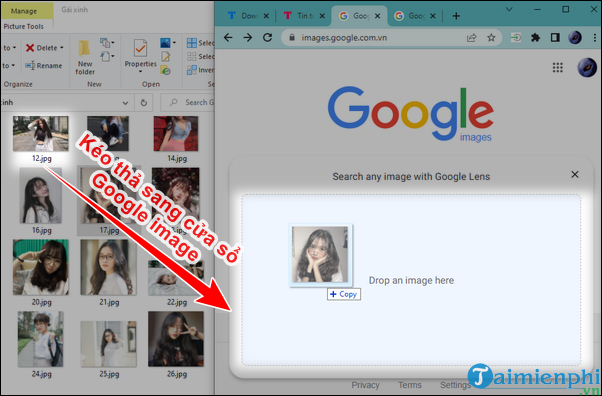
Drag and drop an image
Open Google in one window and the folder containing the image in another. Drag the image file into Google's search box and release it. This starts the same Lens search without opening the file picker.
Paste an image URL
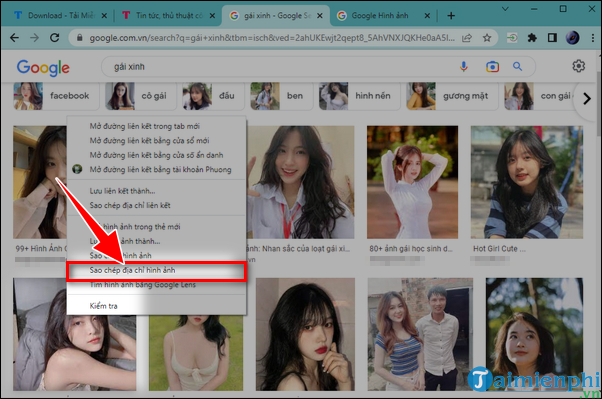
- Right-click the image on a webpage and select Copy image address. This should copy the direct image URL, not merely the page address.
- Open Google, select Search by image, and paste the link into Paste image link.
- Start the search and review the matches.
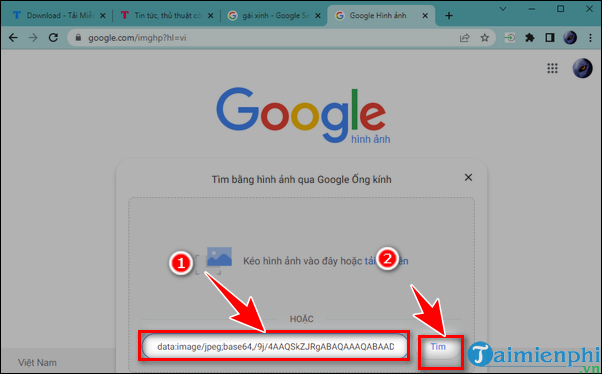
A URL search can fail when the image requires a login, blocks automated access, or has already been removed. In that case, save a permitted copy of the image and upload the file instead.
Search a webpage image in Chrome
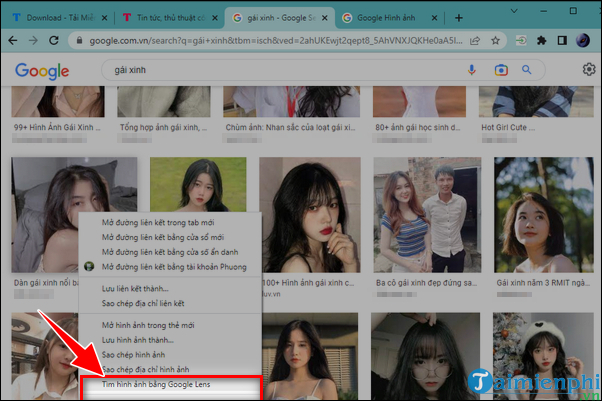
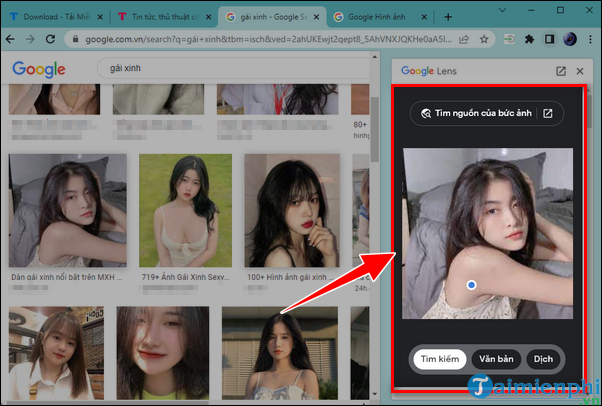
In Chrome, right-click an image and choose Search with Google Lens. Results normally open in a side panel. You can drag a selection around the relevant object rather than searching the entire picture.
Reverse image search on Android or iPhone
The quickest route is the Lens icon in the Google app or Chrome. The button position can differ by operating system and app version, but the process is similar.
Search with a photo from your library
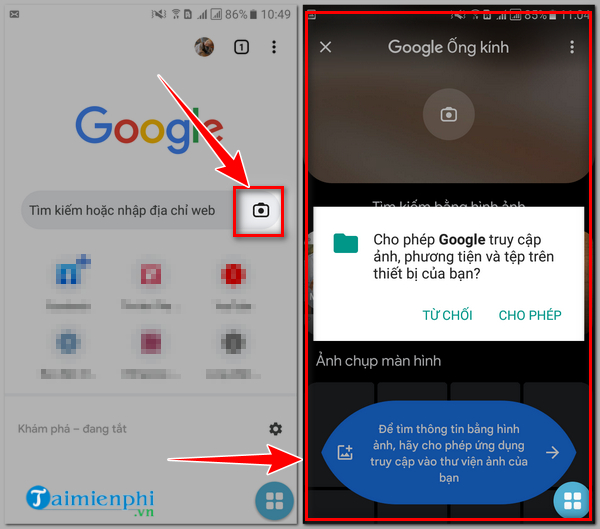
- Open the Google app or a new Chrome tab.
- Tap the Google Lens camera icon.
- Allow photo access when prompted. Choose limited access if your phone offers it and you only need to search selected files.
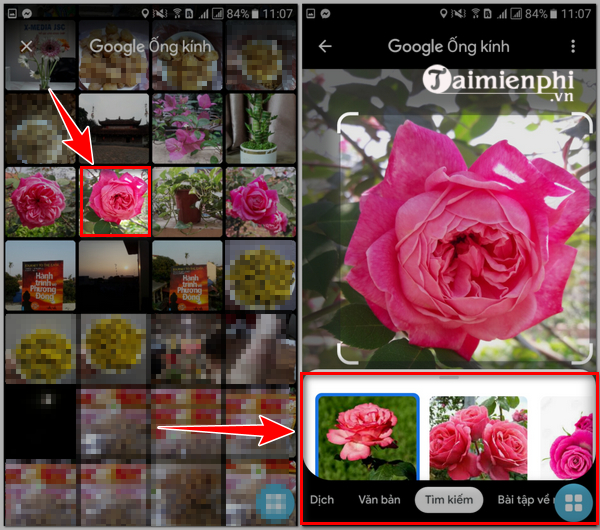
- Pick the image from the photo selector.
- Move or resize the selection box to focus on the useful portion, then review the results.

Search with the phone camera
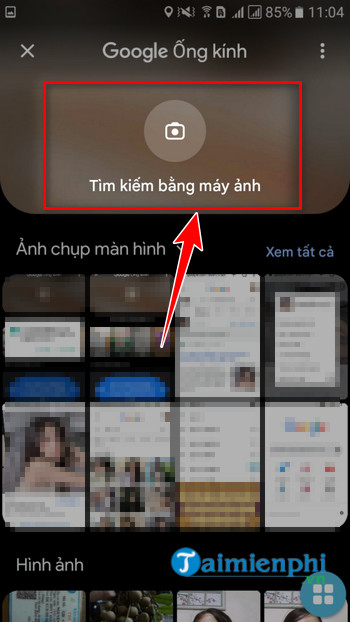
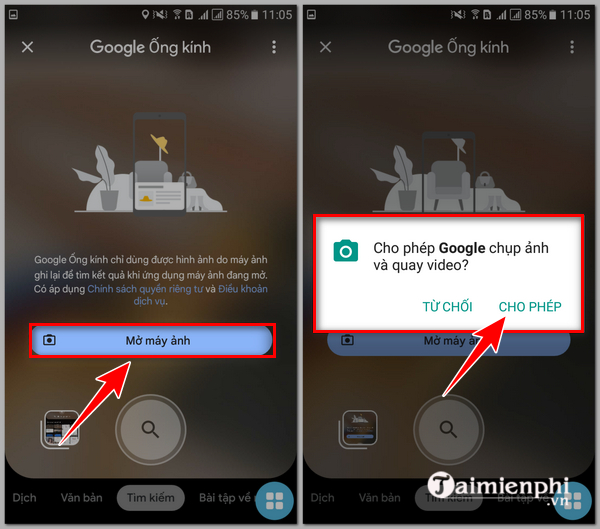
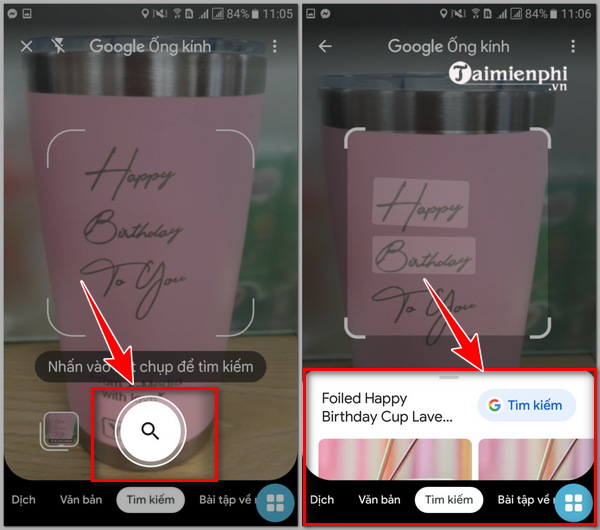
- Open Lens and select the camera option.
- Grant camera permission only if you want to photograph the subject.
- Frame the object clearly and take the picture.
- Crop the selection to the most distinctive part. Add a word or question when the first results are too broad.
Search an image already on a webpage
In Chrome on Android, touch and hold the image, then select Search image with Google Lens. On iPhone or iPad, Chrome also provides Lens controls for searching a page, image, or video; if the menu is absent, use the Lens icon on a new tab and upload a saved image.
How to get better matches
- Crop out clutter: isolate the logo, product, building, artwork, or face of an object that matters.
- Try more than one crop: an entire scene may identify a location, while a tighter selection may identify an individual object.
- Add context: combine the image with a brand, city, event, approximate date, or other clue.
- Use the sharpest copy: small thumbnails, heavy compression, borders, and screenshots with interface elements can reduce useful matches.
- Check multiple results: a high-ranking page is not necessarily the first publication or authoritative source.
- Try another index: TinEye, Bing Visual Search, and other tools may index different copies. See TipsMake's comparison of Google Lens and TinEye for reverse image searches.
What reverse image search can and cannot prove
Reverse searching is useful for locating earlier appearances, higher-resolution copies, altered versions, product listings, and pages that reuse an image. It can also reveal that a photo is unrelated to the caption attached to it.
However, a match does not automatically prove authorship, copyright ownership, plagiarism, or that a page published the image first. Search engines index only part of the web, dates can be changed, licensed copies may be legitimate, and social posts may be private or unavailable. Treat results as leads and confirm important claims with the original publisher, reliable metadata, or other evidence.
Google's current search-with-an-image instructions cover upload, drag-and-drop, image-link, and Chrome methods. Be cautious with private documents, ID cards, children’s photos, medical images, or other sensitive files: uploading an image sends it to the search service for processing.
If image search is not working
- Update the Google app or Chrome and try again.
- Check camera and photo permissions in the phone's privacy settings.
- Upload the file instead of pasting a blocked or temporary image URL.
- Convert an unsupported or unusually encoded image to a common format such as JPEG or PNG, while keeping the original copy.
- Disable extensions that replace the search engine or context menu, then retest.
- Try a different crop or another reverse image search service if there are no useful matches.
Related Articles
 How to Search by Image: Step-by-Step Guide10 minutes read
 Reverse Image Search on iPhone7 minutes read
 minutes read
 10 Top Reverse Image Search Apps for iPhone and Android: Best Options Compared9 minutes read
 How to Search by Image on Google: Step-by-Step Guide3 minutes read
 How to Bring the View Image Button Back When Searching for Images on4 minutes read
Reader Comments 0
Sign in with email or Google to join the discussion.