Table of Contents
This updated guide examines How to Rip an Audio Cd Using Winamp and organizes the essential facts, background, and practical takeaways in clear American English.
Part 1of 2:
Rip the Audio CD
 Launch Winamp. Just double-click on the shortcut icon on your desktop.
 Put your audio CD in your drive. Wait for Winamp to recognize the file.
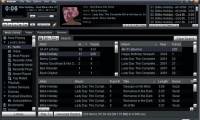
 Click on the Media Library tab. This is found in the upper-left area of the window, below the media control buttons.
 Look for the CD album you want to rip. Just navigate down the panel and choose 'Audio CD' or the name of the CD album you're going to rip.
 Right click on it and select 'Rip Audio CD' from the pop-up menu. A small window labeled 'Rip CDs faster in MP3' will appear.
- The window only notifies you that the free version of Winamp only rip CDs at 8x speed. To continue, simply click 'Rip at 8x in AAC.'
- If you don't want to see this window the next time you rip a CD, simply put a check on 'Never show me this again.'
 Wait for Winamp to finish ripping your audio CD. You can view the progress on the main window.
Part 2of 2:
Open the Folder Containing the Audios
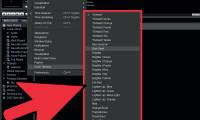
 Click on 'Options' on the menu toolbar. When you're there, select 'Preferences' from the pop-up menu.
- You can also open the Preferences window by using the CTRL + P keyboard shortcut.
 Scroll down the panel on the left side of Winamp's Preferences window. Look for the 'Media Library' directory. Under Media Library, click on "CD Ripping."
 Click on the 'Output File Settings' tab.
 Look for the text field labeled 'Specify the destination folder for ripped tracks.' Take note of the location displayed on this field. This is where Winamp places the ripped audio files. You can change this location to the directory you want.
 Navigate to the files. You'll need to locate where your audio files are.
FAQ
What is How to Rip an Audio Cd Using Winamp about?
It provides a structured overview of rip, explains the main context, and highlights practical takeaways for readers.
Why does this topic matter?
Understanding the main concepts helps readers evaluate the issue, avoid common mistakes, and make better-informed decisions.
How should readers use this information?
Use the guidance as a practical starting point, confirm details that may have changed, and follow current product, safety, or security recommendations.
Related Articles
 The Famous Winamp Player Is About to Be Killed3 minutes read
 Winamp, the Once-legendary Music Player Will Come Back Next Year3 minutes read
 Winamp Confirmed It Will Switch to Open Source Later This5 minutes read
 The Winamp Media Player Hopes to Be Saved4 minutes read
 The Official Winamp Music Player Has a New Owner3 minutes read
 How to Change Winamp Skins and Color Schemes3 minutes read
Reader Comments 0
Sign in with email or Google to join the discussion.