Table of Contents
This updated guide examines How to Change Winamp Skins and Color Schemes and organizes the essential facts, background, and practical takeaways in clear American English.
Part 1
Installing Winamp
 Download the Winamp installer. You can search for installers over the Internet or get it directly from http://www.winamp.com. Make sure to follow the links to download the application, then click through and follow the instructions.
 Install Winamp to your computer. Just click on the downloaded installer to start the installation process.
 Open the program. Click on the shortcut icon to launch Winamp.
Part 2
Changing the Skin
 Click on 'Options' in the menu toolbar. This is found in the upper-left section of the window. The latter is the menu toolbar's default location.
- Note that the location of the menu toolbar will vary depending on the skin you're using.
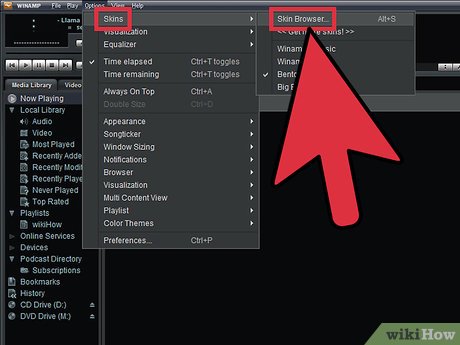 Click on 'Skin' from the sub-menu. A pop-up menu will appear. In this pop up menu click on "Skin Browser."
 Select the skin you want to use. You can also use the Skin Browser to choose from the installed skins.
- The player will change into the skin you chose.
- You can access the Skin Browser by using the Alt+S keyboard shortcut for Windows computers (simultaneously pressing 'Alt' and 'S' button on the keyboard).
Part 3
Changing the Color Scheme
 Click on 'Options. ' You can find this in the menu toolbar in the upper-left section of the window. This is the default location of the menu toolbar.
- Note that the location of the menu toolbar will vary depending on the skin currently selected.
 Click on 'Color Themes' from the pop-up menu. A sub-menu will appear showing a list of all color schemes available.
 Choose one from the list and click to set. The fonts and panels will change to the color you chose.
FAQ
What is How to Change Winamp Skins and Color Schemes about?
It provides a structured overview of menu, explains the main context, and highlights practical takeaways for readers.
Why does this topic matter?
Understanding the main concepts helps readers evaluate the issue, avoid common mistakes, and make better-informed decisions.
How should readers use this information?
Use the guidance as a practical starting point, confirm details that may have changed, and follow current product, safety, or security recommendations.
Related Articles
 How to Create Snake Skins in Game Slither. Io4 minutes read
 The Famous Winamp Player Is About to Be Killed3 minutes read
 Winamp, the Once-legendary Music Player Will Come Back Next Year3 minutes read
 Winamp Confirmed It Will Switch to Open Source Later This5 minutes read
 The Winamp Media Player Hopes to Be Saved4 minutes read
 How to Color Images in Photoshop: Color in Photoshop4 minutes read
Reader Comments 0
Sign in with email or Google to join the discussion.