Table of Contents
This updated guide examines How to Register a Dll and organizes the essential facts, background, and practical takeaways in clear American English.
Method 1of 2:
Registering a Single DLL
 Understand how this method works. You can use a combination of the "regsvr" command and a DLL file's name to register the DLL if the DLL file supports the Register Server export command. This will create a path from the Windows registry to the DLL file, making it easier for Windows processes to find and use the DLL file.
- You'll most commonly need to use this method to register DLLs which came with third-party programs that are supposed to interface directly with system-level resources (e.g., Command Prompt).
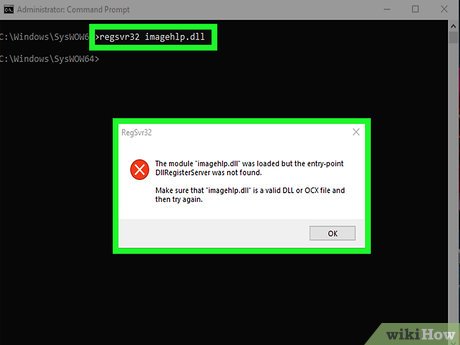 Know what the "entry point" error means. If the DLL is already registered, it doesn't support the Register Server export command, or its code doesn't allow it to be connected to the Windows registry, you'll receive an error which says, "The module [DLL name] was loaded but the entry point DllRegisterServer was not found". If you see this error message occur, the DLL cannot be registered.
- The "entry point" error isn't so much a problem as it is a confirmation, as seeing this error means that your DLL doesn't need to be registered.
 Find the DLL you want to register. Go to the folder location of the DLL that you want to register. Once you've found the DLL file that you want to register, you can proceed.
- If you installed a program for which you want to register a DLL, for example, you would go to the program's installation folder (e.g., "C:Program Files[program name]").
 Open the DLL's Properties. Right-click the DLL file, then click Properties in the drop-down menu. A pop-up window will open.
 Note the DLL's name. In the text box at the top of the Properties window, you'll see the DLL's full name. This is the name you'll need to enter later.
- Since most DLLs have difficult-to-remember names, consider leaving up the Properties window when you're done here; that way, you'll be able to copy the name later.
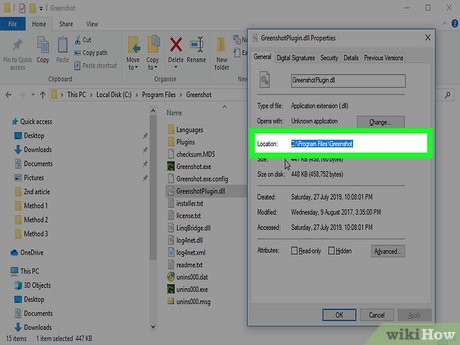 Copy the DLL's path. Click and drag your cursor across the string of text to the right of the "Location" heading, then pressCtrl+Cto copy the folder path to the DLL.
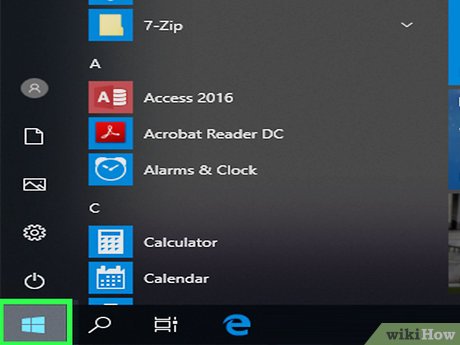 Open Start
 . Click the Windows logo in the bottom-left corner of the screen.
 Search for Command Prompt. Typecommand promptinto the Start search bar. You should see the Command Prompt icon appear at the top of the window.
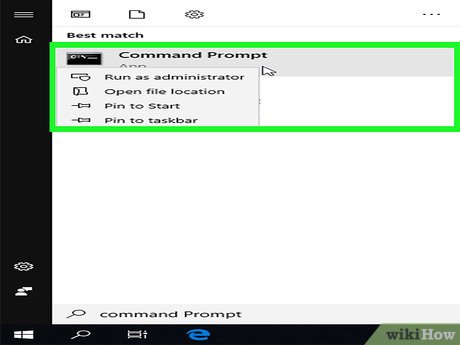 Open Command Prompt in administrator mode. To do so:
- Right-click
 Command Prompt.
 - Click Run as administrator
- Click Yes when prompted.
- Right-click
 Switch to the DLL's directory. Type incdand type a space, pressCtrl+Vto paste in the path to the DLL file, and press↵Enter.
- For example, if your DLL file is in the "SysWOW64" folder that's inside the stock "Windows" folder, your command would look like this:
cd C:WindowsSysWOW64
- For example, if your DLL file is in the "SysWOW64" folder that's inside the stock "Windows" folder, your command would look like this:
 Enter the "regsvr" command and the DLL's name. Type inregsvr32and type a space, then type in your DLL's name (complete with the ".dll" extension) and press↵Enter. If your DLL can be registered, doing this will result in a confirmation message.[1]
- For example, if the DLL's name is "usbperf.dll", your command would look like this:
regsvr32 usbperf.dll - To copy the DLL's name at this point, re-open the folder with the DLL in it (the Properties window should pop up), then highlight the name in the text box and pressCtrl+C. You can then paste the name into Command Prompt by pressingCtrl+V.
- If the DLL is either already registered or unable to be registered, you'll see the "entry point" error pop up instead of a confirmation message.
- For example, if the DLL's name is "usbperf.dll", your command would look like this:
 Try unregistering the DLL and then re-registering it. If entering the "regsvr" command results in an error that isn't the "entry point" error, you may need to unregister the DLL before you can actually register it:
- Type inregsvr32 /u name.dlland press↵Enter. Make sure to replace "name" with the DLL's name.
- Type inregsvr32 name.dlland press↵Enter, again remembering to replace "name" with the DLL's name.
Method 2of 2:
Re-Registering All DLLs
 Understand how this method works. By creating a list of your computer's DLL files and running the list as a BAT file, you can automatically register all of your computer's DLL files. This is optimal if you don't have a specific DLL that you want to register.
 Open Start
 . Click the Windows logo in the bottom-left corner of the screen.
 Search for Command Prompt. Typecommand promptinto the Start search bar. You should see the Command Prompt icon appear at the top of the window.
 Open Command Prompt in administrator mode. To do so:
- Right-click
 Command Prompt.
 - Click Run as administrator
- Click Yes when prompted.
- Right-click
 Switch to the Windows directory. Type incd c:Windowsand press↵Enter. This will tell Command Prompt to execute the next command inside of the "Windows" folder.
 Create a DLL list file. Typedir *.dll /s /b > C:regdll.batinto Command Prompt, then press↵Enter. Doing so allows Command Prompt to create a file listing the location and name of every DLL in the Windows directory.
 Close Command Prompt. Once you see the "c:Windows>" line of text appear below the command you entered, you're free to exit Command Prompt and proceed.
 Go to the list file's location. You can find it from within File Explorer:
- Open File Explorer
 (or press⊞Win+E).
 - Click This PC on the left side of the window.
- Double-click your computer's OS (C:) hard drive.
- Scroll down (if necessary) until you see a file named "regdll".
- Open File Explorer
 Copy the file onto your desktop. to save your changes, you'll need to place a copy of the "regdll" file on your desktop:
- Click the file once to select it.
- PressCtrl+C.
- Click the desktop.
- PressCtrl+V.
 Open the list file in Notepad. Click the file on your desktop once to select it, then do the following:
- Right-click the "regdll" file.
- Click Edit in the drop-down menu.
 Remove unnecessary DLL locations. While optional, completing this step will cut down significantly on the amount of time it takes to register the DLL files. You can delete any lines of text which have the following locations:[2]
- C:WindowsWinSXS — The bottom quarter or so of the text document will contain these lines of text.
- C:WindowsTemp — You'll find these near the section where the "WinSXS" lines were.
- C:Windows$patchcache$ — These are harder to find. You can run a search by pressingCtrl+F, typing in$patchcache$, and clicking Find next .
 Add the "regsvr" command to each line of text. You can do this by using Notepad's "Find and Replace" feature:
- Click Edit .
- Click Replace... in the drop-down menu.
- Typec:into the "Find what" text box.
- TypeRegsvr32.exe /s c:into the "Replace with" text box.
- Click Replace All
- Exit the window.
 Save your changes and exit Notepad. PressCtrl+Sto save your changes, then click the X in the top-right corner of the Notepad window to close it. At this point, you're ready to run the "regdll.bat" file.
 Run the file. Right-click the "regdll.bat" file, click Run as administrator , and click Yes when prompted to run it in Command Prompt. Doing so will allow Command Prompt to begin registering every available DLL; this process can take a long time to complete, so just make sure your computer is on and plugged in for the duration.
 Exit Command Prompt. Once the process finishes running, you can close Command Prompt. Your computer's DLL files should now be registered.
FAQ
What is How to Register a Dll about?
It provides a structured overview of dll, explains the main context, and highlights practical takeaways for readers.
Why does this topic matter?
Understanding the main concepts helps readers evaluate the issue, avoid common mistakes, and make better-informed decisions.
How should readers use this information?
Use the guidance as a practical starting point, confirm details that may have changed, and follow current product, safety, or security recommendations.
Related Articles
 How to Register for 4G Vinaphone, 4G Mobifone Service5 minutes read
 What Is Binomo? How to Register Binomo Like?8 minutes read
 How to Register for Driving Go Viet7 minutes read
 How to Register Vnpay for the Store3 minutes read
 How to Register and Use Twitter: Step-by-Step Guide4 minutes read
 How to Pre-register for Battlefield 2042, Pre-register for6 minutes read
Reader Comments 0
Sign in with email or Google to join the discussion.