Table of Contents
For a batch of old screenshots, open the Screenshots album in your photo app and select only the images you want to remove. On supported Samsung Galaxy phones, you can also delete a new screenshot after sharing it from the toolbar.
Delete selected screenshots in your photo app
- Open Gallery or Google Photos and find the Screenshots album or device folder.
- Press and hold one screenshot. Select additional images, then tap Delete or Move to trash.
- Check your photo app’s trash if you selected something by mistake. In Google Photos, deleting a backed-up item can also remove it from other synced devices. Use Delete from device if you only want to remove a local copy and the option is available.
See Google’s deletion and trash guidance for what happens to backed-up photos.
Delete Galaxy screenshots after sharing
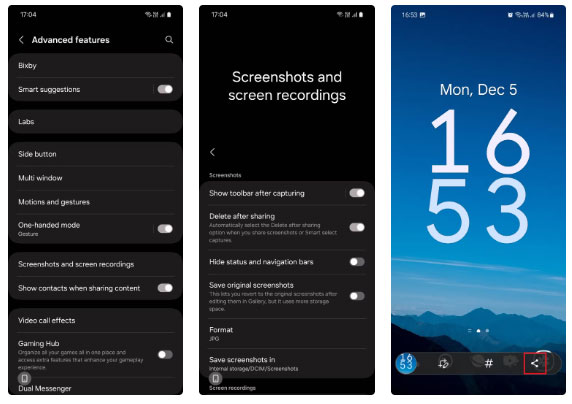
Open Settings > Advanced features > Screenshots and screen recordings. Turn on Delete after sharing if shown. Take a test screenshot and share it using the screenshot toolbar’s Share button. Check whether the local copy was removed. Sharing later from Gallery can behave differently.
Add a delete button with Good Lock
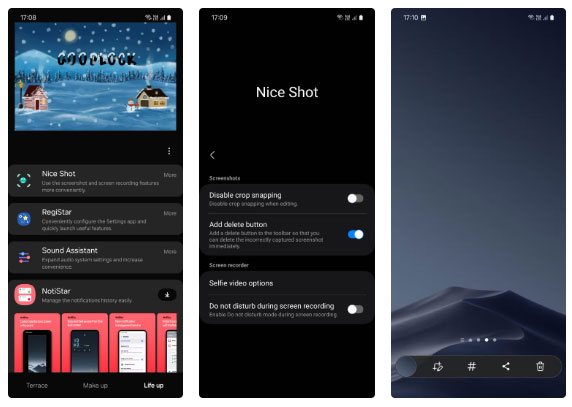
On supported Galaxy models, open Good Lock, install the Nice Shot module and enable Add delete button. Take a disposable screenshot to check that the trash icon appears in the toolbar.
Use automation only for a folder you can safely clear
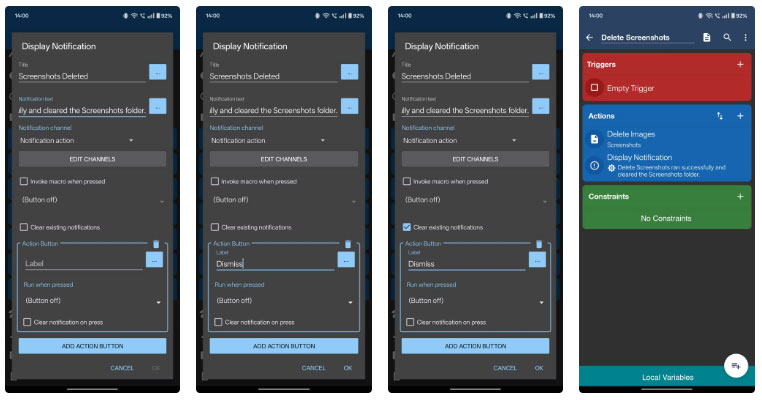
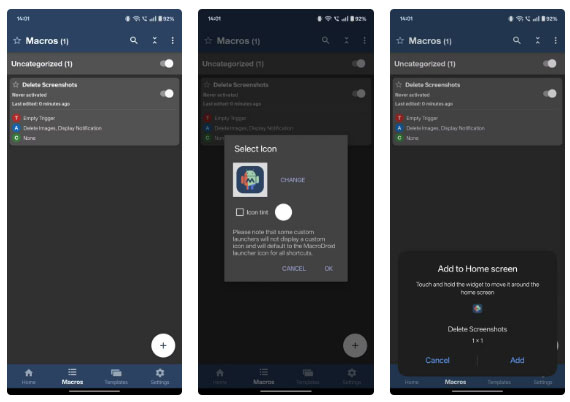
A MacroDroid file operation can remove all matching images from its selected folder. If you use it, test in a disposable folder first, verify the exact path and keep important screenshots elsewhere. A manual trigger gives you a chance to inspect the folder before running it.
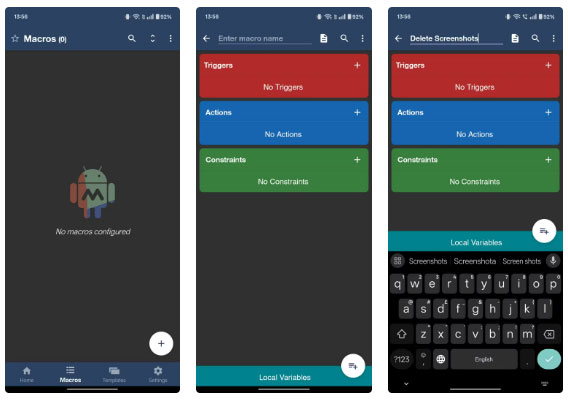
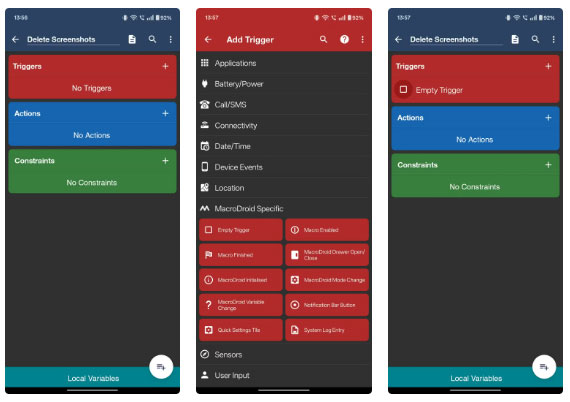
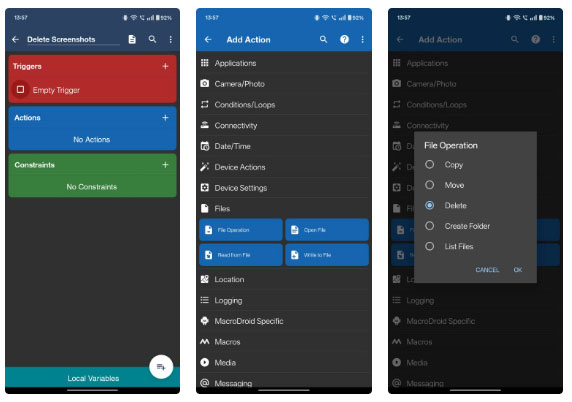
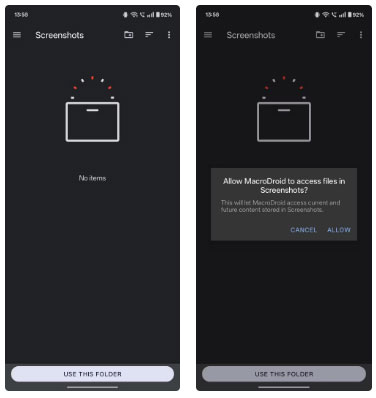
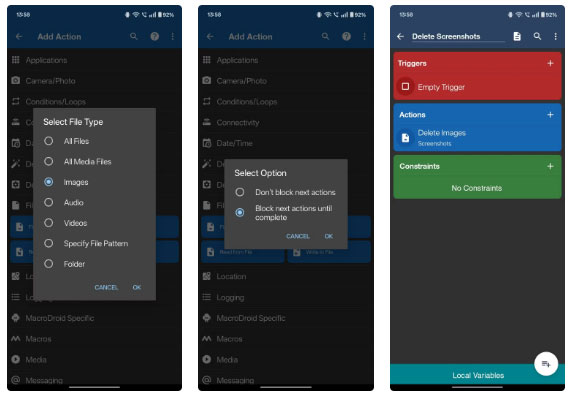
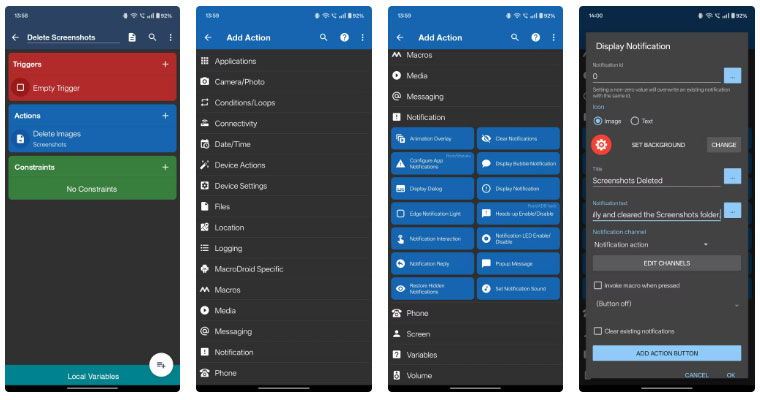
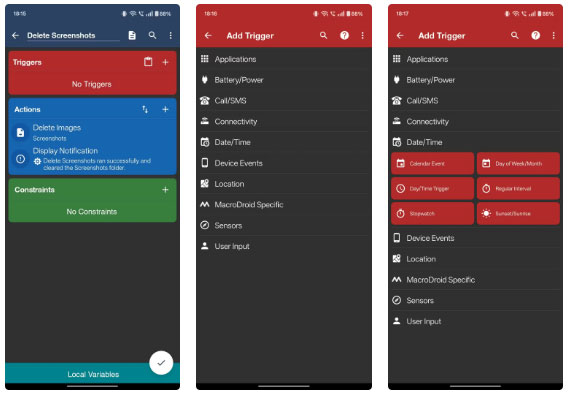
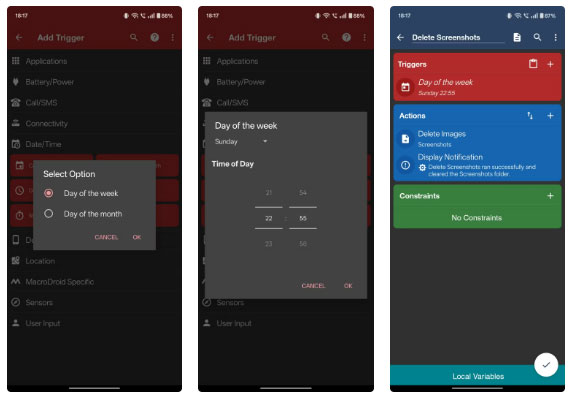
The last two screenshots show a scheduling option. A timed rule can also remove a recent screenshot you intended to keep, so schedule it only for a folder you use for disposable captures.



Reader Comments 0
Sign in with email or Google to join the discussion.