Table of Contents
This updated guide examines How to Program Computer Games and organizes the essential facts, background, and practical takeaways in clear American English.
Part 1
Making a Text-Based Game
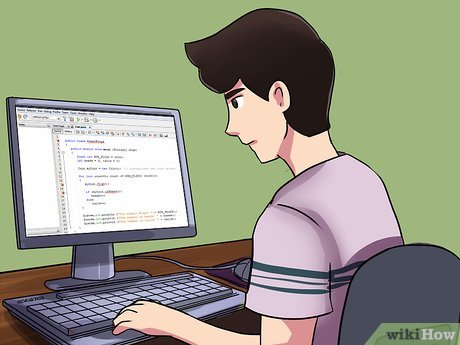 Choose a programming language. All programming languages are different, so you will have to decide which one to use to write your game. Every major programming language supports text input, text output and if-constructions (the main things you need for a simple text-based game), so you can decide yourself. Here are some factors to consider:
- Field of application: some programming languages, like JavaScript, are designed to be used for web sites, others, like Python, C or C++, are designed to run on a computer. Some languages have one specific purpose, like R, which is mainly used for statistical analysis. For your game, you should use a language with a broader application field (Python, C, C++, JavaScript, many others).
- Ease of use: although writing a program should be easy enough after some practice in any normal programming language (i. e. not one specifically designed to be confusing and unusable like Malbolge), some are friendlier to beginners than others. Java and C, for example, require the programmer to understand more programming concepts than Python. Also, Python error messages are easier to understand for a beginner than, for example, C error messages.
- Platform compatibility: you probably want people on different systems, such as Linux, Mac or Windows, to all be able to play your game. So you shouldn't use a language that is only supported on a few systems, like for example Visual Basic, which is only supported on Windows. This is also a good reason not to code your game in Assembler, which is specific to the system and processor, and is also quite hard to program with.
- Install the necessary tools. You need something to compile or interpret your program with, and you need something to write/edit it with. If you want to follow the example in this article, you should install Python and learn how to run programs. If you want to, you can set up some IDE or use one that Python provides (it's called IDLE), but you can also just use your favorite text editor that supports plain text.
- Print some text. The player will want to know what is going on and what they have to do, so you should print some text for them.
- This is done with theprint()function in Python. To try it out, open a new file with the.py extension, enter the following code into it, save and run it:
print("Welcome to the number guessing game!")print("Enter a whole number between between 1 and 1000:")
- This is done with theprint()function in Python. To try it out, open a new file with the.py extension, enter the following code into it, save and run it:
- Introduce some randomness into your game. If nothing is random, the game will be exactly the same every time, and the player will get bored quickly.
- In this case, a number should be randomly chosen at the start of the program so that the player won't always guess the same number. Since it should remain the same throughout the program, you should store the random number in a variable.
- Python doesn't provide a random number function in its core. But it has a standard library (this means the user won't have to install anything extra) that does. So go to the beginning of your code (before theprint()functions) and type the lineimport random.
- Use the random function. It is calledrandint(), is in therandomlibrary which you just imported, and takes the minimal and maximal value the number can have as argument. So go back to the end of your code and enter following line:
rightNum=random.randint(0,1000)
- Get the player's input. In a game, the player wants to do something or interact with something. In a text-based game, this is possible by entering text.
- Since the code you entered prints the instruction to enter a number to the player, it should also read the number they enter. This is done withinput()in Python 3, andraw_input()in Python 2. You should write in Python 3, as Python 2 will become outdated soon. Add the following line to your code to store the player's input in a variable callednumber:
userNum=input()
- Since the code you entered prints the instruction to enter a number to the player, it should also read the number they enter. This is done withinput()in Python 3, andraw_input()in Python 2. You should write in Python 3, as Python 2 will become outdated soon. Add the following line to your code to store the player's input in a variable callednumber:
- Turn the user's input into a usable data type.
- Make the player's input a number. Now, this might seem confusing because they just entered a number. But there is a good reason: Python assumes that all input is text, or how it is called in programming, a string. And this text contains the number you want to get. Python provides a function to convert a string that only contains a number to the number inside. Type:
userNum=int(userNum)
- Make the player's input a number. Now, this might seem confusing because they just entered a number. But there is a good reason: Python assumes that all input is text, or how it is called in programming, a string. And this text contains the number you want to get. Python provides a function to convert a string that only contains a number to the number inside. Type:
- Process the user's input. It would be pointless to just ask the player to enter random things. You should actually do something with the information that the user entered.
- Compare the user's number to the correct number. While the numbers are not the same, it should make the user enter another number. When the numbers match, it should stop getting new input, tell the user that they guessed correctly, and quit the program. This is done with the following code:
whileuserNum!=rightNum:userNum=int(input())
- Compare the user's number to the correct number. While the numbers are not the same, it should make the user enter another number. When the numbers match, it should stop getting new input, tell the user that they guessed correctly, and quit the program. This is done with the following code:
- Give the player feedback. While you already have processed the input, the user can't see this. You need to actually print the result to the user so they understand what's happening.
- Surely, you could just tell the user whether their number is right or wrong. But with that approach, the player would have to guess 1000 times in the worst case, which would be very boring.
- So tell the player whether their number is too small or too big. This will reduce the number of guesses significantly: If, for example, the user guesses 500 first, and is told that it's too big, there are only 500 possible numbers now instead of 1000. This is done with if-constructions, so replace theprint("Wrong. Try again.")with one.
- Be aware that checking whether two numbers are the same is done with ==, not with =. = assigns the value right of it to the variable left of it!
ifuserNum
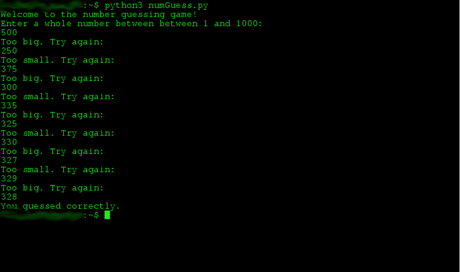 Test your code. As a programmer, you should be sure that your code works in all cases before considering it finished.
- When programming in python, make sure that you get the indentations correct. Your code should look like this:
importrandomprint("Welcome to the number guessing game!")print("Enter a whole number between 1 and 1000:")rightNum=random.randint(0,1000)userNum=input()userNum=int(userNum)whileuserNum!=rightNum:ifuserNum
- When programming in python, make sure that you get the indentations correct. Your code should look like this:
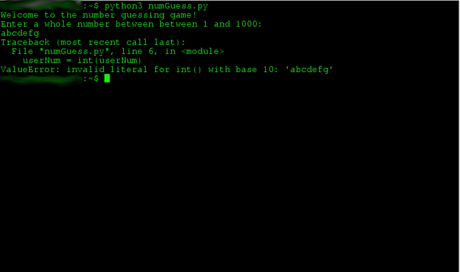 Validate the input. A user shouldn't be able to break your program with simple actions like entering the wrong thing. Validating the input means whether the user entered the correct thing before processing it.
- Open the game again and try entering anything that's not a number. The game will exit with aValueError. To avoid this, you should implement a way to check whether the input was a number.
- Define a function. Since validating the input is quite long, and you have to do it multiple times, you should define a function. It will take no arguments and return a number. First, writedef numInput():at the top of your code, directly under theimport random.
- Get the user's input once. Use theinput()function and assign the result to the variableinp.
- While the user's input is not a number, ask them to enter a number. Checking whether a string is a number is done with theisdigit()functions, which only allows a whole number, so you won't have to check for that separately.
- When the input is a number, convert it from string to number and return the result. Use theint()function for converting the string to an integer. This will make the conversion in the main code unnecessary, and you should remove it from there.
- Replace all calls toinput()in the main code with calls tonumInput().
- The code of thenumInput()function will look like this:
defnumInput():inp=input()whilenotinp.isdigit():print("You were told to enter a whole number! Enter a whole number:")inp=input()returnint(inp) Test the game again. Especially pay attention to whether your input validation works by entering something wrong on purpose.
- Try entering some text when the program asks you for a number. Now, instead of exiting with an error message, the program will ask you for a number again.
- Suggest restarting the game when it finishes. This way, the player could play your game for a longer time without having to constantly restart it.
- Put all code except the import and the function definition into a while-loop. SetTrueas the condition: this will always be true, so the loop will continue forever.
- Ask the player whether they want to play again after they guessed the number correctly. Use theprint()function.
- If they answer "No", break out of the look. If they answer anything else, continue. Breaking out of a loop is done with thebreakstatement.
- Move the "Welcome to the number guessing game" outside the while loop. The player probably doesn't want to be welcomed every time they play the game. Move the instructionprint("Welcome to the number guessing game!"above thewhile True:, so it will be printed only once, when the user starts the first game.
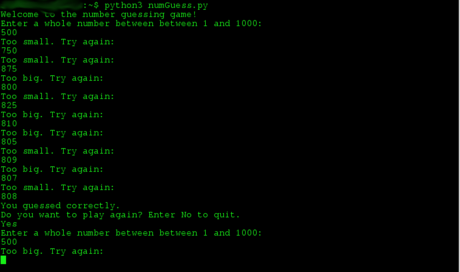 Test the game. You need to be sure that your game still works after implementing new features.
- Make sure to answer both "Yes" and "No" at least once to make sure that both options work. Here is what your code should look like:
importrandomdefnumInput():inp=input()whilenotinp.isdigit():print("You were told to enter a whole number! Enter a whole number:")inp=input()returnint(inp)print("Welcome to the number guessing game!")whileTrue:print("Enter a whole number between 1 and 1000:")rightNum=random.randint(0,1000)userNum=numInput()whileuserNum!=rightNum:ifuserNum
- Make sure to answer both "Yes" and "No" at least once to make sure that both options work. Here is what your code should look like:
- Write other text-based games. How about writing a text adventure next? Or a quiz game? Be creative.
Tip : It's sometimes helpful to look in the documentation if you're not sure how something is done or how a function is used. The Python 3 documentation is found at https://docs.python.org/3/. Sometimes searching for whatever you want to do on the internet also returns good results.
Part 2
Making a Game with 2D Graphics
- Choose a library. Making graphics is very complicated, and most programming languages (including Python, C++, C, JavaScript) provide only minimal or even no support for graphics in the core or the standard libraries. So you'll have to use an external library to be able to make graphics, for example Pygame for Python.
- Even with a graphics library, you'll have to worry a lot about low-level things like how to display a menu, how to check whether the user clicked on it, how to display the tiles, and so on. If you prefer to focus on developing the actual game, and especially if the game you want to make is complex, you should use a game engine library, which implements such things.
This article will use Python with Cocos2D to show how to make a simple 2D platformer. Some of the mentioned concepts may not exist in other game engines. Refer to their documentation for more information.
- Install the library you chose. Cocos2D for Python is simply installed withsudo pip3 install cocos2d.
- Make a new directory. You will use things like images and sounds in your game. You should keep these things in the same directory as the program, and the directory shouldn't contain anything else so that you can easily see what assets you have in the game.
- Change into the new directory and create a new code file. It should be namedmain, with the file extension of your programming language. If you write a large and complex program where it makes sense to have multiple program files, this will show which one is the main one.
- In this example, this file, which should be calledmain.py, will contain all your code. But the directory you created will still be useful for other media files.
- Make a window. This is the basic prerequisite for a game with graphics. You can add the simplest content now, like for example a background color.
- Import the necessary cocos2d sub-modules:cocos.director,cocos.sceneandcocos.layer. This is done withfrom subModuleName import *, where subModuleName is the submodule you want to import. The difference betweenfrom... import *andimport...is that you don't have to put the module name in front of everything you use from that module with the former.
- Define a subclassMainMenuBgrof theColorLayer. This basically means that any main menu background you create will behave like a color layer with some changes you make.
- Initialize the cocos director. This will give you a new window. If you don't set some caption, the window will have the same caption as the file name (main.py), which doesn't look very professional. Allow the window to be resized with by settingresizabletoTrue.
- Define a functionshowMainMenu. You should put the code for showing the main menu into a function because this will allow you to easily return to the main menu by calling the function again.
- Create a scene. The scene consists of one layer for now, which is an object of theMainMenuBgrclass you defined.
- Run this scene in the window.
fromcocos.directorimport*fromcocos.sceneimport*fromcocos.layerimport*classMainMenuBgr(ColorLayer):def__init__(self):super(MainMenu,self).__init__(0,200,255,255)defshowMainMenu():menuSc=Scene(MainMenuBgr())director.run(menuSc)director.init(caption="IcyPlat - a simple platformer",resizable=True)showMainMenu()
- Create a main menu. Besides the actual game, you should have an option to close the game. You'll also add credits later, but ignore them for now. A main menu will avoid making entering the game too unexpected.
- Import necessary modules. You need to importcocos.menu(again with thefrominstruction) andpyglet.app(this time withimport).
- Define MainMenu as a subclass of Menu.
- Set the alignment of the main menu. You have to set the vertical and horizontal alignment separately.
- Create a list of menu items and add create the actual menu. You should have the menu items "Start Game" and "Quit". Make sure to put every created menu item inside of brackets. A menu item has a label and a callback function for when it's clicked. For the "Start Game" item, use thestartGamefunction (you'll write it soon), for the "Quit" item, use "pyglet.app.exit" (already exists). Create the actual menu by callingself.create_menu(menuItems).
- DefinestartGame(). Just putpassinto the definition for now, you'll replace that when you write the actual game.
- Go to the place in your code where you created themenuScscene, and add a MainMenu object to it.
- Your entire code should now look as follows:
fromcocos.directorimport*fromcocos.menuimport*fromcocos.sceneimport*fromcocos.layerimport*importpyglet.appclassMainMenuBgr(ColorLayer):def__init__(self):super(MainMenuBgr,self).__init__(0,200,255,255)classMainMenu(Menu):def__init__(self):super(MainMenu,self).__init__("")self.menu_valign=CENTERself.menu_halign=CENTERmenuItems=[(MenuItem("Start Game",startGame)),(MenuItem("Quit",pyglet.app.exit))]self.create_menu(menuItems)defstartGame():passdefshowMainMenu():menuSc=Scene(MainMenuBgr())menuSc.add(MainMenu())director.run(menuSc)director.init(caption="IcyPlat - a simple platformer",resizable=True)showMainMenu()
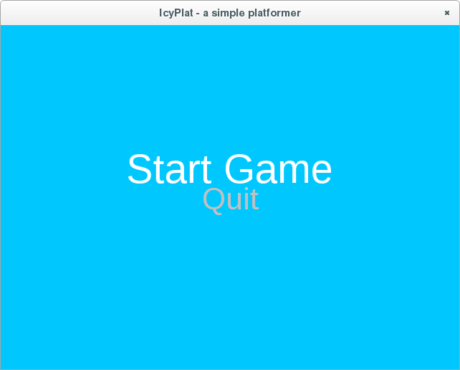 Test your code. It is important to test you code at such an early stage, while it is still short and relatively simple: this way you will know any mistakes in the basic structure, and can fix them before they cause more problems.
- The code from the instructions should open a window, captioned "IcyPlat - a simple platformer", that you can resize and that has a light blue background. It should have a menu with two items: when you click on "Start Game", nothing happens; when you click on "Quit", the program quits.
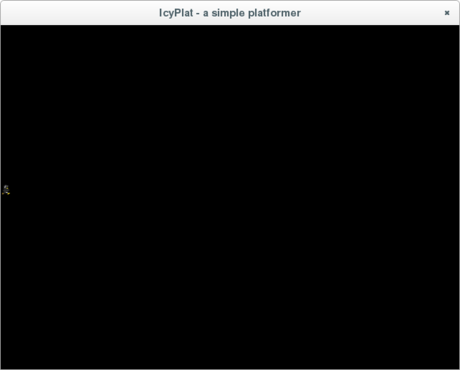 Display a sprite in the game. The sprite is like a "game object". In a platformer, for example, one should be the main figure that the player can control (in this step, it'll only be displayed however). Things like background decorations or object the player can interact with can also be sprites, but you should only add one first to understand the concept, then you can add whatever else you want.
- Import thecocos.spritesubmodule with the from-import-expression.
- Find an image. You can't display a sprite if you don't have a picture for it. You can draw one, or you can get one from the internet (watch out for the license, though, if you're planning to publish your game), for example from here (crop the image so you only have one running penguin). Make sure to put your image into the same directory as the program.
- Create the sprite's layer and the sprite. Create the layer as a new object of theScrollableLayerclass. Create the sprite as aSpriteobject and set its position to (8, 250). For reference, the point (0, 0) is in the bottom left corner. This is quite high, but it will make sure that the penguin doesn't get stuck in the ice.
- Add the sprite to the sprite's layer.
- Create a new scene out of the sprite's layer and run it.
defstartGame():figLayer=ScrollableLayer()fig=Sprite('pingu.png')fig.position=(75,100)figLayer.add(fig)#gameSc=Scene(figLayer)director.run(gameSc)- You can run your code now if you want. You will see a small penguin figure (or whatever you drew) on a black background after you click on "Start Game".
- Decide what your landscape will consist of. In most games, your sprites shouldn't just float in the void. They should actually stand on some surface, with something around them. In 2D games, this is often done with a tile set and a tile map. The tile set basically says what kind of surface squares and background squares exist, and what they look like.
- Create a tile set. The tile set for this game will be very basic: one tile for ice and one tile for sky. The ice tile used in this example is from here, under CC-BY-SA 3.0.
- Create a tile set picture. That's a picture of all tiles, which have to all be of the same size (edit them if they aren't) and have the size you want to see in the game, next to each other. Save your picture asicyTiles.png.
- Create the tile set description. That's an XML file. The XML file contains information on how big the tiles are in the tile set picture, which picture to use, and where to find which tile there. Create an XML file namedicyTiles.xmlwith the code below:
- Make an actual structure out of the elements of your landscape. If you made a tile set, this should be done in the form of a tile map. A tile map is like a map that defines which tile is at which position in your level. In the example, you should define a function to generate tile maps because designing tile maps by hand is very tedious. A more advanced game would usually have some sort of level editor, but for becoming familiar with 2D game development, an algorithm can provide good enough levels.
- Find out how many rows and columns are needed. For this, divide the screen size by the tile size both horizontally (columns) and vertically (rows). Round the number upwards; you need a function of the math module for that, so addfrom math import ceilto the imports at the top of your code.
- Open a file for writing. This will erase all previous content of the file, so choose a name that no file in the directory has yet, likelevelMap.xml.
- Write the opening tags into the file.
- Generate a tile map according to the algorithm. You use the one in the code below, or you can come up with one on your own. Make sure to import therandintfunction from the modulerandom: it's required for the code below to work, and whatever you come up with will probably also need random integers. Also, make sure to put sky tiles and ice tiles in different layers: ice is solid, sky is not.
- Write the closing tags into the file and close the file.
defgenerateTilemap():colAmount=ceil(800/16)*3# (screen width / tile size) * 3rowAmount=ceil(600/16)# screen height / tile sizetileFile=open("levelMap.xml","w")tileFile.write('nnn')iceHeight=randint(1,10)foriinrange(0,colAmount):tileFile.write('')makeHole=Falseifrandint(0,50)==10andi!=0:# don'tFAQ
What is How to Program Computer Games about?
It provides a structured overview of game, explains the main context, and highlights practical takeaways for readers.
Why does this topic matter?
Understanding the main concepts helps readers evaluate the issue, avoid common mistakes, and make better-informed decisions.
How should readers use this information?
Use the guidance as a practical starting point, confirm details that may have changed, and follow current product, safety, or security recommendations.
Related Articles
 Microsoft Invites You to Make Your Own Xbox One Game4 minutes read
 How to Make Computer Games: Complete Guide11 minutes read
 How to Open SWF Files: Clear Instructions6 minutes read
 How to Download Games to Your Computer: Clear Instructions21 minutes read
 What Is Punkbuster and Can It Be Uninstalled?7 minutes read
 How to Create 2D Effects in Godot with Animatedsprite10 minutes read
Reader Comments 0
Sign in with email or Google to join the discussion.