Table of Contents
With the right tools, you can restore that familiar beauty while still enjoying everything modern Windows 11 has to offer.
There's something timeless about Windows 7. From the sleek Aero Glass effects to the classic Start menu, it struck a rare balance between beauty and simplicity. Even years later, many still remember it as one of Microsoft's most elegant designs. Of course, actually running Windows 7 in 2025 isn't a great idea. It's long since been unsupported, and continuing to use it now means missing out on both performance improvements and essential security updates.
But that doesn't mean the Windows 7 look and feel have to stay in the past. With the right tools, you can restore that familiar beauty while still enjoying everything the modern Windows 11 has to offer. And the best part is, you don't have to sacrifice any of Windows 11's best features to do it.
Revive the classic Start menu and desktop
This is easier than you think.
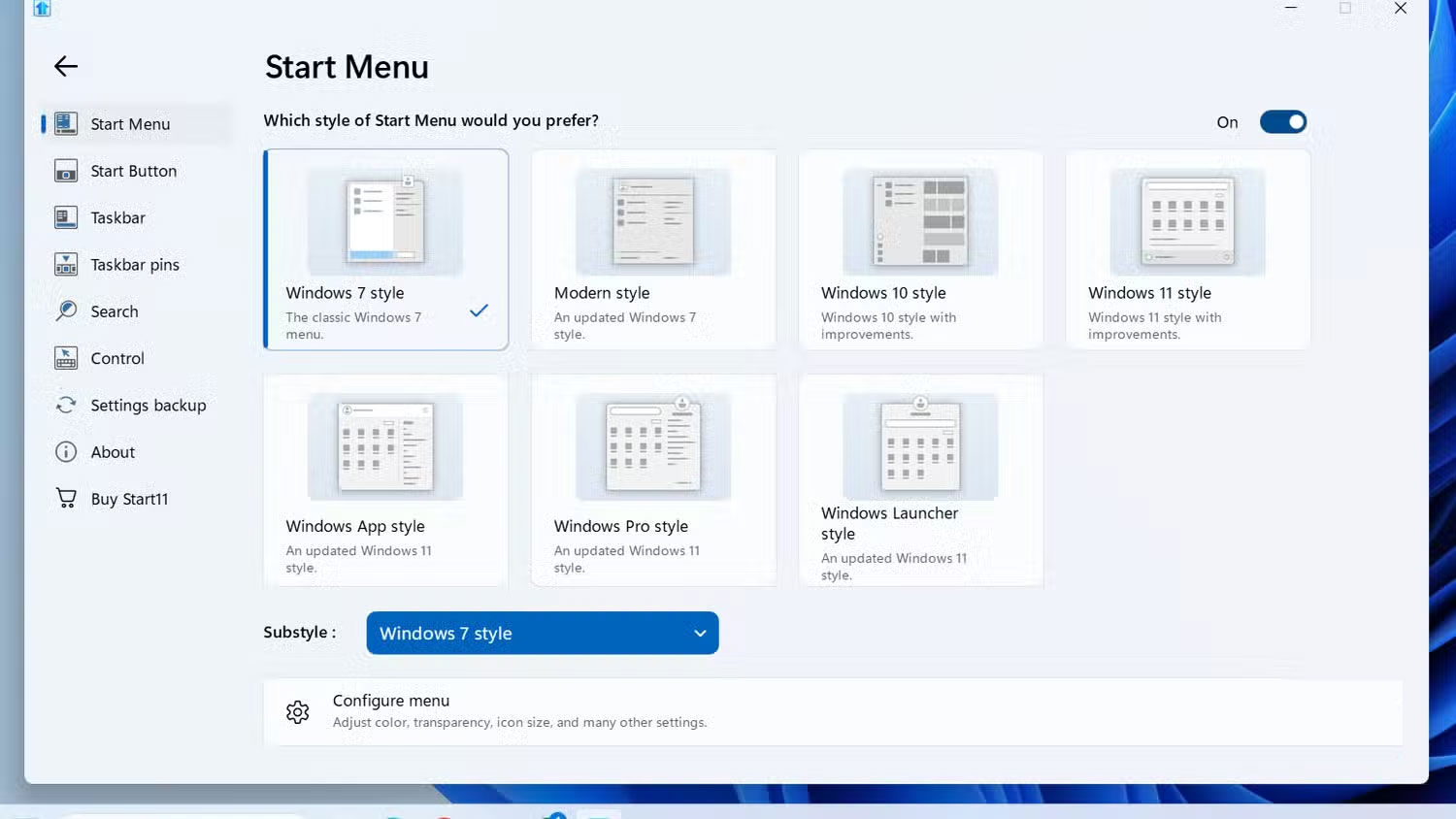
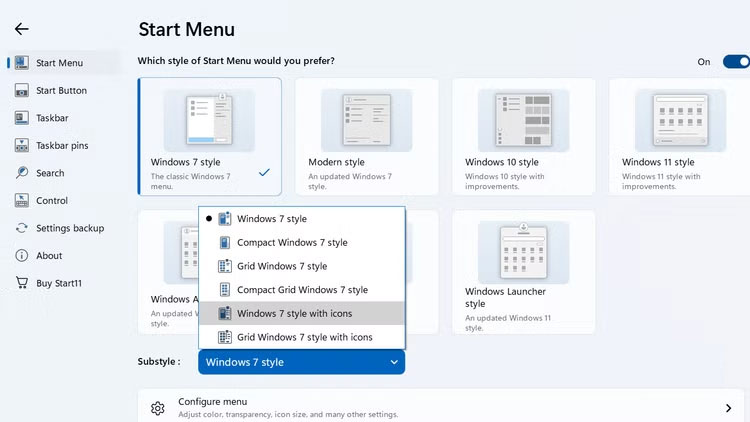
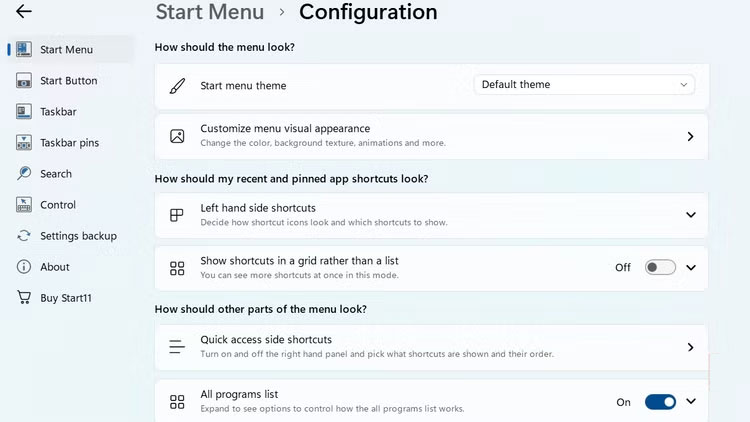
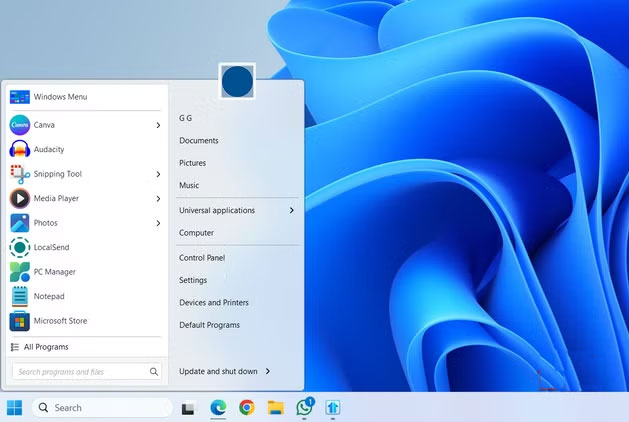
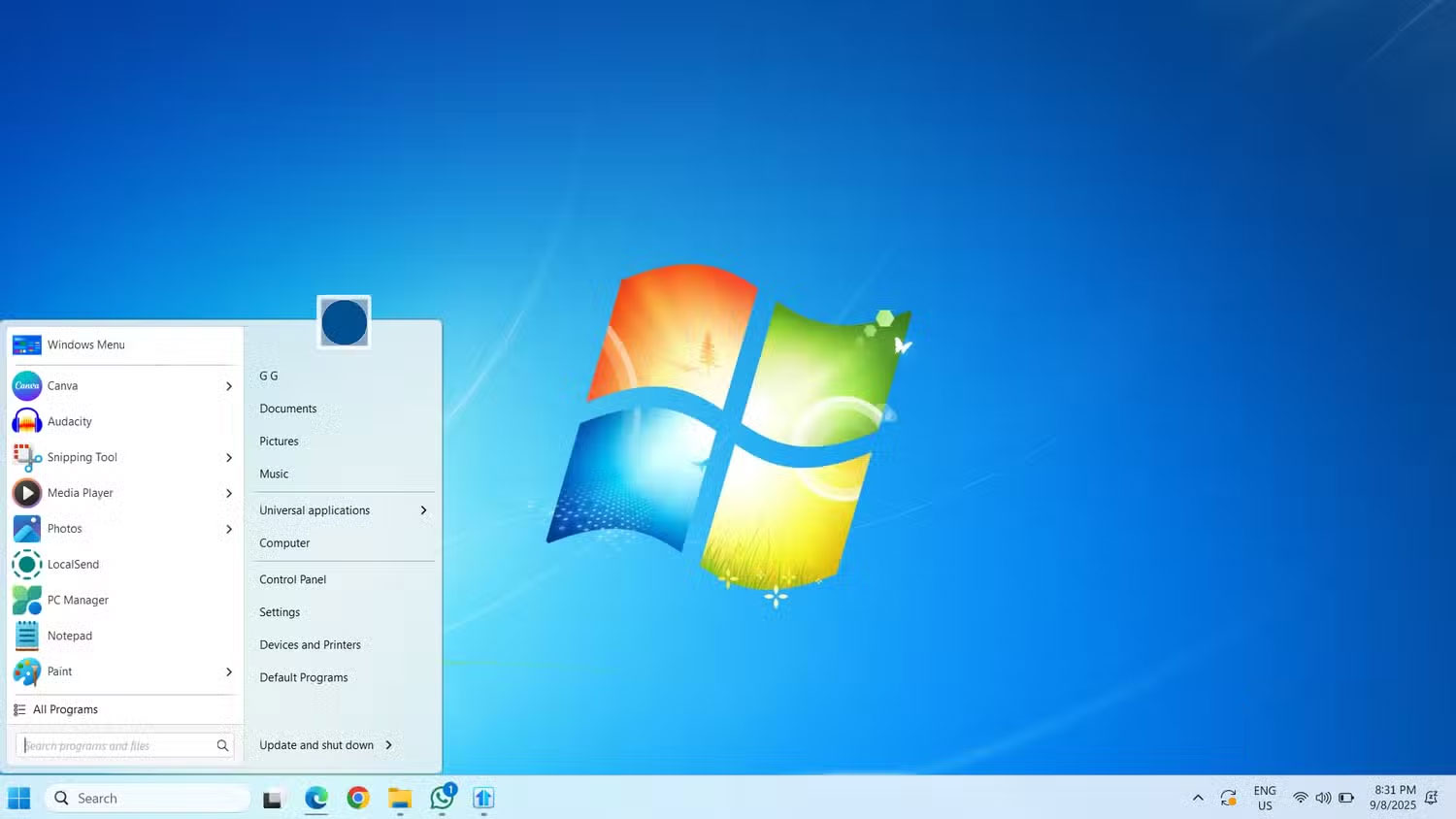
The first step in reviving Windows 7 is to fix the Start menu and desktop. Technically, Windows 11 lets you move the Start menu back to the left corner, but that's about it. There's no real way to make it look or feel like Windows 7 from the get-go.
To do that, use Start11. This little tool is a godsend for anyone who wants to completely customize the look of Windows 11. It gives you a ton of options for tweaking the look of both the Start menu and the taskbar. With Start11, you can replace the modern Start menu with the classic Windows 7 version. It's not free—you'll need to pay around $6.99 depending on your region—but there's a 30-day trial that lets you test things out before you buy.
You can download Start11 from Stardock's website. Once downloaded, installation is as simple as any other software. In the Start11 application, all you have to do is go to the Start Menu Tab, select Windows 7 style , and that's it! The Start menu will be replaced with the classic version.
Start11 also offers more customization options in the Configure Menu. Here, you can change the Start menu color, transparency effects, fonts, and more. To finish, choose a high-resolution Windows 7 wallpaper. Combined with the new Start menu, it immediately gives the desktop a familiar, clean feel.
Make File Explorer and other components feel like Windows 7
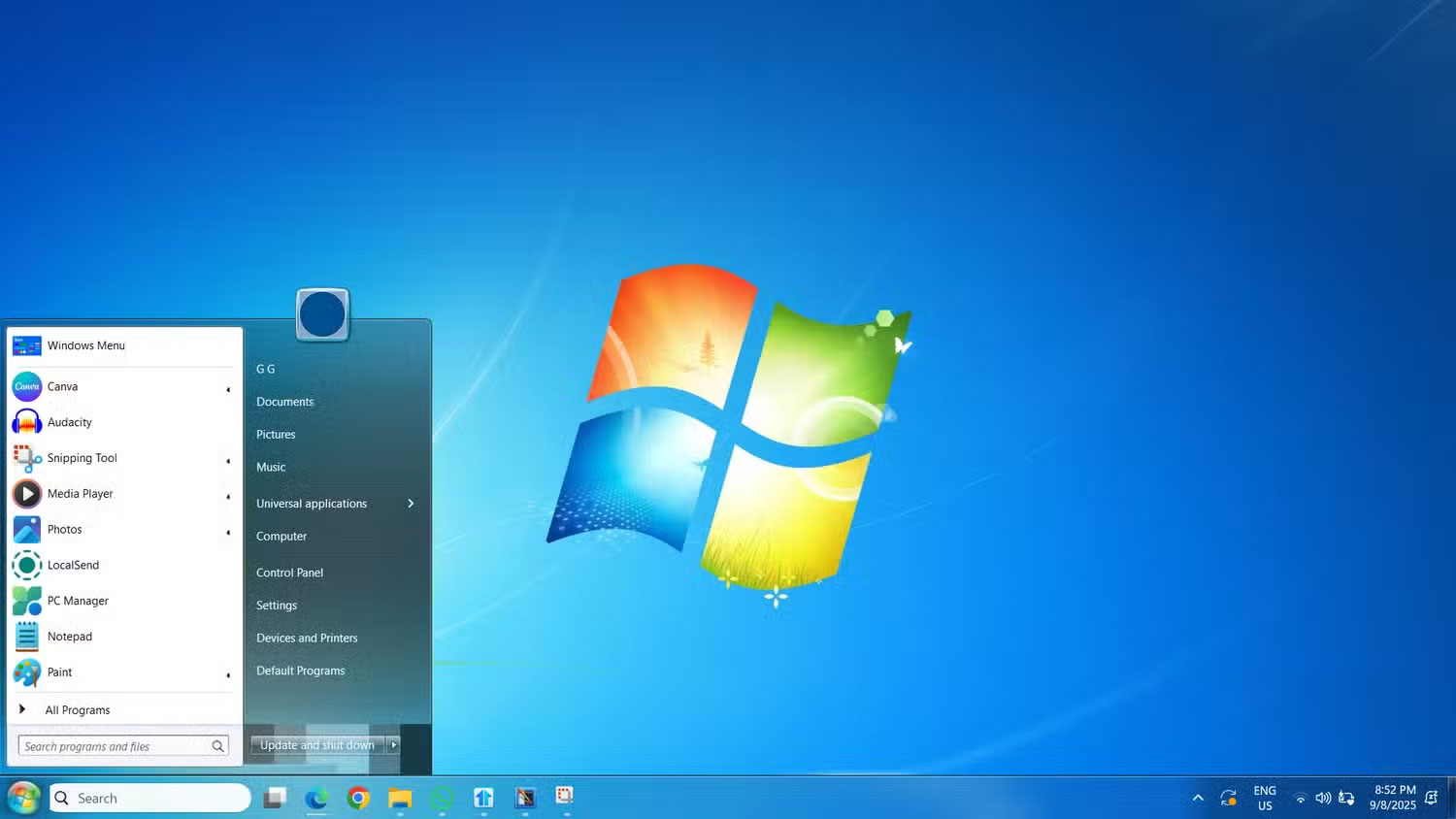
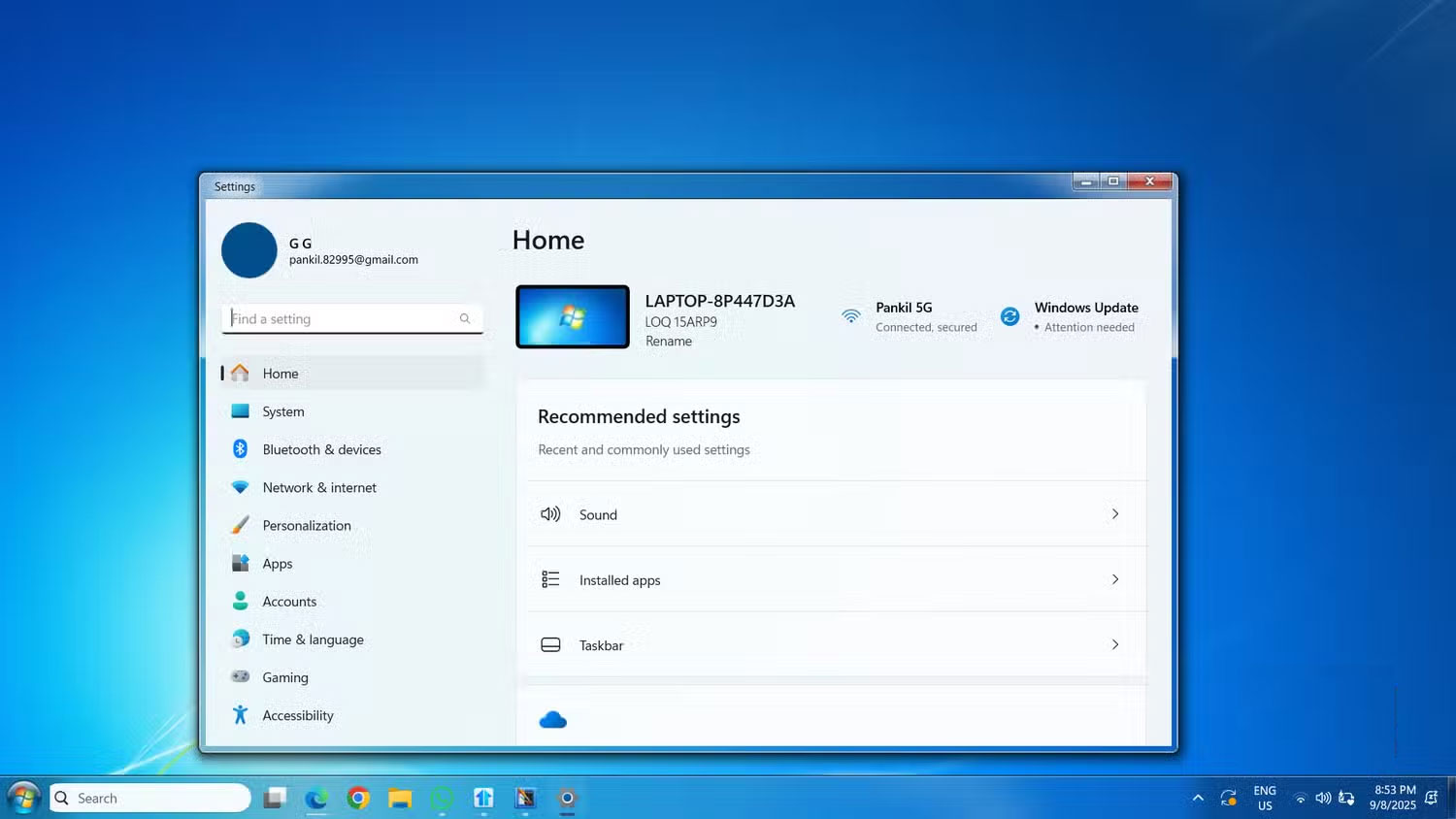
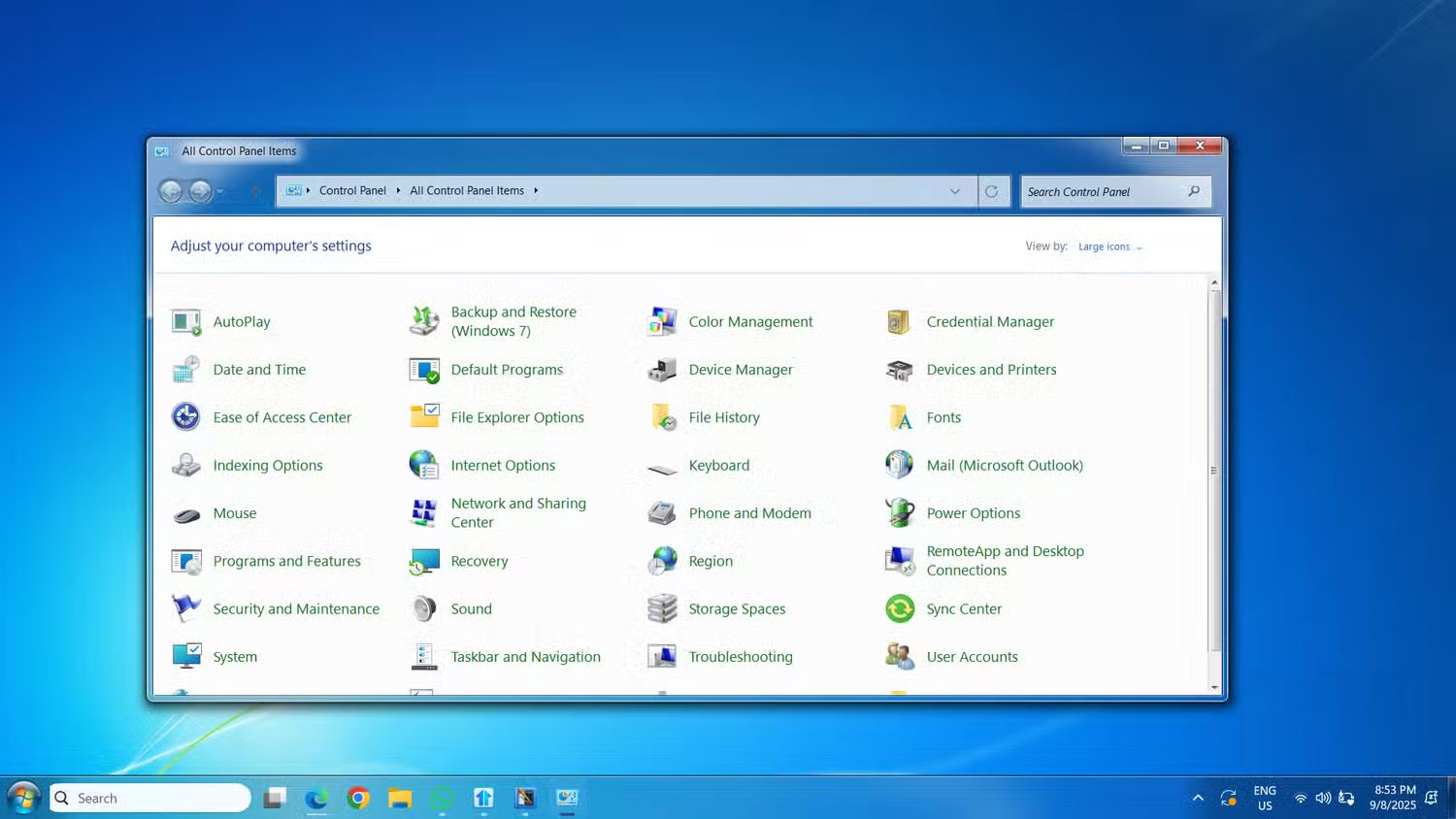
Once you have your desktop and Start menu set up, the next step is to bring the Windows 7 look and feel inside File Explorer and other system windows. That's where WindowBlinds comes in. This is another tool from Stardock, and it goes beyond Start11 in that it lets you apply an entire visual "skin" to the Windows interface.
With WindowBlinds, you can give File Explorer the glassy transparency and soft colors that were characteristic of the Windows 7 era. And it doesn't stop at File Explorer, but also the dialog interface, right-click menu, and even the taskbar.
Like Start11, WindowBlinds isn't free. There's a one-time fee of $19.99, but there's a 30-day trial so you can try it out before you buy. Once you download the installer from Stardock, setup is simple.
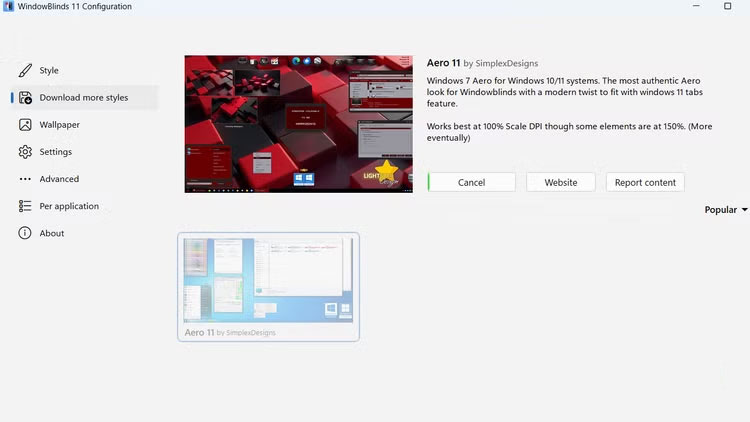
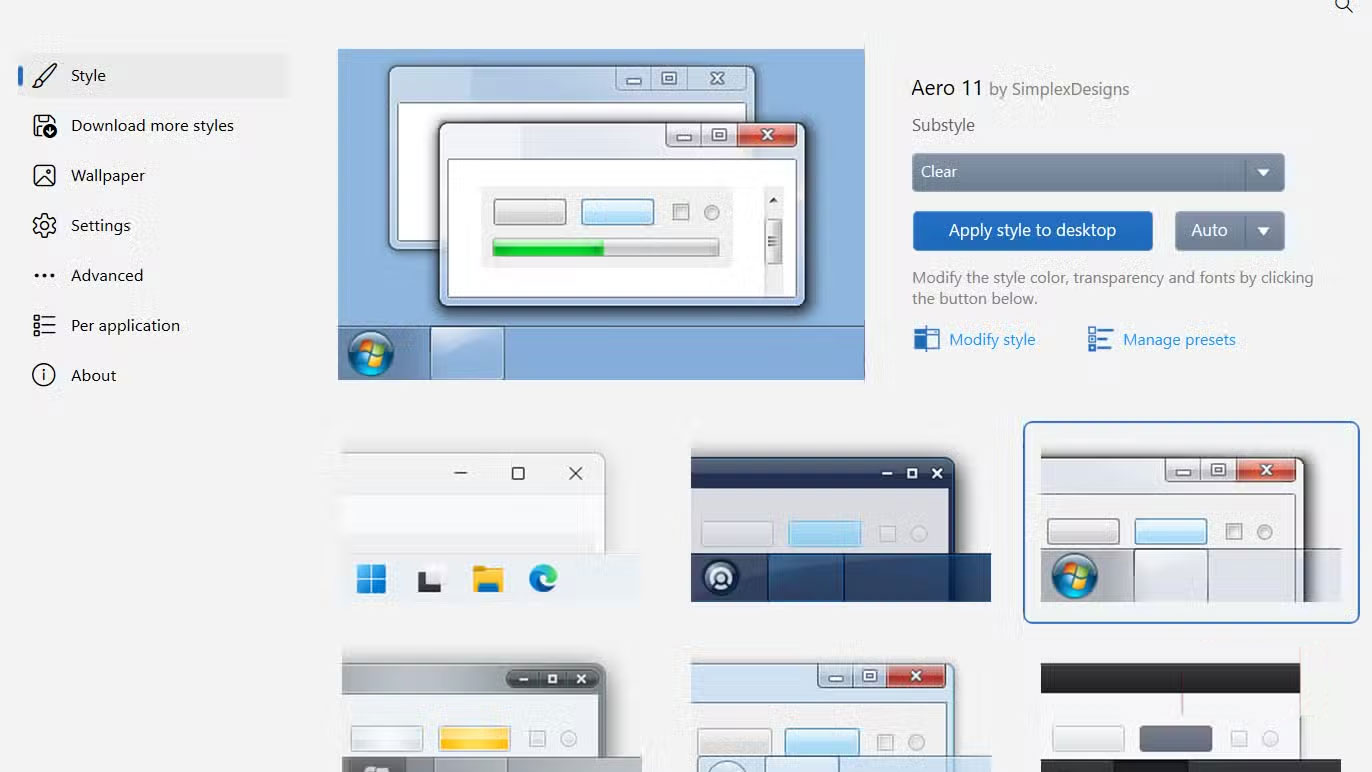
In WindowBlinds, go to the Download more styles Tab and search for the Aero11 Theme. If the theme doesn't appear right away, use the sort menu to list the styles by popularity, and it should appear at the top. Once downloaded, go to the Styles Tab, select Aero11 , and hit Apply style to desktop . Instantly, your modern Windows 11 setup will look like the classic Windows 7 environment you remember.
Tip : If you want to experience the full Windows 7 style, you can even bring back classic Windows 7 games, such as Solitaire, Minesweeper, and Chess Titans.
Recreating Windows 7 in Windows 11 turned out to be a surprisingly fun project. It reminds you why the old design was so fun. How long people will stick with this setup is anyone's guess - but for now, it's the perfect blend of nostalgia and practicality.
FAQ
How do you make Windows 11 look like Windows 7: step-by-step guide?
In practical terms, with the right tools, you can restore that familiar beauty while still enjoying everything modern Windows 11 has to offer.
What should you check before getting started?
Review the requirements, compatible device or software version, and any warnings described in the guide before making changes.
What should you do if the steps do not work?
Repeat the steps in order, confirm that your app or system is up to date, and review the troubleshooting details provided above.
Related Articles
 How to Make Windows 10 Look Like Windows 77 minutes read
 How to Make Calls from Windows 10 Using the Your Phone App3 minutes read
 5 Tips to Make Your Windows 10 Computer More Powerful5 minutes read
 3 Features That Make Windows 11 Pro Worth Using8 minutes read
 How to Make the Taskbar Transparent on Windows 10 and Windows 11 Using TranslucentTB4 minutes read
 How to Make Taskbar Transparent on Windows 11 with4 minutes read
Reader Comments 0
Sign in with email or Google to join the discussion.