Table of Contents
Install MathType from the Office Add-ins store in Word or PowerPoint, then open its task pane to sign in and create equations. The same add-in includes ChemType for chemical notation.
This guide covers the Microsoft 365 add-in. Older desktop MathType integrations use a different installation process.
Install the add-in
Check the Wiris installation guide for supported Office versions. Screenshots below show an earlier interface, so button placement may differ.
- Open Word or PowerPoint and select Insert.
- Open Add-ins > Store or Get Add-ins, depending on your version.

Search for MathType, select the MathType for Microsoft 365 listing, and choose Add. Review any permissions and terms shown before accepting them.
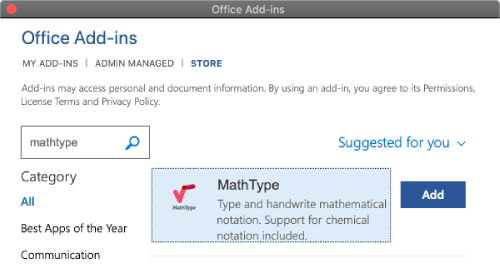
Find MathType in the ribbon or installed add-ins and open its task pane. In Word desktop, you may see a MathType Add-in tab. Confirm that MathType and ChemType are available.
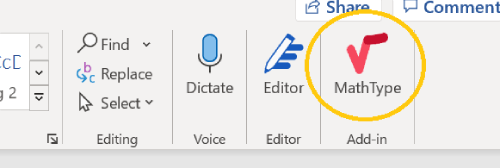
Sign in and check access
Installation and activation are separate steps. Follow the sign-in prompts and check whether your account has a license or trial. If your school or employer provides access, use the account associated with that subscription. Check the terms displayed for your account rather than assuming that installation grants unrestricted use.
Create and edit equations in Word
Insert an equation
Place the cursor where the formula should appear. Open the MathType task pane and choose Open MathType, or Open ChemType for chemistry.
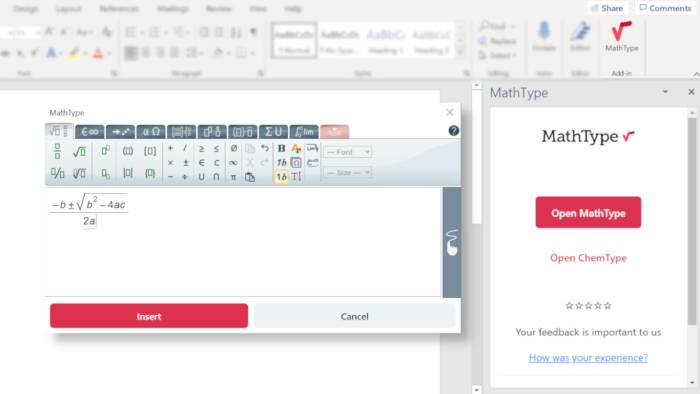
Build the expression with the editor's symbols and templates. To write it by hand, switch to handwriting input using the handwriting icon. Check the recognized expression carefully, especially subscripts, fractions, and similar-looking symbols, before choosing Insert.

Change an existing equation
Select the MathType equation in your document before opening the editor.
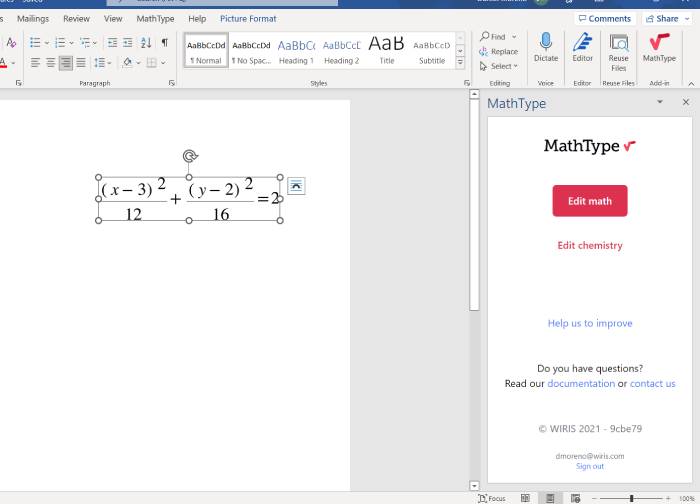
Choose Open MathType, make the changes, and insert the result. Check the expression and its position in the document.
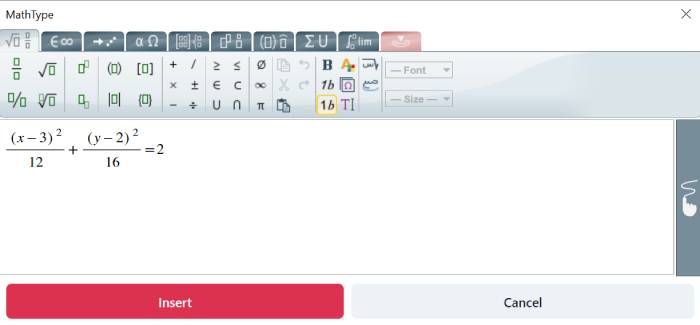
Use the equation editor for changes rather than editing an image's alternative text. If you need mathematical source code, consult the options available in your installed version.
Use MathType in PowerPoint
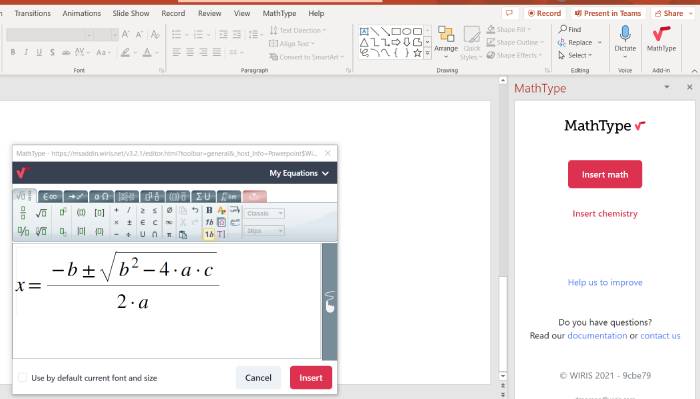
Open MathType from PowerPoint, create the expression, and insert it into the slide. You can move or resize it after insertion. Handwriting input is also available.
To edit an equation, select it on the slide and open MathType. The My Equations area lets you save frequently used expressions for reuse. Older versions may insert an edited expression as a new object; inspect the slide for duplicates before deleting anything. See the current PowerPoint workflow if your interface differs.
If MathType is missing or will not open
- Missing after installation: close and reopen Office, then check the installed add-ins.
- Store unavailable: ask your Microsoft 365 administrator whether add-ins are restricted or centrally deployed.
- Editor opens without access: check the signed-in account and its subscription status.
- Older Office version: check the vendor's requirements and update Office where possible.
For simpler expressions, Word also has a built-in editor: see how to insert equations in Microsoft Word. Our comparison of ways to write mathematical formulas in Word can help you choose a suitable method.
Related Articles
 Mathtype - Mathtype Download and Installation Guide6 minutes read
 How to Download and Install MathType on Your Computer3 minutes read
 MathType Keyboard Shortcuts - All MathType Keyboard Shortcuts You Need to5 minutes read
 How to Create a Grid Chart on Mathtype4 minutes read
 How to Write Math Formulas on Word with Mathtype4 minutes read
 How to Save Frequently Used Formulas on Mathtype4 minutes read
Reader Comments 0
Sign in with email or Google to join the discussion.