Table of Contents
To install Geometer's Sketchpad on Windows, download the installer from a trusted source, open it, and follow the setup prompts. The walkthrough below follows Sketchpad 5.06; other versions may show different options.
Sketchpad lets you construct points, lines, circles, and polygons, then drag objects while preserving their geometric relationships. It also provides measurement and transformation tools for classroom demonstrations and independent work.
Before you download
Use the Sketchpad download page to check the available Windows and Mac installers and their license terms. Download availability does not by itself grant a license. Check compatibility with your operating system before running this legacy version.
The instructions and screenshots below are for Windows. A Mac download uses a different installation process; do not try to run the Windows installer on macOS.
Install Sketchpad 5.06 on Windows
1. Open the downloaded installer
Locate the downloaded file in your Downloads folder. If it is a ZIP archive, extract it first, then open the InstallSketchpad installer.
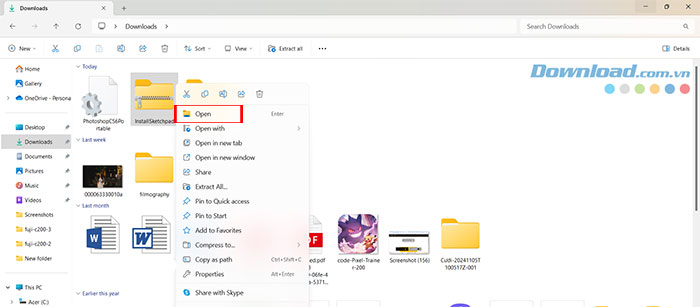
Double-click the setup file to begin.
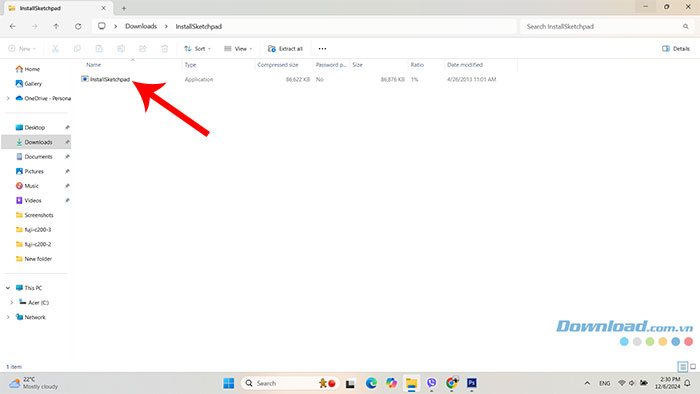
2. Review the setup prompts
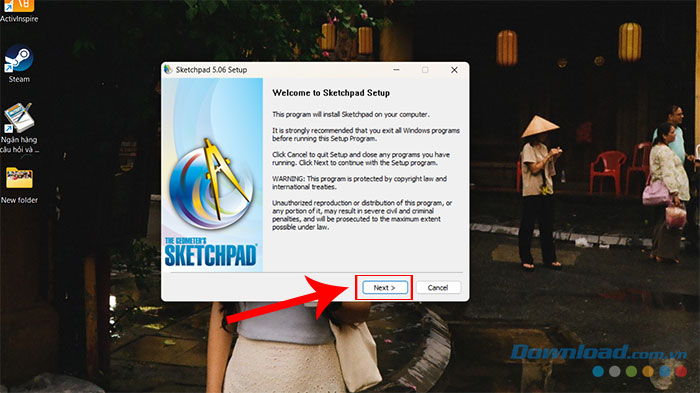
If Windows requests permission to run the installer, confirm that it is the file you intended to download before continuing. In the Sketchpad 5.06 Setup window, click Next.
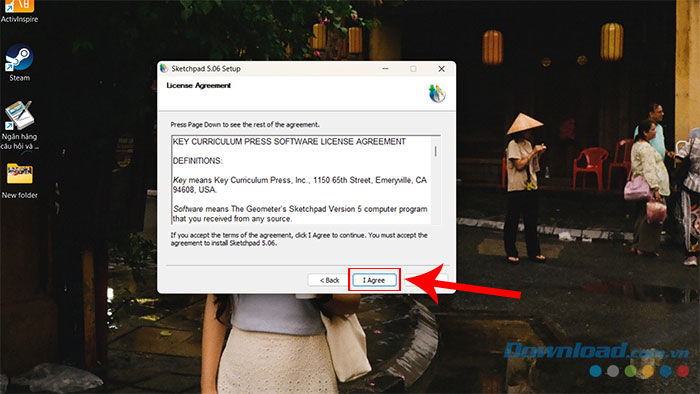
Read the license agreement. Click I Agree only if you accept its terms.
3. Choose the license and installation options
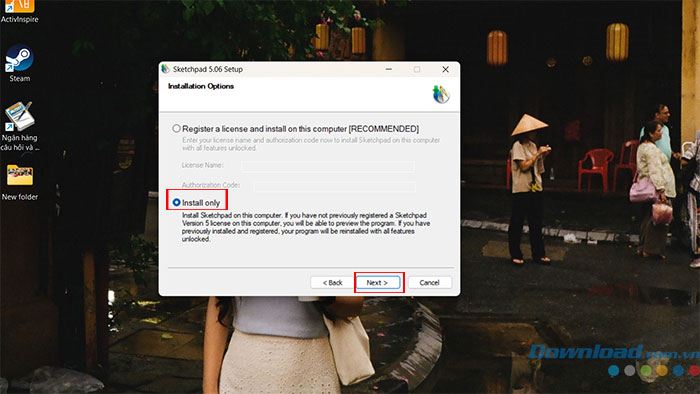
If you have valid license details, choose Register a license and install on this computer and follow the registration prompts. The installer also offers Install only; this option does not mean the software is licensed for unrestricted use. Check the applicable license or evaluation conditions, then click Next.
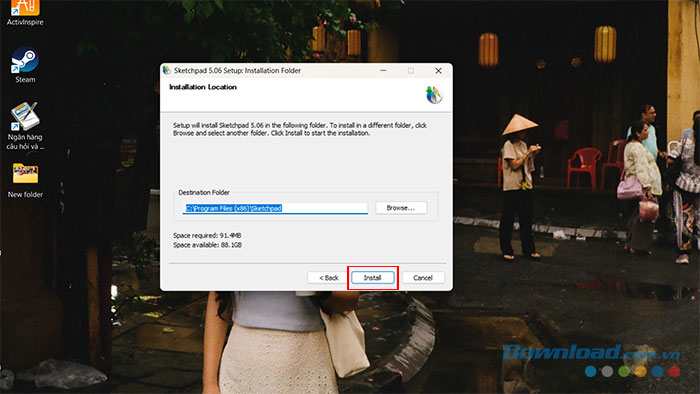
Choose the destination folder for the application, or leave the default location selected, then click Install.
4. Launch the application
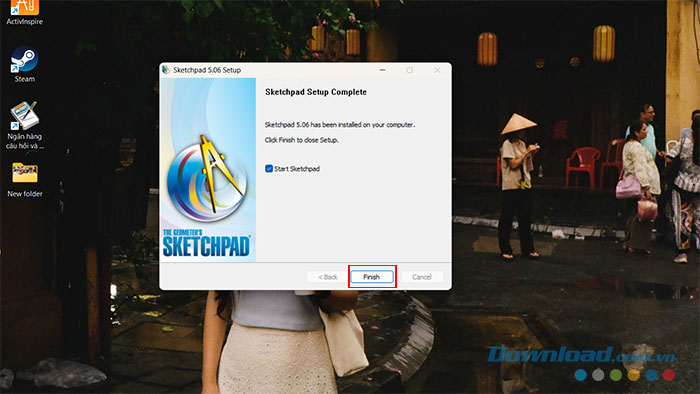
When setup finishes, select Start Sketchpad if you want to open it immediately, then click Finish.
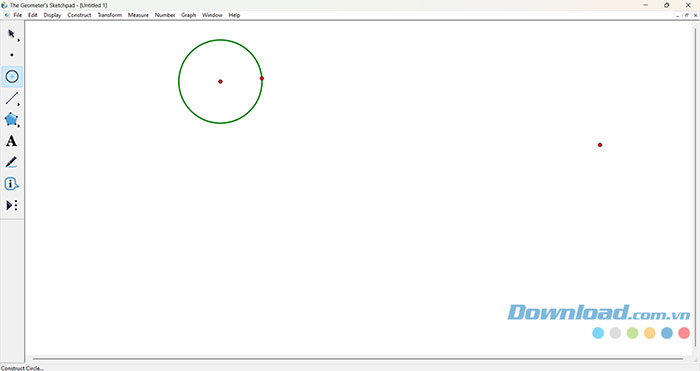
Check that Sketchpad opens successfully before preparing a lesson or moving existing work to this computer.
Check your first construction
Create a simple shape and drag one of its points. Use the measurement tools to inspect how lengths or angles change. Save the sketch to a folder you can find again, and reopen it to confirm the file was saved.
If the installer will not run, recheck its operating-system requirements and the file you downloaded. Avoid replacement installers that promise a cracked or preactivated copy. If compatibility is a problem, compare the options in our guide to function graphing software for computers.
Related Articles
 Download Au Mix for PC, Install Au Mix on Your Computer3 minutes read
 How to Download Pho Anh Hai iOS, Android: Step-by-Step Guide5 minutes read
 How to Download and Install Anthemscore on Your Computer Super3 minutes read
 How to Download and Install the Latest ETABS3 minutes read
 How to Download Direct X and Install Directx on Your Computer7 minutes read
 Kutools for Excel Download, Install and Use Instructions for New Users7 minutes read
Reader Comments 0
Sign in with email or Google to join the discussion.