Table of Contents
If other devices connect but one Windows laptop does not, focus on that laptop's saved profile, wireless adapter, driver, and IP configuration. If every device is offline, start with the modem, router, or internet provider instead. Work through the checks below in order and stop when the connection returns.
Identify the exact symptom
- No Wi-Fi option: the adapter may be disabled, missing a driver, or turned off by a hardware key.
- Your network is not listed: signal range, router band, hidden SSID, or adapter compatibility may be involved.
- “Can't connect to this network”: the saved password or profile may be stale, or the driver may be failing.
- Connected, no internet: the local Wi-Fi link works, but DHCP, DNS, the router, or the provider may be unavailable.
- Frequent disconnections: signal, interference, power management, driver stability, or roaming behavior is more likely.
1. Check Wi-Fi, Airplane mode, and the router
- Select the network, sound, and battery area on the taskbar. Confirm Wi-Fi is on and Airplane mode is off.
- Check for a physical wireless switch or function-key shortcut on the laptop.
- Move closer to the router and try both the main and guest network if you are authorized to use them.
- Test the same network on another device.
- If all devices fail, restart the modem and router according to the provider's instructions. Wait until their status lights stabilize before testing again.
- Restart the laptop rather than only closing and reopening the lid.
2. Forget the network and reconnect
Open Settings > Network & internet > Wi-Fi > Manage known networks, select the affected network, and choose Forget. Return to the Wi-Fi list, select the network, and enter the current password.
This is especially useful after the router password, encryption mode, or network name has changed. If you are uncertain about the credential, TipsMake explains how to view a saved Wi-Fi password in Windows.
3. Run the Windows network troubleshooter
Open the Get Help app, search for Wi-Fi connection problems, and run the network diagnostics. You can also open Settings > System > Troubleshoot > Other troubleshooters on Windows versions that still expose the network troubleshooter there.
Microsoft maintains a current Windows Wi-Fi troubleshooting sequence with paths for Windows 11 and 10.
4. Restart or reinstall the Wi-Fi adapter
- Right-click Start and open Device Manager.
- Expand Network adapters.
- Right-click the wireless adapter and choose Disable device. Wait a few seconds, then choose Enable device.
- If the problem began after an update, open Properties > Driver and consider Roll Back Driver when that button is available.
- For a persistent driver fault, download the current driver for the exact laptop model from the manufacturer's support site before uninstalling anything.
- Right-click the Wi-Fi adapter, select Uninstall device, and restart Windows. Windows should detect the hardware again; install the downloaded driver if necessary.
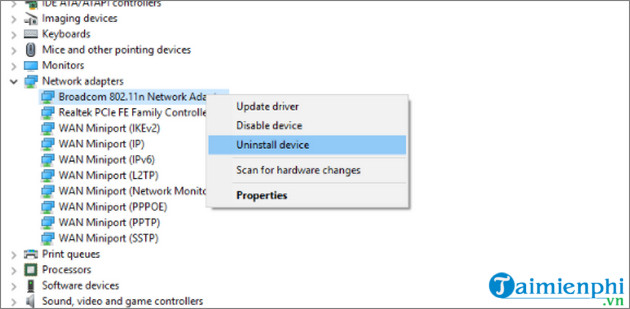
If no wireless adapter appears at all, select View > Show hidden devices, check the laptop's wireless key and BIOS/UEFI setting, and consult the manufacturer's diagnostics. The detailed missing Wi-Fi icon guide covers this symptom.
5. Renew the IP address and clear DNS
Use this when the laptop joins Wi-Fi but reports no internet, an invalid IP configuration, or name-resolution errors. Open Windows Terminal (Admin) or Command Prompt (Admin), then run each command separately:
netsh winsock reset
netsh int ip reset
ipconfig /release
ipconfig /renew
ipconfig /flushdns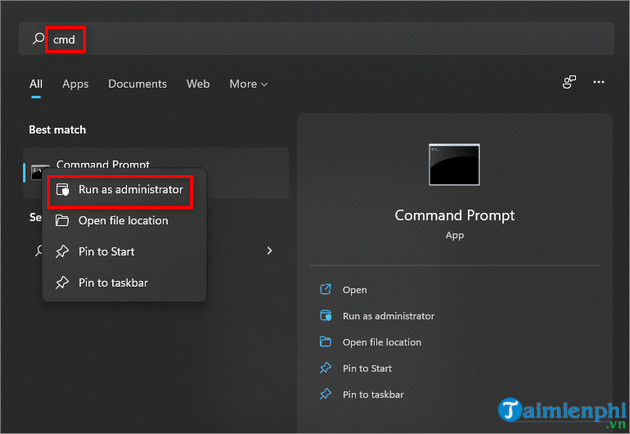
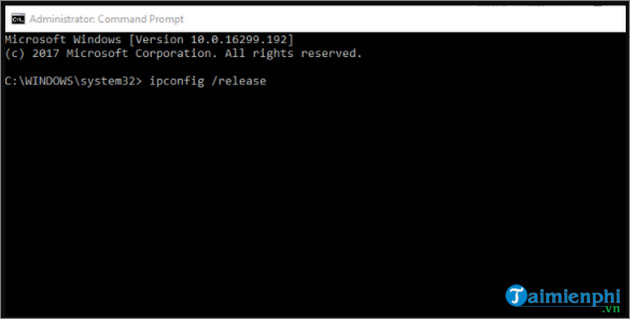
Restart the laptop after the commands. If ipconfig /renew fails, check whether the router's DHCP service is working and whether the laptop has a manually assigned address.
6. Check 2.4GHz, 5GHz, and 6GHz compatibility
2.4GHz generally reaches farther and supports more older adapters; 5GHz and 6GHz can provide more capacity but have shorter range and require compatible hardware. If the laptop cannot see a network that other devices can, enable a 2.4GHz network on the router for testing or move closer.
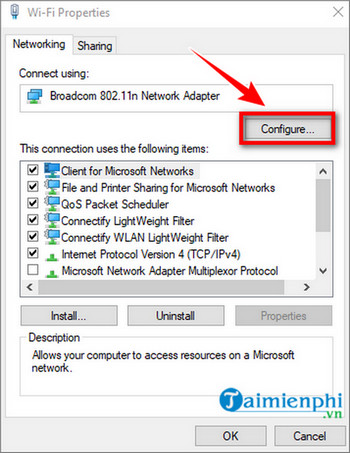
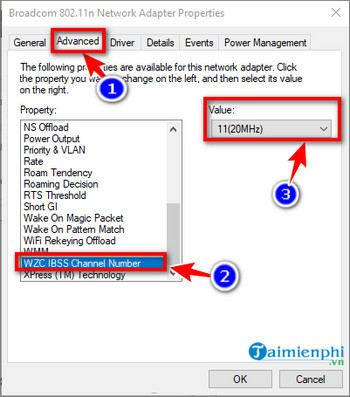
Do not change obscure adapter values such as WZC IBSS Number Channel to fix an ordinary router connection. That legacy ad-hoc setting is not the same as choosing the router's Wi-Fi band or channel.
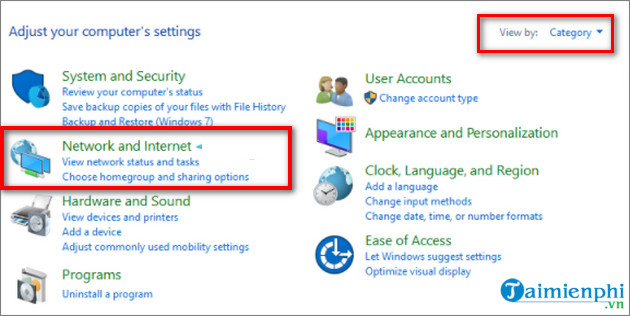
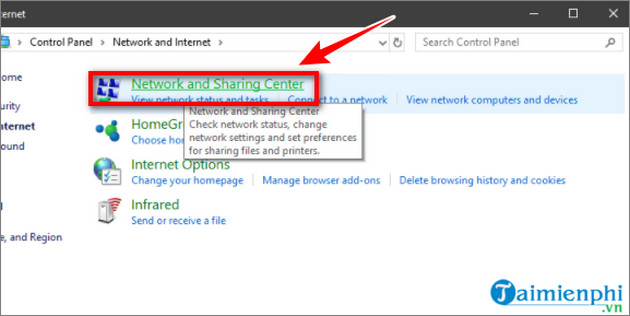
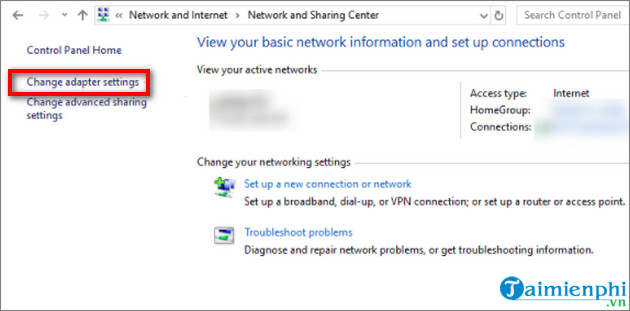
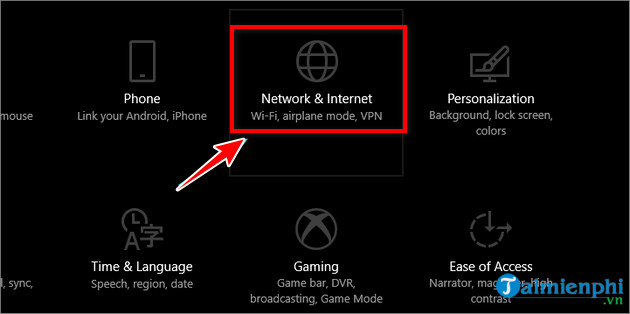
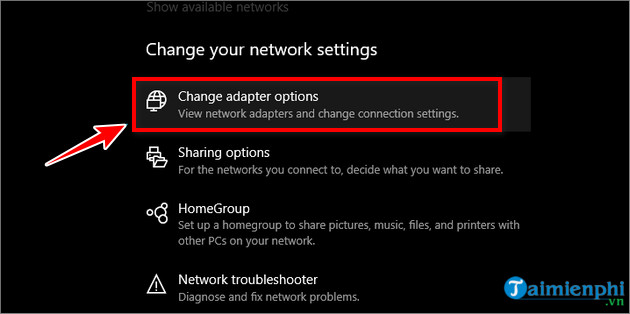
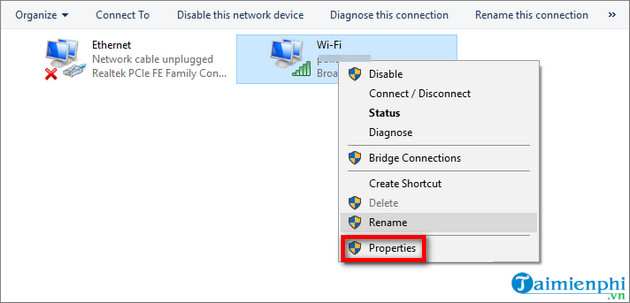
The screens below show how older Windows versions reached adapter configuration. On current Windows, use Settings > Network & internet > Advanced network settings > More network adapter options, then open the Wi-Fi adapter's properties.
7. Prevent Windows from powering off the adapter
If Wi-Fi drops after sleep or while the laptop is on battery:
- Open Device Manager > Network adapters.
- Open the Wi-Fi adapter's Properties.
- On Power Management, clear Allow the computer to turn off this device to save power, if the tab and option are available.
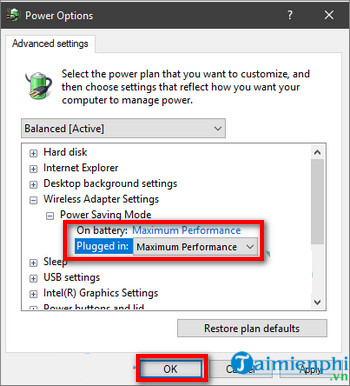
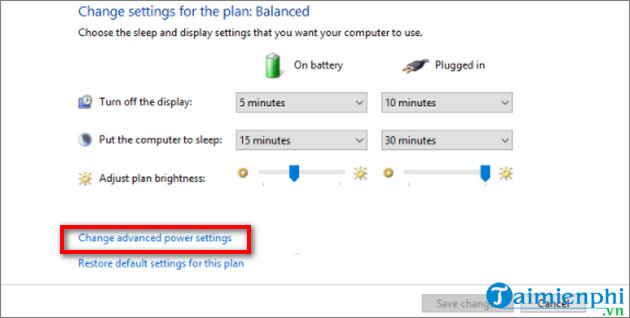
Older Control Panel power plans may also include Wireless Adapter Settings > Power Saving Mode. Selecting Maximum Performance can help diagnose aggressive power saving, though it can reduce battery life.
8. Verify IP settings instead of disabling IPv4 or IPv6
Open Settings > Network & internet > Wi-Fi > the connected network. Under IP assignment, most home networks should use Automatic (DHCP) unless the network administrator supplied manual values.
Do not disable both IPv4 and IPv6. That removes the protocols Windows needs for normal networking and is not a general Wi-Fi repair. In the classic adapter properties shown below, keep the appropriate Internet Protocol items selected unless a qualified administrator has given you a specific reason to change them.
9. Check VPN, proxy, and security software
Disconnect a VPN and turn off a manually configured proxy while testing. If third-party security software recently added a firewall or web filter, use its documented pause or troubleshooting option only long enough to test, then turn protection back on. Do not disable Microsoft Defender Firewall permanently. On a workplace or school laptop, contact the administrator before changing managed security settings.
10. Use Network reset as a last software step
Open Settings > Network & internet > Advanced network settings > Network reset, then select Reset now. Windows removes and reinstalls network adapters and returns their settings to defaults after a restart. You may need to reinstall VPN software, virtual switches, or other networking components afterward.
When the problem is hardware or the provider
Try Ethernet or a known-good USB Wi-Fi adapter. If the external adapter works while the built-in adapter never appears, the internal radio, antenna cable, or motherboard connection may need service. If no device has internet even though all can join the router, contact the internet provider. TipsMake's Ethernet setup guide can provide a temporary wired connection while Wi-Fi is being repaired.
Related Articles
 Install Laptop to Prioritize Wired Network Connection3 minutes read
 How to Fix Slow or Unstable Wi-Fi Connection8 minutes read
 How to Fix the Problem of Not Connecting to Wi-Fi in Windows5 minutes read
 How to Share Your Phone's Internet Connection to Your Laptop: Clear Instructions12 minutes read
 Steps to Fix Charging Laptop Not to Power9 minutes read
 Fix the Problem of Unstable Wi-Fi on Laptop with Windows 8.14 minutes read
Reader Comments 0
Sign in with email or Google to join the discussion.