Table of Contents
Windows 11 computer has black screen error, lag? Try resetting or reinstalling graphics driver.
Having display issues on your Windows 11 computer? Before you throw your gaming PC out the window, try these simple fixes. Many times the problem is caused by graphics drivers – and the good news is that they can be reset! Here's how.
How to Restart Graphics Driver in Windows 11
If your PC is still working normally but the screen freezes, or suddenly a black screen appears while the computer is still running, you can try to quickly reset the graphics driver in this way:
Step 1: Press the key combination Windows + Ctrl + Shift + B .
Step 2: The screen will flash black (or go dark and then light up again), this is a sign that the driver has just been updated.
If successful, the system should return to normal operation. If the error persists, you should consider reinstalling the driver.
How to reinstall integrated graphics driver on Windows 11
This is a more thorough reset. If your computer has integrated graphics from Intel or AMD, Windows can handle it automatically for you.
Step 1: Search for Device Manager On the Search bar and open it.
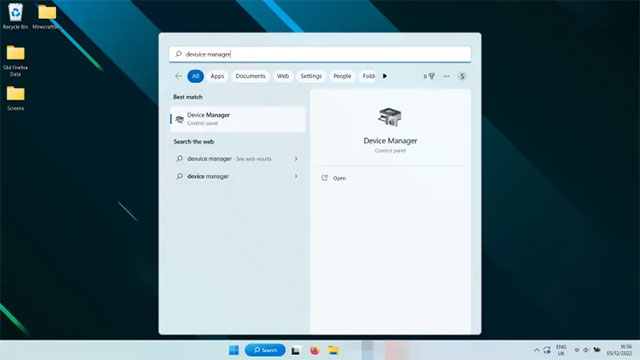
Step 2: In the Display Adapters Section, find the graphics chip (usually displayed as Intel UHD , AMD Radeon …).
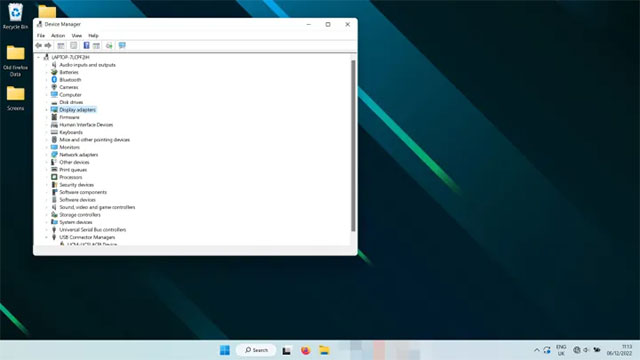
Step 3: Right click → select Uninstall device . The screen may flash temporarily, then Restart the computer .
When Windows 11 restarts, the system will automatically install the latest driver for integrated graphics, which should fix the error.
How to reinstall driver for discrete graphics card (Nvidia, AMD, Intel Arc)
If you use a discrete graphics card, the process is a bit more detailed:
Step 1: Search for Add or remove programs On Windows and open it.
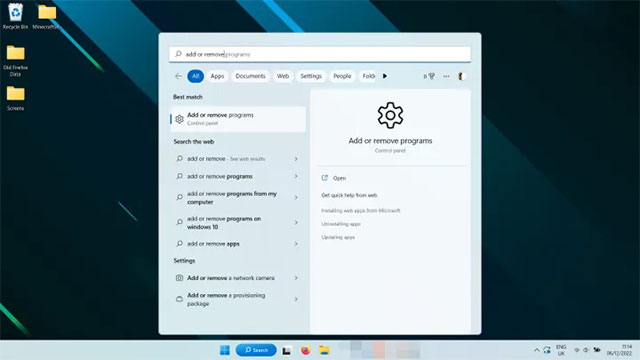
Step 2: Scroll the list (or use the search bar) to find the Nvidia, AMD or Intel graphics driver → click on the three-dot icon → select Uninstall .
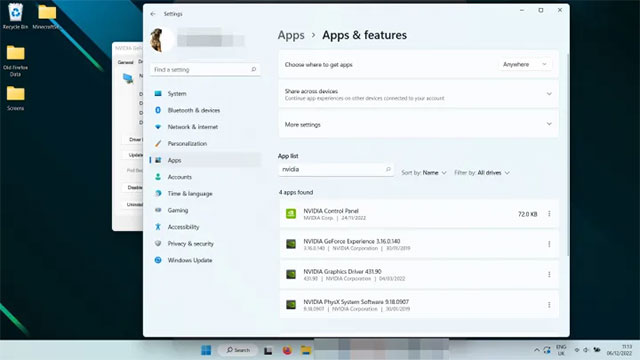
Step 3 (optional): To ensure complete removal, you can use a third-party tool Display Driver Uninstaller (DDU) . Instructions for use are available on the official site.
Step 4: Restart your computer.
Step 5: Go to the manufacturer's official website (Nvidia, AMD, Intel) to download the latest driver suitable for the card.
Step 6: Install according to the on-screen instructions.
After resetting your drivers, you can improve your graphics performance by tweaking in-game settings to increase FPS. Or try overclocking your GPU to get more power.
FAQ
How do you reset graphics driver on Windows 11: step-by-step guide?
In practical terms, Windows 11 computer has black screen error, lag? Try resetting or reinstalling graphics driver.
What should you check before getting started?
Review the requirements, compatible device or software version, and any warnings described in the guide before making changes.
What should you do if the steps do not work?
Repeat the steps in order, confirm that your app or system is up to date, and review the troubleshooting details provided above.
Related Articles
 Reset Graphics Driver on Windows 10/11: Step-by-Step Guide5 minutes read
 This Is How to Reset Network Settings on Windows 10 with Just One4 minutes read
 Is Updating Graphics Drivers Important for Security?7 minutes read
 AMD Admits That Its New Driver Update Packages for Windows4 minutes read
 How to Uninstall and Install a New VGA Graphics Card Driver5 minutes read
 Update Graphics Drivers in Windows 10 and 11: Step-by-Step Guide7 minutes read
Reader Comments 0
Sign in with email or Google to join the discussion.