Table of Contents
SketchUp can export a model or a flat standard view to AutoCAD-compatible DWG or DXF. Use 2D Graphic when AutoCAD needs lines from a plan, elevation or section view; use 3D Model when the receiving application needs model geometry. CAD export is available in eligible SketchUp Go, Pro and Studio plans rather than every free account.
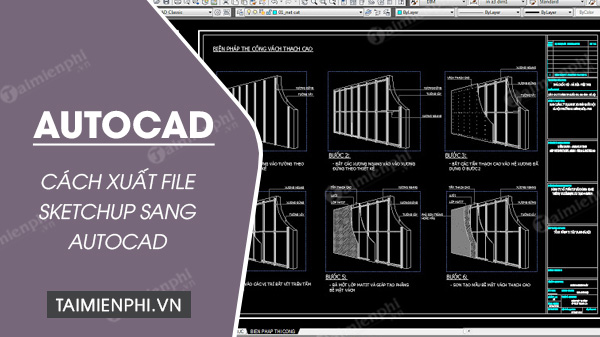
Choose 2D or 3D export
| Export | Use it for | Main limitation |
|---|---|---|
| 2D DWG/DXF | Plan, elevation, section or presentation linework | Exports the current view; a perspective view will not preserve drawing scale |
| 3D DWG/DXF | Coordinating model geometry in AutoCAD or another CAD tool | SketchUp faces and components may translate differently from native AutoCAD solids or blocks |
| LayOut DWG/DXF | Exporting documented sheets, dimensions, hatches, text and multiple pages | Requires a workflow and plan that includes LayOut |
Prepare the SketchUp model
- Confirm the model units and check a known dimension.
- Move relevant geometry near the SketchUp origin and remove stray far-away objects.
- Group related geometry and use clear component and tag names.
- Purge unused content and correct reversed faces.
- Decide which tags and objects must be visible in the exported file.
- Ask the recipient which DWG version and unit convention they expect.
Export a copy rather than changing the master solely for AutoCAD. A simple layer/tag map and a known reference dimension make the receiving file much easier to validate.
Export a 2D view to DWG or DXF
1. Set a standard parallel view
Select Camera > Parallel Projection, then choose Camera > Standard Views and select Top, Front, Right or the view required. This avoids perspective distortion and allows a scaled 2D export.
2. Open the 2D export dialog
Select File > Export > 2D Graphic. Choose the destination folder, enter a clear filename, and select DWG or DXF as the file type.
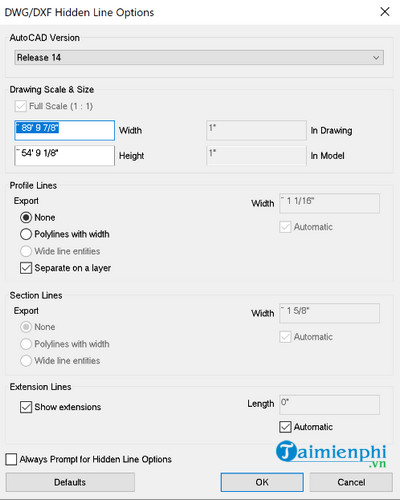
3. Review DWG/DXF options
- AutoCAD version: choose a format supported by the recipient; an older compatible version can be safer for mixed software.
- Drawing Scale & Size: keep Full Scale when model-space geometry should export at 1:1. Set a custom scale only when the delivery specification requires it.
- Profile Lines: decide whether profiles become standard lines, polylines with width or wide-line entities.
- Separate on a Layer: places profile edges on their own layer when enabled.
- Section Lines: configure these when exporting a section slice.
- Edge Extensions: disable visible extensions if the receiving CAD software interprets their endpoints poorly.
Select OK, then Export. SketchUp's official CAD import and export guide documents the current translation behavior and options.
Export the model as 3D DWG or DXF
- Select File > Export > 3D Model.
- Choose a destination, filename and the DWG or DXF file type.
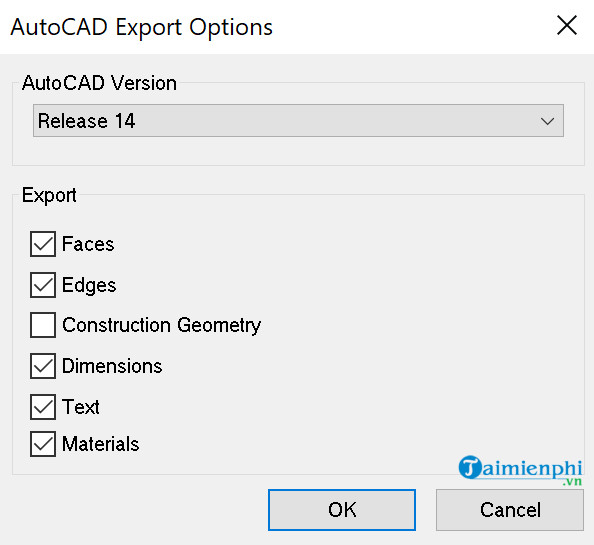
- Select Options.
- Choose the AutoCAD version expected by the recipient.
- Select the entity types to include, such as faces, edges, construction geometry, dimensions, text or materials, according to the version's available options.
- Confirm the settings and select Export.
Do not expect a 3D export to behave exactly like a model created natively in AutoCAD. SketchUp geometry may arrive as meshes, faces or edges, and materials or component structure can translate imperfectly. If the recipient needs editable 2D construction drawings, a controlled 2D or LayOut export may be more useful than the entire 3D scene.
Export DWG from LayOut
For a documented SketchUp presentation, LayOut can export pages as DWG or DXF and translate text, hatches, tables and SketchUp viewports into CAD elements. Open File > Export, choose DWG/DXF, select the page range and output options, and check the result in a CAD viewer. See SketchUp's LayOut CAD export documentation for page and viewport details.
Check the file in AutoCAD
- Open the exported file and run UNITS to inspect the drawing units.
- Measure a known wall or object with DIST.
- Use ZOOM > Extents and look for distant or stray geometry.
- Review layers, line types, text, dimensions and curves.
- Check whether closed profiles remain closed if they will be hatched or extruded.
- Save the validated result as a new file without overwriting the first export.
Troubleshooting
The exported 2D drawing has the wrong scale
Return to SketchUp, set a standard view and Parallel Projection, then export at Full Scale. Confirm that the SketchUp model itself was drawn at real size and that AutoCAD insertion units match.
The file appears blank
Use Zoom Extents. Geometry may be far from the origin or on frozen/off layers. If the extents become enormous, inspect and remove stray objects in a copy of the SketchUp model.
Curves look segmented
SketchUp represents many curves as connected segments. Increase segment quality before modeling is finalized, or rebuild critical CAD arcs in AutoCAD when true analytic geometry is required.
DWG or DXF is missing from the export list
Check the signed-in SketchUp plan and application. SketchUp's current file-format availability table lists DWG/DXF under Go, Pro and Studio. A free plan may export images or other supported formats but not CAD files.
After export, use a DWG viewer for an independent check, review AutoCAD linetype setup if dashed lines do not translate, and compare AutoCAD alternatives when the recipient uses another DWG editor. A successful handoff is confirmed by units, geometry and layers—not merely by an Export completed message.
Related Articles
 How to Save AutoCAD Drawing Files, Export AutoCAD Drawings to PDF, JPG, PNG2 minutes read
 How to Use SketchUp to Design 3D5 minutes read
 Click: How to Use Sketchup10 minutes read
 How to Import KML Files into SketchUp3 minutes read
 5 Best Autocad Alternatives9 minutes read
 Steps to Retrieve Unsaved Autocad Files4 minutes read
Reader Comments 0
Sign in with email or Google to join the discussion.