Table of Contents
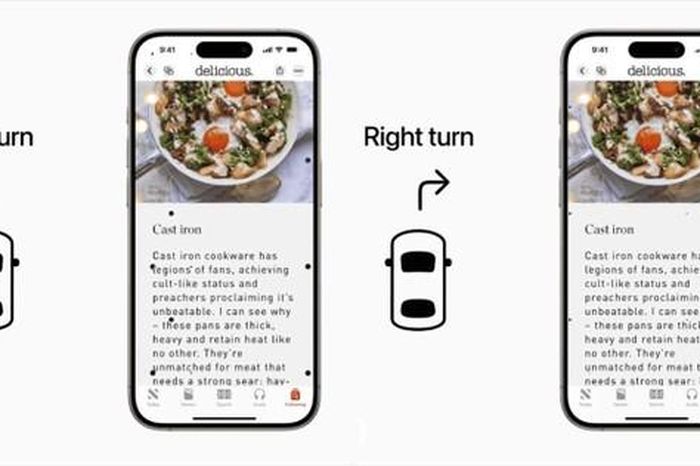
Vehicle Motion Cues displays animated dots along the edges of the iPhone screen while you are a passenger in a moving road vehicle. The dots represent acceleration, braking, and turns and may reduce the visual-versus-physical sensory conflict associated with motion sickness. The feature does not change the sensitivity of the iPhone's sensors or remove movement from apps.
Vehicle Motion Cues may help, but it does not prevent symptoms for everyone. Stop looking at the screen if discomfort continues. Never use a phone or this feature while driving or in another situation that requires attention to safety.
Turn on Vehicle Motion Cues in Settings
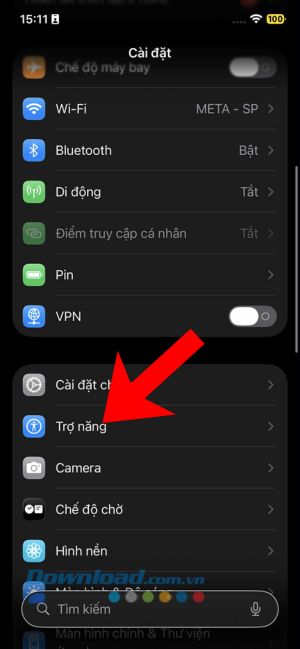
- Open the Settings app.
- Tap Accessibility.
- Select Motion.
- Tap Vehicle Motion Cues.
- Choose On, Automatic, or Off.
With Automatic selected, the dots appear when the iPhone detects that you are riding in a car or another on-road vehicle and disappear after the motion stops. Detection can take a moment and may not fit every type of transportation, so Control Center remains useful for manual control.




Turn the cues on or off from Control Center
- Open Control Center by swiping down from the upper-right corner on a Face ID iPhone, or up from the bottom edge on supported Home-button models.
- Tap the Vehicle Motion Cues control.
- Choose the available on, automatic, or off option.
If the control is missing, enter Control Center editing mode, select Add a Control, and add Vehicle Motion Cues. The exact layout can vary by iOS version.
Customize the dots
- Go to Settings > Accessibility > Motion > Vehicle Motion Cues.
- Tap Customize Appearance.
- For Pattern, choose Regular for a stable pattern or Dynamic for a more active visual response.
- Select a dot color. iOS adjusts saturation to maintain contrast with content behind the cues.
- Use any available visibility, size, or quantity controls to make the dots comfortable and easy to see.


How the feature works
Motion sickness can occur when the eyes see a relatively stable phone screen while the inner ear and body detect movement. Vehicle Motion Cues provides a visual reference for that movement without covering the main content:
- Dots at the screen edges move in response to changes in vehicle motion.
- The central reading or viewing area remains unobstructed.
- Automatic mode uses the iPhone's sensors to decide when to show the cues.
For the clearest relationship between the cues and the vehicle, sit facing forward. The feature is intended for passengers in cars and other on-road vehicles; behavior can differ on trains, boats, or aircraft.
Vehicle Motion Cues vs. Reduce Motion
| Feature | Purpose | Visible effect |
|---|---|---|
| Vehicle Motion Cues | May reduce motion sickness while riding in a road vehicle | Adds animated dots that represent vehicle movement |
| Reduce Motion | Reduces certain iOS interface animations | Changes zoom, transition, and other onscreen motion effects |
They are separate accessibility settings and can be used independently or together. Vehicle Motion Cues does not stabilize Maps, Safari, Photos, or other apps, and it does not reduce all scrolling or interface animation.
If Vehicle Motion Cues is missing
- Install the latest iOS update offered for the iPhone.
- Search Settings for Vehicle Motion Cues.
- Restart the iPhone after a major software update.
- Check Settings > Accessibility > Motion rather than Display settings.
- On a managed iPhone, ask the administrator whether any restrictions affect accessibility controls.
Apple's Vehicle Motion Cues instructions reflect the latest options.
Use the phone safely while traveling
Even with the cues enabled, take breaks, look toward a stable distant point, and put the phone away if nausea, dizziness, headache, sweating, or other discomfort develops. Persistent or severe symptoms warrant advice from a qualified healthcare professional. The feature is an accessibility aid, not a medical treatment.
Related Articles
 Why Do You Get Motion Sickness and How to Get Rid of Motion Sickness with7 minutes read
 New Research Reveals a Simple Solution to Reduce Motion Sickness5 minutes read
 How to Deal with Motion Sickness on Rides: Step-by-Step8 minutes read
 How to Effectively Prevent Car Sickness without Taking Medicine4 minutes read
 Apple Is About to Launch a Feature to Help Users Reduce3 minutes read
 Apple Reveals 'Vehicle Motion Cues' Feature to Help Prevent4 minutes read
Reader Comments 0
Sign in with email or Google to join the discussion.