Table of Contents
Stupid Zombies 3 can be played on a computer through Google Play Games for Windows when the game is offered there in your region, or through a reputable Android emulator such as BlueStacks or NoxPlayer. Install the game from Google Play inside the selected platform rather than downloading a standalone APK.
What the game is
Stupid Zombies 3 is a turn-based ricochet puzzle shooter from GameResort. Each level gives you a limited number of shots and asks you to use walls, objects, explosions, and weapon behavior to eliminate the zombies efficiently. The current store listing describes four weapons and 200 levels.
Check the official Google Play listing before installing. It identifies the package as com.gameresort.sz3 and shows whether Android or Windows installation is available for your account.
Option 1: install with Google Play Games on Windows
If the Google Play listing shows that Stupid Zombies 3 is available on Windows, this is the simplest route:
- Install Google Play Games for PC from Google's official site.
- Sign in with the Google account that owns your Play Store apps.
- Search for Stupid Zombies 3 and confirm the developer is GameResort.
- Select Install, then launch the game from the library.
Availability varies by region and PC compatibility. If the Install on Windows option does not appear, use an Android emulator instead.
Option 2: install with NoxPlayer
The screenshots show an older NoxPlayer interface, but the Play Store workflow remains similar.
Open NoxPlayer and select Play Store.
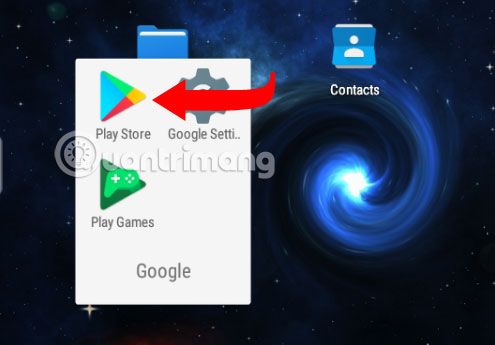
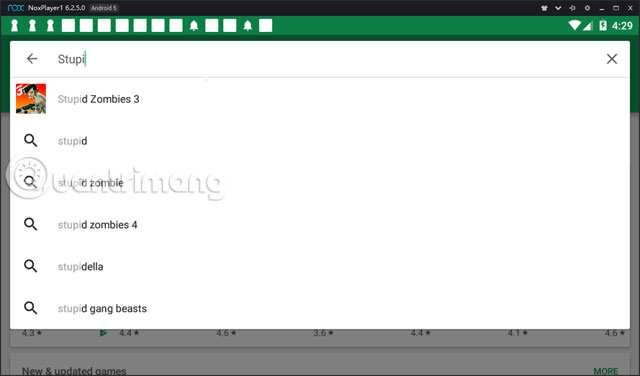
Sign in to Google Play, search for Stupid Zombies 3, and verify the developer and app icon before opening the result.
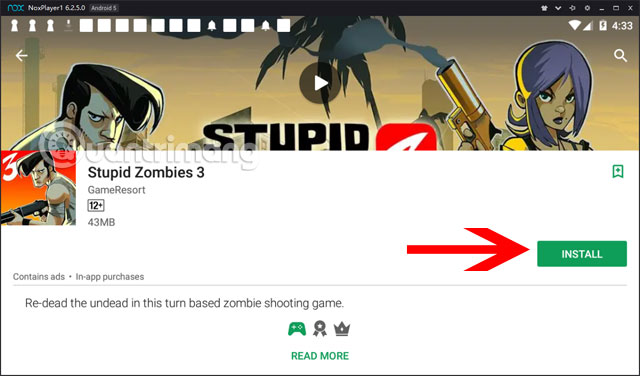
Select Install.
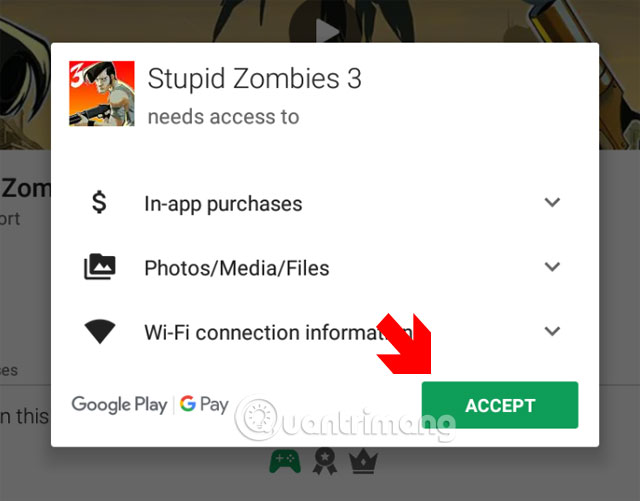
Review the permissions displayed by Google Play. Continue only if the request matches the current store listing; do not approve unrelated access simply because an old screenshot shows an Accept button.
Wait for Google Play to download and verify the game.
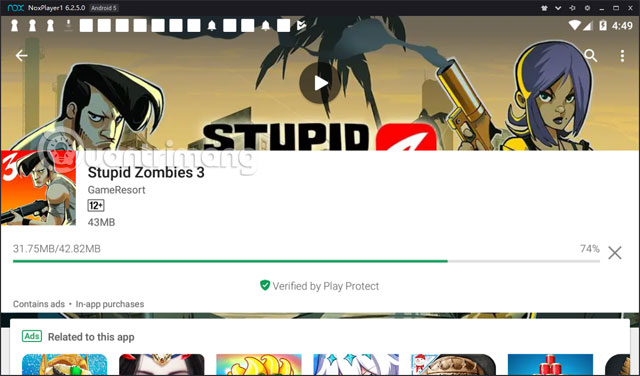
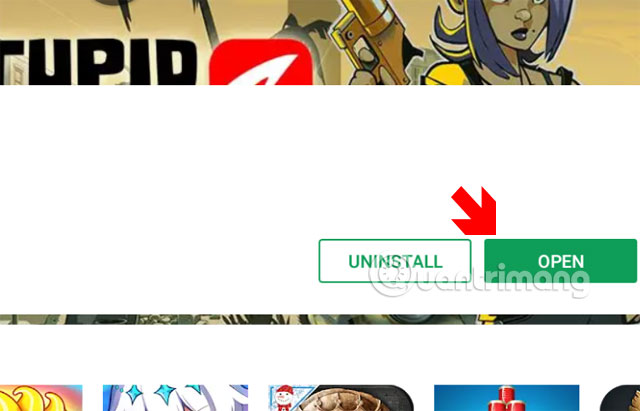
Select Open, or launch the game later from the NoxPlayer home screen.
Option 3: install with BlueStacks
Install BlueStacks from its official site, open System apps > Play Store, and sign in to Google Play.
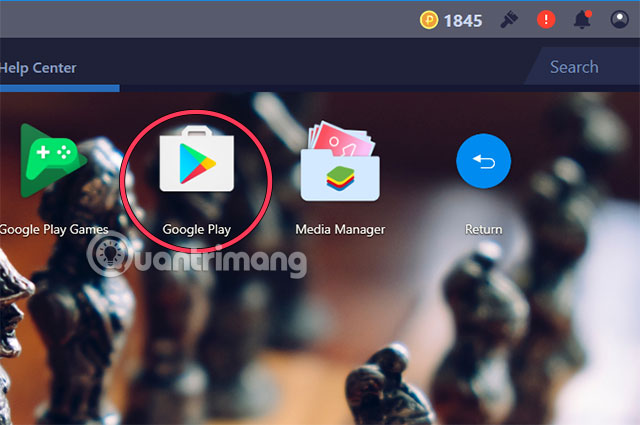
Search for Stupid Zombies 3, verify GameResort as the developer, and install the Play Store result.
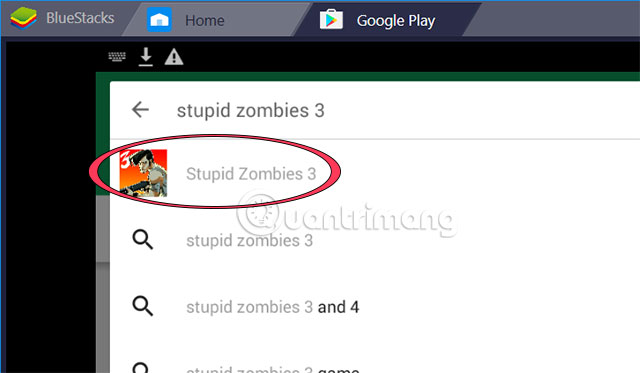
BlueStacks also maintains a current Stupid Zombies 3 setup page. If you are comparing platforms first, TipsMake's guide to Android emulators for Windows explains the broader choices.
Set up controls
Stupid Zombies 3 uses aiming gestures rather than a large set of action buttons. Start with mouse input mapped to a normal touch-and-drag gesture:
- Click and drag to adjust the shooting angle.
- Release only after confirming the projected direction.
- Avoid rapid-click or macro features; they do not help with a precision puzzle game.
- Reset the emulator key map if the pointer and touch location do not align.
Fix common problems
The game does not appear in Google Play
Update the emulator, confirm that its Android instance meets the current Play Store requirements, and check regional availability. Do not bypass the store with an APK from an unknown download site.
Black screen or immediate crash
Update the graphics driver, restart the emulator, switch its graphics renderer, and create a newer Android instance if the platform supports that option. Close other emulators before testing again.
Aiming is offset
Use a standard landscape resolution, restore the default display scaling, and remove custom key mappings. Restart the game after changing emulator resolution.
Progress does not appear on another device
Do not assume progress is cloud-synced unless the game explicitly shows an account or cloud-save feature. Emulator data may remain local. Back up the emulator instance before reinstalling it, but do not copy or overwrite files manually unless the platform documents the process.
Safe installation checklist
- Use Google Play and verify GameResort as the developer.
- Download the emulator from its official website.
- Decline bundled software that is unrelated to the emulator or game.
- Avoid modified APKs, unlimited-currency builds, and unofficial save files.
- Test the game before changing resolution or advanced graphics settings.
Once installed, the larger screen makes bank-shot angles easier to inspect, but the core strategy is unchanged: conserve ammunition, look for chained ricochets, and use environmental objects before taking a direct shot.
Related Articles
 Answer the Stupid Question Game15 minutes read
 Already Have Plants vs. Zombies 3 in the Form of Pre-alpha3 minutes read
 TOP Games Plants vs. Best Zombies8 minutes read
 Plants vs. Zombies: Upgrade and Collect Plants to Deal with Zombie Attacks7 minutes read
 How to Decode Stupid Ransomware with Stupiddecrypter3 minutes read
 What Is Attractive About Marvel Zombies to Viewers: Explained7 minutes read
Reader Comments 0
Sign in with email or Google to join the discussion.