Table of Contents
With Apple Pay officially launching in Vietnam, payments for Apple device users have reached a new level. Apple Pay offers wireless payment capabilities, allowing transactions via NFC with high security, helping to prevent the leakage of bank card and user information.
Even without a phone, you can still make Apple Pay payments using your Apple Watch. This article will guide you through setting up Apple Pay and how to make payments using your Apple Watch quickly and conveniently.
Setting up Apple Pay on Apple Watch
Add tags to Apple Watch using iPhone
Step 1: Open the Apple Watch app on your iPhone, select the My Watch tab, then tap Wallet & Apple Pay.
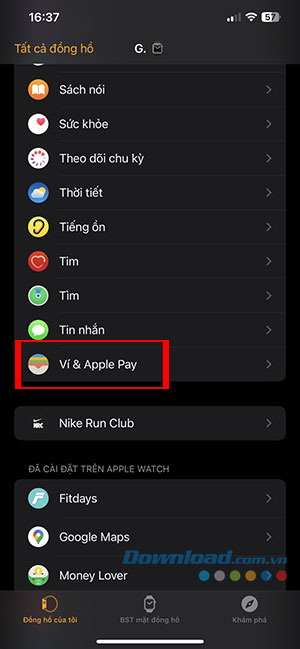
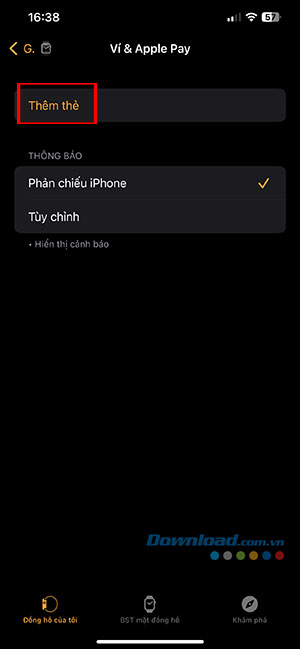
Step 2: If you've already added a card to Apple Wallet on your iPhone, tap Add next to the card you want to set up on your Apple Watch, then enter the card's CVV.
If you want to add another tag, tap Add Tag, then follow the on-screen instructions. This may require setting up a passcode on your Apple Watch.
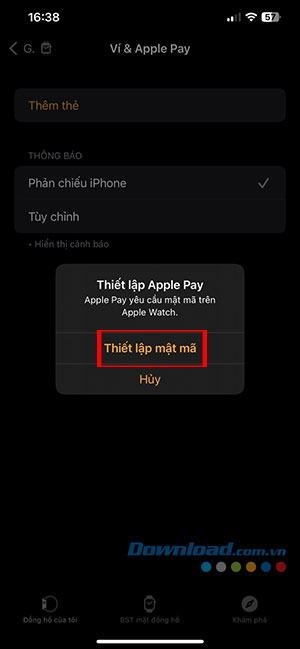
Additionally, the card issuer may require extra steps to verify the user's identity.

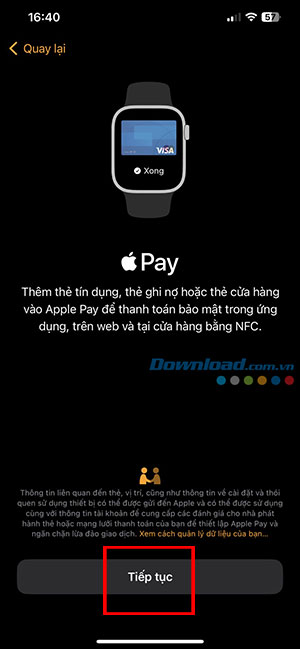
Add tags on Apple Watch
You can also add tags directly to their Apple Watch by following these steps:
Step 1: Open the Wallet app on your Apple Watch and tap Add card.
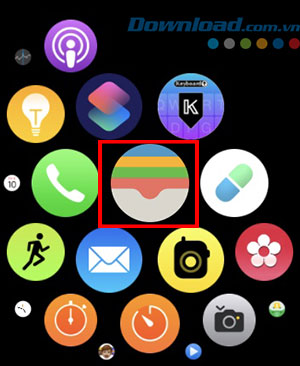

Step 2: Select Debit Card or Credit Card and scroll to the bottom to tap Continue.


Step 3: Enter the cardholder's information and card number, then tap Continue and follow the instructions to complete adding the card directly on your Apple Watch.

Choose the default watch face on your Apple Watch
- Open the Apple Watch app on your iPhone, open the My Watch tab, and tap Wallet & Apple Pay.
- Tap Default Card, then select the card.
Rearrange payment cards
Open the Wallet app on your Apple Watch, tap and hold a card, then drag it to a new location.
Remove card from Apple Pay
- Open the Wallet app on your Apple Watch, then tap to select a card.
- Scroll to the bottom and then tap Delete.
You can also open the Watch app on their iPhone, open the My Watch tab, tap Wallet & Apple Pay, select the card they want to delete, and then tap Delete Card.
Pay with Apple Delivery using your Apple Watch
Pay for purchases in-store using your Apple Watch
- Double-click the button on the side.
- Choose a card you want to use for payment.
- Hold your Apple Watch a few centimeters away from the contactless card reader, with the screen facing the reader.
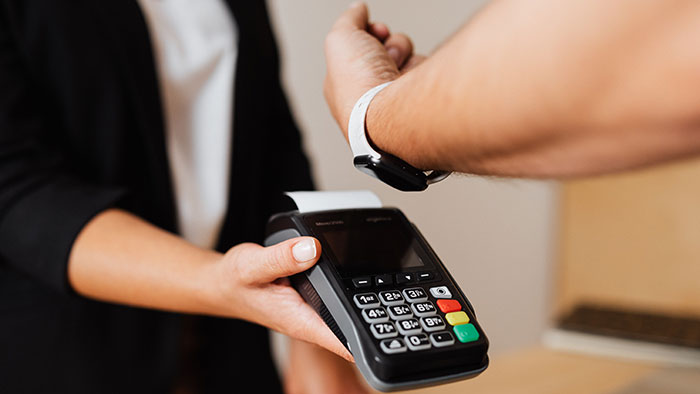
When you feel a light tap and hear a beep, it means the payment has been successfully completed. Simultaneously, users will receive a notification in the Notification Center when the transaction is confirmed.
For supported cards, users also receive notifications about purchases made with any cards added to the Wallet, even if the transaction wasn't made using their Apple Watch, iPad, or iOS device.
You can turn off notifications and history for individual cards within the Wallet app. Simply open Watch on your iPhone, tap My Watch > go to Wallet & Apple Pay, select a card > tap Transactions > turn Show History and Allow Notifications on or off.
In-app payments on Apple Watch
- When shopping in an app on your Apple Watch, select the Apple Pay option when checking out.
- Review your payment, shipping, and billing information, then double-tap the side button to pay with your Apple Watch.
Related Articles
 How to Set Up Your Apple Watch for Emergencies5 minutes read
 How to Unpair Your Apple Watch5 minutes read
 How to Start and Reset Apple Watch5 minutes read
 How to Change Apple Watch Name4 minutes read
 How to Use Apple Watch to Take Photos Remotely on iPhone4 minutes read
 Apple Watch 6 Rumors: Sleep Tracking, Blood Oxygen Levels9 minutes read
Reader Comments 0
Sign in with email or Google to join the discussion.