Table of Contents
This updated guide explains how to create transparent tik tok avatar with clear steps, practical tips, and useful context. When we surf Tik Tok, we will see that there are Tiktok accounts with transparent avatars that look quite strange. If you like the transparent Tik Tok avatar style, you can follow the instructions below to create your own transparent Tiktok avatar, change your Tik Tok avatar to.
How to Create Transparent Tik Tok Avatar
Note, for more convenience, It is best to do it on your phone to download the avatar image and then change the Tik Tok avatar image, the operation is similar to when doing it on the computer.
Step 1:
First, we access the link below to open the website to create transparent Tiktok avatar.
https://www.taoanhdep.com/2021/08/tao-avatar-ten-tiktok-trong-suot.htmlStep 2:
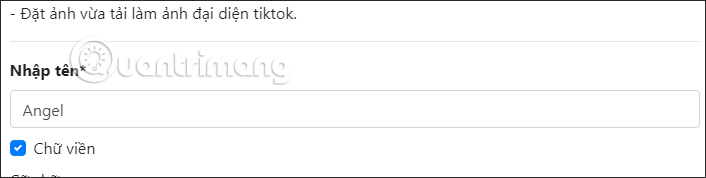
On this website, you will first enter the name you want to display in your Tiktok avatar or any name that the user wants to display in their Tiktok account profile picture.
to use border and transparent text inside, check Border text .
Note, the website has a Preview section for you to visualize how the Tiktok avatar will appear after we apply designs to the avatar.
Step 2:
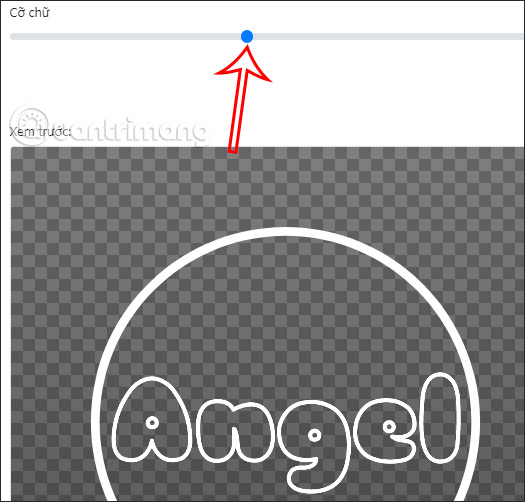
Next, you adjust the font size displayed in the Tiktok avatar by moving the blue circle in the gray bar below. Adjusting the blue circle to the right will make the font size larger, adjusting to the left will make the font size smaller.
You can adjust and preview your avatar below to avoid the text overflowing the white avatar border.
Step 3:
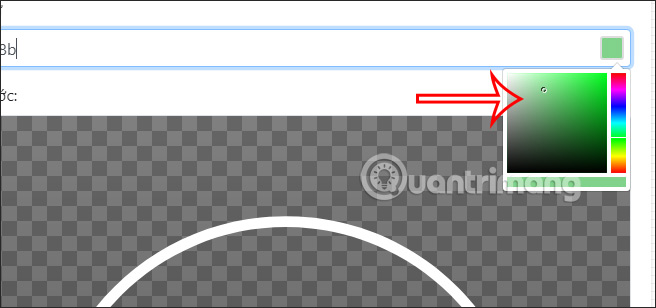
Next, we will choose the font color for the name in the Tik Tok avatar . select the white square to change to another color you like.
We will move to the color scheme you want to use for the text in your Tik Tok avatar. Remember to pay attention to the preview avatar below to adjust the color accordingly.
Step 4:
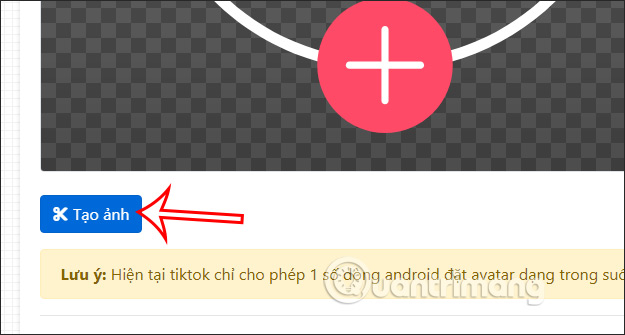
Adjust the items to get the avatar you want. Finally, select Create image below to create a transparent Tiktok avatar.
Step 5:
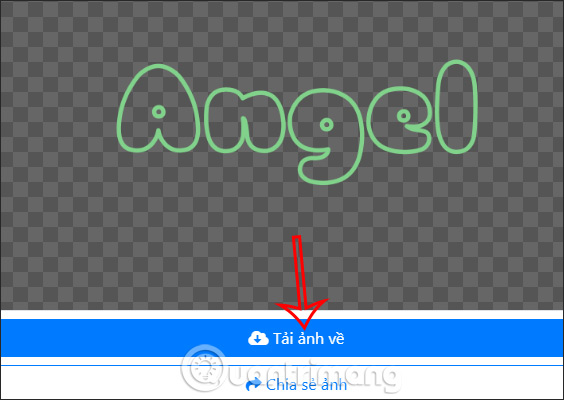
The result is a transparent Tiktok avatar below, choose Download image to download to your device.
Step 6:
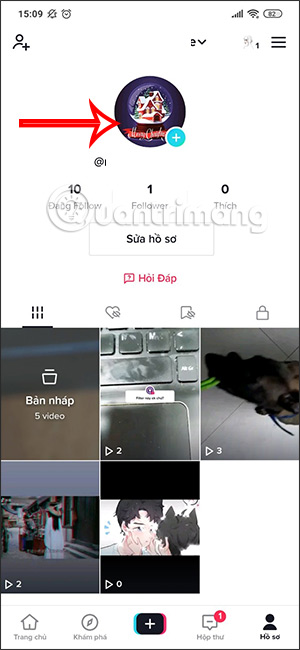
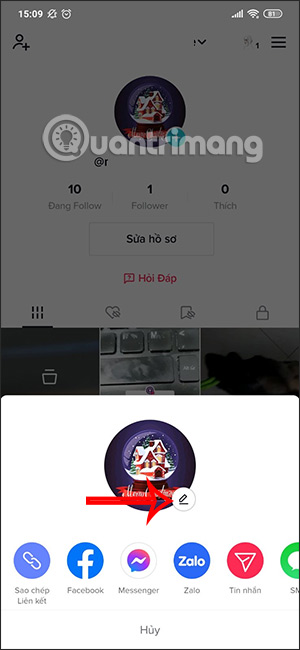
Open the Tik Tok application and access your personal profile. At the personal Tik Tok interface, we select our current avatar . Next, the interface below appears, you select the pen icon at the avatar to change.
Step 7:
Now display the photo album on the phone , we will select the transparent Tiktok avatar that we just downloaded. The result is the transparent avatar has been replaced for your Tiktok.
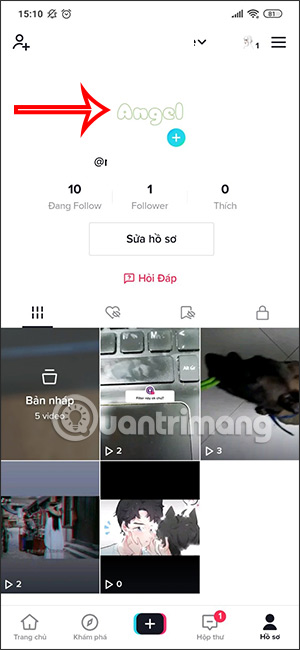
We open a Tiktok video and will see a transparent Tiktok avatar as shown below.
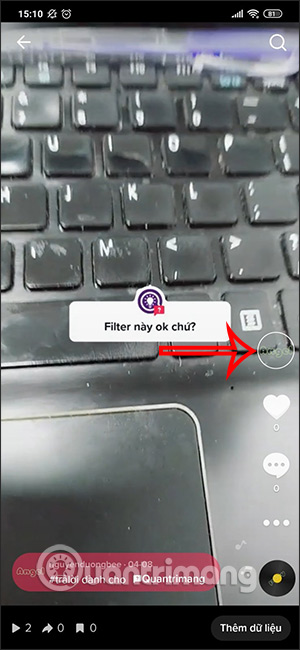
because of the transparent nature of the image, when designing, It is best to choose a dark color scheme so that it will not be blurred when used. If necessary, you can choose a font with a background color inside to make it bolder.
Video Tutorial on Creating Transparent TikTok Avatar
FAQ
What should I prepare before I create transparent tik tok avatar?
Review the requirements and options in the guide first. Having the correct device, app version, account access, or materials ready helps prevent avoidable errors.
How long does it take to create transparent tik tok avatar?
The time depends on the task and your setup. Most basic steps can be completed quickly, while downloads, updates, scans, or troubleshooting may take longer.
What should I do if the steps do not work?
Repeat the instructions in order, confirm that your software or device is supported, and check permissions, connectivity, and available updates before trying again.
Related Articles
 Instructions for Creating Avatars on Whatsapp4 minutes read
 Create Style for Facebook Avatar with Two Attractive Features6 minutes read
 Create the Avatar 'Run Now' in the Poster Style of Son Tung M-TP4 minutes read
 Tutorial to Create a Fancy Spiral Avatar3 minutes read
 Instructions to Create a Heart Avatar with a Name Around3 minutes read
 Manually Create a Facebook Avatar Image with 5 Online Applications5 minutes read
Reader Comments 0
Sign in with email or Google to join the discussion.