Table of Contents
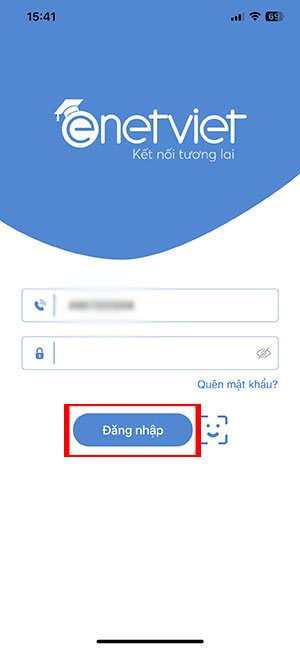
To view a child's results in eNetViet, sign in with the parent account linked by the school, select the correct student, and open Bảng điểm (Gradebook) or the available academic-results section. Choose the school year and semester where those selectors are offered.
The information shown depends on the school's implementation and published records. An empty field does not automatically mean the student received zero or that the app has lost data.
1. Use the school's linked account
Install or update eNetViet through the official app listing or the school's instructions. Sign in using the account information registered with the school. If you have changed your phone number or cannot access the account, ask the school to check the parent-student link.
Use the publisher's academic-results guide for the supported workflow. Menus may differ from the older screenshots below.
2. Select the correct student
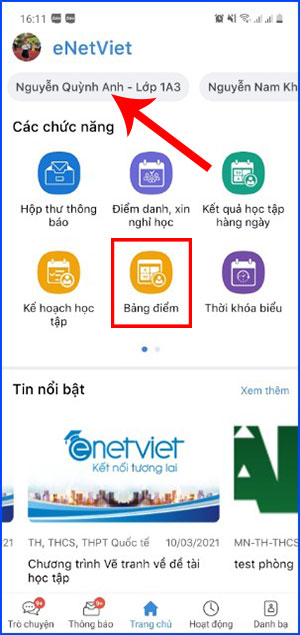
If several children are linked to the account, choose the intended student's name before opening the gradebook. Check the class and school year to avoid reading another child's or a previous year's results.
3. Open the gradebook and period
Tap Bảng điểm or the corresponding results tile. Select Semester I, Semester II, or the annual summary as available, then open the subject or assessment detail you need.
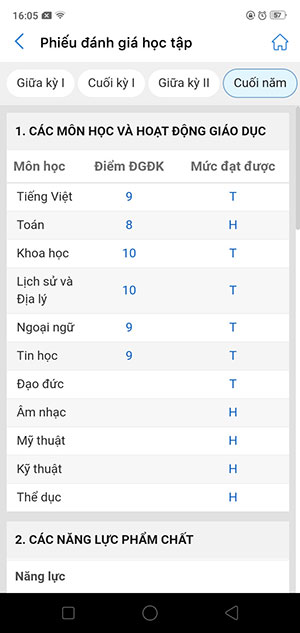
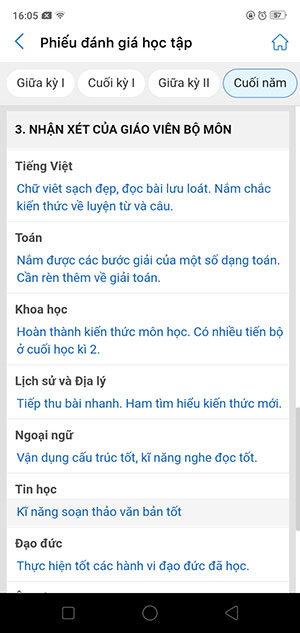
Read the column headings carefully. An individual test mark, semester result, and annual summary are different records. Primary-school assessments can also include comments and competency or quality evaluations rather than only numerical marks.
4. Check daily learning information separately
Where the school enables it, Kết quả học tập hàng ngày (Daily Learning Results) provides another view of learning information and teacher updates. It is not necessarily the same as the finalized semester report.
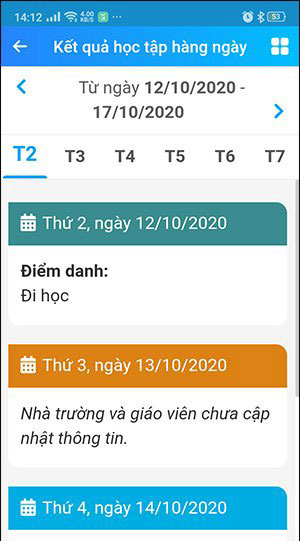
Do not assume every test category or comment will appear immediately. Publication and synchronization depend on the school's data entry and release process.
If grades or a student are missing
- Confirm the account, selected student, school year, and semester.
- Check whether the app is connected and whether an update is available.
- Read school announcements about when results will be published.
- Ask the homeroom teacher or school administrator to check linking or record issues.
If a mark looks incorrect, report the subject, period, and specific field privately to the teacher. Do not change account details or create duplicate accounts to try to alter a grade.
Protect the student's information
Keep login and recovery information private. Avoid posting screenshots of full report cards in public groups, and sign out on shared devices. Download availability does not establish that every school service is free; confirm any service arrangement with the school.
The publisher's parent-feature overview describes related functions, while your school remains the appropriate source for the meaning and timing of its published assessments.
Related Articles
 Instructions for taking attendance and approving leave applications on eNetViet
 How to Appeal Academic Probation
 How to Become an Academic
 5 best search tools for academic research
 How To Make The Best Class Assignments?
 Professional Essay Writers Online: Find Experts Who Will Help You With All Kinds of Academic Tasks
Reader Comments 0
Sign in with email or Google to join the discussion.