Table of Contents
Microsoft's AI design tools can turn a written description into an editable poster. The workflow may appear in Microsoft Designer or under Create in the Microsoft 365 Copilot app, depending on your account. Start with a specific brief, then correct the generated text and layout before downloading the result.
Create a poster from a prompt
- Sign in with your Microsoft account and open the design or Create workspace.
- Select Poster. In some interfaces, you may need to open More first.
- Choose a template or start with a blank prompt.
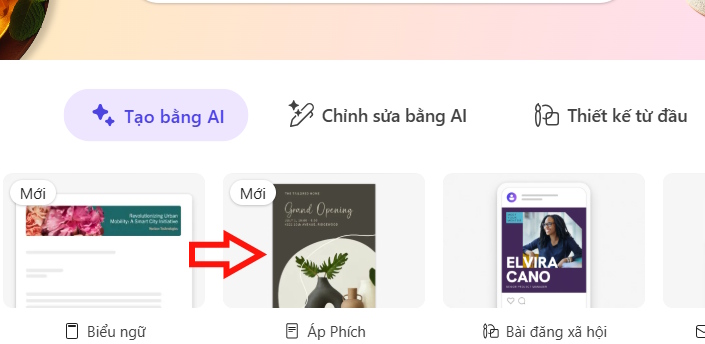
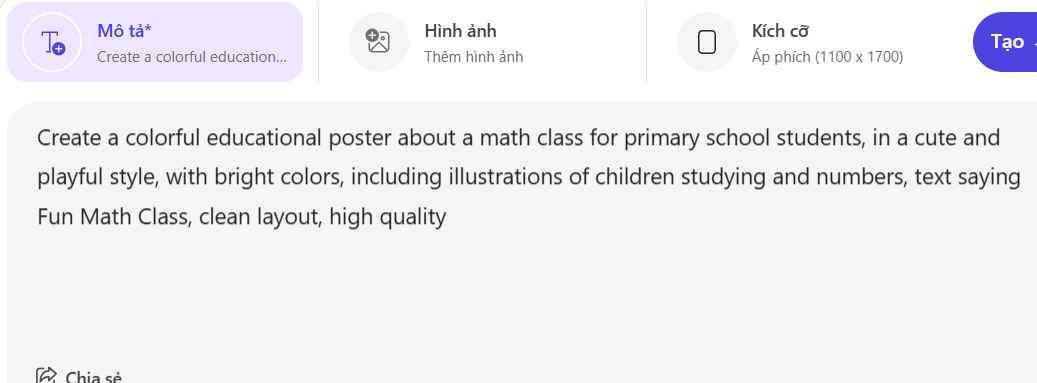
Some AI poster features require an eligible Microsoft 365 subscription, and generation limits can vary by plan and service availability.
Write a useful poster prompt
Describe the poster's purpose, audience, visual style, colors, required elements, and exact headline. A practical structure is:
Create a [poster type] about [topic] for [audience]. Use a [style] layout with [colors and visual elements]. Include the headline “[exact text]” and leave clear space for [date, location, price, or call to action].
Examples:
- School event: “Create a lively portrait poster for a school music festival. Use bold blue and orange shapes, illustrations of instruments, the headline ‘Spring Music Night,’ and clear spaces for the date and venue.”
- Sale: “Create a clean retail sale poster in red, cream, and black. Include a product-photo area, the headline ‘Up to 50% Off,’ and a prominent call-to-action button.”
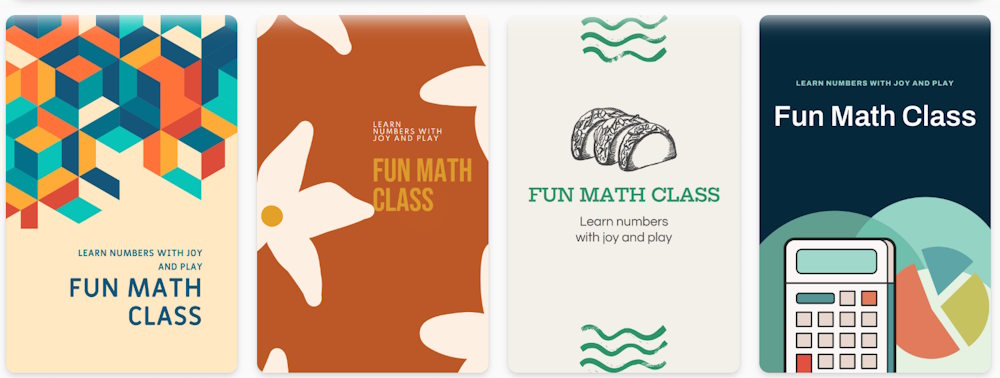
- Classroom: “Create a colorful math-club poster for primary-school students, with friendly number illustrations and the headline ‘Fun Math Club.’”
Choose size, brand, and reference material
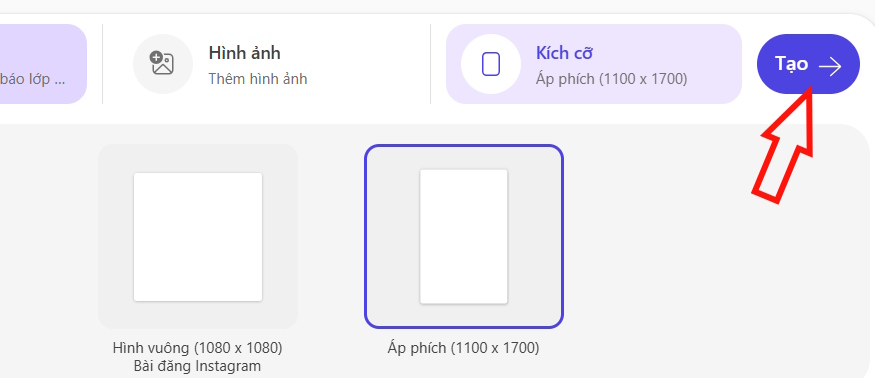
Select a portrait, square, or wide format that fits the intended placement. If your version supports it, choose a color palette or organizational brand kit. You may also be able to upload a reference image, but only use material you have permission to reuse.
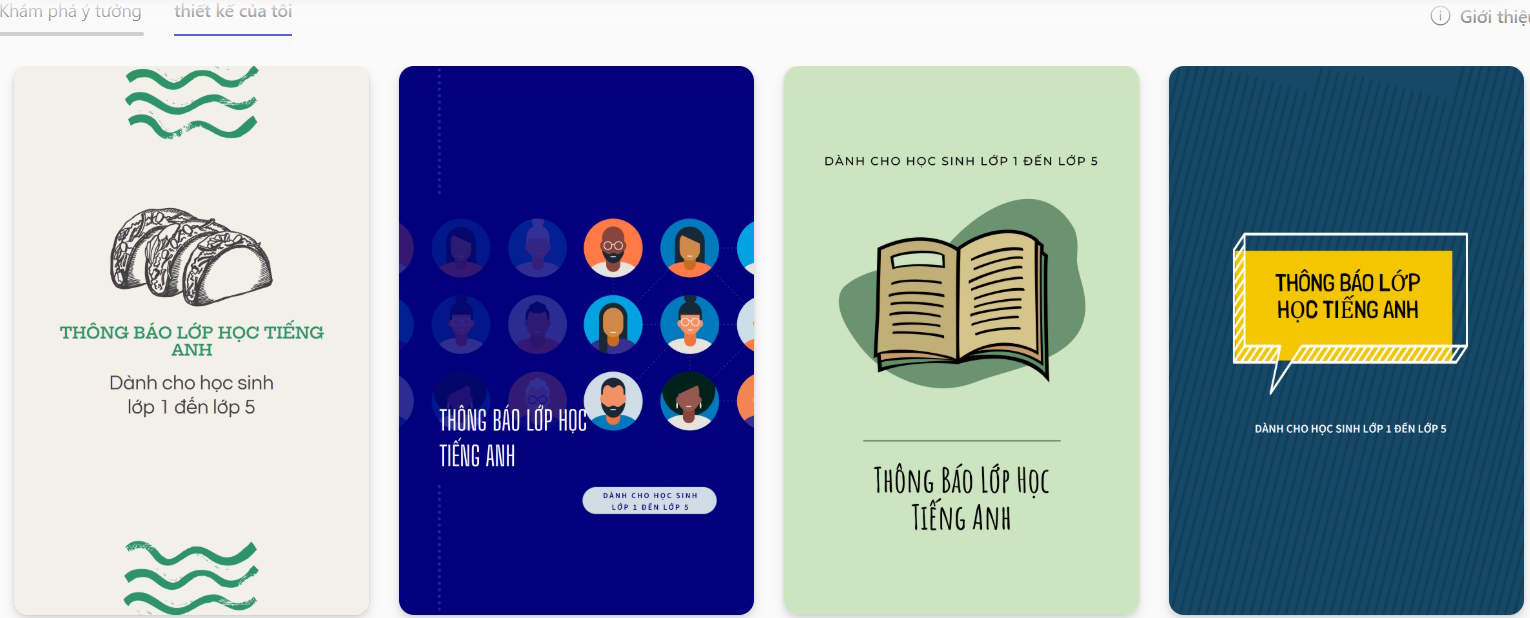
Select Create to generate the design. Review all options at full size rather than choosing only from the thumbnail.
Edit the generated poster
Open the preferred result in the editor. Replace misspelled or distorted AI-generated lettering with normal editable text, check spacing and contrast, and confirm that important details are not too close to the edge. Generated images can misunderstand prompts, so inspect hands, faces, logos, and small objects carefully.
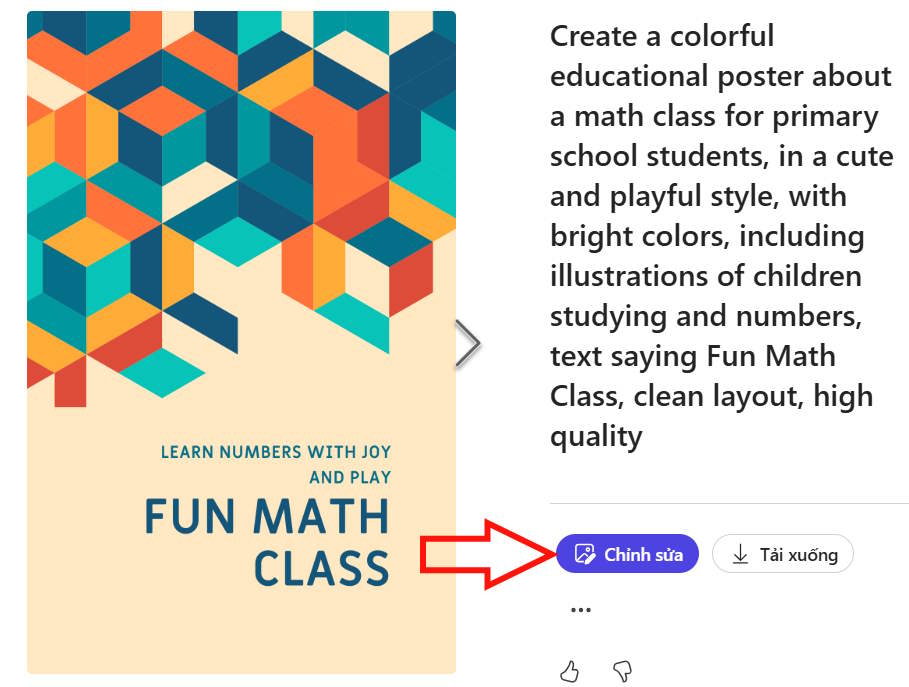
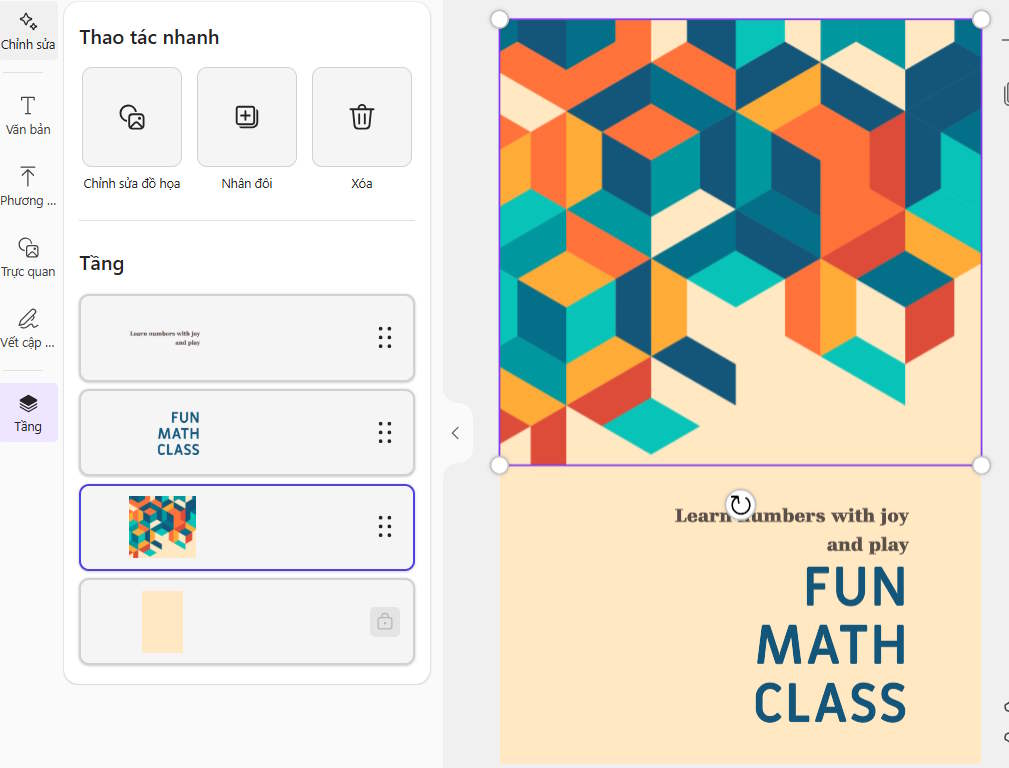
Use the editor to adjust text, colors, images, filters, and layout. Then download the poster in the format offered by your account. For work that requires more precise image editing, see this overview of AI tools in Photoshop.
Final checks before downloading
- Verify the event date, address, price, contact details, and spelling.
- Check readability at the poster's actual display size.
- Use sufficient contrast between text and background.
- Confirm that logos, photos, fonts, and reference images are licensed for the intended use.
- Export a test copy before ordering a large print run.
Microsoft's current poster-design instructions describe the Create, Poster, prompt, brand/color, edit, and download workflow. Menu names can change as Designer features are integrated into Microsoft 365 Copilot.
Related Articles
 How to Create Movie Posters in GIMP22 minutes read
 How to Create a Poster from the Lyrics: Lyricsposter4 minutes read
 How to Create AI Posters on Professional Ideogram3 minutes read
 The Reasons Why Web Designer Feels Sad4 minutes read
 Top 6 Websites to Create the Best Free Posters 20196 minutes read
 How to Register to Use Microsoft Designer3 minutes read
Reader Comments 0
Sign in with email or Google to join the discussion.