Table of Contents
Cursor indexes the workspaces you open so its Agent can search for relevant code across the project. In current versions, you normally do not need to create an index manually or add @codebase to every prompt: open the correct project folder, allow indexing to finish, and ask a question that requires project-wide search.
This guide shows how to set up that workspace, verify retrieval with evidence, control which files are indexed, and fix common problems. Cursor's interface changes over time, so menu labels may differ slightly between releases.
Before opening the project
- Install a current version of Cursor and sign in if your account or plan requires it.
- Keep the repository on a local or mounted filesystem that Cursor can open as a workspace. For a remote Git repository, clone it first.
- Identify the real project root. It commonly contains
.git,package.json,pyproject.toml,go.mod,Cargo.toml, or workspace configuration. - Check your organization's security policy before indexing proprietary, regulated, or client code.
If you are deciding whether the editor suits your workflow, read TipsMake's practical review of Cursor as an AI programming assistant.
Open and index a codebase in Cursor
1. Open the project root
In Cursor, choose File > Open Folder, then select the repository's root folder. Opening only src or another subfolder can hide configuration, tests, shared packages, and scripts that the Agent needs to understand relationships across the project.
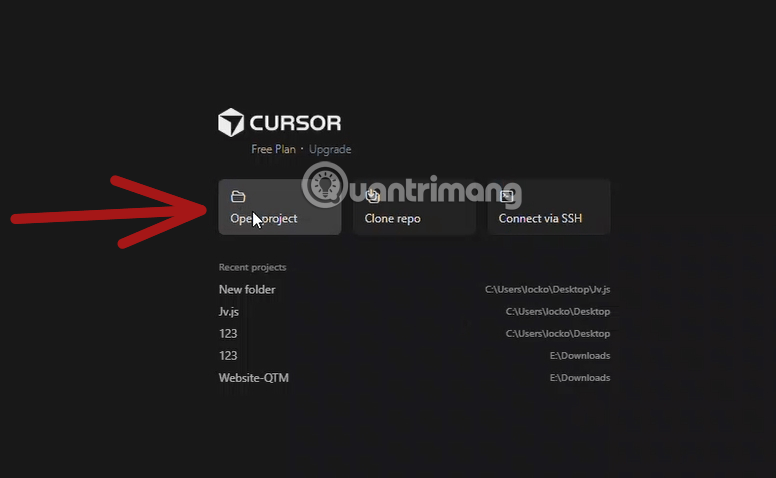
On macOS, the standard Open command is commonly available with Cmd+O. On Windows and Linux, Cursor inherits many VS Code keybindings, but custom mappings can differ. Use the Command Palette and search for Open Folder if a shortcut does not work.
2. Select the folder and check the workspace tree
Confirm the folder in the operating system dialog. Cursor should open the workspace and show the repository tree in the Explorer. Check that the top level includes the expected source folders, dependency manifests, test folders, and configuration files.
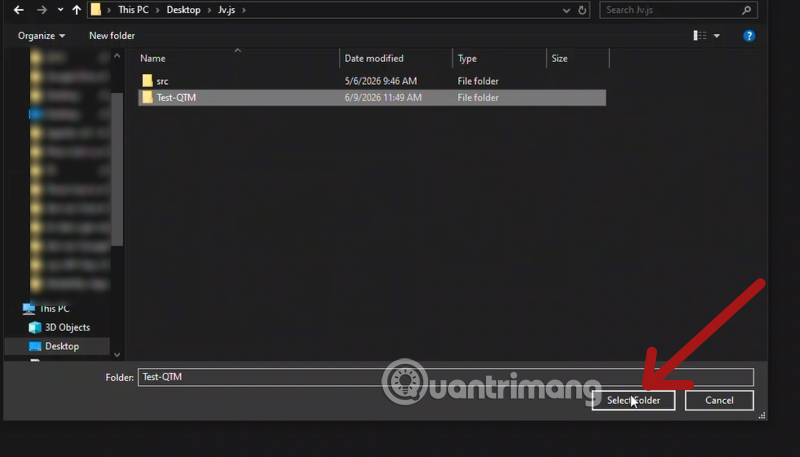
For a multi-root workspace, add each required folder to the workspace. Cursor's current documentation says that all codebases in a multi-root workspace are indexed automatically, although some features that assume one Git root may be unavailable.
3. Let indexing run
Cursor begins indexing the codebase automatically. The time varies with the number and type of files, the ignore rules, available resources, and network conditions. Avoid relying on a fixed estimate such as “30 seconds” or “15 minutes”; a small application and a monorepo are not comparable.
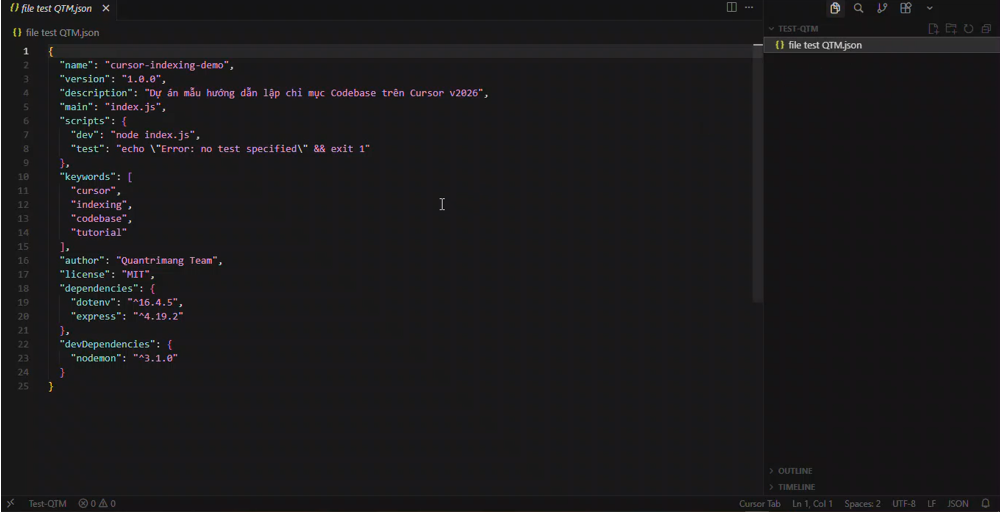
Open Cursor Settings and search for indexing if you need to inspect progress or indexed-file information. The exact settings section can move between releases. If the workspace has just opened, wait until indexing activity settles before testing a broad architectural question.
4. Ask a question that requires repository search
Open the Agent or chat side panel. The default shortcuts are Cmd+L on macOS and Ctrl+L on Windows or Linux unless you have remapped them. Ask a concrete question whose answer you can verify:
Where is user authentication validated? Cite the files and functions.Trace the request from the /api/orders route to the database query.Which tests cover PaymentService, and what cases are missing?List the entry points for this workspace and the config file each one loads.
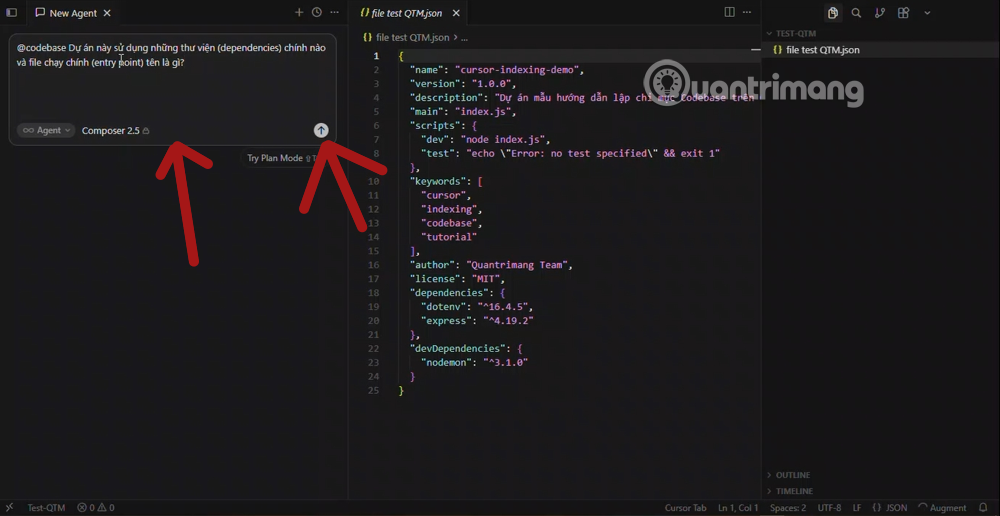
Current Cursor Agent can choose code-search tools automatically. Older releases and tutorials may refer to @codebase; if your installed build still exposes that mention, it can be used, but it is not the only way to make Agent inspect a repository.
5. Verify the answer instead of trusting it
A fluent architectural summary is not proof that indexing works. Open every cited file and confirm the symbol, call path, and behavior. A good answer should point to real project locations and distinguish observed code from an inference.
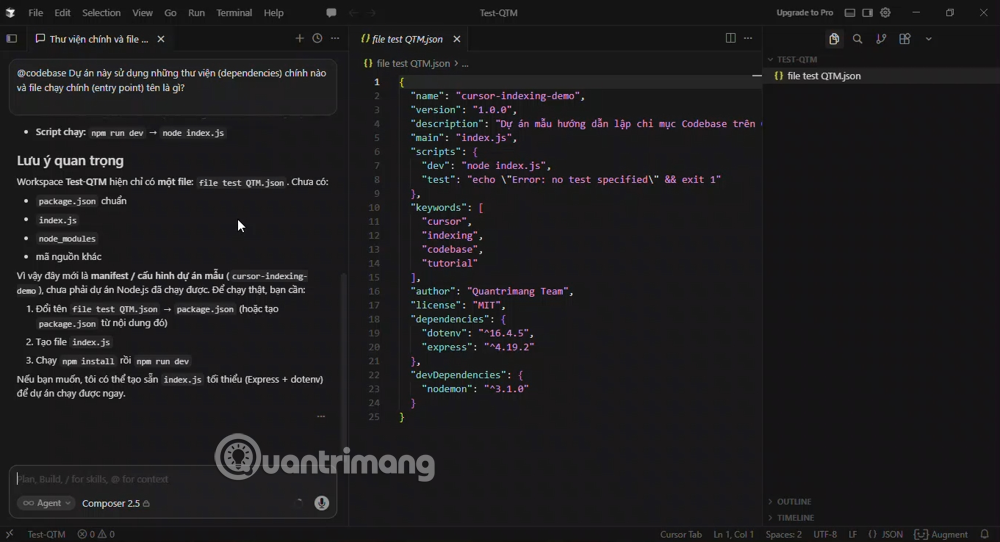
Repeat the test with an exact identifier. Cursor's Agent can use exact search for function names, variables, error strings, and regular expressions as well as indexed semantic search. This combination is more reliable than judging the index from a single broad question.
What codebase indexing does
An index helps Cursor retrieve relevant code when the prompt does not contain an exact filename or symbol. It does not load every file into a model's context at once, and it does not mean the Agent permanently “understands the entire project.” Search retrieves candidate chunks; the Agent can then inspect related files and use additional tools to build a working view of the task.
This distinction matters when debugging. A missing result can come from an ignored file, incomplete indexing, vague wording, generated code, a branch change, or retrieval selecting the wrong candidates. It is not always an LLM reasoning failure.
Cursor also uses exact project search when the prompt names a concrete symbol. See the official Cursor search documentation for the current behavior and security description.
Exclude files correctly
Cursor supports several layers of ignore rules. Choose the file based on the result you need:
| Ignore mechanism | Use it for | Effect |
|---|---|---|
.gitignore | Files that should not be tracked by Git | Cursor also ignores these during indexing by default |
.cursorignore | Files that Cursor AI features should not access | Blocks access beyond codebase indexing; appropriate for sensitive paths |
.cursorindexingignore | Large generated or vendored files that should be omitted from semantic indexing | Removes them from codebase search, but other AI features may still access them |
| Global Cursor ignore settings | Secrets that should be excluded across all workspaces | Applies user-level patterns rather than requiring a file in every repository |
Cursor already excludes many common dependency, cache, media, archive, and generated-file patterns. Check the current Cursor ignore-file reference before adding a large custom list.
Example indexing-only exclusions
Create .cursorindexingignore in the workspace root when files may remain available to other Cursor features but should not pollute semantic search:
dist/
build/
coverage/
vendor/generated/
fixtures/large-dataset/
*.min.js
*.map
Do not use .cursorindexingignore as the security boundary for credentials; the files remain accessible to other AI features. Use .cursorignore or global ignore settings for sensitive material. A global pattern set might include:
**/.env
**/.env.*
**/credentials.json
**/secrets.json
**/*.key
**/*.pem
**/id_rsa
Do not exclude a directory merely because it is large. Generated bundles and vendored dependencies are usually low value, but migration files, schemas, internal packages, infrastructure code, or fixtures may be essential to the task.
Privacy and source-code handling
The original claim that enabling Privacy Mode makes indexing “entirely local” is misleading. Cursor's current documentation says it creates embeddings without storing filenames or source code, obfuscates filenames, encrypts code chunks, and decrypts retrieved chunks on the client. Code content is held in memory during indexing rather than stored as plaintext.
That design does not remove the need for a security review. Confirm the current privacy policy, plan controls, data-processing terms, regional requirements, and your organization's rules before opening confidential repositories. Exclude credentials even when they are already in .gitignore, and never assume an editor setting overrides contractual or regulatory obligations.
Troubleshooting incomplete or inaccurate search
The Agent cannot find a file
- Confirm the file is inside the open workspace and on the current branch.
- Check
.gitignore,.cursorignore,.cursorindexingignore, and global ignore patterns. - Search for an exact symbol or distinctive string to separate an indexing problem from a vague prompt.
- Open Cursor Settings, search for indexing, and check whether processing is still underway.
- Reload the window or reopen the workspace after changing ignore rules.
Indexing appears to run indefinitely
Look for generated trees, dependency copies, build output, large fixtures, archives, or mounted directories inside the workspace. Exclude low-value generated material with .cursorindexingignore, then reload the workspace. Also check the Cursor status page or support resources if the problem affects multiple repositories.
The answer cites the wrong implementation
Specify the package, runtime, or entry point in the prompt. Monorepos often contain several functions with the same name, obsolete versions, examples, and test doubles. Ask Agent to trace imports from a known entry point and to separate production code from tests and generated files.
New changes are missing
Save the file and ask for an exact search using a new symbol or string. If that works, semantic retrieval may simply have selected a different result. If exact search also fails, verify that the file is not ignored, then reload the workspace and recheck indexing status.
Improve context after indexing
Indexing helps Cursor find code; project instructions tell it how your team expects that code to change. Add concise rules for architecture boundaries, required tests, naming conventions, commands, and unsafe operations. Keep them specific and maintain them as the repository evolves.
For a broader comparison of project-aware assistants, see Cursor vs. GitHub Copilot and Replit vs. Cursor. Regardless of the tool, review diffs, run the test suite, and treat repository search as a retrieval aid rather than proof that a generated answer is correct.
Related Articles
 Tips for Effectively Importing Context into Cursor7 minutes read
 How to Use Cursors to Review Code Effectively6 minutes read
 Is Cursor Worth It? AI Coding Editor Review for 202614 minutes read
 Index (INDEX) in SQL5 minutes read
 How to Write the Above Index, Below Index in Excel15 minutes read
 How to Use Cursor Rules File (. Mdc)11 minutes read
Reader Comments 0
Sign in with email or Google to join the discussion.