Table of Contents
Overview
This guide explains how to connect iPhone to computer with USB cable in clear, practical terms. It covers the key concepts, recommended steps, common limitations, and useful checks so you can make a better-informed decision.
There are many ways to connect your iPhone to your computer, but the most popular way is to connect your iPhone to your computer using a USB cable. Let's explore how to connect your iPhone to your computer using a USB cable or some other simple connection methods in This guide!
Instructions for connecting iPhone to computer using USB cable
Connecting iPhone to computer with USB cable is the most popular way today. The steps to connect iPhone to computer with USB cable are simple and very easy to do.

Step 1: First open the iTunes application on your computer
Step 2: Use the USB cable (which is your iPhone's charging cable) to connect your iPhone to your computer.
Step 3: Then, confirm the computer's trust with the iPhone. Select 'Trust'
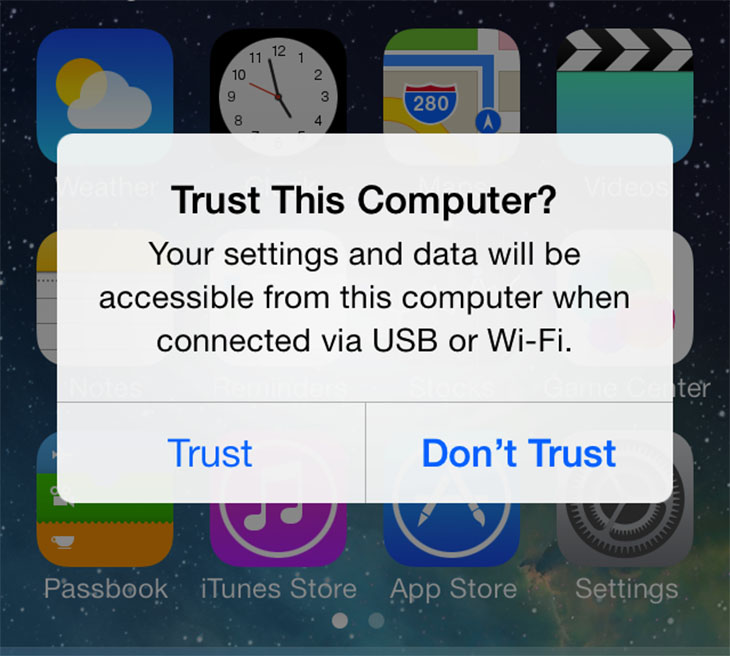
Step 4: Once completed, an iCloud notification will appear:
Case 1: If you use a personal computer, you can download all data on iCloud to your computer.
Case 2: If you are using a non-personal computer, select Remind me later to avoid downloading this personal data.
Step 5: View your iPhone on iTunes, click on the iPhone button in the right column.
With this way of connecting iPhone to computer using USB cable, you can select Music, TV Shows. and can receive, send or copy files between iPhone and computer.
How to fix when connecting to computer with USB cable not working
When you connect your iPhone to your computer using a USB cable, there will be cases where the computer will not recognize your iPhone device. To fix the above connection error, you should check the connection cable you are using.
If your cable is faulty or unstable, this can lead to connection problems. First, check to see if your iPhone charges when plugged into your computer. If it doesn't, it's definitely a cable problem. In this case, you can try switching to a new Lightning cable or buying a new one from Apple.
In case the USB cable has been changed to connect the iPhone to the computer with a USB cable but it still does not work, try using another USB port. It is very possible that a USB port on your computer is faulty and cannot work. You can try connecting the phone using another port. If the cable connects successfully, you have a bad USB port on your computer.
How to connect iPhone to computer using iTunes
When connecting iPhone to computer with USB cable, we mentioned iTunes software. iTunes is also one of the useful software for iPhone to connect to computer, in addition to instructions for connecting iPhone to computer with USB cable, below are instructions for you to use iTunes software:
Step 1: Download and install the latest version of iTunes on your computer.
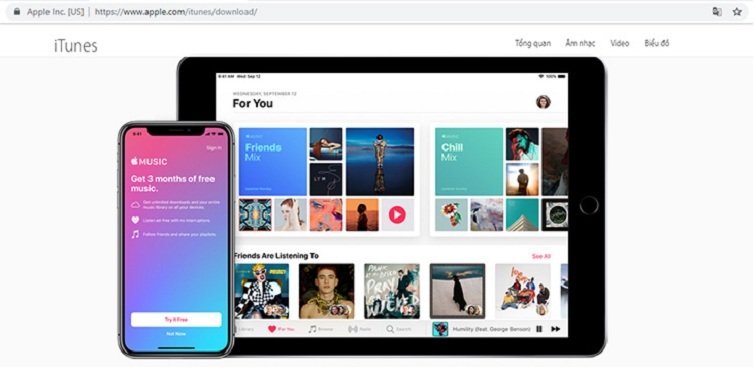
Note: If you have an older version of iTunes installed on your computer, you can choose:
- Uninstall the old app and install the new iTunes completely
- Can update the application directly from the available version.
Step 2: Connect your computer to your iPhone and iPad.
- Click Trust to allow iPhone to connect to computer
With iTunes, you can share many different data from iPhone to computer, it can be videos, pictures, music files,.
Connect computer to iPhone with iFunbox quickly
Besides connecting iPhone to computer with USB cable and using iTunes application is a means of connecting iPhone to computer. iFunbox and iTools are also very useful tools to connect iPhone to computer that you should consider using.
What is iFunbox? iFunbox is a completely free software that connects computers to iPhones and is provided to iOS users. This is an straightforward but highly effective solution for managing, tracking, accessing and using documents from Apple devices.
Instructions on how to connect iPhone to computer using iFunbox
Step 1: Download iFunbox software to your device.

Step 2: Then go to install iFunbox on your device.
– Select iFunbox_setup.
– Select Run to continue.
– Select Finish to finish.
– Now, you will see the iFunbox icon on the Desktop screen.
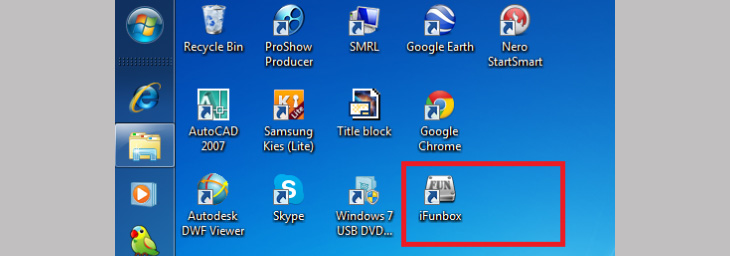
Conclude:
So above this guide has shown how to connect iPhone to computer using USB cable, in addition to connecting iPhone to computer using iTunes and iFunbox. The 3 connection methods above are considered the most popular, simple and fastest. Hopefully the above article will be useful to you. For any questions, please contact hotline: 19001903 for the best advice and support.
Key Takeaways
Use the guidance above as a practical reference for connect iPhone to computer with USB cable quickly. Check compatibility, follow the steps carefully, and verify important details with official documentation when software, security, accounts, health, or purchases are involved.
FAQ
How do I connect iPhone to computer with USB cable?
Follow the steps in this guide in order, confirm each setting before continuing, and save, restart, or reconnect the device when the instructions require it.
What should I check before I begin?
Confirm the correct device, account access, software version, compatibility, and a current backup whenever the process could affect files, settings, or security.
What should I do if the process does not work?
Repeat the steps carefully, check for model or version differences, install available updates, and consult the manufacturer's official support documentation.
Related Articles
 These Are the Types of Printer Cables Needed to Connect to the Computer6 minutes read
 How to Connect 2 Computers With a Network Cable8 minutes read
 How to Connect a Smart TV with Cable (Smart TV Setup): Clear Instructions10 minutes read
 How to Transfer Photos from iPhone to a TV Without a Cable7 minutes read
 How to Connect a TV Cable to Multiple Tvs5 minutes read
 How to Connect 2 Computers to Share 1 Screen6 minutes read
Reader Comments 0
Sign in with email or Google to join the discussion.