Table of Contents
While average file sizes continue to get larger, free cloud storage hasn't kept up. Most cloud storage services include more or less free space than they did when they launched more than a decade ago. Fortunately, with a little smart planning, you can get around this.
How much free storage can you get these days?
Even though free storage has been increased far beyond the basic level, don't worry if you miss out on these opportunities. You can still use many free cloud storage services to get a decent amount of space for free.
Here are some of the cloud storage services available, including both popular and lesser-known ones:
- Google Drive: 15GB (shared with Google Photos and Gmail)
- OneDrive: 5GB
- iCloud: 5GB
- Sync.com: 5GB
- MEGA: 20GB, with an additional 10GB for one year when you install the desktop and mobile apps
- pCloud: 2GB initially; 10GB after completing the tutorial
- Proton Drive: 5GB
- Box: 10GB
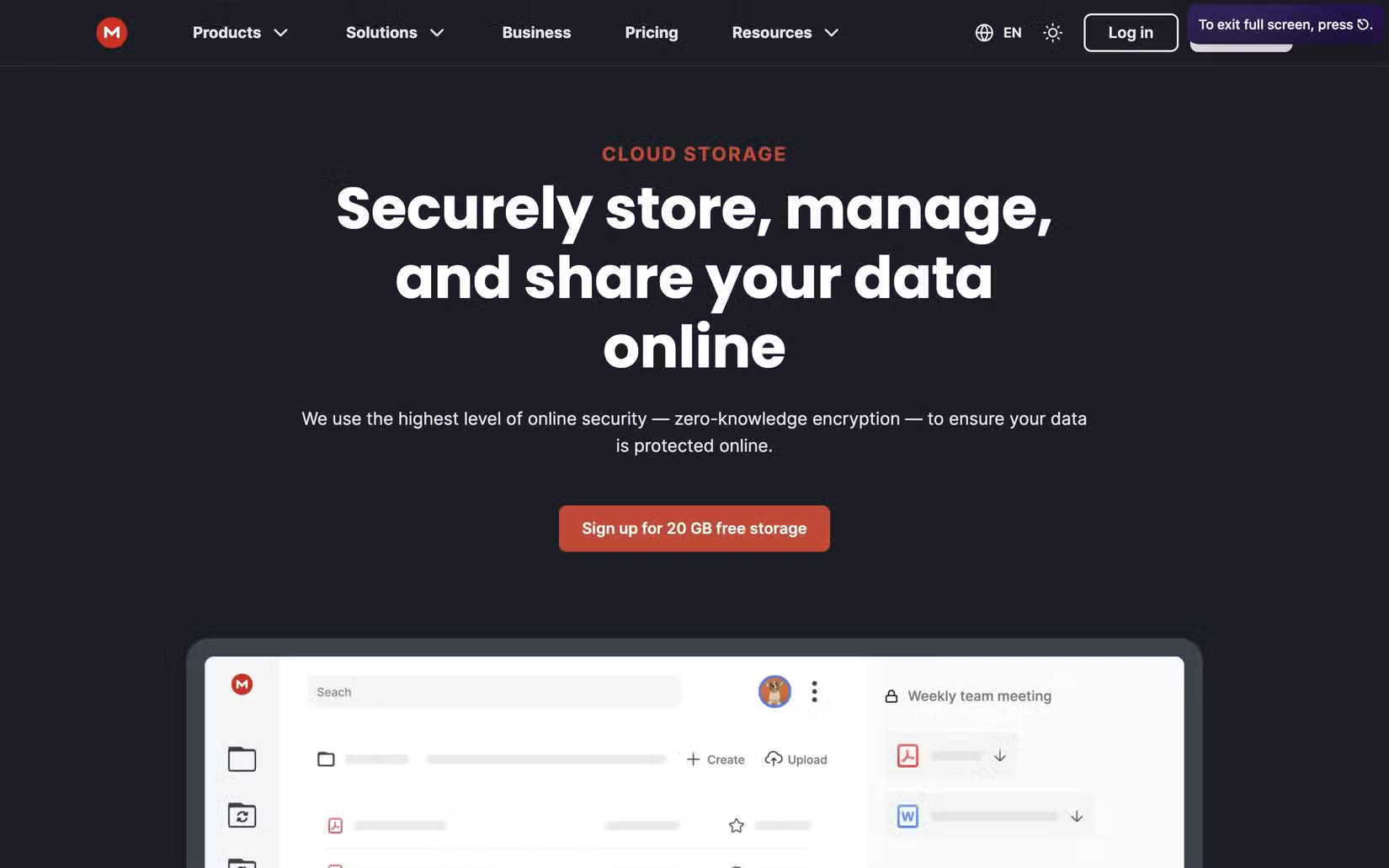
With a few new accounts, app downloads, and a quick tutorial, you'll have 75GB (plus an additional 10GB from MEGA for the first year). Not bad, considering paid cloud storage plans typically start at 100GB.
Multi-cloud management strategy
Now that you have all this free storage, the fun part is deciding how to use it. To get started, make sure you download the apps for each of these services on your computer and sign in so everything stays in sync.
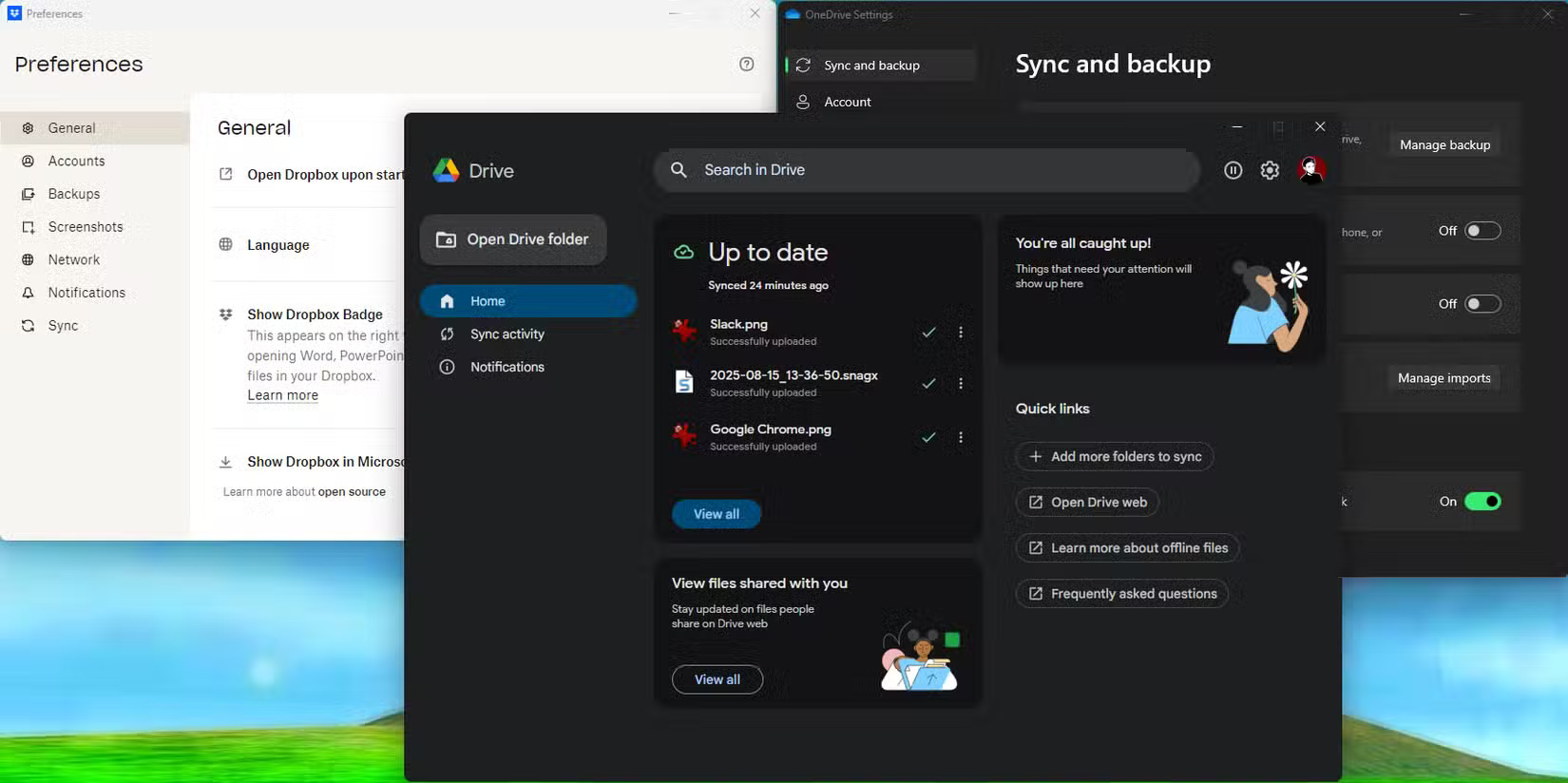
Even though organization gets messy over time, people often categorize files by type across services. For example, keep documents in Dropbox, images in Google Drive, and videos/music in OneDrive. That way, you can know which files to find based on your needs.
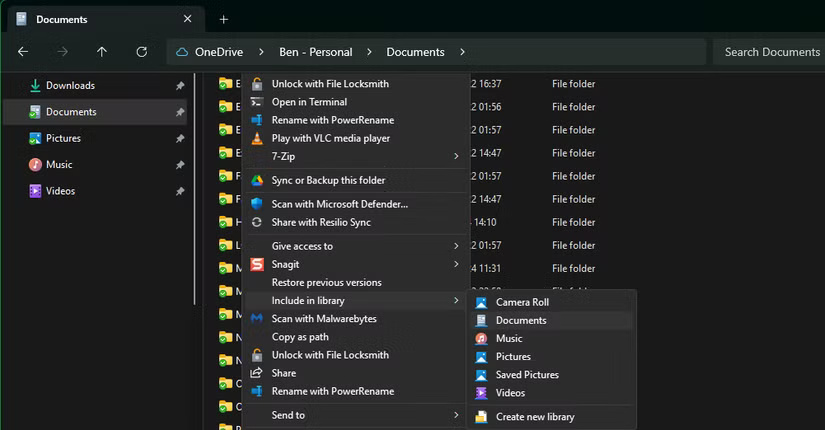
There's no need to be so rigid, though. One simple option is to create folders as normal, broken down by how big you expect them to be. Then pin them to Quick Access in File Explorer so you can access them right away without having to figure out which folders are on which cloud service.
Manage multiple cloud accounts
Third-party Windows apps let you access all your cloud storage in File Explorer, which is extremely convenient when you have multiple accounts to manage. MultCloud is another tool that helps you manage multiple cloud accounts in one place.
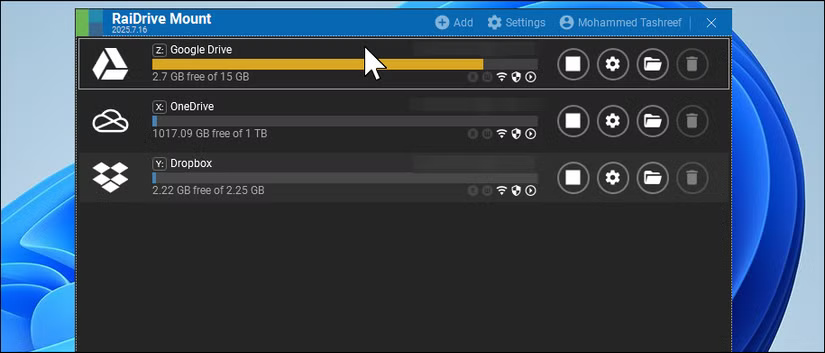
When working with limited space, be mindful of what you're storing in each space. Documents you reference frequently, precious photos, etc. are better suited to the cloud than large videos. If you need to store a lot of large files, external storage is a better investment.
Pay less get more
If you don't have a lot of large files, free cloud storage like this is a viable solution. You can always add another 5-10GB by signing up for another service if you run out. However, if splitting your account like this is too much of a hassle for you, don't discount the idea of paying for cloud storage.
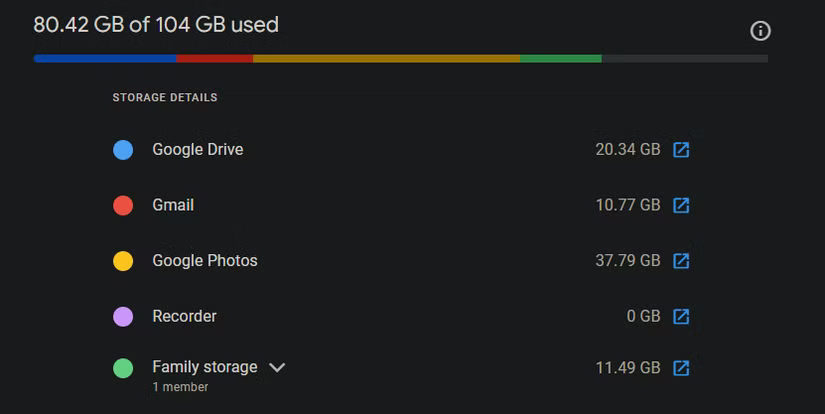
Currently, users pay $20/year for 100GB of Google Drive storage through Google One, which is a great value, plus $3/month for 200GB of iCloud storage.
People primarily pay for iCloud to store their iPhone backups; with the extra storage, they also back up photos to iCloud for redundancy because photos are the most valuable data we store on our phones.
It's similar to ad-free streaming services versus ad-supported ones. Yes, ad-supported streaming services are often cheaper (or free in some cases). But your time is valuable. With streaming services, spending a few extra dollars is better than wasting hours watching ads each month. And with cloud services, paying a small fee means you don't have to deal with the hassle of managing multiple accounts, syncing multiple PC apps, etc.
If you're considering upgrading, spending just a few dollars a month can eliminate the hassle of having to transfer data between accounts. The cheapest cloud storage providers start at around $20 a year for 100GB, which is a good starting point.
Final Thoughts
Following the steps in order and checking version-specific settings should make it easier to Combine Multiple Free Cloud Accounts for Huge Storage Space. If an option looks different, verify the device, app, or operating-system version before changing additional settings.
FAQ
What is the best way to Combine Multiple Free Cloud Accounts for Huge Storage Space?
Start with the requirements described in the article and follow the steps in order. While average file sizes continue to get larger, free cloud storage hasn't kept up. Most cloud storage services include more or less free space than they did when they launched more than a decade ago.
What should you know about How much free storage can you get these days??
Even though free storage has been increased far beyond the basic level, don't worry if you miss out on these opportunities. You can still use many free cloud storage services to get a decent amount of space for free.
What should you do if the instructions do not match your screen?
Check the device, software version, account permissions, and regional settings. Interfaces can change after updates, so use the closest matching option and consult the official support documentation when necessary.
Related Articles
 Use Multiple Dropbox Accounts on the Same Computer8 minutes read
 5 Little-Known Free Cloud Storage Apps6 minutes read
 10 Tips to Keep Cloud Storage Safe and Secure8 minutes read
 6 Best Ways to Protect Your Dropbox3 minutes read
 How to Use Multiple Dropbox Accounts on the Same Computer3 minutes read
 Trick to Clear Cache Dropbox, Onedrive and Google Drive4 minutes read
Reader Comments 0
Sign in with email or Google to join the discussion.