Table of Contents
The NVIDIA Shader Cache stores the graphics that are rendered when you start a game, so that you don't have to re-render them every time you start the game, improving the performance of your games and applications. But sometimes the Shader Cache can become corrupted, leading to graphics errors or slower performance. Clearing the NVIDIA Shader Cache will reset it, forcing the system to rebuild it with new data. Here's how to clear the NVIDIA Shader Cache.
How to Clear NVIDIA Shader Cache on Windows
Step 1:
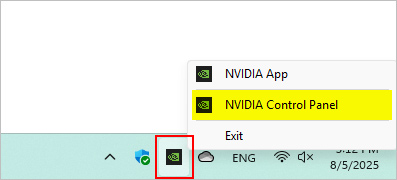
Right -click on the Nvidia icon in the system tray and select NVIDIA Control Panel .
Step 2:
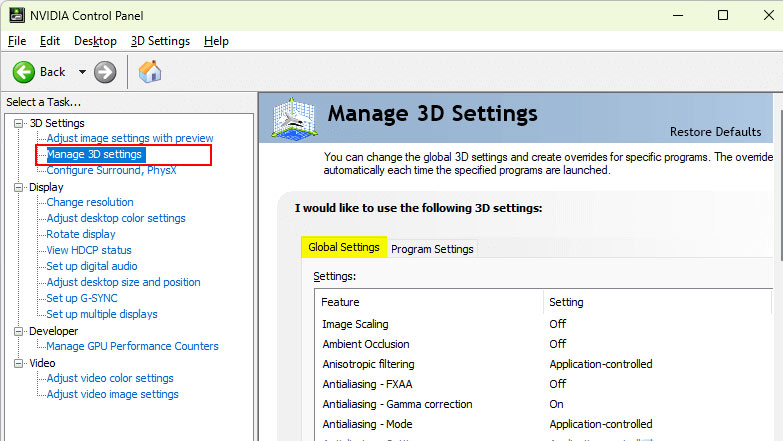
Switch to the new interface, click Manage 3D setting on the left side of the interface and then click Global Settings .
Step 3:
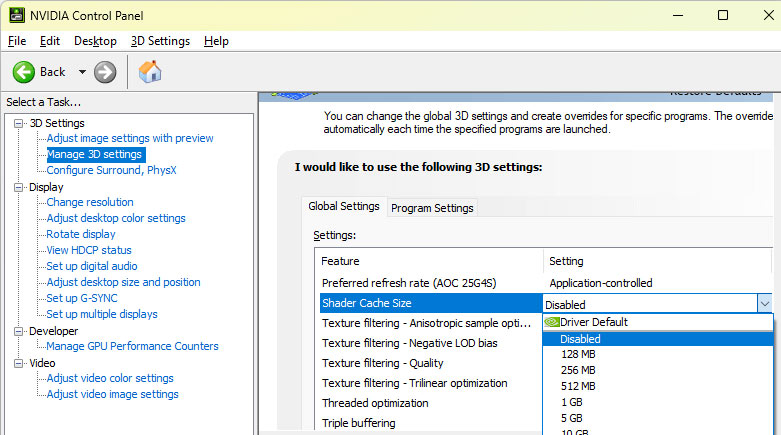
Now scroll down the list and select the Shader Cache menu , then select Disabled . Shader Cache will be temporarily disabled.
Step 4:
Next, open File Explorer on your computer and access the folders according to the path below.
- C: Users[YourUsername]AppDataLocalNVIDIADXCache
- C: Users[YourUsername]AppDataLocalNVIDIAGLCache
- C: Users[YourUsername]AppDataLocalNVIDIA CorporationNV_Cache
Delete all files inside the folders to remove existing shader cache files.
Step 5:
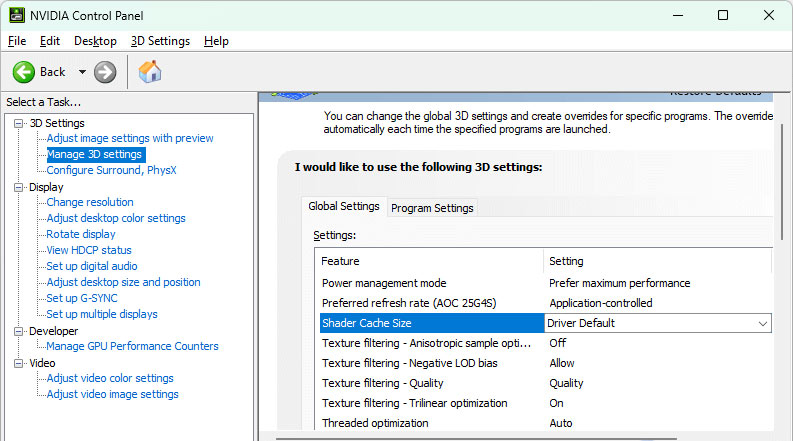
Go back to NVIDIA Control Panel, find Shader Cache and click Driver default to restart Shader Cache on your computer.
Final Thoughts
Following the steps in order and checking version-specific settings should make it easier to Clear NVIDIA Shader Cache on Windows. If an option looks different, verify the device, app, or operating-system version before changing additional settings.
FAQ
What is the best way to Clear NVIDIA Shader Cache on Windows?
Start with the requirements described in the article and follow the steps in order. The NVIDIA Shader Cache stores the graphics that are rendered when you start a game, so that you don't have to re-render them every time you start the game, improving the performance of your games and applications.
What should you know about How to Clear NVIDIA Shader Cache on Windows?
Right -select the Nvidia icon in the system tray and select NVIDIA Control Panel.
What should you do if the instructions do not match your screen?
Check the device, software version, account permissions, and regional settings. Interfaces can change after updates, so use the closest matching option and consult the official support documentation when necessary.



Reader Comments 0
Sign in with email or Google to join the discussion.