Table of Contents
On a Locked Phone

This practical guide explains how to check imei code on locked phone with clear steps and useful context. It also covers common requirements, potential problems, and the details that can help you get better results.
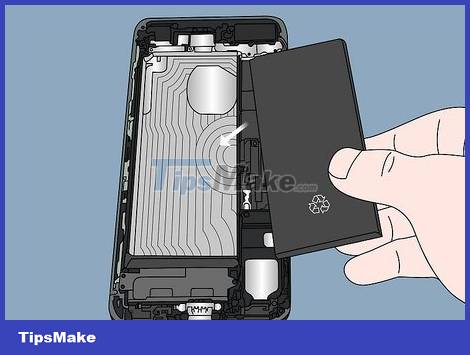
Check above or below the battery. On some Android phones with removable batteries, the IMEI code is printed on the bottom. You can even find the IMEI code under the battery cover.
Power off the phone, remove the back cover, take out the battery and check if there is an IMEI code in this area.
This method does not work with phones with built-in batteries.
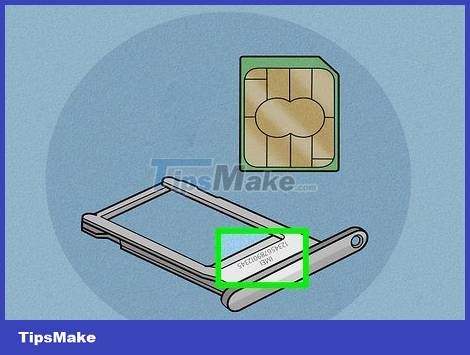
Remove the SIM tray. Most phones are usually engraved with the IMEI number on the SIM tray. To get the SIM tray and find the IMEI number, you need:
Use a SIM picker (also called a SIM stick) or a straight paper clip.
Find the hole in the SIM tray.
Gently insert the SIM ejector or paper clip into the hole in the tray and push it in.
When you remove the SIM ejector or paper clip, the SIM tray pops out.
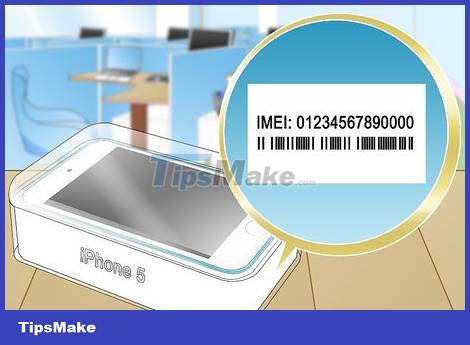
Look on the phone packaging. If you can't find the IMEI code on your phone, you can check the phone's box when you bought it (if you have one). Usually the IMEI code will be printed on the outside of the box or in the owner's manual.

Call the network operator. Sometimes the mobile service provider will give the user access to an online portal containing IMEI information. If you explain the current situation, it is more likely that the carrier will support determining the IMEI number over the phone.
On Carrier-Locked iPhone
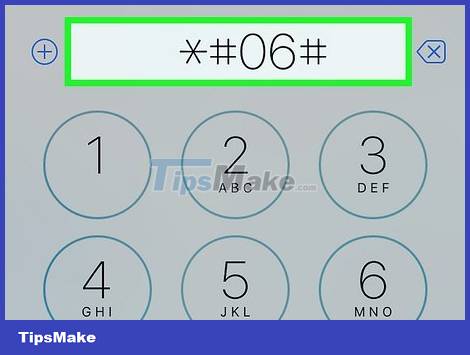
Dial *#06# on the phone. Just open the Phone app on your home screen and enter this special code into the dial pad. After a few seconds, a screen with IMEI code will appear.
If the IMEI cannot be found this way, continue with the method below.
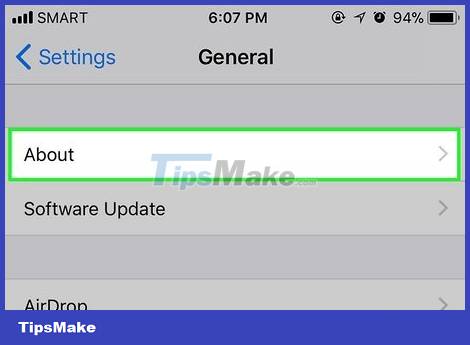
Open the Settings app. This app has a gray gear icon and is in the apps list.
Tap the General option located in the third group of settings.
Click About. This is the first option at the top of the menu.
Scroll down to find the IMEI number. This code will be next to the "IMEI" entry.
On Android Locked to Carrier
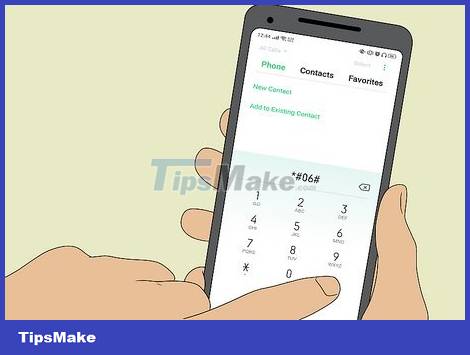
Dial *#06# on the phone. Just open the Phone app on your phone's home screen, dial this special code using the dial pad, and then press the Call button. After a few seconds, a screen containing the IMEI code will appear.
If the IMEI cannot be found this way, continue with the method below.
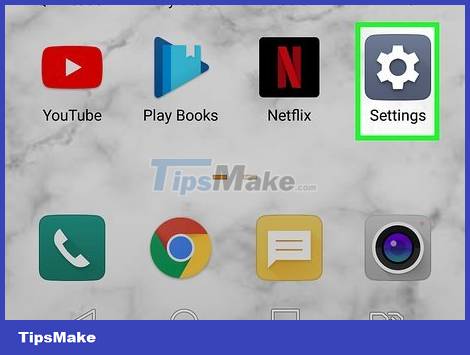
Open the Settings app on your Android phone. You can do this by swiping up to open the All Apps screen and tapping Settings with the gear icon.
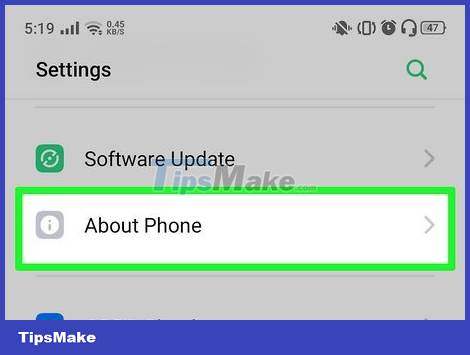
Scroll down and tap the About Phone setting. You may need to scroll down quite a bit to find this option.
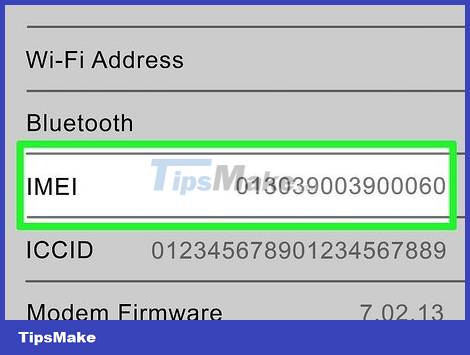
Find the IMEI code below the "IMEI" heading. You may need to tap on the IMEI first for the new number to appear.
Conclusion
Understanding Check IMEI Code makes it easier to compare options, avoid common mistakes, and apply the information in this guide more effectively. Review the relevant requirements before making changes or choosing a solution.
FAQ
How do you check imei code on locked phone?
Follow the steps in this guide in order, confirm the required settings or tools, and verify the result before making additional changes.
Is it safe to check imei code on locked phone?
It is generally safe when you follow the recommended instructions, use trusted tools, and avoid changing settings you do not understand.
What should you do if the process does not work?
Recheck the requirements, restart the device or application when appropriate, and review each step for missed settings or compatibility issues.
Related Articles
 How to Check If Your Phone Is Unlocked (Unlocked) or Not?7 minutes read
 What Is the IMEI Number?7 minutes read
 Check IMEI and Check the Origin of Android and iPhone Phones23 minutes read
 Check IMEI iPad - Check IMEI iPad Fast and Most Standard2 minutes read
 How to Quickly Check IMEI on Smartphone3 minutes read
 Top Website Check the Most Accurate IMEI Samsung5 minutes read
Reader Comments 0
Sign in with email or Google to join the discussion.