Table of Contents
On iPhone and iPad with iOS 18 or later, saved website and app logins are in the Passwords app. Unlock it with Face ID, Touch ID, or your device passcode, then search for the account. On iOS 17 and earlier, find saved logins under Settings > Passwords.
Apple's iPhone guide to passwords covers viewing, copying, editing, and deleting saved entries.
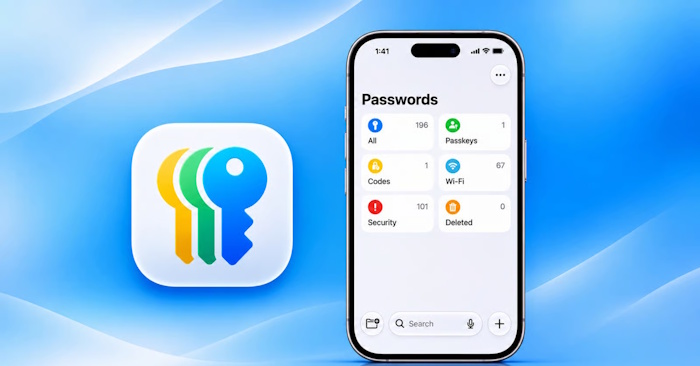
Find a saved password
- Open the Passwords app and authenticate.
- Tap All, then browse or search for the website or app.
- Open the account entry and tap its password field to view or copy the saved password.
If you do not see an entry, check that you are using the Apple Account and password manager where it was saved. A password saved in a different browser or third-party manager may not appear in Apple's Passwords app.
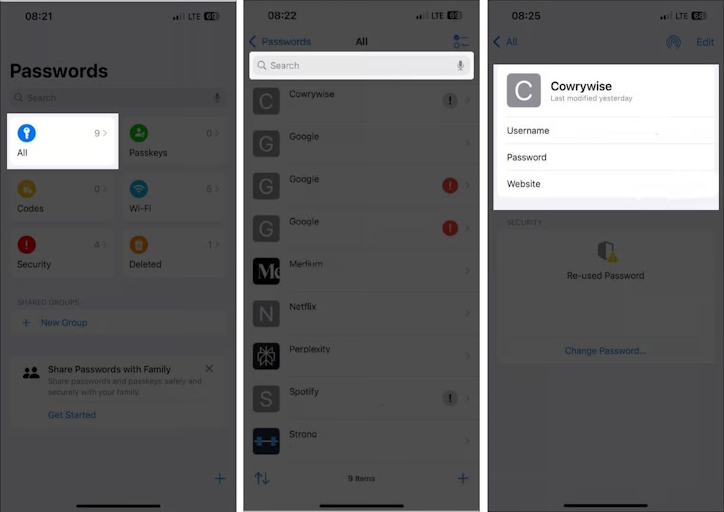
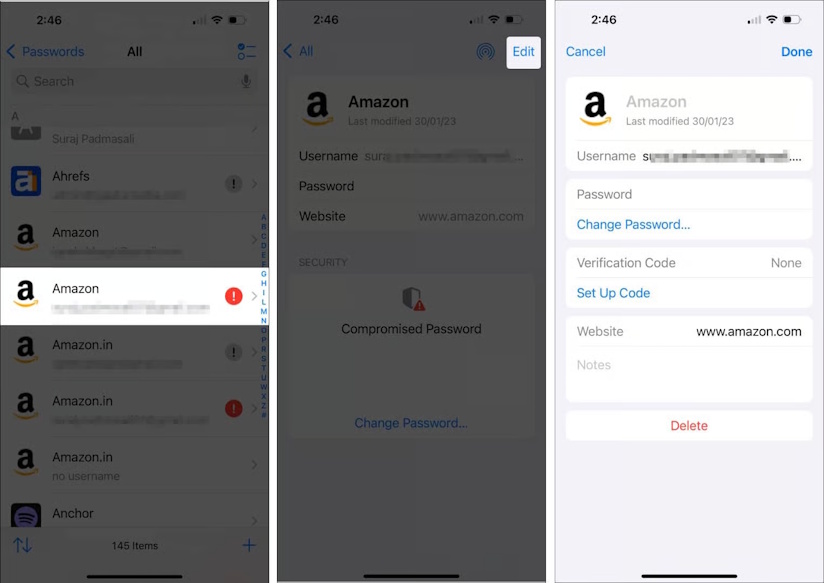
Edit or remove an entry
Open the account in Passwords and tap Edit to update the saved username, password, or other details. Changing this entry only updates what is stored on your device or synced password manager; it does not change the password on the website. To change the real account password, use that website or app's account settings, then update the saved entry.
To delete a saved login, select the entry and use its delete control. Removing the saved entry does not close or delete the account on the website.
Add a login manually
- In Passwords, open All and tap the plus button.
- Enter the website or app, username, and password.
- Save the entry. Open it once to confirm the details are correct.
Keep your device passcode private and avoid sharing screenshots that show a password. If you use a separate password manager, look there for logins saved outside Apple's Passwords app.




Reader Comments 0
Sign in with email or Google to join the discussion.