Table of Contents
This updated guide explains how to change where Windows screenshots are saved with clear steps, practical tips, and useful context. By default, Windows saves screenshots in a folder that is quite difficult to find, so You need to perform many operations to find screenshots on your computer.
- Find the Screenshots folder, right-choose and select Properties
- choose the Location tab to change the folder location.
- choose Move to change and select a new folder to save the screenshot.
- choose Apply to save changes
How to Change Windows Screenshot Saving Location
Step 1:
Open File Explorer on your computer and navigate to the folder where the screenshots are saved by heading This PC > Pictures > Screenshots.
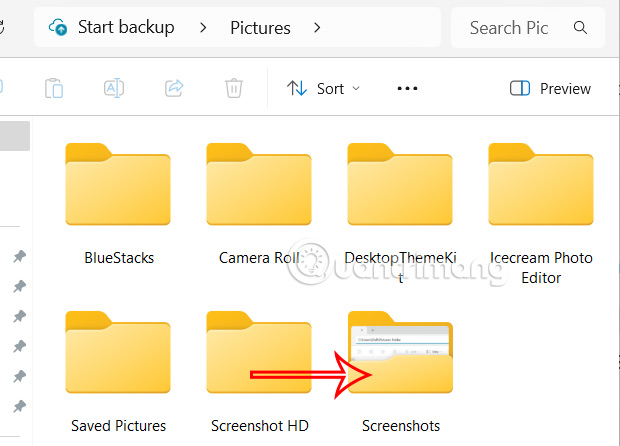
Step 2:
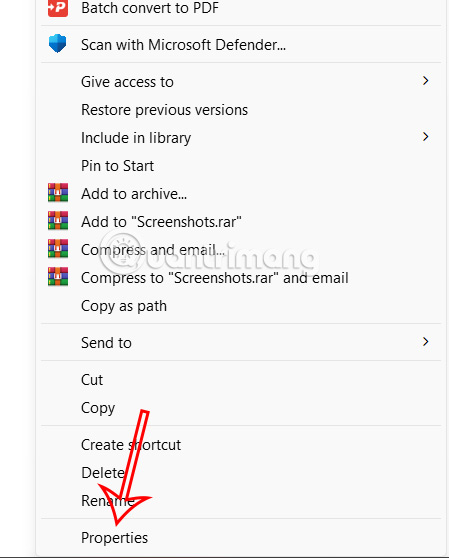
Right-select the Screenshots folder, select Properties in the displayed list. If on Windows 11, choose Show more options.
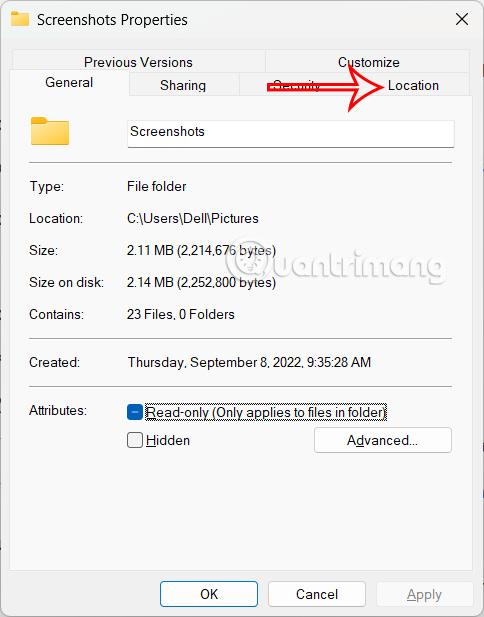
To display the new folder, the user clicks on the Location tab .
Step 3:
Then we choose the Move button to move the screenshot folder to another location.
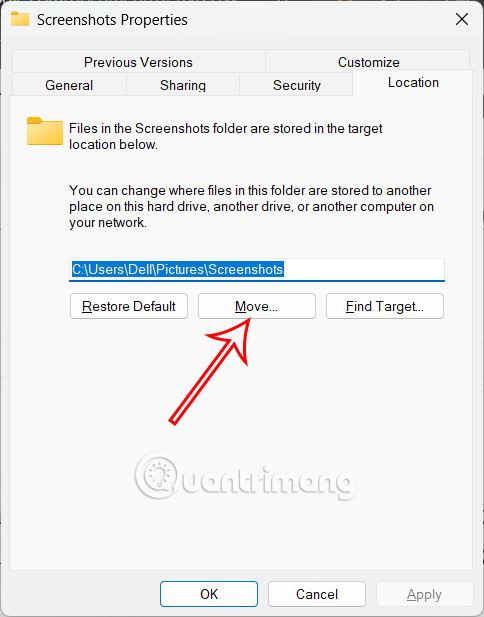
Now the folder interface is displayed for us to select the new location to save the Windows screenshot folder, choose Select Folder to apply the changes.
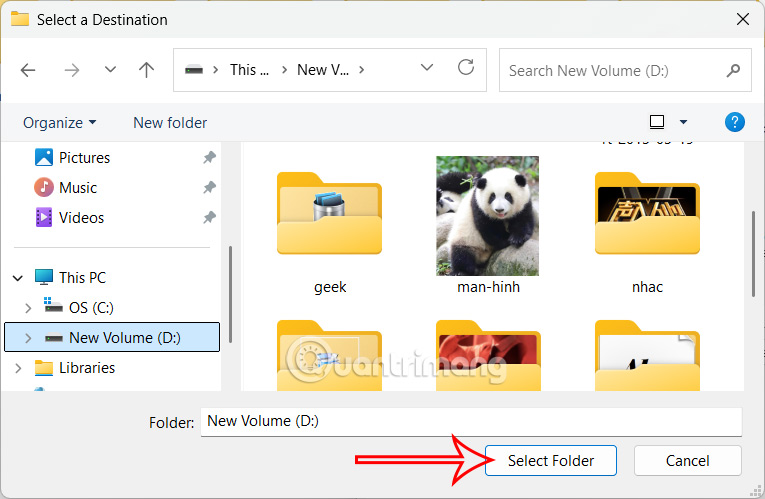
Step 4:
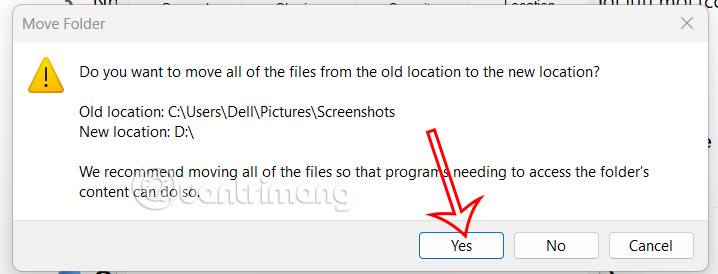
Continue to choose Apply to save the new changes. The system will then ask you to move all screenshots to the new folder. To move all screenshots to the new folder, choose Yes .
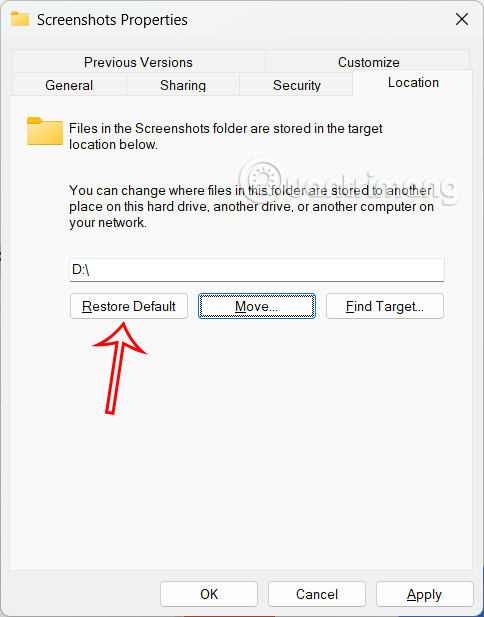
In case you want to restore to the old position, choose Restore to do so.
FAQ
What should I prepare before I change where windows screenshots are saved?
Review the requirements and options in the guide first. Having the correct device, app version, account access, or materials ready helps prevent avoidable errors.
How long does it take to change where windows screenshots are saved?
The time depends on the task and your setup. Most basic steps can be completed quickly, while downloads, updates, scans, or troubleshooting may take longer.
What should I do if the steps do not work?
Repeat the instructions in order, confirm that your software or device is supported, and check permissions, connectivity, and available updates before trying again.
Related Articles
 7 Screenshots Hackers Like You to Save in Your Gallery7 minutes read
 How to Take Screenshots in Windows Phone 83 minutes read
 How to Capture Computer Screen Fast, Self-saved, Without Software11 minutes read
 How to Take Scrolling, Long Screen Screenshots in Windows13 minutes read
 How to Change the Location to Save Screenshots on Windows4 minutes read
 3 Quick Ways to Take Screenshots in Windows 83 minutes read
Reader Comments 0
Sign in with email or Google to join the discussion.