Table of Contents
This practical guide explains how to add an ethernet port on a laptop with clear steps and useful context. It also covers common requirements, potential problems, and the details that can help you get better results.
What Is an Ethernet Port?
Ethernet is a type of connection port that is probably too familiar to any computer user. This is basically a hole for plugging in Ethernet cables on network devices and computers. Their purpose is to connect hardware systems in an Ethernet LAN, MAN or WAN network.
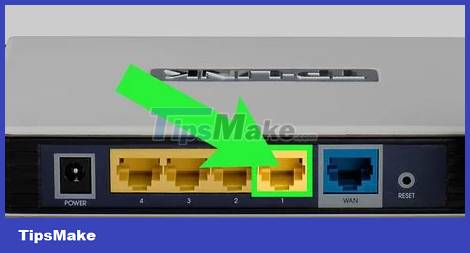
Ethernet ports are also known by other names, such as LAN ports, Ethernet connections, Ethernet jacks, LAN sockets, and network ports. They are usually found on the back of a computer or the back or side of a laptop. Routers may have several Ethernet ports to provide wired connectivity to multiple devices on the network. The same goes for other devices like hubs and modems. Here is the shape of the Ethernet port:
How to Add an Ethernet Port to a Laptop
Ethernet Over USB
Most modern laptop models no longer include dedicated Ethernet ports - they are simply too bulky to fit in today's thin and light chassis. In addition, to take advantage of its high mobility and flexibility, users tend to use Wifi connection instead of Ethernet on laptops.
However, there are still plenty of reasons to use a traditional wired connection. Most typically, a wired connection tends to be stable and will usually provide faster speeds. Fortunately, there are many adapters on the market that allow you to connect an Ethernet cable via a USB port on your laptop.
There are some basics to keep in mind when choosing to buy a USB to Ethernet adapter. USB 2.0 adapters have lower maximum throughput than USB 3.2 Gen 1 or USB 3.2 Gen 2 adapters. But that shouldn't be a big deal for most general uses.
USB 3.2 Gen 1 supports gigabit speeds at the same price point. Unless you have a niche application that requires you to use USB 2.0, your best bet is to purchase a USB 3.2 Gen 1 adapter.
You can also use a Thunderbolt to Ethernet adapter, but this is only a side option. The bandwidth available via Thunderbolt 3 or 4 is far beyond the bandwidth available on most Ethernet cables. and they are also more expensive than USB adapters.
USB-a Adapter
A basic USB-A to Ethernet adapter is probably what you need if you're looking for a simple way to connect your laptop via an Ethernet cable. They are small, cheap, and readily available. Currently, most laptop models on the market still have one or two USB-A ports.
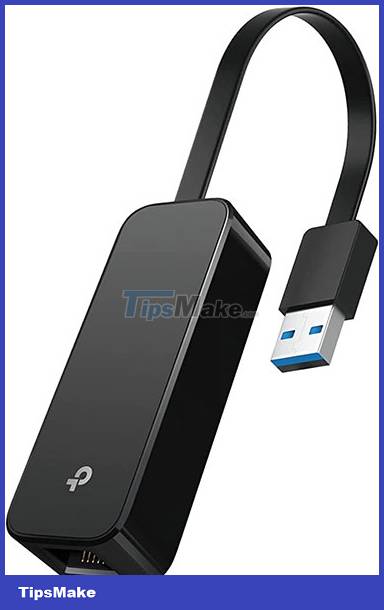
This adapter from TP-Link, for example, uses USB 3.1, is fast enough to support gigabit Internet connections if you have one, and supports plug'n play on most modern operating systems.
USB-C Adapter
The USB-C to Ethernet adapter will work essentially the same way as the USB-A adapter, but with some differences. USB-C is a newer standard, so you probably won't find a USB 2.0 to Ethernet adapter with a USB-C plug on it. Additionally, the USB-C to Ethernet adapter can be plugged into any Thunderbolt port your laptop has, while the USB-A connector cannot.
USB-C is also standard on all modern Android phone models. You can (depending on the smartphone model you own) use a USB-C to Ethernet adapter to connect your entire home network through your phone by plugging it into the Router. It probably won't work really well, but is a useful firefighting option when needed.
Use a Docking Station with an Ethernet Port
Docking Station (dock / dock) is the most comprehensive connection support accessory. Most of today's Docking Stations connect using USB-C, and have additional video, audio, Ethernet, and USB ports. Since the dock supports so many devices besides Ethernet, you should choose the fastest one possible - Thunderbolt 4 or USB 3.2 2×2.
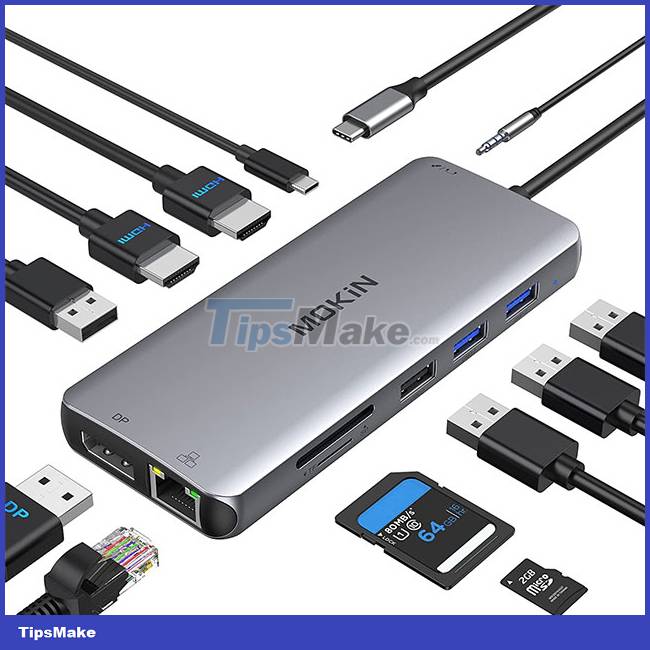
Some manufacturers - like Microsoft - have dedicated docks for their laptops. If you plan to use your laptop in a fixed location and need more variety in ports, the dock is a worthy option. Otherwise, use a USB to Ethernet adapter - you'll save yourself a lot of money.
Wish you always have the best connection experience!
Conclusion
Understanding Ethernet makes it easier to compare options, avoid common mistakes, and apply the information in this guide more effectively. Review the relevant requirements before making changes or choosing a solution.
FAQ
How do you add an ethernet port on a laptop?
Follow the steps in this guide in order, confirm the required settings or tools, and verify the result before making additional changes.
Is it safe to add an ethernet port on a laptop?
It is generally safe when you follow the recommended instructions, use trusted tools, and avoid changing settings you do not understand.
What should you do if the process does not work?
Recheck the requirements, restart the device or application when appropriate, and review each step for missed settings or compatibility issues.
Related Articles
 8 Things You Can Do with Your Laptop's USB-C Port, Besides Charging8 minutes read
 10 Features to Ignore to Save When Buying a Laptop7 minutes read
 Difference Between Ethernet and LAN4 minutes read
 Compare Speed of Connection Standards5 minutes read
 How Is Wired (Ethernet) Better Than Wireless (Wi-Fi)?9 minutes read
 How to Use Mac OS X to Create Wi-Fi Hotspot5 minutes read
Reader Comments 0
Sign in with email or Google to join the discussion.