Table of Contents
This updated guide examines Ftp Security with Firewall Isa 2006 (Part 2) and organizes the essential facts, background, and practical takeaways in clear American English.
In the previous section, we explored the issue with the FTP server using the ISA 2006 firewall system. When using a network adapter, we can confirm that TLS (Transport Layer Security) from the workstation rejected by the ISA firewall system. The ISA firewall has an application layer filter that supports FTP connections, but this filter cannot be configured (unlike an SMTP filter). Because the built-in FTP application layer filter on ISA firewall does not support TLS, users need to disable this filter for all rules or certain rules. It is best to disable it on certain rules so that SecureNAT workstations can use the FTP protocol for external access. After turning off the FTP application filter, the FTP connection on the FTP server is secured by the ISA firewall system. However, users need to take an extra step when securing the FTP connection, which is secure data transfer via FTP channel. This section will delve into the method of data transfer via secure FTP links. After authenticating the FTP server, we need to list the directories and transfer files. This operation is performed via the secondary data channel. 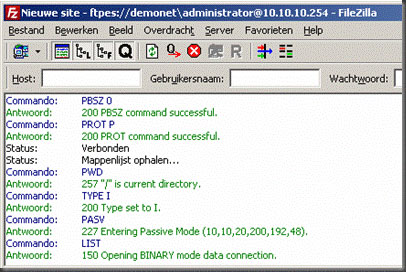 As you can see above, the authentication process is still in progress, but the system still hangs 150 connections to the Opening Binary mode data, and if it continues to wait we will receive a Time out message.
 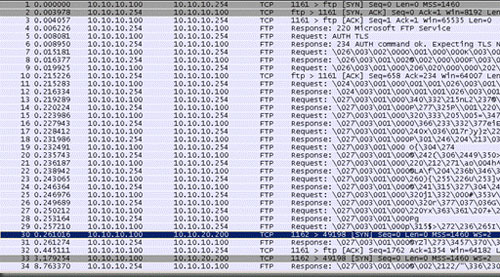 As mentioned in the previous section, we can check TCP in the 3 packets containing connection information, then the FTP authentication process will start, and at the bottom of the monitoring window you will see some packets saved. Store connection information via data channel.
  FTP data channel is the second TCP connection connection channel. During authentication, the FTP server sends the FTP client information about the secondary dynamic connection port that needs to be opened. After that, this workstation opens a port on this secondary port and establishes a data connection. Remember that this secondary port is a random high dynamic port. Before Windows Vista was released, high ports could be selected in the range of 1024 to 5000. But when Windows Vista was released, Microsoft changed the random port selection, which is why you see the port. Randomly here is set to 49198 TCP. Windows Vista and Windows Server 2008 use dynamic port ranges from 49152 to 65535. By default, the application layer filter of the ISA firewall system will monitor this random port (used for secondary connections by open ports, dynamically when the client connects to the FTP server). However, since we need to turn off this application filter to execute the Auth TLS command, we will replace the FTP application filter on the ISA firewall system with another filter.
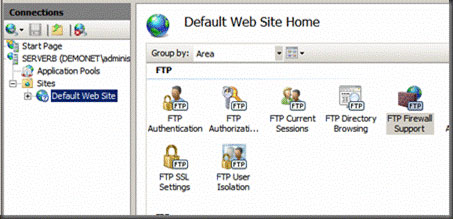
Step 1 First you need to apply the FTP server method to assign random ports to remove unnecessary ports and control which ports are being used. Then, you also need to tell the FTP server which public IP address belongs to the ISA firewall system. Do this in the IIS configuration window. To install for static ports you have to do it on the server (not on the website level). In this window, double-click the FTP Firewall Support icon. 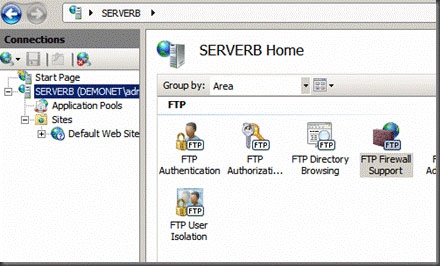 In the FTP Firewall Support window, you can enter any port area. For example enter the area 5000-5003 and then click Apply .
 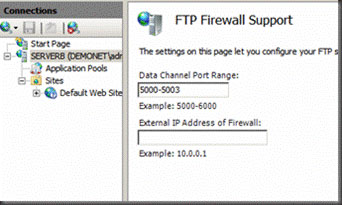 Step 2 Then we must install the IP address on the website level. Expand the Sites section and then click Default Web Site . Next click on the FTP Firewall Support icon.
  Enter the newly used public IP address name in the FTP Server Publishing Rule of the ISA firewall system, then click Apply .
 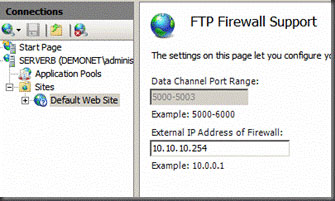 Note: When you click the Apply button, the settings you just installed do not apply, relaunch the Microsoft FTP Service from the Service Management Console .
Step 3 The last action to be taken is to configure the FTP Server Publishing Rule on the ISA firewall system. Here we will add the port area that functions as the main connection port. When editing the FTP Server Publishing Rule , you will not be able to edit the Parameters . That's because the default protocol definition and Microsoft do not allow users to change these definitions. 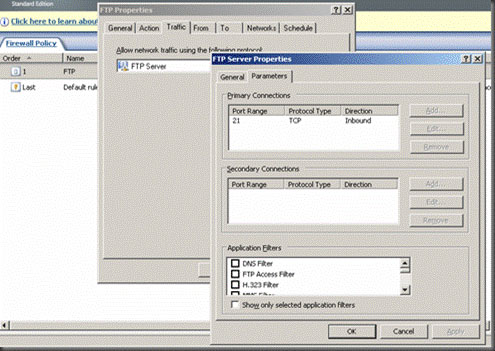 To solve this problem, we will create a separate Protocol Definition for FTPS server. Please select the Traffic tab and then click New .
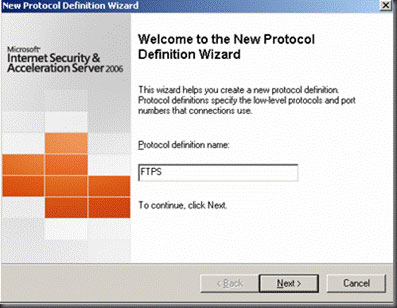
 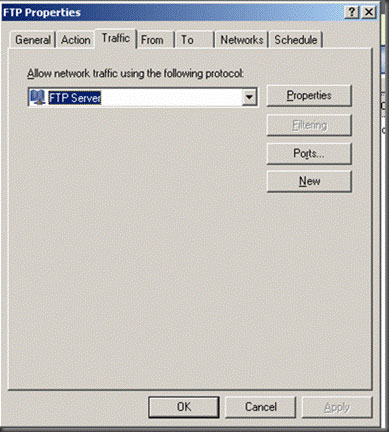 Enter a name for Protocol Definition on the Welcome to the New Protocol Definition Wizard page . Suppose you enter the name FTPS (you can enter a custom name). Then click the Next button.
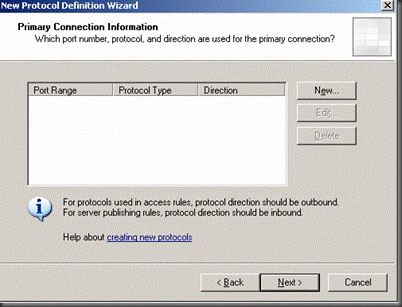
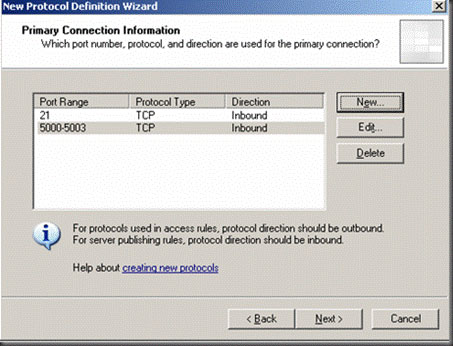
  Next, click the New button on the Primary Connection Information page.
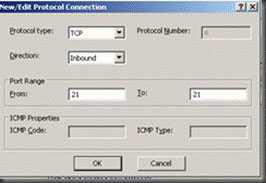
  In the New / Edit Protocol Connection dialog box, select TCP for the Protocol type. Select Direction as Inbound value , and set the Port Range area to 21 and ToFrom to21 values. Done, click OK .
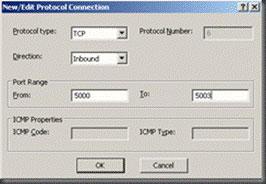
  Click the New button again on the Primary Connection Information page. Set the Protocol type to TCP . Select Inbound for Direction and set the value for the From to5000 and To fields to5003 in the Port Range area.
  You will then see the new primary connection on the Primary Connection Information page. Click Next .
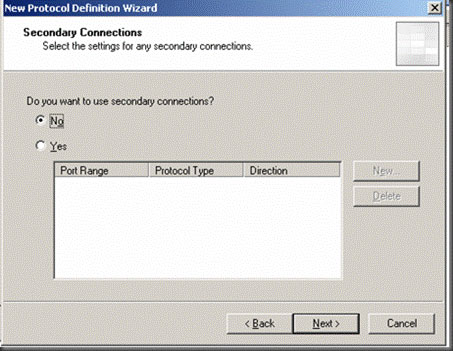
  On the Secondary Connections page select the radio No option and click Next .
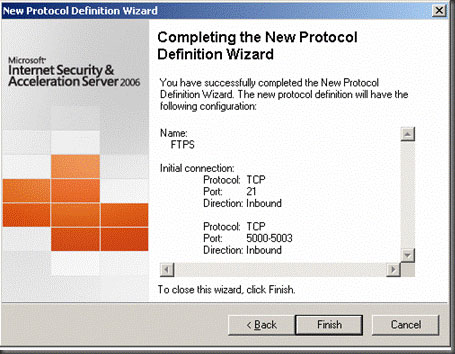
  Click the Finish button on the Completing the New Protocol Definition Wizard page .
  On the Traffic tab, you will see two Protocol Definition displayed in the Allow network traffic using the following protocol drop-down list (allowing network traffic to use the following protocol).
 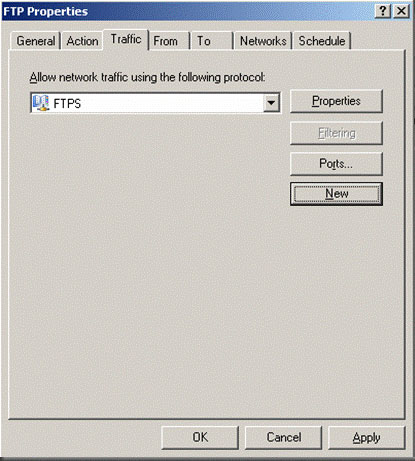 Click Apply to save the changes and update the firewall settings. Then click OK in the Saving Configuration Changes dialog box.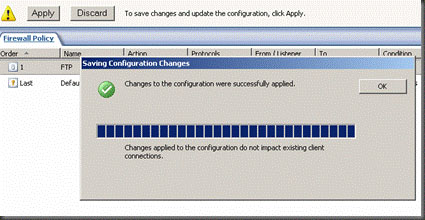
Step 4 Return to the FTP workstation and make the connection again. You will then see that the connection was successful. 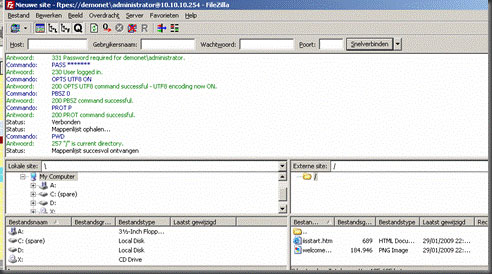 Conclude When securing the FTP server, we can establish a connection to authenticate the FTP server using the default FTP Protocol Definition. However, we cannot establish data connection. To support data connectivity, we must first change the FTPS server configuration to limit the high port used to make the connection. In addition, we must also configure the IP address for the FTP server on the external interface of the ISA firewall system that applies to the FTPS Server Publishing Rule. After implementing FTPS server configuration, we changed the FTPS Server Publishing Rule so it will use a new FTP Protocol Protocol Definition. Then the FTPS client was able to connect to the FTPS server.
FAQ
What is Ftp Security with Firewall Isa 2006 (Part 2) about?
It provides a structured overview of ISA, explains the main context, and highlights practical takeaways for readers.
Why does this topic matter?
Understanding the main concepts helps readers evaluate the issue, avoid common mistakes, and make better-informed decisions.
How should readers use this information?
Use the guidance as a practical starting point, confirm details that may have changed, and follow current product, safety, or security recommendations.
Related Articles
 What Is a Firewall? General Knowledge About Firewall15 minutes read
 Firewall Windows 10: How to Use a Firewall in Windows 1011 minutes read
 How to Check the Firewall6 minutes read
 Isa. Iis: Ftp Security with Firewall Isa 2006 (Part 1)10 minutes read
 Instructions to Reset Windows Firewall Rules to the Initial3 minutes read
 Overview of Windows Server 2008 Firewall with Advanced Security19 minutes read
Reader Comments 0
Sign in with email or Google to join the discussion.