Table of Contents
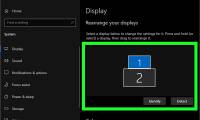
An external monitor can shorten laptop runtime when you are on battery. The graphics hardware may use more power, and a portable display may draw power from the laptop itself. Faster discharge in a particular setup and long-term loss of battery capacity are separate problems.
What changes the power draw

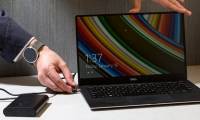
A high refresh rate, higher resolution, or graphics-heavy work can raise power use. Some laptops activate a separate GPU when an external display is connected. A mains-powered USB-C monitor can also supply power to the laptop if it supports enough USB Power Delivery for your model. Check the monitor’s USB-C charging output against the laptop’s requirements.
Test overnight drain separately
- Note the charge before putting the laptop to sleep. Disconnect the monitor and dock for the first test.
- Repeat with the usual setup for about the same amount of time. Keep the starting charge and sleep settings similar.
- If the drain occurs only with the dock or display connected, check whether the laptop is waking or staying awake. Test the dock and monitor separately before blaming the battery.
Check battery health and heat

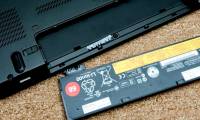
A charge cycle adds up to the equivalent of using the battery’s full capacity, even across several partial discharges. On a Mac, see how to check battery health and cycle count. On Windows, use the battery health guide to compare design capacity with recent full-charge capacity.
Reduce power use at the desk
Lower the refresh rate when you do not need it, keep vents clear, and use the manufacturer’s charge management feature if supported. If you use a MacBook with the lid closed, follow Apple’s guidance for your model and use adequate power. If the battery drains even while connected, see Microsoft’s guide to insufficient charging power.


Reader Comments 0
Sign in with email or Google to join the discussion.