Table of Contents
This updated guide examines Discover Advanced Features of Exchange Activesync in Exchange and organizes the essential facts, background, and practical takeaways in clear American English.
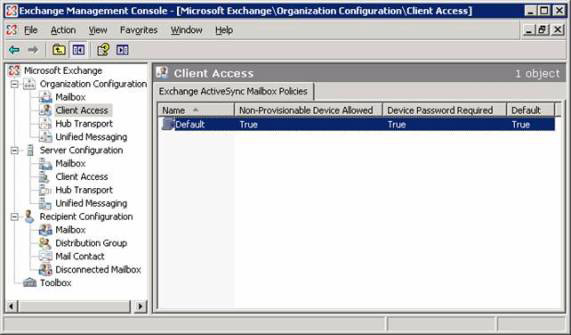 Figure 1: The default Exchange ActiveSync policy
Note that even when you upgrade an existing Exchange 2007 server, with the Client Access Server role installed for Exchange Server 2007 SP1, the new default policy will be created and automatically assigned to all. Both mailboxes of Exchange 2007 users have not yet been assigned an EAS policy (Figure 2).
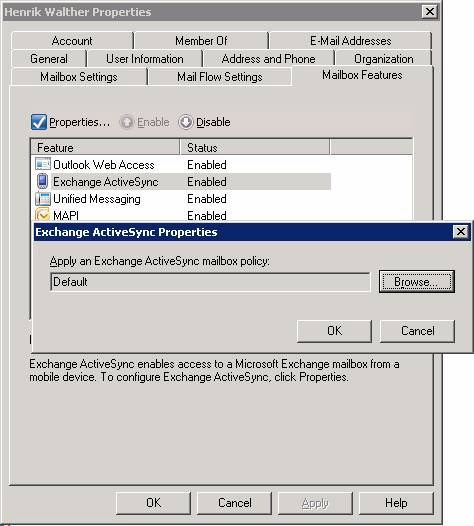 Figure 2: The default policy is assigned to the user's mailbox
The new EAS policy is configured quite loosely, which means it does not provide the required security in most IT business organizations (it even allows some other devices sync with the mailbox), but it's still better than no default policy. The default policy is configured with the settings shown in Table 1. As you can see, there are many policy settings in the table that are newly introduced in Exchange Server 2007 SP1, We will look at them in more detail in the next section.
Policy settings
The value is configured
AllowNonProvisionableDevices
True
AlphanumericDevicePasswordRequired
False
AttachmentsEnabled
True
DeviceEncryptionEnabled
False
RequireStorageCardEncryption
False
DevicePasswordEnabled
True
PasswordRecoveryEnabled
True
DevicePolicyRefreshInterval
Unlimited
AllowSimpleDevicePassword
True
MaxAttachmentSize
Unlimited
WSSAccessEnabled
True
UNCAccessEnabled
True
MinDevicePasswordLength
4
MaxInactivityTimeDeviceLock
00:30:00
MaxDevicePasswordFailedAttempts
8
DevicePasswordExpiration
Unlimited
DevicePasswordHistory
0
IsDefaultPolicy
True
AllowStorageCard
True
AllowCamera
True
RequireDeviceEncryption
False
AllowUnsignedApplications
True
AllowUnsignedInstallationPackages
True
AllowWiFi
True
AllowTextMessaging
True
AllowPOPIMAPEmail
True
AllowIrDA
True
RequireManualSyncWhenRoaming
False
AllowDesktopSync
True
AllowHTMLEmail
True
RequireSignedSMIMEMessages
False
RequireEncryptedSMIMEMessages
False
AllowSMIMESoftCerts
True
AllowBrowser
True
AllowConsumerEmail
True
AllowRemoteDesktop
True
AllowInternetSharing
True
AllowBluetooth
Allow
MaxCalendarAgeFilter
All
MaxEmailAgeFilter
All
RequireSignedSMIMEAlgorithm
SHA1
RequireEncryptionSMIMEAlgorithm
TripleDES
AllowSMIMEEncryptionAlgorithmNegotiation
RequireEncryptionSMIMEAlgorithm
MinDevicePasswordComplexCharacters
3
MaxEmailBodyTruncationSize
Unlimited
MaxEmailHTMLBodyTruncationSize
Unlimited
UnapprovedInROMApplicationList
{}
ApprovedApplicationList
{}
ExternallyDeviceManaged
False
MailboxPolicyFlags
0
Table 1: Policy configuration settings of Exchange ActiveSync
You can view or change the policy settings of the EAS configured on your Client Access Server by opening Exchange Management Shell and typing Get-ActiveSyncMailboxPolicy -Identity 'Default' or opening the Default EAS policy property page in Exchange. Management Console. When there are one or more EAS policies to add to the default policy, you have an option for setting up one of the EAS policies by default, so that policy will be assigned to all boxes. Mail of Exchange 2007 users (as shown in Figure 3) instead of only the default policy.
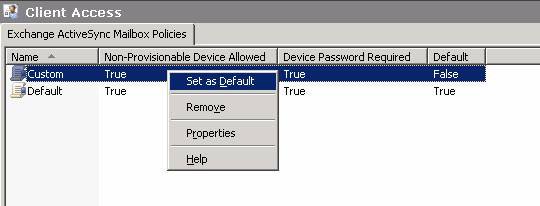 Figure 3: Specify the default policy
Advanced settings As mentioned, Exchange Server 2007 SP1 has a number of new EAS policies, which will enable more secure and secure mobile devices than in Exchange Server 2007 RTM. We will look at the policy properties page and see how each new policy affects mobile devices in your Exchange Server 2007 organization. Start by opening the Exchange Management Console, then click the Client Access button located below the Organization Configuration center section (see Figure 1). When EAS policies are in a wide organization, this is the place to create and change them. Now you can right-click Default EAS policy, then select Properties. On the properties page, there are 5 tabs in Exchange Server 2007 SP1, not 2 as in Exchange Server 2007 RTM version. Let's take a look at the General tab as shown in Figure 4 below. There are not too many changes here and we can see which policies are configured by default and set Maximum attachment size (KB) to be replaced by the Refresh interval (hours) setting (set Maximum attachment size ( KB) can be found under the Sync Settings tab. With the Refresh interval (hours) setting we can specify how often mobile devices need to upgrade Exchange ActiveSync policy from the server.
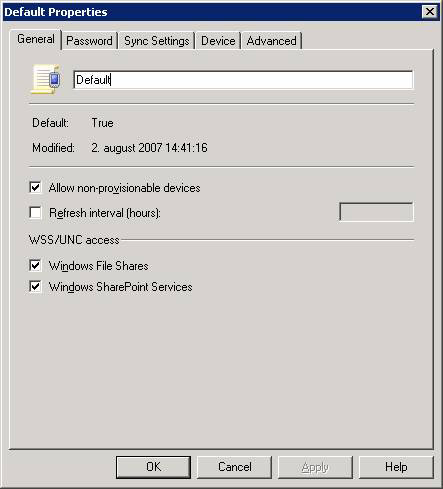 Figure 4: General tab on the default EAS properties page
Let's switch to the Password tab (as shown in Figure 5). There is a new setting added to this tab and that is to set the Minimum number of complex characters, this setting allows us to specify the minimum number of characters for the device password to have.
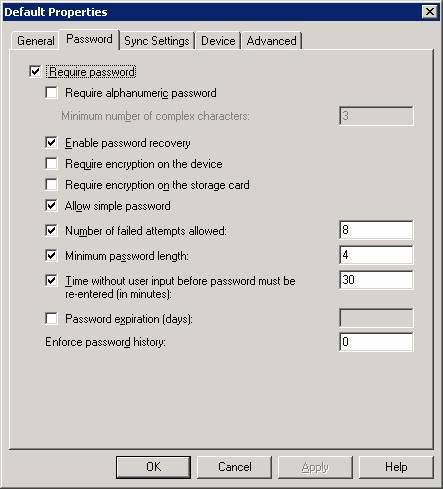 Figure 5: Password tab on the default EAS property page
Now switch to the next tab, which is the Sync Settings tab (see Figure 6). Here, we can configure how many past email and calendar entries should be synchronized with one device. We also configure the limit notification size, whether it should be allowed to sync while roaming, specify whether the html format email can be read on the device and finally see if it should allow downloading. Attachments to the device and, if enabled, specify the maximum size of the attachment.
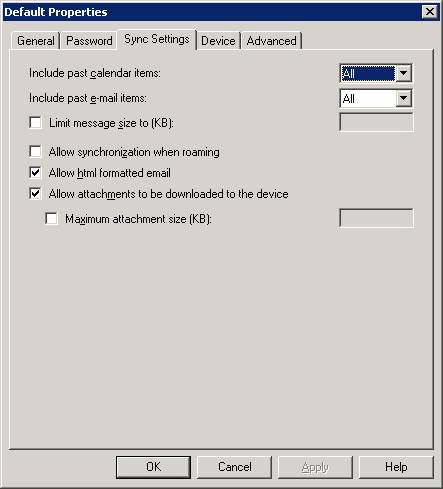 Figure 6: The Sync Settings tab on the default EAS properties page
The Sync Settings tab is new and we've listed each policy setting on this tab in Table 2 below so you can keep track of it.
Set policies EASDescription Include Past Calendar itemsWith this setting, you can specify how many back-up calendar entries should be kept in your mobile device. You can choose between all, two weeks, one month, 3 months or 6 months. Include past e-mail itemsWith this setting, you can specify how many back-up email itemsshould be kept in the mobile device. You can choose between all, one day, one week, 2 weeks and one monthLimit message size to (KB)This setting allows you to specify the maximum size for email notifications that are allowed to sync with the device. mobile. Allow synchronization when roamingWith this setting, you can allow or prevent users from syncing their devices when roaming. Allow html formatted emailThis setting allows you to specify whether to allow mobile device users to read emails in HTML format. Cho phép các kết nối đến tải về kích cỡ tập tin và kích cỡ tối đa (KB)With this setting, you can specify whether the user's mobile device can download attachments in the email. In addition, you can set the maximum size for attachments to download from your mobile device.
Figure 2: EAS policy configuration settings
Let's switch to the Device tab (as shown in Figure 7). On this tab, mobile device features such as mobile storage cards, pre-installed cameras, Wi-Fi, infrared ports, Internet sharing, remote workstations, copper can be disabled. Desktop ActiveSync client and Bluetooth.
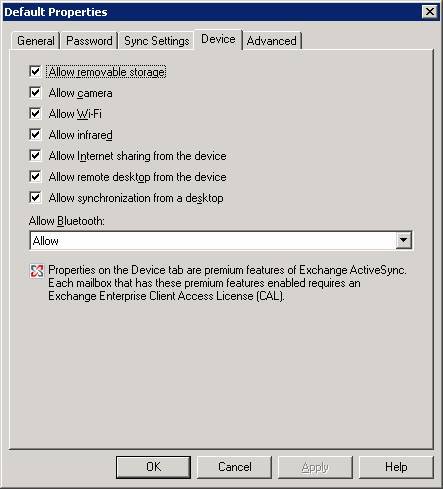 Figure 7: The Device tab on the Exchange ActiveSync default properties window
The Device tab is a new tab and we list you the policy settings on this tab with brief instructions in Table 3 below.
Exchange ActiveSync policy settings DescribeAllow removable storageYou can specify whether mobile device users are allowed to use the memory card in mobile devices. Allow cameraYou can ban mobile device users from using the camera, Features available on most mobile devices Windows. Allow Wi-Fi With this setting, you can prohibit mobile device users from using Wi-Fi (wireless network card), the feature that is available in most mobile devices. Mobile device Windows. Allow infrared With this setting, you can prohibit your mobile device users from using infrared ports, a feature available on most Windows mobile devices. Allow Internet sharing from the deviceYou can ban mobile device users from using the Internet sharing feature included in Windows mobile 6.0 mobile devices. Internet sharing feature makes your laptop able to connect to the Internet with a mobile device. Allow remote desktop from the deviceClick the mobile device user to use the remote workstation feature, which is most available with Windows mobile devices. With remote workstation, you can remotely connect to a Windows XP / Vista client or a Windows 2003/2008 server. Allow synchronization from a desktop Allow or prohibit mobile device users from using the Desktop ActiveSync client to sync with a mobile device. Allow Bluetooth Allows or prohibits mobile device users from using Bluetooth connectivity.
Table 3: Policy configuration settings of Exchange ActiveSync
Note : All settings on the Device tab are valuable features, which means that you must have Exchange Enterprise CALs to use them. Switch to the last tab, Advanced tab. As you can see in Figure 8, we can specify that users of mobile devices are allowed to use Internet browsers, mail, applications that are not signed and install an unsigned installation package. is not. In addition, you can also allow or block specific applications.
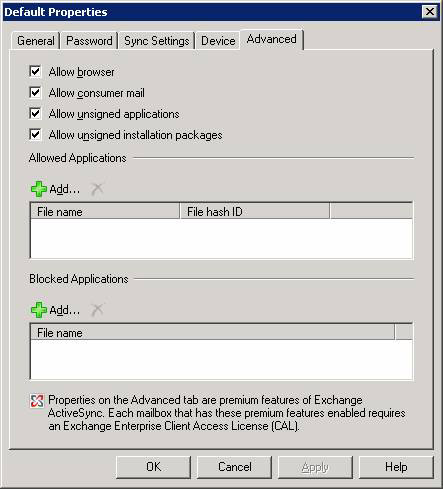 Figure 8: Advanced tab on the Exchange ActiveSync default properties window
The Advanced tab is also a new tab so we have listed some policy settings on this tab along with brief descriptions of it in Table 4 below.
Exchange ActiveSync policy setting Allow browser description Allow or prohibit users from using the browser on their mobile device. Allow consumer mail Allow or prohibit users from receiving mail on their mobile device. Allow unsigned applications With this setting enabled, mobile device users will be allowed to run applications that have not yet signed a private certificate. dependence. Unsigned unsigned installation packages With this setting, users of mobile devices will be allowed to install applications that have not yet signed a trusted certificate.
Table 4: Policy configuration settings of Exchange ActiveSync
In addition to the settings in Table 4, you can enter the Allowed and Blocked Applications box any application will be allowed or locked. Note : All settings on the Advanced tab are important features, which means you must have Exchange Enterprise CALs to use them. Keep in mind that not all new policy settings in Exchange Server 2007 SP1 are displayed in the EMC GUI. The following policies must be manipulated via the Exchange Management Shell:
- AllowTextMessaging
- AllowPOPIMAPEmail
- RequireSignedSMIMEMessages
- RequireEncryptedSMIMEMessages
- AllowSMIMESoftCerts
- RequireSignedSMIMEAlgorithm
- RequireEncryptionSMIMEAlgorithm
- AllowSMIMEEncryptionAlgorithmNegotiation
- MaxEmailBodyTruncationSize
- MaxEmailHTMLBodyTruncationSize
- UnapprovedInROMApplicationList
- ExternallyDeviceManaged
- MailboxPolicyFlags
Time will tell you which policies will be contained in the GUI in the RTM version of Exchange Server 2007 SP1. Remote wipe configuration In addition to the new EAS default policy and instructions for some new policy settings, Exchange Server 2007 SP1 also has some enhancements related to remote wipe, the feature used to reset. A mobile device returns to the default remote in case it is lost or stolen. When this feature works, there is no need for too many changes, a confirmation email message will be sent to the user's mailbox when the mobile device has successfully deleted it remotely. This happens whether deletion is done by an Exchange administrator via Exchange Management Console or Exchange Management Shell as well as if the user initiates deletion through Mobile Devices pages under Options in Outlook Web Access 2007 ( Figure 9).
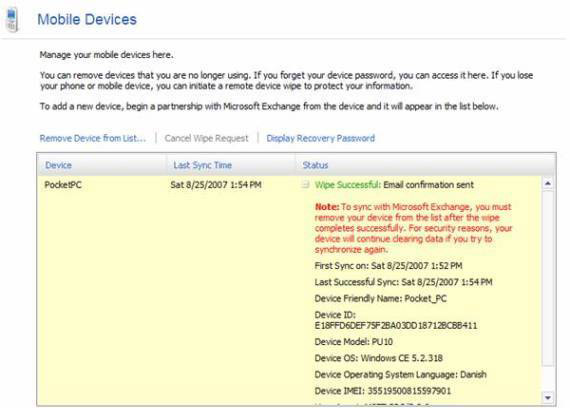 Figure 9: Successfully deleting the device remotely via OWA 2007
Once the mobile device has been successfully deleted, a confirmation email similar to the email in Figure 10 will be sent to the corresponding user's mailbox.
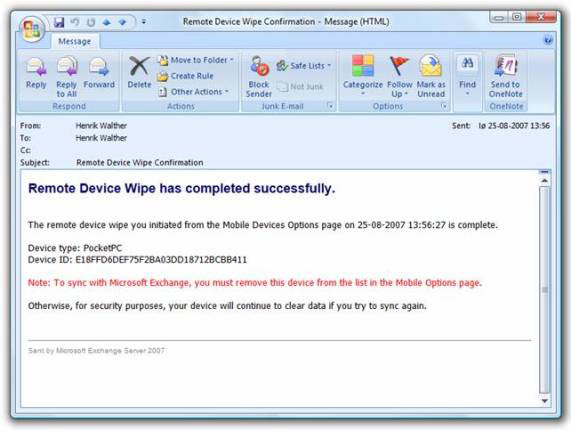 Figure 10: Confirmation email
In addition, you have the option to remotely delete from OWA 2007 and Exchange Management Console / Shell. S / MIME is further supported As you may know, S / MIME components for OWA 2007 and EAS are not available in the Exchange 2007 RTM version. This means you can sign digital signatures as well as encrypt email messages from your mobile device. As seen in the previous tables of this article, you can control S / MIME on mobile devices through several specific S / MIME policies. Reduce data in direct push protocol (Direct Push Protocol) Exchange's peripheral product group also improved the Direct Push protocol, the protocol used by Exchange ActiveSync. The size of the response HTTPS and header requests is greatly reduced, which reduces the amount of data sent between devices and the Client Access server. Although this feature is hidden for device users, it is indeed an important improvement for business organizations. Conclude Many IT business organizations require policies that are configured for all client notification types in the organization to benefit from the new EAS policy settings in Exchange Server 2007 SP1, which will allow or prohibit most features on a mobile device. This new EAS default policy is a smart move and fits the entire default security strategy in the Exchange product group. Lastly, improvements to create Direct Push protocols to reduce the amount of data sent between devices and Client Access server (s) will be warmly welcomed by the CIO because they are responsible. about IT budget.
FAQ
What is Discover Advanced Features of Exchange Activesync in Exchange about?
It provides a structured overview of exchange, explains the main context, and highlights practical takeaways for readers.
Why does this topic matter?
Understanding the main concepts helps readers evaluate the issue, avoid common mistakes, and make better-informed decisions.
How should readers use this information?
Use the guidance as a practical starting point, confirm details that may have changed, and follow current product, safety, or security recommendations.
Related Articles
 Mobile Communications with Exchange Server 2007 - Part 1: New11 minutes read
 Mobile Messaging in Exchange 2003 -- Part 3: Installation9 minutes read
 Some Common Problems with Exchange 2003 Systems -- Activesync and14 minutes read
 Discover Emc in Exchange Server 2010 (Part 2)5 minutes read
 Figure: New Outlook Web Access Features in Exchange 2007 Sp110 minutes read
 Introducing Exchange Server 2019, How to Install Exchange17 minutes read
Reader Comments 0
Sign in with email or Google to join the discussion.