Table of Contents
ChatGPT Now Has an Image Gallery: Here's What It Does and How to Use It is easier to approach with a clear overview and reliable steps. This guide organizes the essential information, highlights practical details, and explains what to check along the way.
Key Takeaways
- Review where to find ChatGPT image library.
- Explore what can you do with the ChatGPT library.
- Understand what is and is not included.
Where to Find ChatGPT Image Library
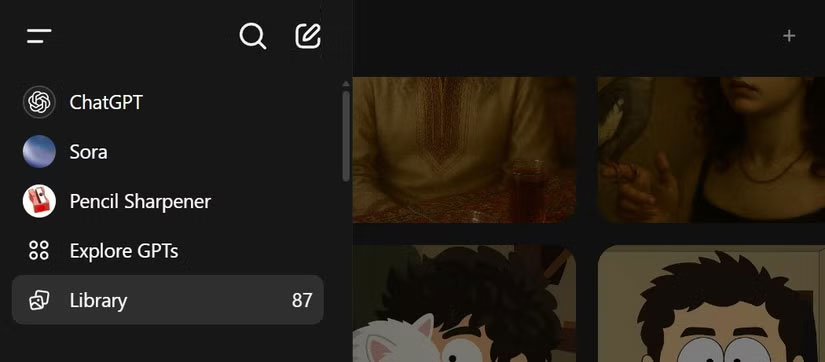
You'll find the Image Library tucked away in the left toolbar of the ChatGPT interface, just below Explore GPTs. Next to the label, you'll see a number indicating how many images you've created so far (currently 87).
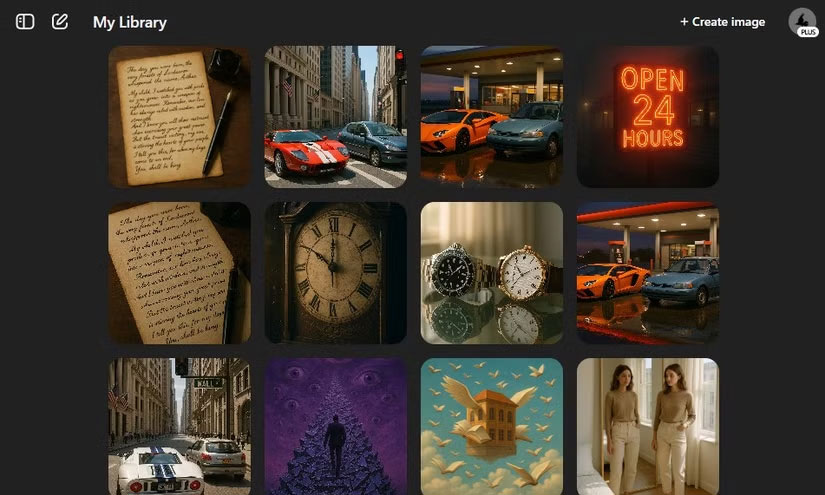
Clicking on the gallery will display all of your images in reverse chronological order - from newest to oldest. Clicking on an image will open it in a larger view with arrow buttons that let you scroll through your collection carousel style.
What Can You Do with the ChatGPT Library?
Each image now includes a caption, automatically generated by ChatGPT itself. Interestingly, they don't always reflect your original prompt. For instance, the author of the article asked ChatGPT to "turn a photo of my friend's cat into a person." The AI named it "serious eyes, soft light." None of those words are in the prompt, so it's clearly paraphrasing the content rather than repeating the prompt.
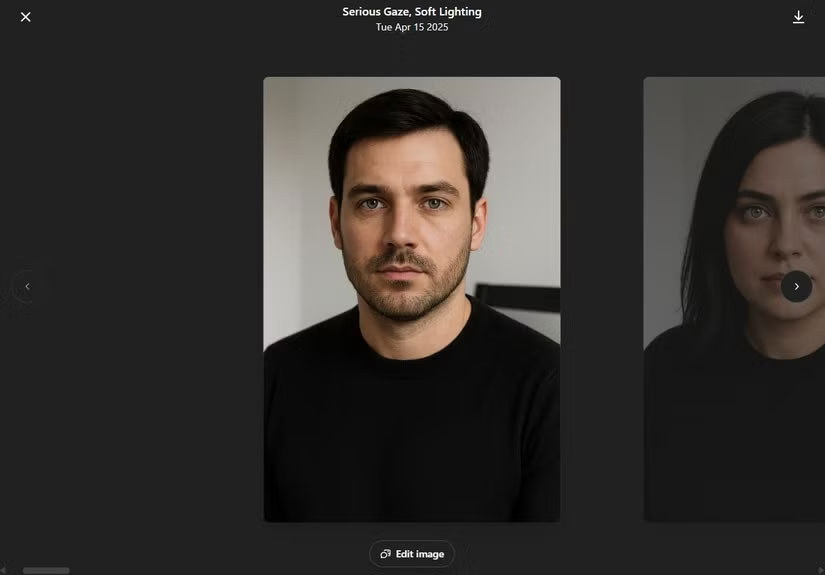
There's also an Edit image button, which allows you to make further changes to your existing creations. Handy if you want to iterate without starting from scratch.
Currently, there is no direct link back to the conversation where the image was created. That connection would make it easier to track how you achieved a particular result — especially useful if you're experimenting with recurring prompts.
What Is and Is Not Included?
Any images you create using the ChatGPT 4o model will automatically appear in your library. However, images created using custom GPT or the older DALL·E engine are not included in the library. The new feature only catalogs images created using the latest image creation engine directly in the regular ChatGPT conversation.
It is possible to delete images, but it's not as simple as you might expect. You'll need to delete the entire conversation the image came from if you want to delete an image. There's no "delete" button in the gallery itself. Archiving the conversation won't solve the problem - the image will still be in the gallery.
Image Library Will Be Rolled Out Gradually
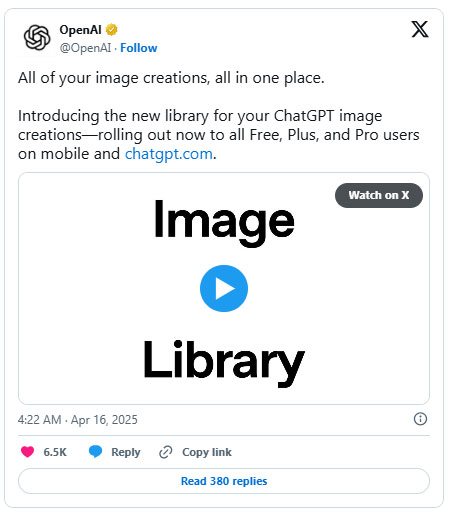
As with most OpenAI (and other major technology) features, the Image Library is rolling out gradually. Don't panic — it's probably just a matter of time if you don't see it yet. At the time of writing, you have access to it on both the web and iOS versions of ChatGPT. It will eventually be available to all ChatGPT Free, Pro, and Plus users.
Is ChatGPT's Image Library Really Useful?
ChatGPT's image creation capabilities have taken a huge leap in quality recently - the images are more realistic, detailed, and sometimes downright impressive. This leap has made image creation much more popular, but it also comes with longer creation times and much larger file sizes (many are around 4 – 5MB).
With that in mind, having a centralized library where you can manage your creations makes sense. This feature makes managing them much easier if you're creating many images. And since it's still new, there's a good chance OpenAI will build on it with more functionality in the future.
Final Thoughts
The most reliable way to handle ChatGPT now has an image gallery: here's what it does and how to use it is to follow the process in order, verify each important setting, and test the result before moving on. Use the guidance above as a practical reference, then adjust the details for your device, software version, or specific goal.
FAQ
What should I know first about ChatGPT Now Has an Image Gallery: Here's What It Does and How to Use It?
OpenAI has just launched a brand new Image Library for ChatGPT users — an overdue but welcome feature that finally gives you a way to view, manage, and review AI-generated images.
How do I get the best results with ChatGPT Now Has an Image Gallery: Here's What It Does and How to Use It?
Use current software or equipment, follow the steps in order, review the recommended settings, and test one change at a time so you can identify what improves the result.
What should I do if ChatGPT Now Has an Image Gallery: Here's What It Does and How to Use It doesn't work as expected?
Check compatibility, permissions, connectivity, and version-specific settings. Restart the relevant device or app, then repeat the process carefully before trying a more advanced fix.
Related Articles
 Image Gallery in CSS: Image Library in CSS2 minutes read
 Image Library on ChatGPT: a Complete Guide on How to Use the Library5 minutes read
 Google Gallery: Complete Guide6 minutes read
 How to Contact an Art Gallery14 minutes read
 How to Create AI Images Using ChatGPT on WhatsApp2 minutes read
 What Is ChatGPT Go? Is It Worth It?10 minutes read
Reader Comments 0
Sign in with email or Google to join the discussion.