Table of Contents
A monitor can display video from any compatible source, including a console, a streaming device or a phone with video output. Before buying an adapter, check the monitor’s inputs, the source’s outputs and where the sound will come from. A monitor with HDMI and a headphone jack is easier to reuse than a display that only accepts VGA.
1. Mirror a phone or tablet
Check whether your exact phone supports wired video output. A USB-C port alone does not guarantee it. If yours supports DisplayPort video, use a compatible USB-C to HDMI adapter for an HDMI monitor. A compatible Lightning iPhone can use a Lightning Digital AV adapter. This setup can be useful for slides, photos or videos, although some protected apps may restrict external playback.
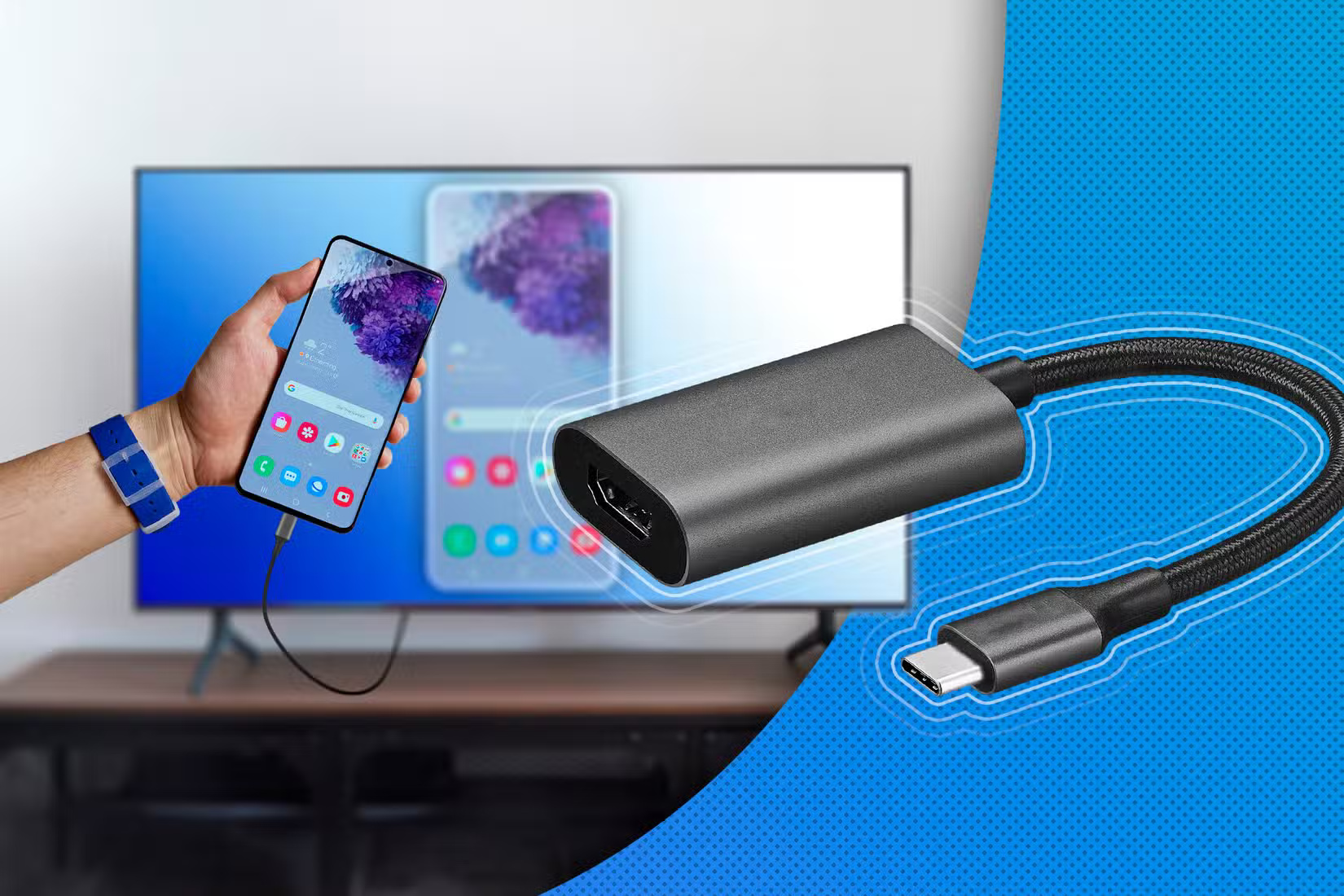
2. Use Samsung DeX as a desktop
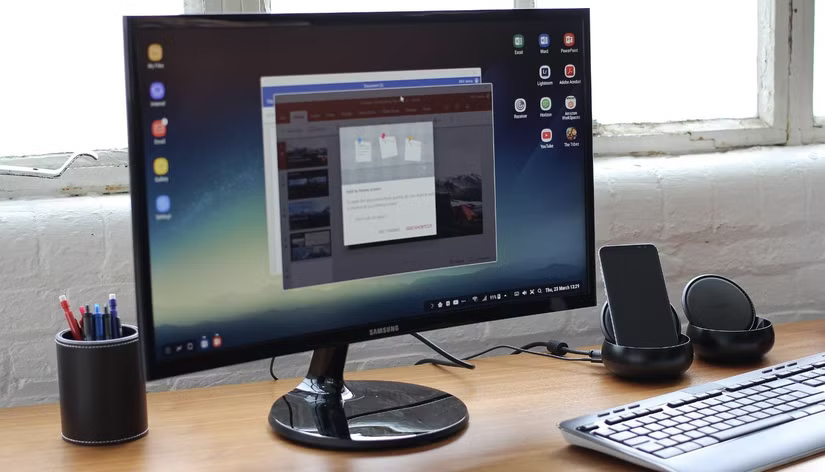
On a compatible Galaxy device, DeX opens a desktop-style interface with resizable apps. Connect by HDMI or use a compatible wireless display if both devices support it. Pair a keyboard and mouse for longer sessions.
3. Frame a shot with a larger camera preview
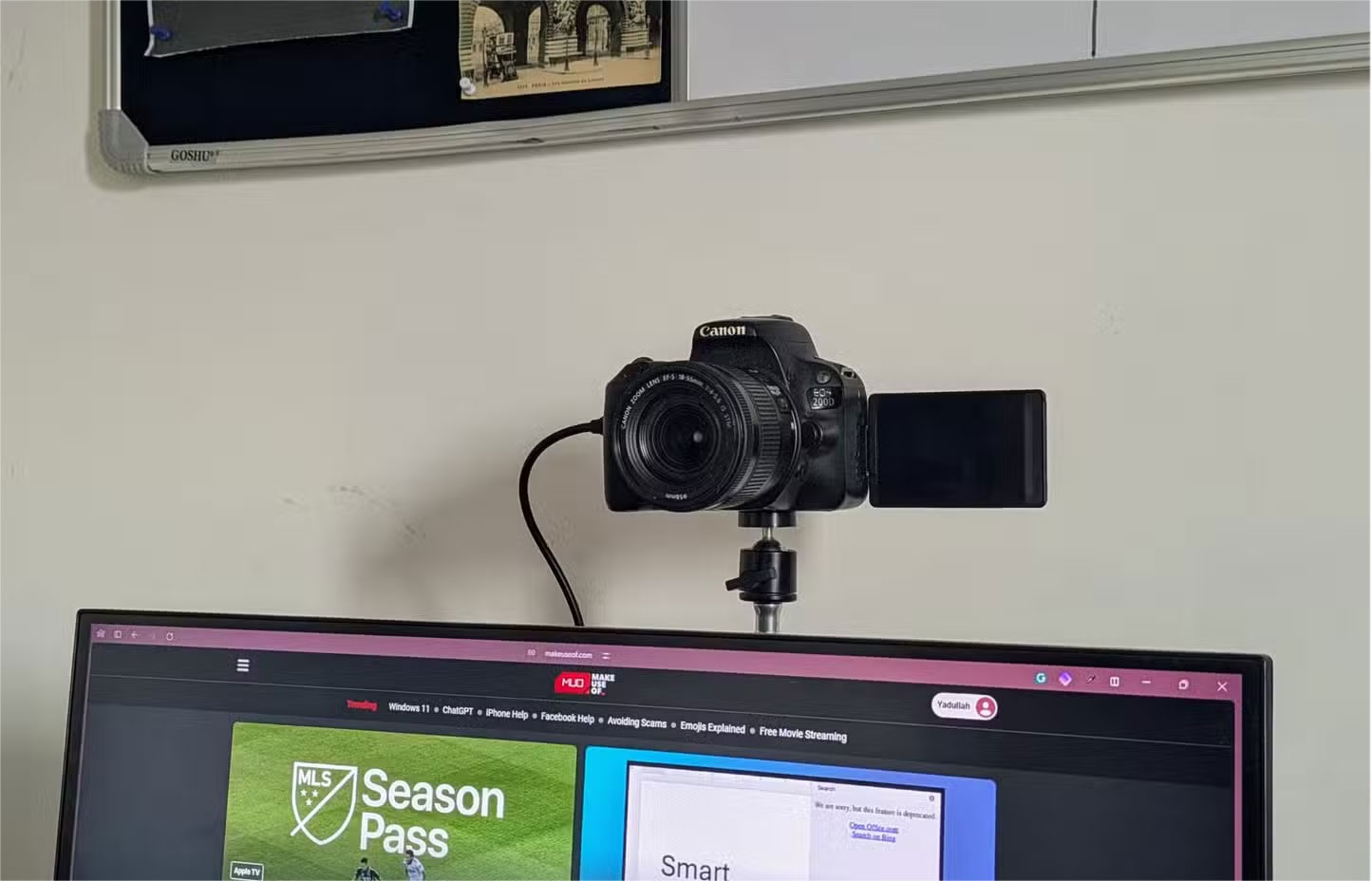
If your camera outputs live video over HDMI, match the cable to its full-size, mini or micro HDMI port. Test the feed before filming. If camera settings or focus boxes appear on the monitor, check whether the camera offers clean HDMI output.
4. Stream with a stick or set-top box
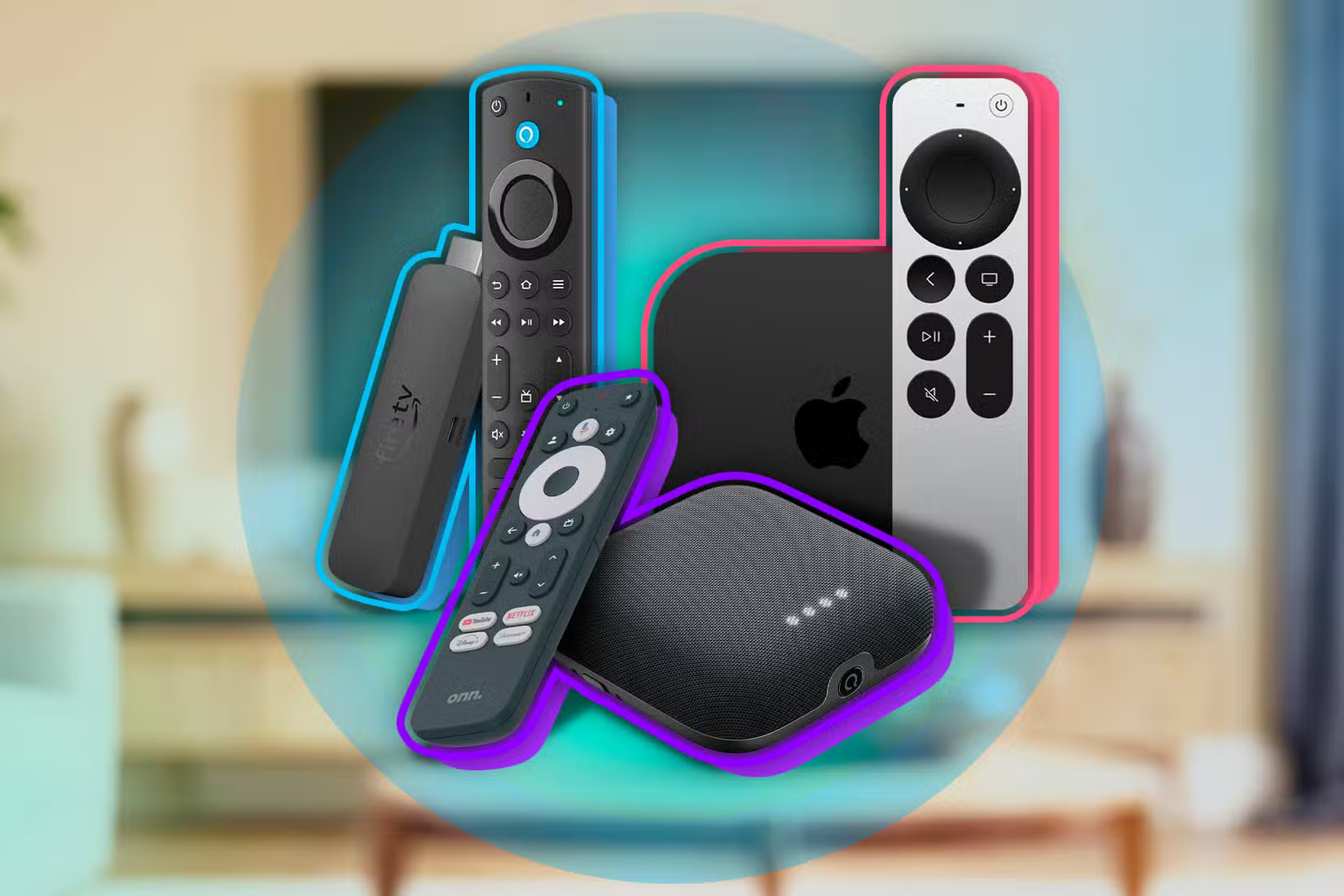
Connect the player to HDMI, power it with the supplied adapter and finish Wi-Fi setup with its remote. Verify that the monitor supports the resolution and content protection required by the player. For sound, use the monitor’s speakers or audio output, or an output the player supports.
5. Connect a game console
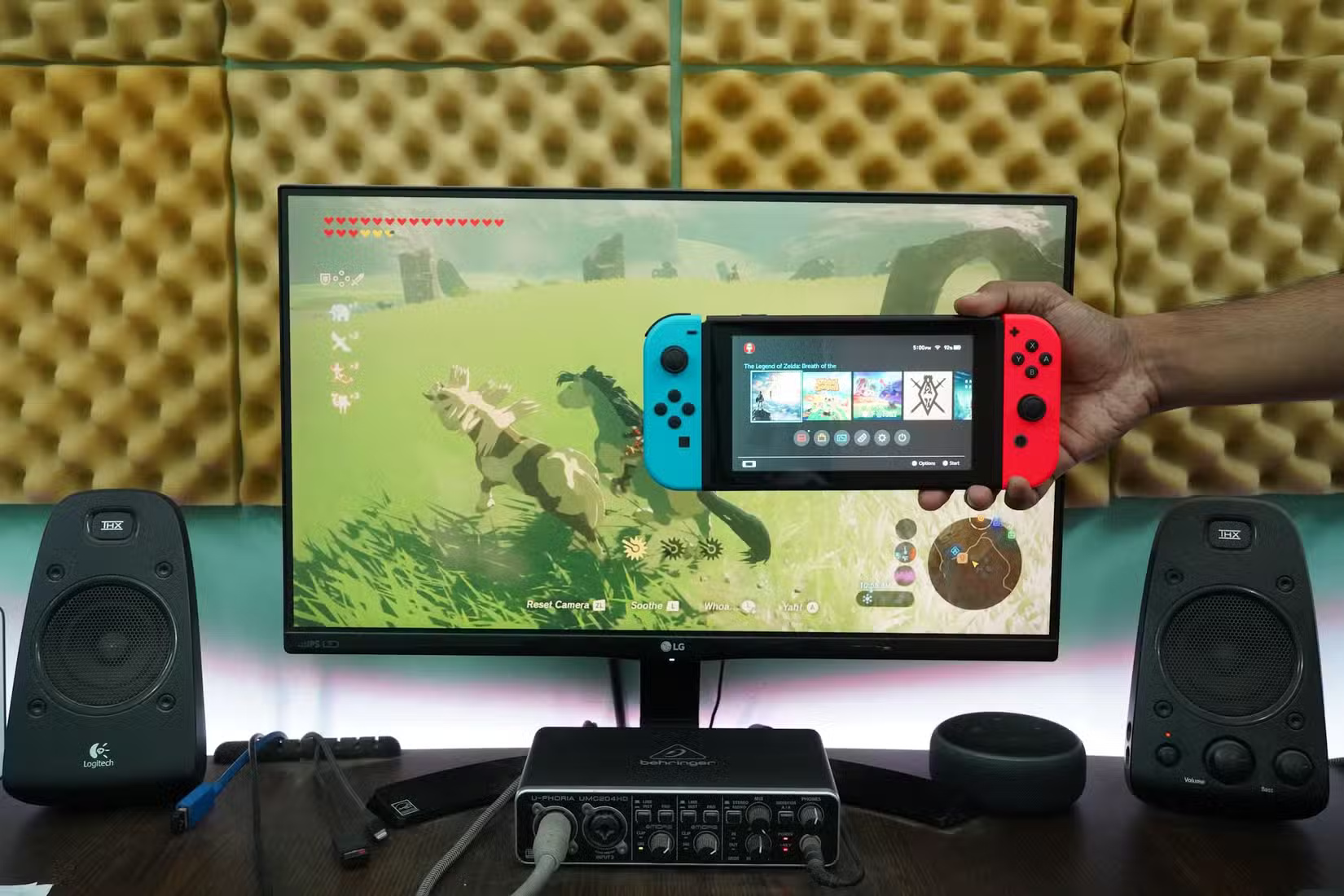
Use HDMI and select that input on the monitor. Check the resolution and refresh rate the monitor accepts over HDMI, especially if the same monitor supports a higher rate over DisplayPort. The console-to-monitor setup guide also covers older connections. If the picture flickers or cuts out, check the HDMI cable at a lower output setting first.
6. Watch DVDs or Blu-rays
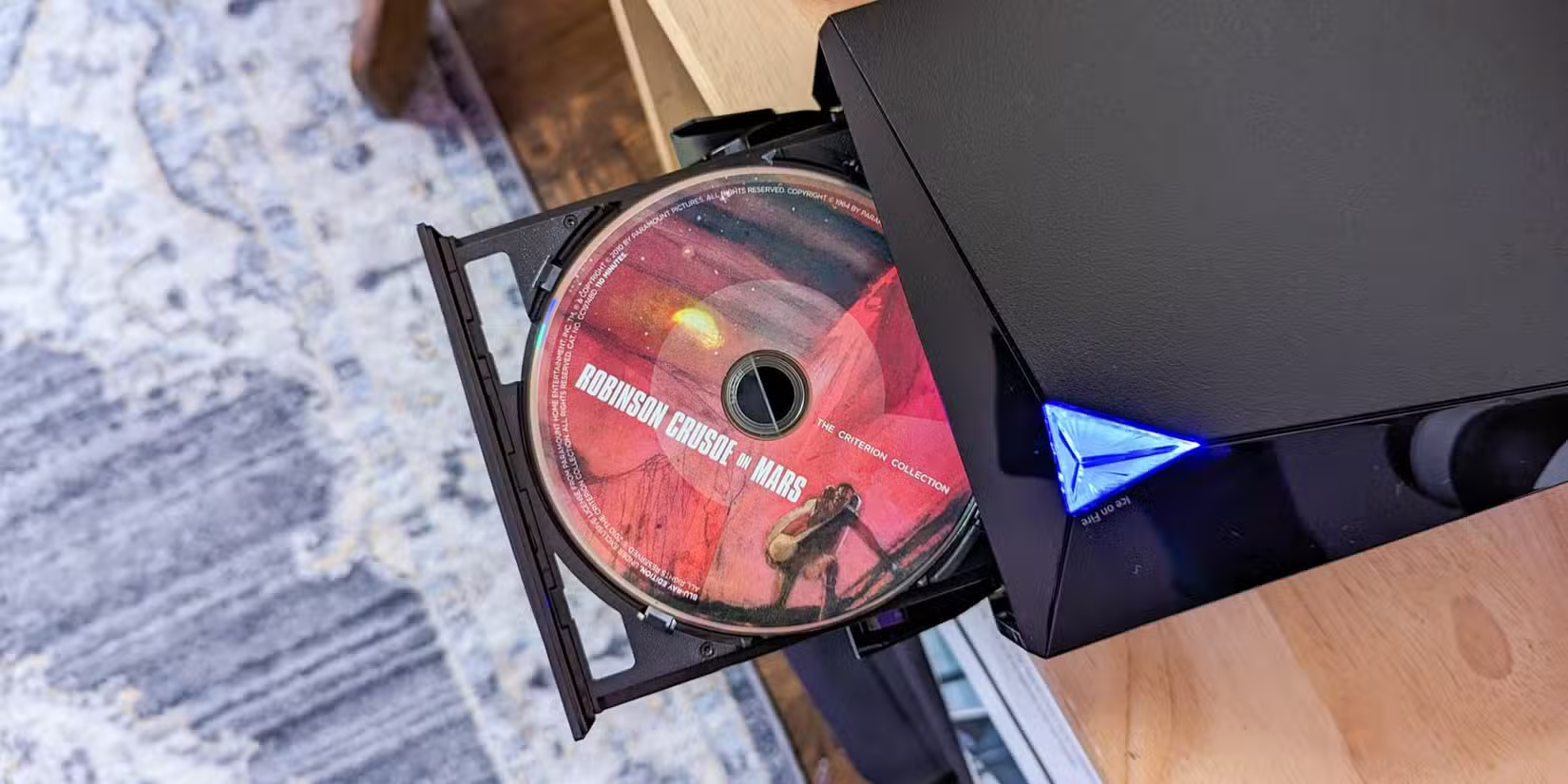
Connect the player to HDMI and set its output to a resolution your monitor accepts. For an older analog-only player, check the signal direction before buying a converter. Connect speakers to the player or monitor if either has a compatible audio output.
7. View your own security camera system
Connect the monitor to an HDMI or VGA output on the DVR or network video recorder. Select the recorder’s live-view layout. This displays the feed from a compatible recorder directly, even on a monitor with no apps or internet connection.
Related Articles
 5 Practical Ways to Reuse an Old Computer Monitor
 Review Samsung Smart Monitor M5 - Smart screen with many surprises
 How to buy a computer monitor that suits your needs
 The FDA opposes the use of smart watches to monitor blood sugar levels
 Experience choosing to buy the best computer monitor
 How to download and use Smart PSS
Reader Comments 0
Sign in with email or Google to join the discussion.