Table of Contents
The iPhone has a number of features that make it easier to use one-handed. Here are some tips to make using your iPhone one-handed easier.
As iPhone screens get larger, using the phone with one hand becomes more difficult. However, the iPhone has some features that help users adjust the one-handed mode to be more suitable. Here are some tips to use the iPhone with one hand more easily.
Using iPhone Reachability
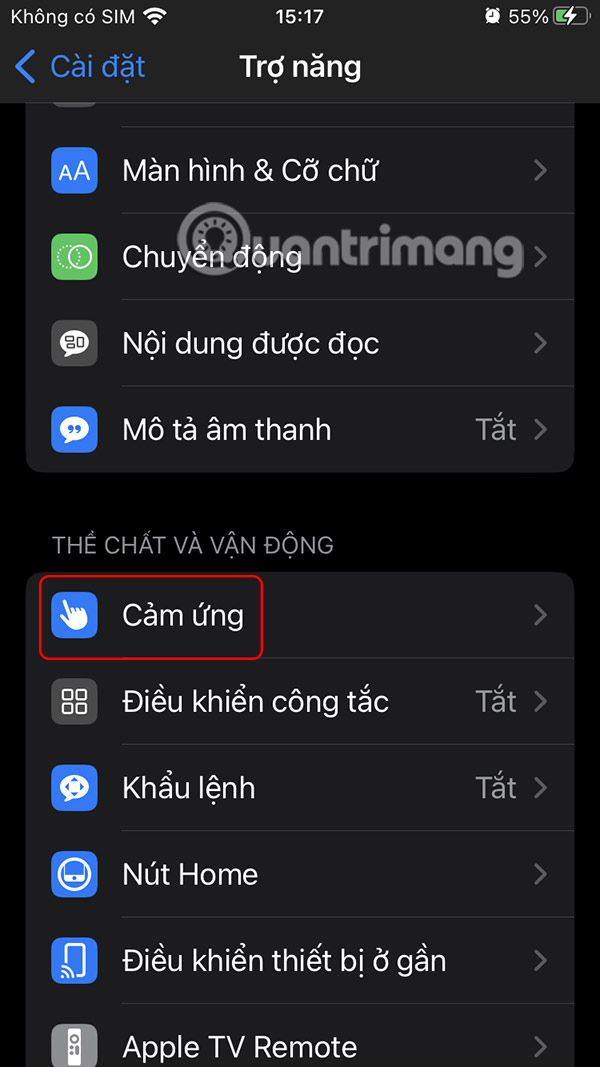
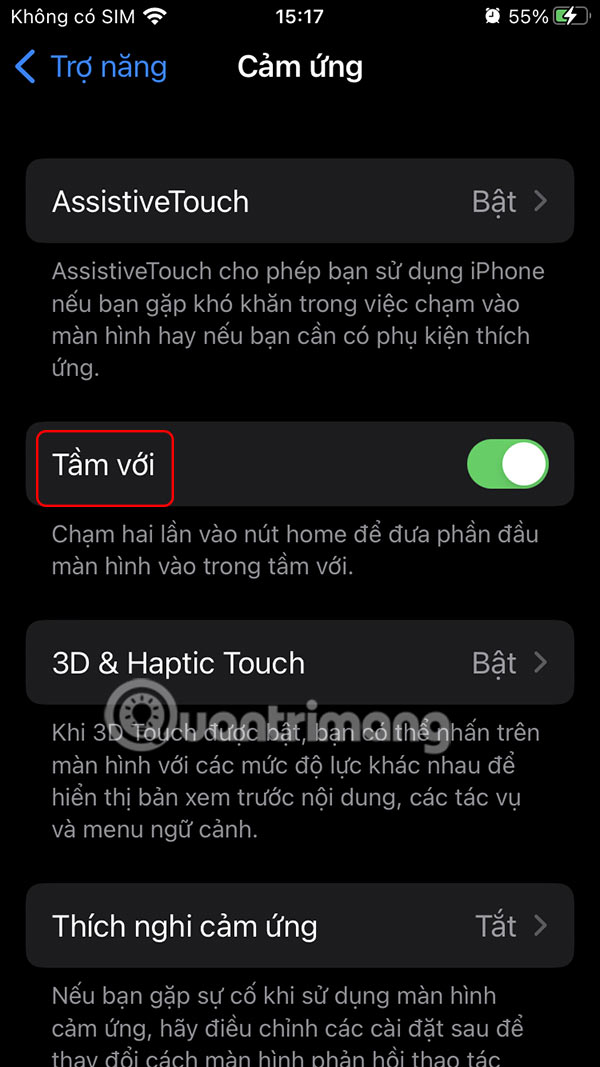
Reachability is an important accessibility feature on iPhone. It temporarily brings the top half of the screen down to the middle or bottom, making it easier to interact with apps, widgets, controls, and other content without having to adjust your grip or stretch your fingers, which can lead to dropping your phone.
When the content you want is within reach on the screen, swipe down to the bottom edge of the screen and the content will instantly shrink.
- What is One-Handed Mode (Reachability) on iPhone? How to use it?
Add multifunction button with AssistiveTouch
AssistiveTouch is a virtual Home button with various device features and controls that you can add to your iPhone's home and lock screens, saving you from having to press multiple buttons or navigate sub-menus.
- How to enable virtual Home button, open virtual Home button on iPhone to change settings
Enable iPhone One-Handed Keyboard
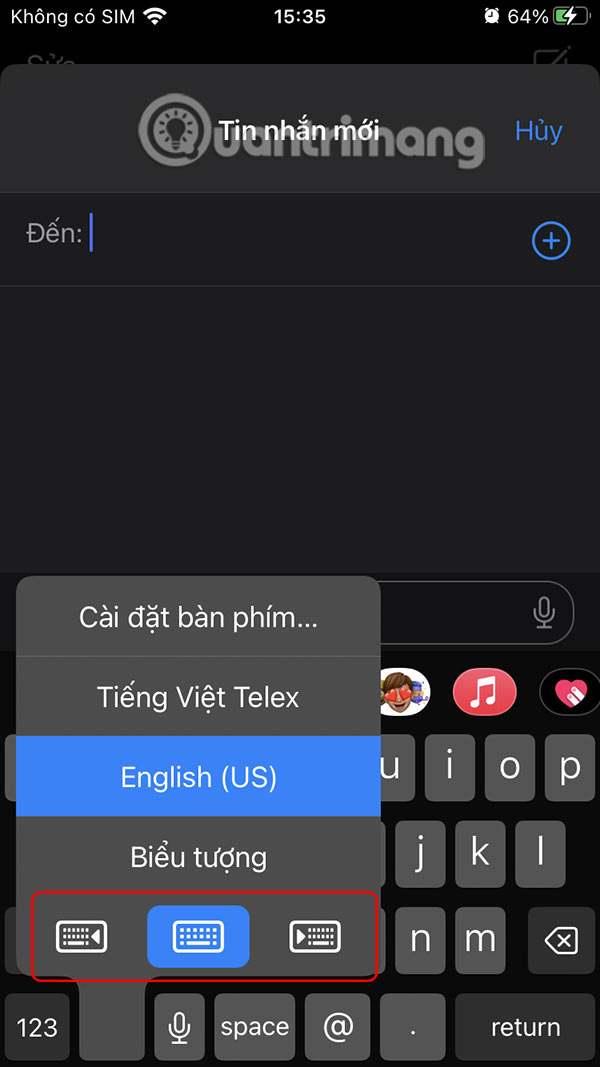
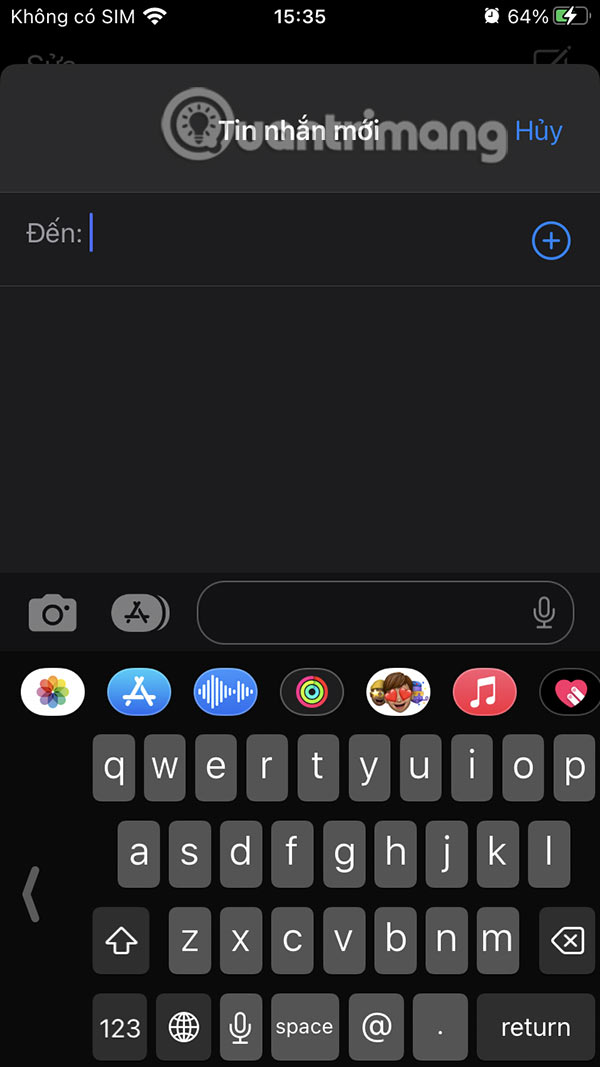
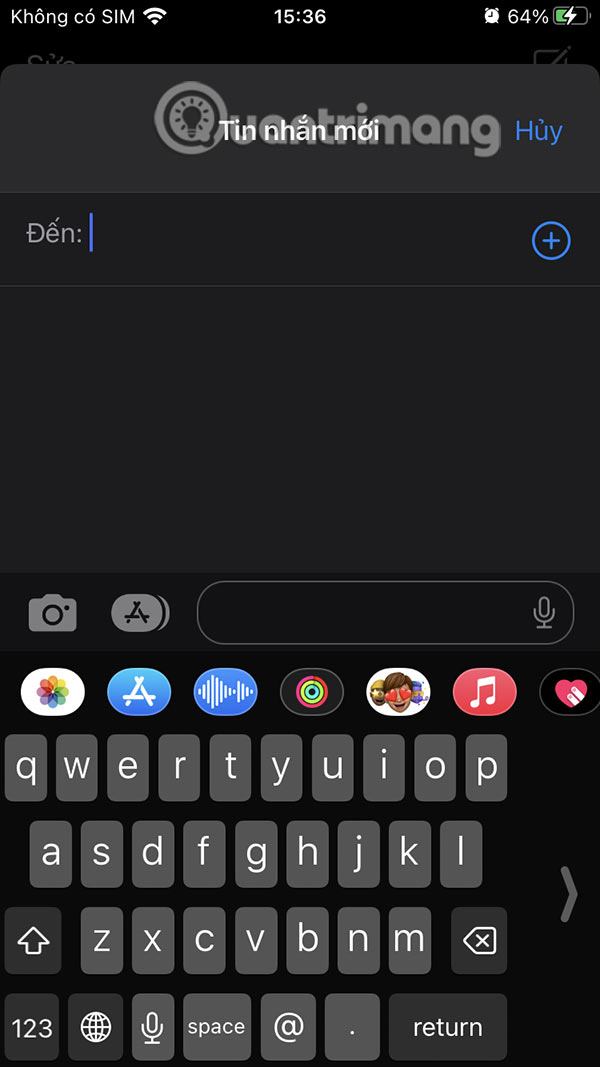
Apple has built a one-handed keyboard into iOS to make typing easier. Tap and hold The globe icon In the lower left corner of the keyboard. Then, in the pop-up menu, tap the left-aligned or right-aligned keyboard icon to shrink the keyboard to the left or right edge, respectively.
Using Back Tap on iPhone
Back Tap is an accessibility feature that turns the back of your iPhone into a virtual button so you can perform quick actions. It supports two gestures, Double Tap and Triple Tap, allowing you to assign actions according to your usage needs.
- How to Set Up the Back Tap Gesture on iPhone
Organize widgets and apps on iPhone
Place your most used apps in the middle to bottom half of the screen, in order of increasing frequency of use. If you have too many apps, you can organize them into folders on your iPhone.
Another trick you can use is to place apps or folders along the side where you normally hold your iPhone. The right side would be the side if you hold your iPhone with your right hand, and the left side if you hold it with your left hand.
Use Siri to quickly perform tasks
Using Siri can help you reply to messages, make calls, search for information online, or get directions to places. You can also use Siri to check events and reminders or create new ones.
- How to open Siri, enable Siri and useful Vietnamese Siri commands on iPhone
FAQ
What should you know about the options in this guide?
In practical terms, the iPhone has a number of features that make it easier to use one-handed. Here are some tips to make using your iPhone one-handed easier.
Which option is the best choice?
The best choice depends on your priorities, compatibility, budget, and the specific features discussed in the comparison.
What should you compare before deciding?
Compare core features, limitations, ease of use, compatibility, and long-term value before making a decision.
Related Articles
 Ways to Control Large Screen Smartphones with One Hand12 minutes read
 Tips for Using iPhone That Few People Know Shared by Former Apple Employee5 minutes read
 How to Make Hand Sanitizer Dry at Home12 minutes read
 8 Tips for Using Galaxy Note 8 Are Faster, More Efficient and Easier9 minutes read
 Points to Keep in Mind When Buying Hand Dryers6 minutes read
 How to Make Your Own Hand Sanitizer at Home Following WHO Guidelines5 minutes read
Reader Comments 0
Sign in with email or Google to join the discussion.