Table of Contents
Cloudflare's 1.1.1.1 can replace the DNS resolver supplied by your mobile carrier or Wi-Fi network. On Android 9 or later, the most useful built-in option is Private DNS, which works across Wi-Fi and mobile data and encrypts DNS queries. On an iPhone, manual DNS settings apply to one Wi-Fi network at a time. Cloudflare's app is the simplest option when you want coverage across networks.
A different resolver may make name lookups more reliable, but it cannot improve a weak signal, repair an ISP outage, or guarantee faster downloads. DNS also is not an anonymity tool. For background on the underlying system, see how IP addresses and DNS work together.
Choose the right setup method
| Method | Where it applies | What it protects |
|---|---|---|
| Android Private DNS | Wi-Fi and mobile data | DNS queries through DNS over TLS |
| Manual Android or iPhone Wi-Fi DNS | Only the selected Wi-Fi network | Changes the resolver; it does not by itself create a VPN tunnel |
| 1.1.1.1 app in DNS-only mode | Networks used by the phone | Encrypted DNS queries only |
| 1.1.1.1 app in WARP mode | Networks used by the phone | Routes device traffic through an encrypted WARP tunnel |
Cloudflare's standard IPv4 resolver addresses are:
- Primary:
1.1.1.1 - Secondary:
1.0.0.1
To compare this resolver with other choices, see six public DNS services and their security features.
Set up 1.1.1.1 with Android Private DNS
Private DNS is the preferred built-in method on Android 9 and later because it does not require changing the phone to a static IP address.
- Open Settings and go to Network & internet (the name may be Connections on some phones).
- Tap Private DNS. If it is not visible, search Settings for “Private DNS.”
- Select Private DNS provider hostname.
- Enter
one.one.one.oneand tap Save.
If the phone cannot connect afterward, return this setting to Automatic. Networks with a browser-based sign-in page may require you to connect and complete the sign-in before enabling Private DNS.
Set 1.1.1.1 manually for one Android Wi-Fi network
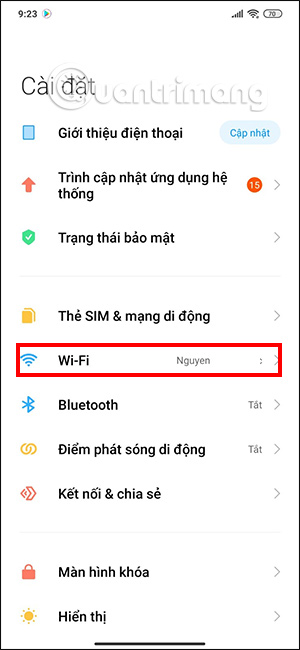
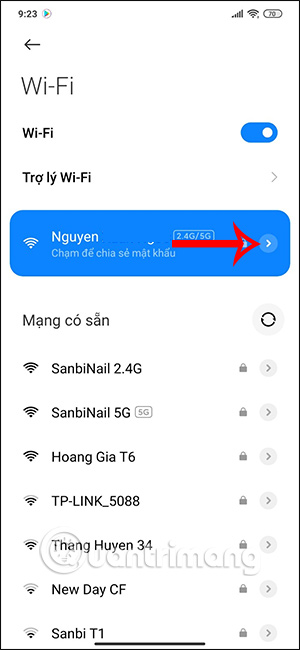
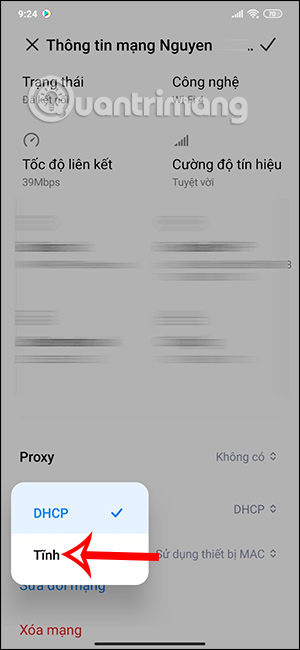
Use this fallback only when Private DNS is unavailable. Android interfaces vary, and some devices expose DNS fields only after changing IP settings to Static. Before doing that, record the current IP address, gateway, and network-prefix values. Copy them exactly; an incorrect static configuration can disconnect the phone. The screenshots below show an older Android interface, but the sequence is still useful on devices with similar menus.
- Open the connected Wi-Fi network's details or edit screen.
- Open the advanced options and locate IP settings.
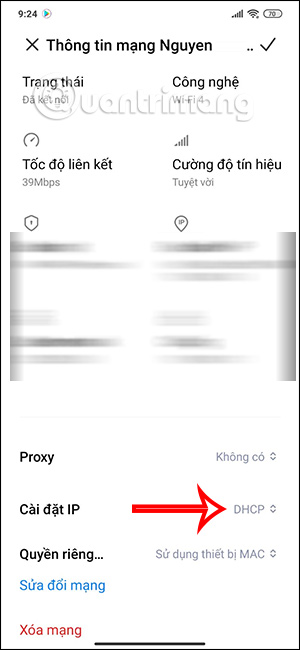
- If the DNS boxes are unavailable, select Static and preserve the existing IP address, gateway, and prefix values.
- Set DNS 1 to
1.1.1.1and DNS 2 to1.0.0.1, then save.
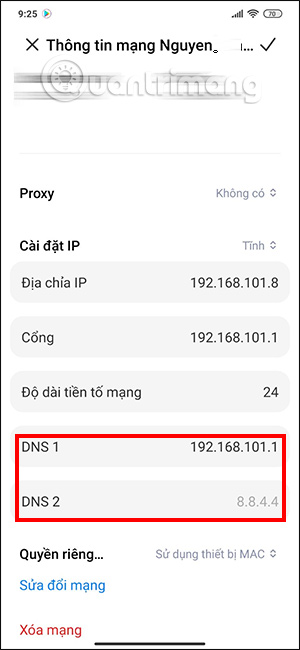
This affects only that saved Wi-Fi network. To undo the change, edit the network again and restore IP settings to DHCP or Automatic.
Set 1.1.1.1 manually for one Wi-Fi network on iPhone
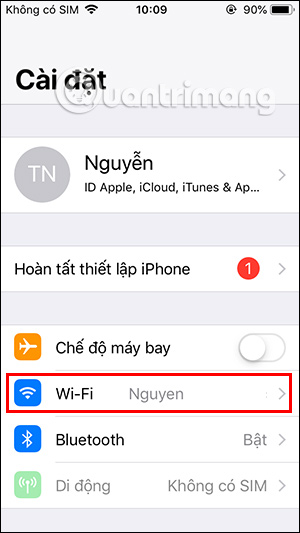
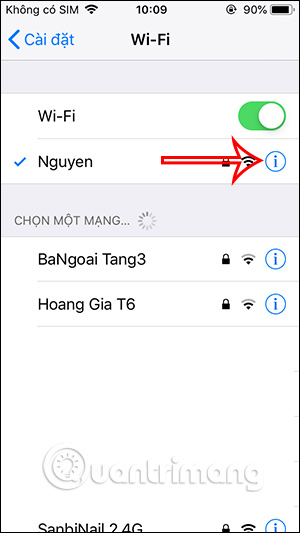
- Open Settings > Wi-Fi and tap the information button beside the connected network.
- Scroll to Configure DNS, tap it, and choose Manual.
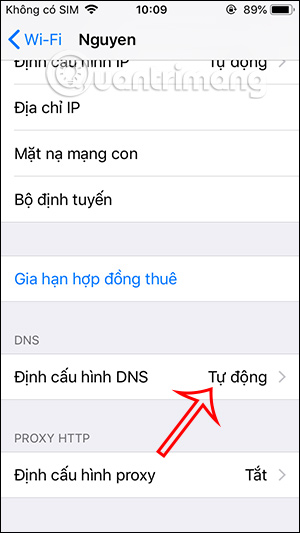
- Remove resolver entries you do not want the phone to use, tap Add Server, and add
1.1.1.1and1.0.0.1. - Tap Save.
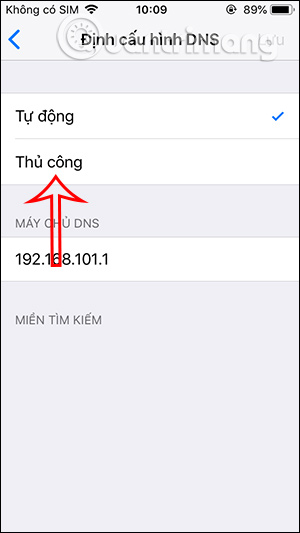
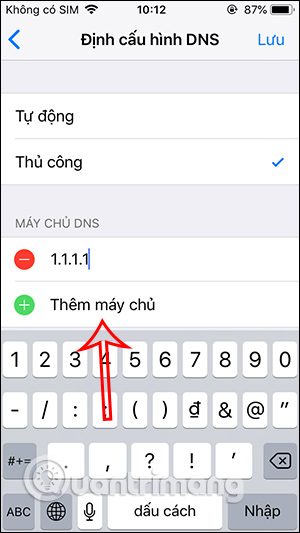
This setting applies only to that Wi-Fi network; it does not change DNS for cellular data. To revert it, return to Configure DNS and select Automatic.
Use the Cloudflare 1.1.1.1 app
The official app can configure encrypted DNS or WARP without editing every Wi-Fi network. Cloudflare provides current installation instructions for Android and iPhone and iPad. Install the app from the official store listing linked by those pages.
What DNS-only and WARP mean
- DNS-only mode sends only DNS queries to 1.1.1.1 through an encrypted DNS connection. Other app traffic is not carried through WARP.
- WARP mode creates an encrypted tunnel for the device's traffic. It is not designed as a traditional location-changing VPN, so do not rely on it to choose a country or guarantee access to blocked services.
The app uses the phone's VPN framework, even in configurations that protect only DNS. As a result, it generally cannot stay active at the same time as another consumer VPN. For more context, read what Cloudflare WARP does and when it is useful and this comparison of encrypted DNS protocols.
Connect on iPhone
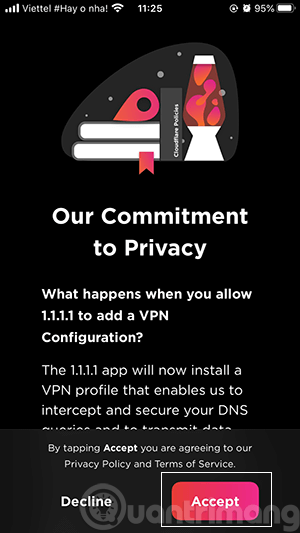
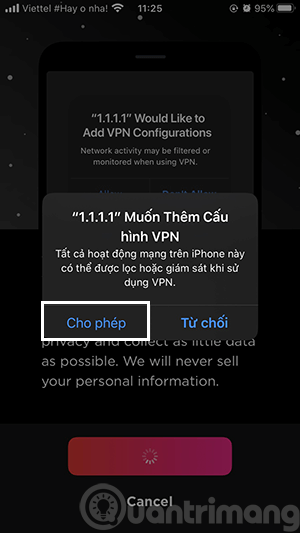
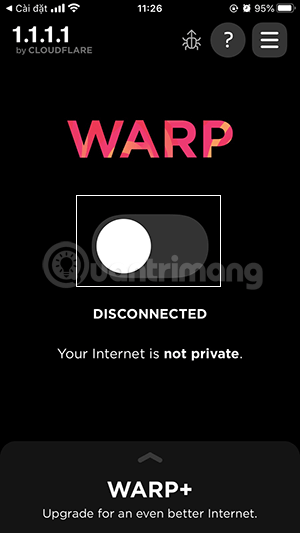
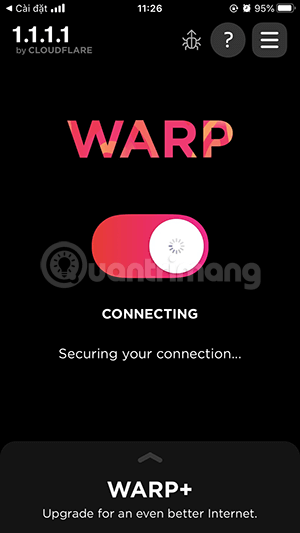
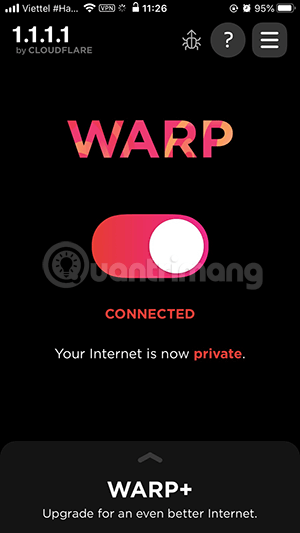
The following screenshots show an earlier version of the app. Current button names and layout may differ, but the permission and connection flow is similar.
- Open the app, review its notices, and continue through the initial setup.
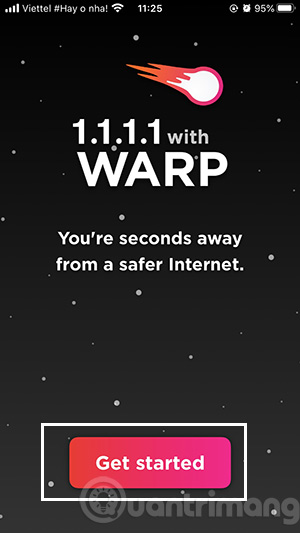
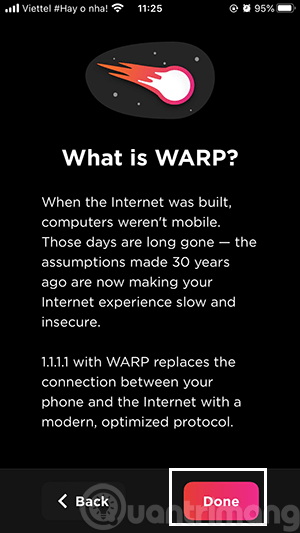
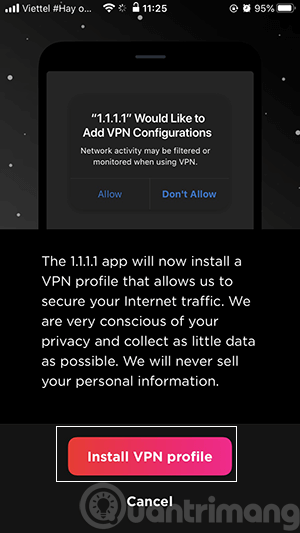
- When iOS asks to add a VPN configuration, approve it only if you installed the official Cloudflare app. Authenticate with the device passcode or biometric prompt if requested.
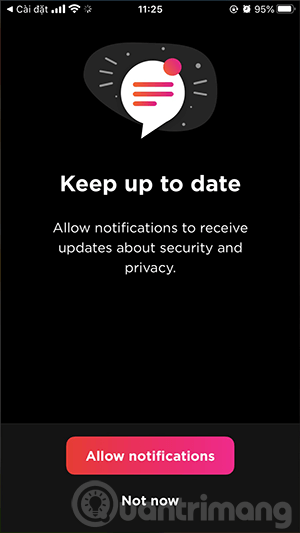
- Use the main switch to connect. Confirm that the app reports Connected.
Connect on Android
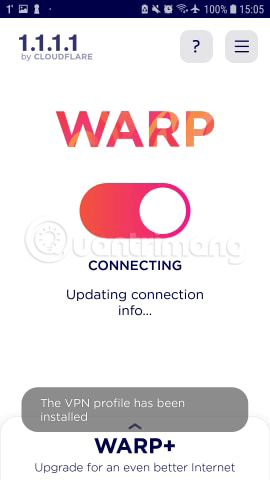
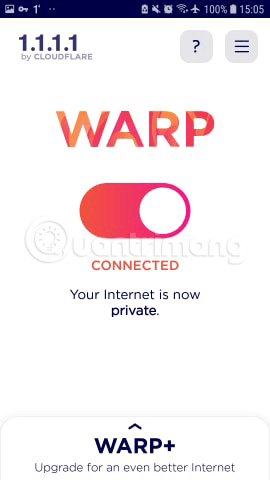
Open the official app and proceed through its introductory screens.

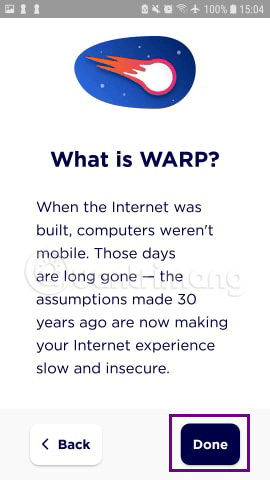
- Turn on the main connection switch.
- Approve Android's VPN connection request. The wording varies by Android version and phone maker.
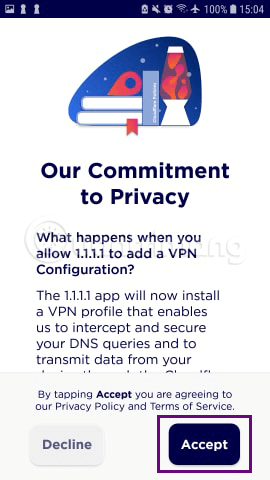
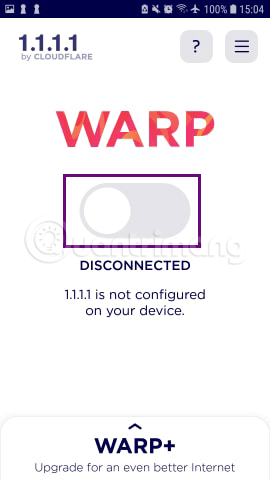
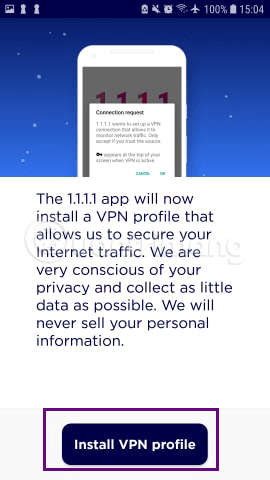
- Wait until the status changes to Connected.
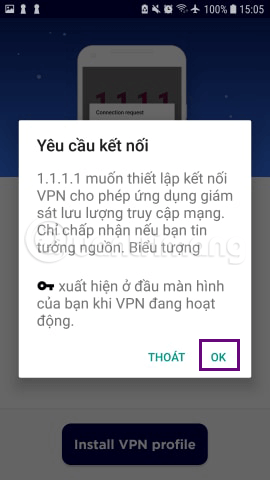
Verify the connection and fix common problems
Open Cloudflare's connection-check page to see whether the device is using 1.1.1.1 and whether DNS over HTTPS, DNS over TLS, or WARP is active.
- A public Wi-Fi login page does not appear: temporarily disable Private DNS or the app, complete the network sign-in, and then reconnect.
- The Android Wi-Fi connection stops working: restore IP settings to DHCP/Automatic. Re-entering only the DNS fields after switching to Static is not sufficient on every phone.
- The iPhone change seems ineffective on cellular: manual DNS is tied to the selected Wi-Fi network. Use the app if you need consistent handling across Wi-Fi and cellular data.
- Another VPN disconnects: turn off WARP or DNS-only app mode before starting the other VPN.
- Pages still load slowly: test the original automatic DNS again. A resolver change cannot correct congestion, poor signal strength, or a slow server.
Related Articles
 Instructions to Block Others from Changing iPhone Password3 minutes read
 Simple Way to Transfer Data from Android to iPhone9 minutes read
 How to Change iPhone Icon Very Simply Without Jailbreak6 minutes read
 Is It True That Android Costs More RAM Than iOS?12 minutes read
 How to View the Emoji Emoticons of iPhone on Android6 minutes read
 Change DNS Iphone: How to Change DNS on Iphone, Android Phones3 minutes read
Reader Comments 0
Sign in with email or Google to join the discussion.