Table of Contents
Even in Windows 11, there are some hidden settings that you ignore but help speed up your computer instantly. Below are some hidden settings on Windows 11 to help speed up your computer.
When your computer is running slow, adjusting a few settings can change the speed of your computer. Even in Windows 11, there are some hidden settings that you ignore but help speed up your computer instantly. Below are some hidden settings on Windows 11 to help speed up your computer.
Turn off applications that start with Windows
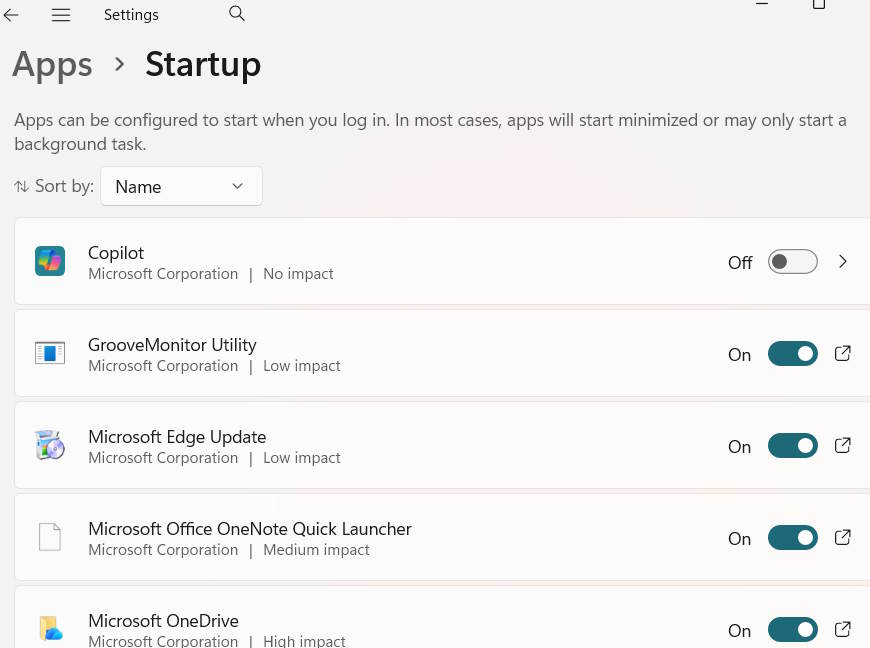
Having many applications start at the same time can slow down your computer's startup speed. Check all the applications that are starting with your computer and turn them off.
- How to disable applications that start with Windows
Turn on Windows Storage Sense
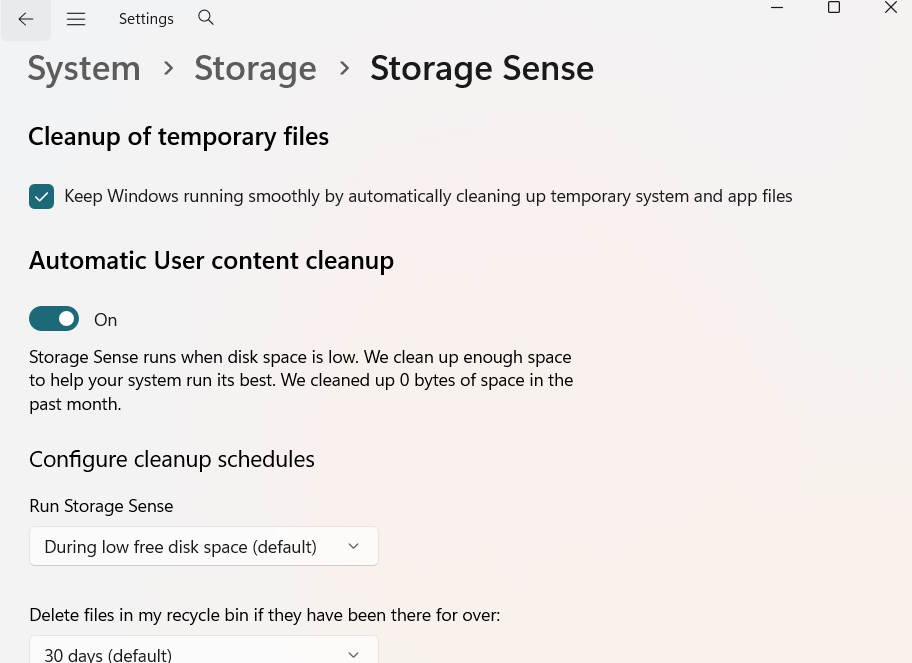
If the main drive is often full, it is also one of the reasons why the computer runs slowly. You can use a hidden setting in Windows 11 to free up space.
When you enable Storage Sense, it automatically deletes unnecessary data on your drive, such as cached data, temporary files, and more. You can also adjust the feature's settings to delete specific unnecessary data, such as items in your Downloads folder.
- How to use Storage sense Windows to free up disk space
Enable Fast Startup
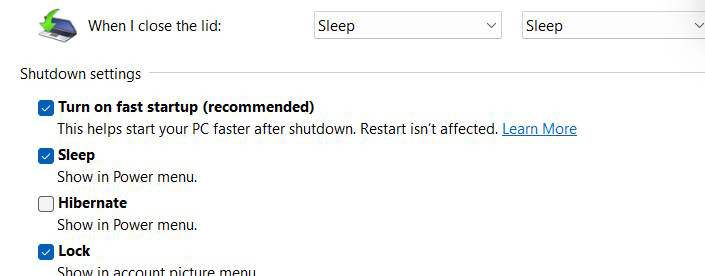
Fast startup on your PC reduces the time it takes to boot up. This is especially useful if your computer takes a long time to boot up. This setting allows your computer to boot up faster by skipping loading everything from scratch. Instead, it picks up where it left off by saving a small system file that speeds up the boot process.
- Start Windows 10 "as fast as the wind" with Fast Startup
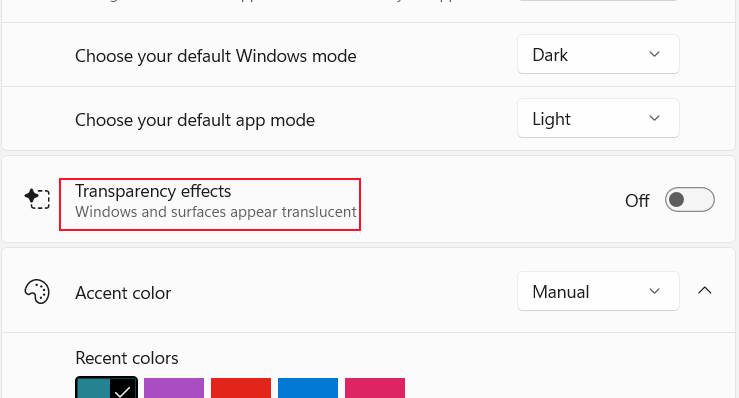
Turn off Windows 11 transparency effects
If your computer is running slower, consider turning off transparency effects on Windows 11. This setting makes your Windows 11 computer look better, but it can also take up some of your computer's GPU resources if you don't have many resources left to use.
Go to Settings then Click Personalization On the left side and look to the side And select Colors .
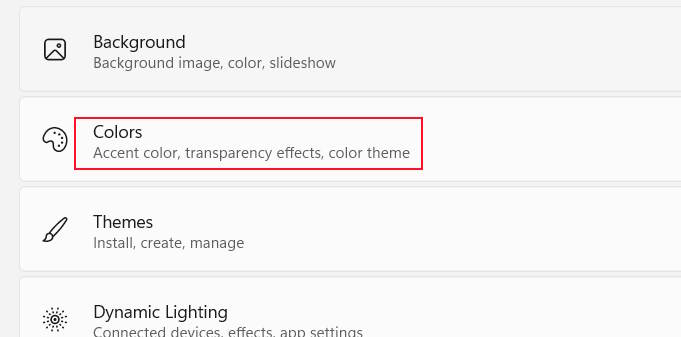
Next, you just need To turn off Transparency effects .
Windows 11 virtual memory management
Virtual memory acts as a backup for RAM, kicking in to take the load off RAM whenever your computer is running low on physical memory. You can increase virtual memory in the settings, which is a useful tool if you find your computer frequently running out of RAM and running slow.
- Here's how to increase virtual memory on Windows
FAQ
What should you know about the options in this guide?
In practical terms, even in Windows 11, there are some hidden settings that you ignore but help speed up your computer instantly. Below are some hidden settings on Windows 11 to help speed up your computer.
Which option is the best choice?
The best choice depends on your priorities, compatibility, budget, and the specific features discussed in the comparison.
What should you compare before deciding?
Compare core features, limitations, ease of use, compatibility, and long-term value before making a decision.
Related Articles
 7 Hidden Plex Settings You Should Use9 minutes read
 Hidden Wi-Fi Settings That Make Hotel Internet Much Faster8 minutes read
 9 iPhone Settings to Change for Privacy and Convenience9 minutes read
 How to Speed Up the Launch of Desktop Application on Windows 103 minutes read
 6 Hidden iOS Settings That Are Draining Your Data Plan7 minutes read
 Speed Up Windows 7 Computers, This Is All You Need to Do16 minutes read
Reader Comments 0
Sign in with email or Google to join the discussion.