Table of Contents
A network-attached storage device (NAS) gives computers, phones, TVs, and other approved devices a central place to store and access files. For a home media server, the right NAS depends less on a long feature list and more on four questions: how much usable storage you need, whether your players can direct-play your files, how many people will stream at once, and how you will back up the NAS itself.
A two-bay model is sufficient for many homes, while a four- or six-bay unit offers more room to grow and more flexible RAID layouts. If you expect the NAS to transcode video rather than simply deliver compatible files, processor capability and application support become especially important.
What a NAS can do at home
A NAS stays connected to your router, so authorized users can reach shared folders without moving an external drive between devices. Typical uses include automatic computer backups, a family photo archive, shared documents, music playback, and a movie library for televisions and mobile devices.
Remote access is also available on many systems, but it should be treated as a security feature to configure carefully, not as a reason to expose the device directly to the internet. Keep the NAS operating system and apps updated, use strong unique credentials and multi-factor authentication when supported, and give each user only the access they need.
If you only need inexpensive offline storage for one computer, an external hard drive may be simpler. A NAS earns its extra cost when several devices need continuous, managed access.
Start with drive bays and usable capacity
The number of bays determines how many drives the enclosure can accept, but raw capacity is not the same as usable capacity. Two 8TB drives configured as a mirror provide roughly one drive’s capacity because the second drive holds a redundant copy. A parity-based array across more drives can use space more efficiently, although rebuilding a failed array can take time and places additional load on the remaining drives.
A single-bay NAS can share files, but it cannot provide drive redundancy inside the enclosure. A two-bay unit is a practical starting point for personal backups and a modest media library. Four or more bays make sense when you expect rapid growth, want a parity RAID layout, or need to replace drives gradually.
RAID is not a backup. It can reduce downtime after a drive failure, but it does not protect against accidental deletion, malware, theft, fire, or corruption that is copied across the array. Keep another copy of important data on separate storage or in a suitable cloud backup.
Diskless or populated NAS?
A populated NAS arrives with drives installed, while a diskless model lets you choose them. A populated bundle is convenient and may include a tested configuration. A diskless enclosure gives you more control over capacity, drive class, and price.
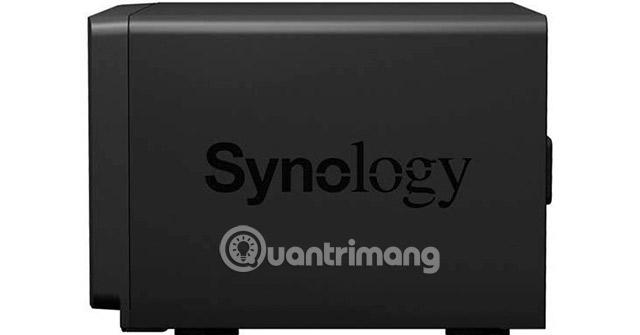
When comparing prices, calculate the complete cost of the enclosure and every required drive. Check the manufacturer’s current compatibility list before reusing or buying disks, and verify whether mixing capacities will waste space under your chosen RAID layout.
Choose drives designed for the workload
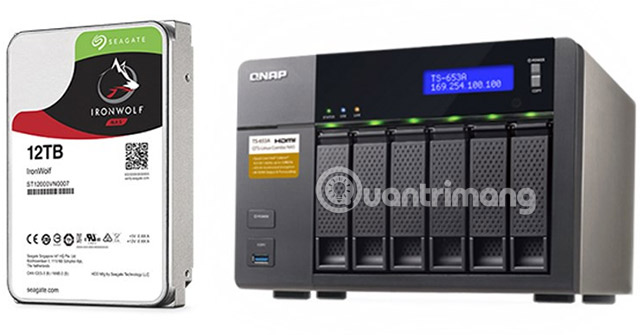
NAS-oriented hard drives are built for continuous operation, vibration control in multi-drive enclosures, and RAID error-recovery behavior. Product families include Seagate IronWolf, Toshiba N-series, and Western Digital Red lines, but individual models differ. Pay attention to workload rating, warranty, recording technology, noise, power consumption, and the enclosure vendor’s compatibility guidance.
SSDs can make sense for quiet operation, fast random access, or compact 2.5-inch systems, but they cost more per unit of capacity. M.2 slots on a NAS may be usable for cache, storage pools, or both; support depends on the model and operating system.
Understand direct play and transcoding
A NAS does not always need a powerful processor to stream video. If the television or app supports the file’s container, video codec, audio codec, resolution, and bitrate, the NAS can usually send it as-is. This is called direct play and requires relatively little processing.
Transcoding is different: the server converts video or audio because the player cannot use the original format or because the connection needs a lower bitrate. Real-time 4K transcoding is much more demanding, and results depend on the exact source format, subtitles, server application, hardware acceleration support, and number of simultaneous streams.
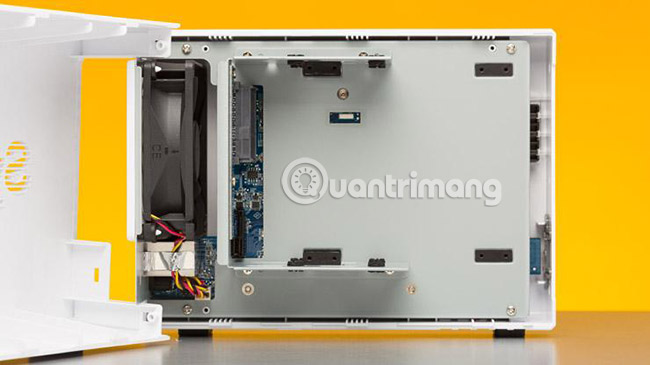
Before buying, inspect a sample of your library and list the devices that will play it. If most files can direct-play, storage capacity and network performance may matter more than CPU power. If you plan to run Plex, compare the NAS with other choices in this guide to devices for a Plex Media Server.
Check networking, ports, and expansion
Gigabit Ethernet is adequate for many single-user and compressed-media workloads. A 2.5GbE port can improve large file transfers and support several busy clients, provided the router or switch and client devices also support that speed. Multiple Ethernet ports do not automatically increase the speed of one client; benefits depend on link aggregation support and network configuration.
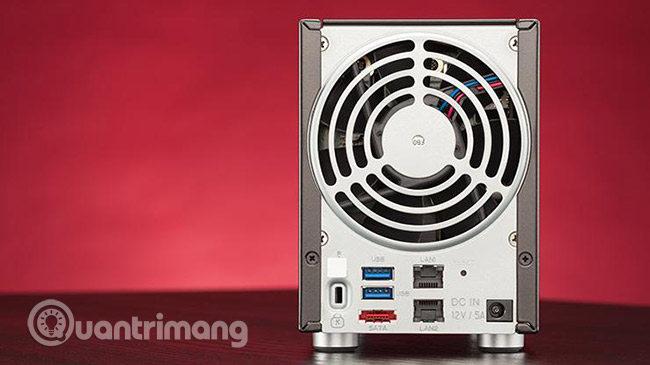
USB ports may support external backup drives, UPS communication, or one-touch copy features. HDMI output is useful only if you intend to connect the NAS directly to a display and the NAS software supports that workflow. PCIe and M.2 slots add flexibility, but confirm what cards or storage modes the operating system actually permits.
Five NAS models to compare
The following models cover different bay counts and performance levels. They are comparison starting points rather than a permanent ranking: availability, firmware support, app compatibility, and pricing can change. Always check the vendor’s current specifications before purchase.
1. QNAP TS-464-8G: balanced four-bay expansion
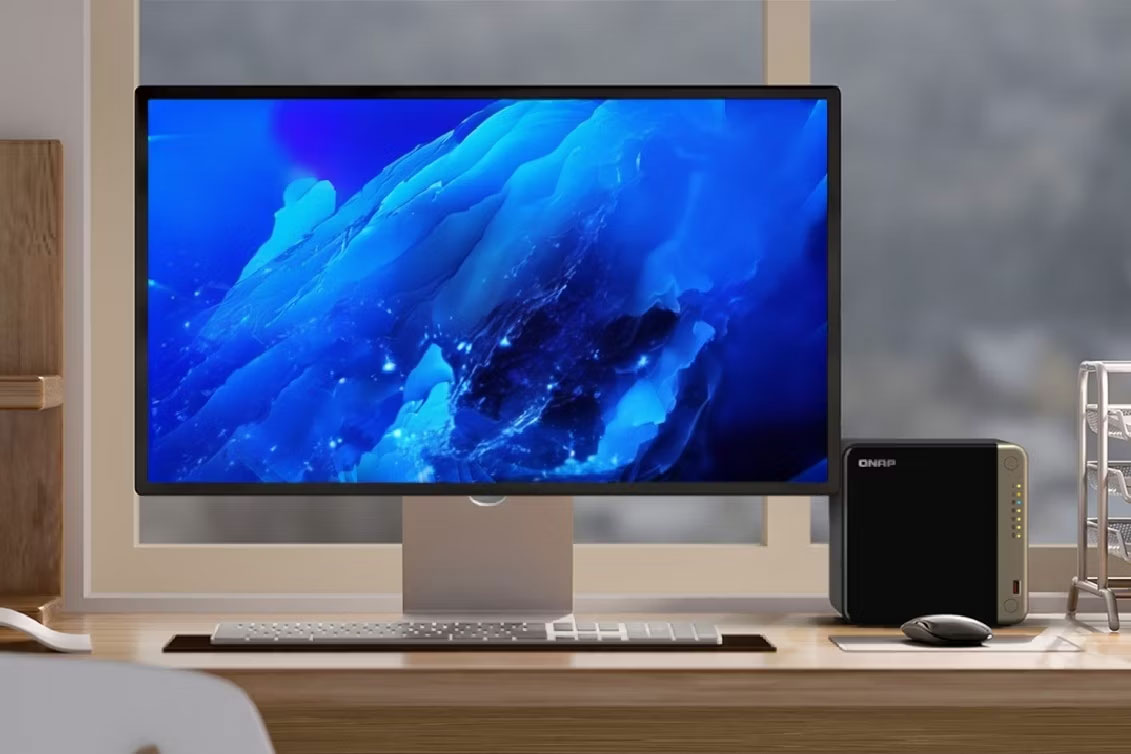
The TS-464-8G suits buyers who want four drive bays, 2.5GbE networking, M.2 expansion, HDMI output, and room for a PCIe add-in card. Its Intel processor and 8GB memory configuration make it more capable than an entry-level file server for media applications and other services.
Choose it when you value expansion and QNAP’s application ecosystem. Before relying on hardware-accelerated transcoding, confirm support in the media-server software and subscription tier you intend to use.
2. TerraMaster F2-223: compact two-bay value
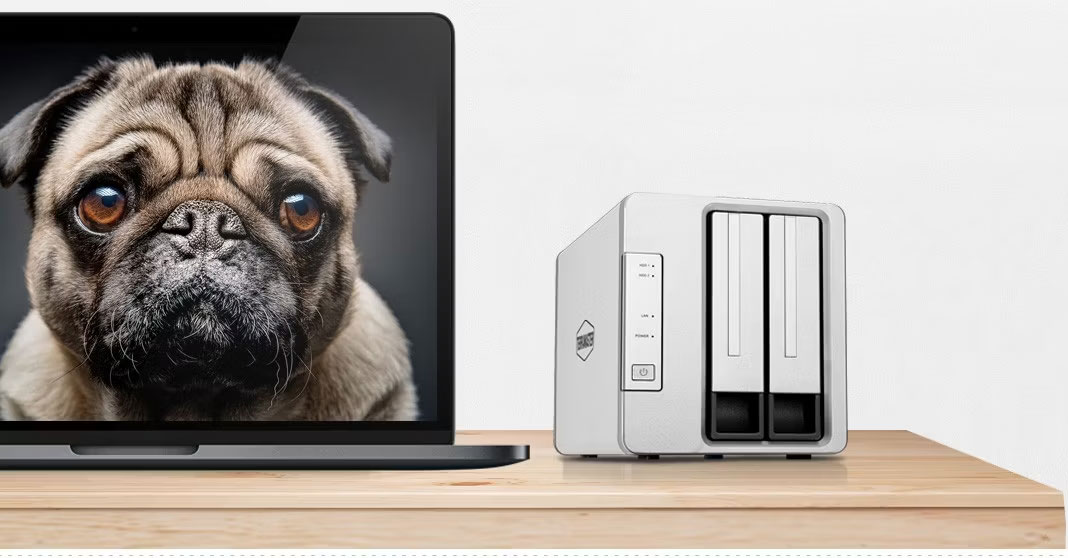
The F2-223 is aimed at users who want two bays, an Intel-based platform, 2.5GbE connectivity, and M.2 slots without moving to a larger enclosure. It is a sensible size for backups and a small direct-play media library.
The tradeoff is long-term expansion: once both bays are occupied, increasing capacity generally means replacing drives. Compare TerraMaster’s current application catalog and interface with competing platforms if software polish and third-party packages are priorities.
3. QNAP TVS-h674-i3: higher-end six-bay server
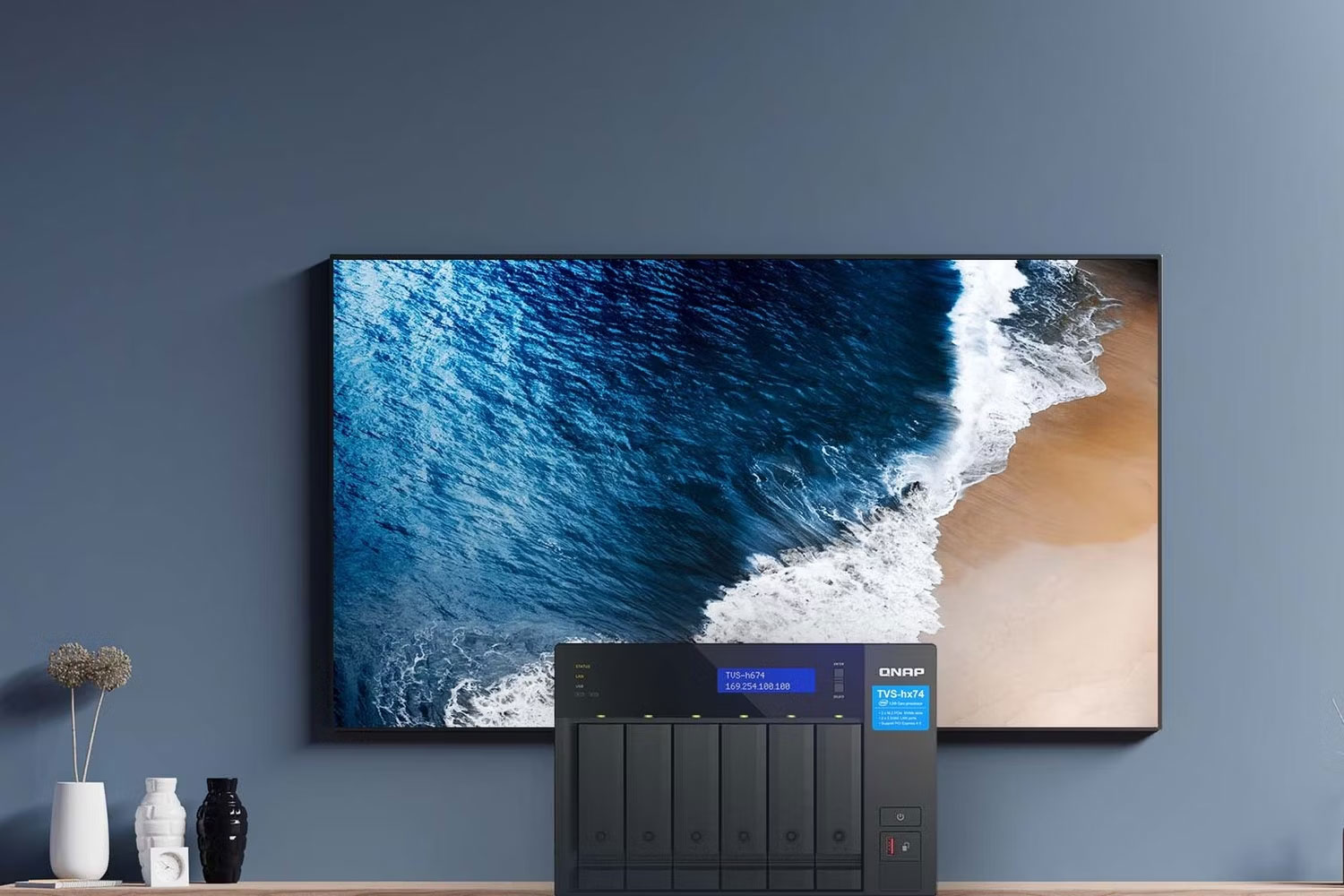
The TVS-h674 configuration with a desktop-class Core i3 processor and 16GB of memory targets heavier workloads than a basic home NAS. Six bays, M.2 support, 2.5GbE networking, and PCIe expansion make it suitable for a large library, several services, or users who expect the server to grow.
That capability comes with a higher purchase price, greater power use, and more complexity. It is difficult to justify for simple file sharing, but it may fit a demanding media server or home lab where the extra resources will be used.
4. Synology DiskStation DS620slim: small six-bay 2.5-inch system
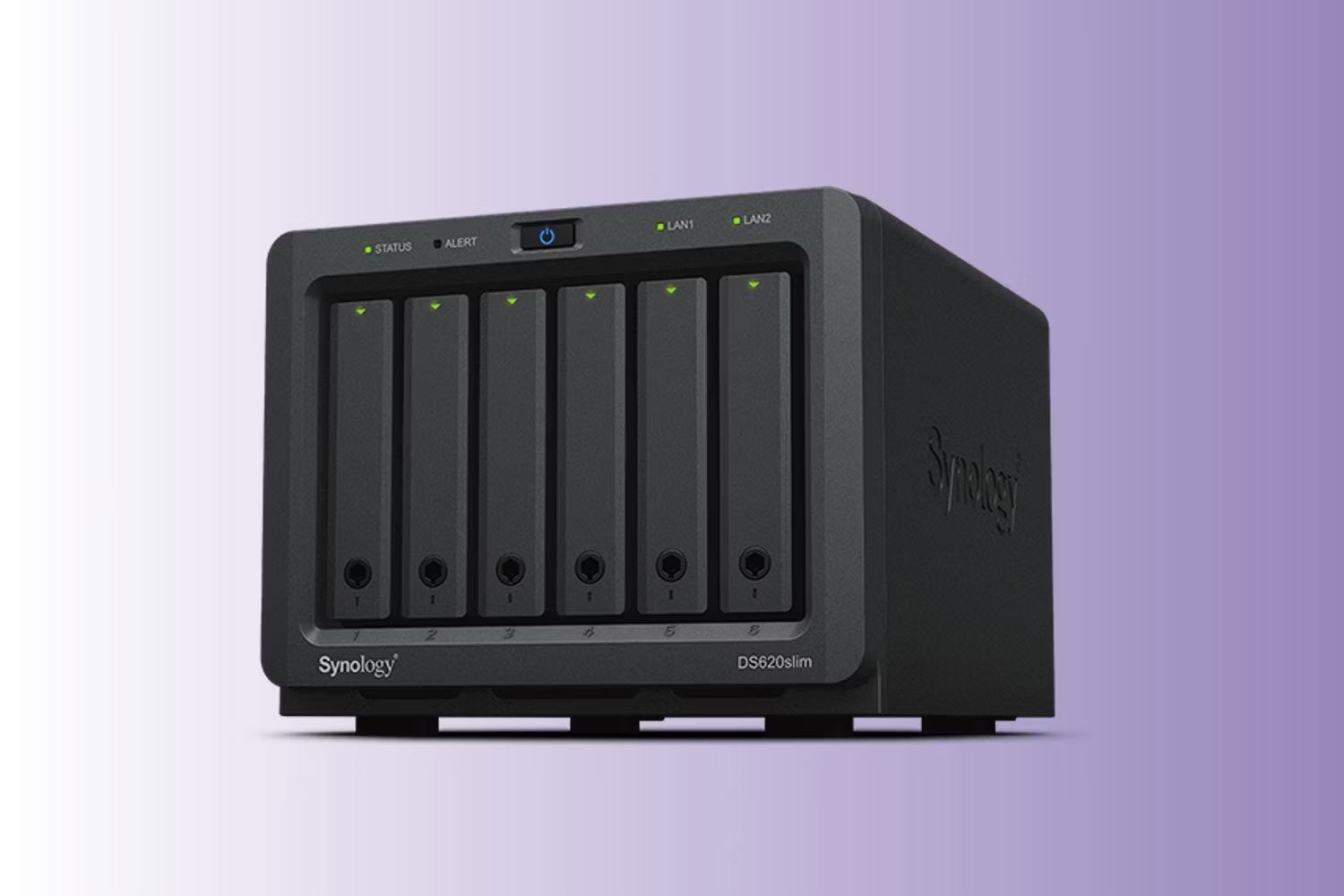
The DS620slim fits six 2.5-inch drives in a compact enclosure and supports several RAID layouts. Its main attractions are physical size and Synology’s software environment, not modern high-end processing or networking.
This is an older platform, so prospective buyers should verify current availability, update support, compatible drives, and application requirements. It is better viewed as a specialized compact option than a default recommendation for new 4K-transcoding builds.
5. Asustor Lockerstor 4 Gen2 AS6704T: four-bay model with M.2 flexibility
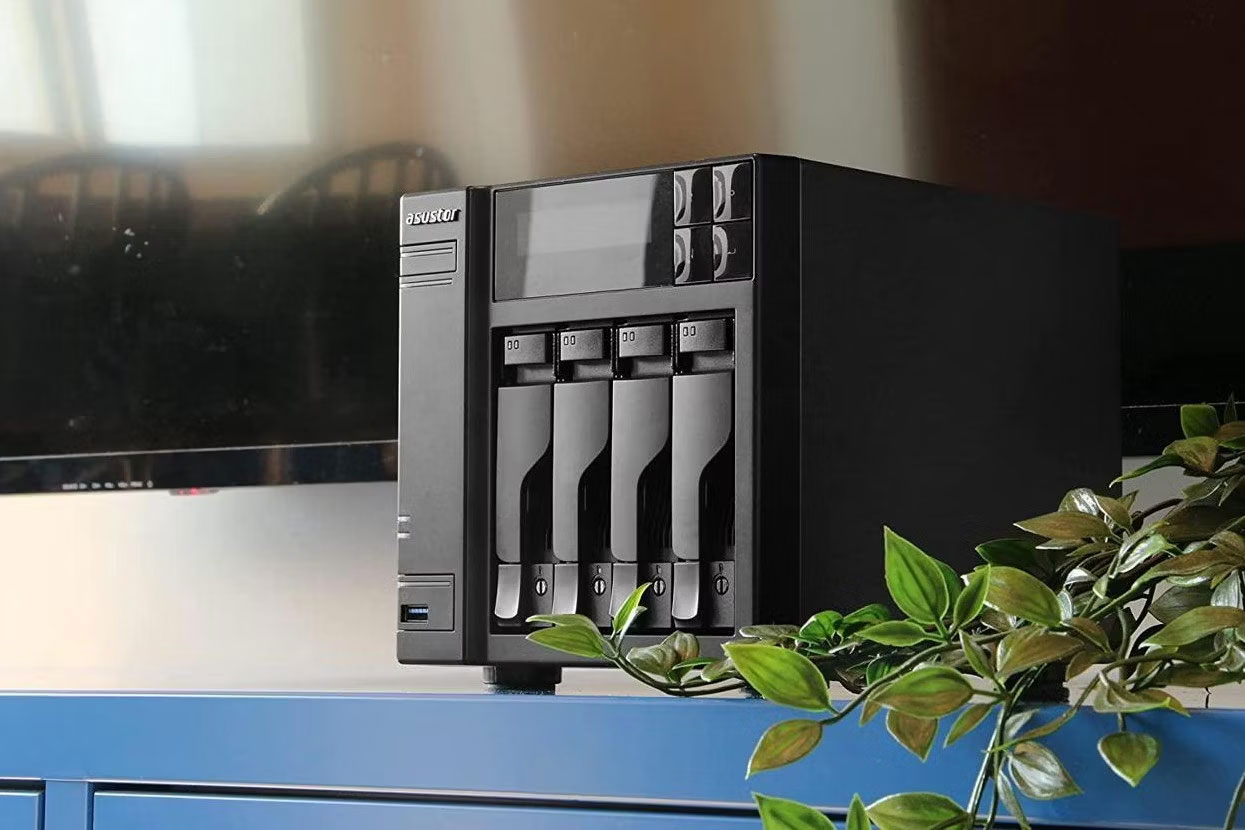
The Lockerstor 4 Gen2 combines four hard-drive bays with 2.5GbE networking, HDMI, PCIe expansion, and multiple M.2 slots. It is worth comparing with the QNAP TS-464 when you want a flexible four-bay media server and may use NVMe storage for cache or supported storage volumes.
Review memory limits, application availability, and the exact NVMe modes supported by the installed ADM version before deciding. Hardware specifications matter, but the management software and backup tools will shape daily use just as much.
A practical buying checklist
- Capacity: Estimate current data, expected growth, RAID overhead, and backup space.
- Playback: Identify whether your devices will direct-play files or require transcoding.
- Network: Match the NAS port speed to your switch, router, and clients.
- Software: Confirm support for your backup tool, media server, phone apps, and user permissions.
- Security: Check the vendor’s update policy and enable protected remote-access features.
- Noise and power: Consider where an always-on enclosure will sit.
- Total cost: Include drives, RAM or network upgrades, backup storage, and any paid app features.
Technically inclined users can also compare a ready-made appliance with open-source NAS operating systems running on compatible PC hardware. The best choice is the one that meets the storage and playback workload while leaving a clear, tested backup path.
Related Articles
 5 Top NAS Devices for Home Media Server in 2024: Best Options Compared22 minutes read
 What Are Media CSS: Query Media in CSS10 minutes read
 5 Best Home Theater and Media Center Software12 minutes read
 12 'Must-have' Devices for Smart Home (Smart Home)12 minutes read
 How to Set up Media Server at Home with Jellyfin on Ubuntu6 minutes read
 How to Create a Media Server with VLC to Stream Music and Videos12 minutes read
Reader Comments 0
Sign in with email or Google to join the discussion.