Table of Contents
Most Windows users do not need a separate driver-updater app. Windows Update supplies recommended drivers and may list optional driver updates; if a specific device has a problem or needs a newer feature, get the driver from the PC or hardware maker’s official support page. A third-party scanner may label a working driver “out of date” without showing that an update is necessary or suitable for your exact hardware.
Check for driver updates in Windows 11
- Open Settings > Windows Update and select Check for updates.
- For optional drivers, open Advanced options > Optional updates > Driver updates, if that section appears.
- Install an update only when it applies to your device, then restart if prompted.
Windows 10 support ended on October 14, 2025. If you still use it, check whether your PC can move to a supported Windows release; do not rely on an updater utility to replace operating-system security updates.
Get a driver for a specific problem
Identify the PC model and the exact device in Device Manager. Search the computer maker’s support page first for laptops and branded desktops, because its driver may include model-specific settings. For a separately installed graphics, printer, or other device, use that hardware maker’s official site. Microsoft advises avoiding driver downloads from unrelated sites.
Before a major driver change, create a backup or restore point if available. If a new driver causes problems, Device Manager may let you roll back the driver or uninstall it so Windows can reinstall a suitable version.
Why we do not recommend a “one-click” driver updater list
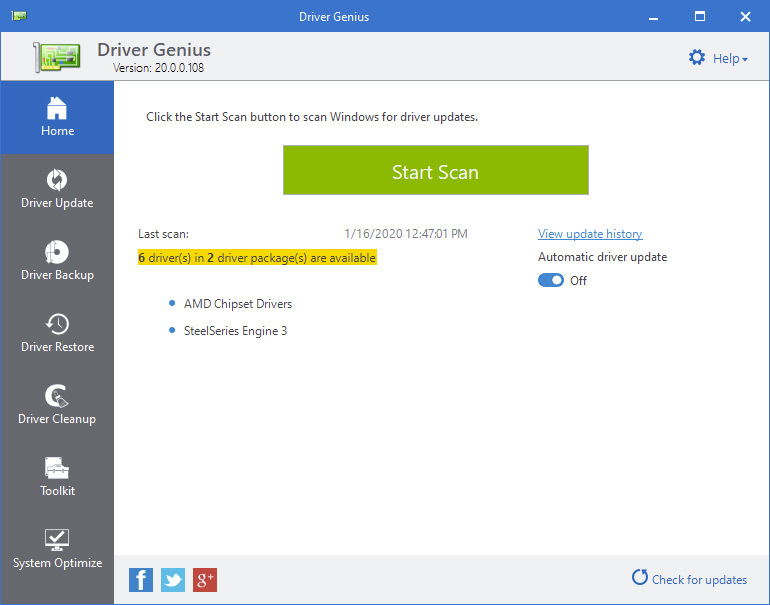
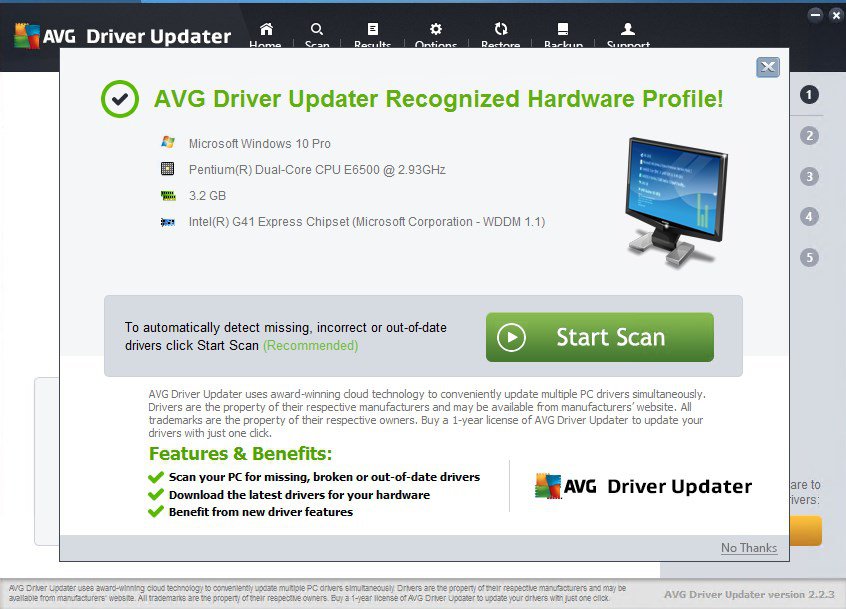
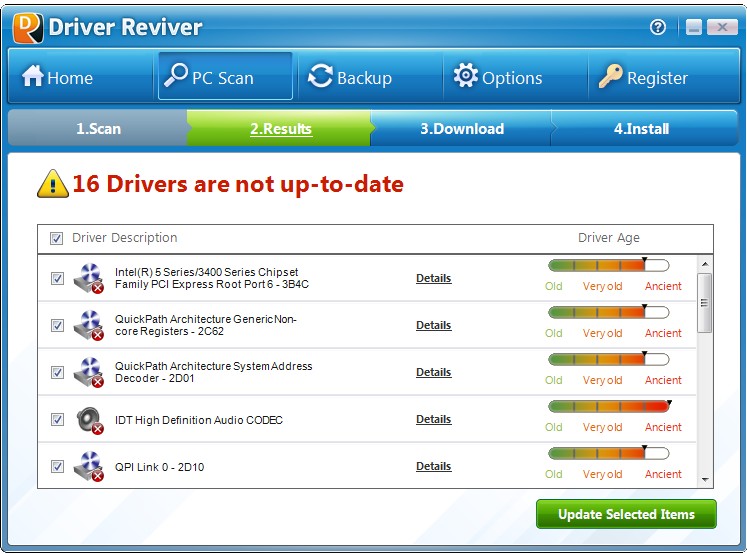
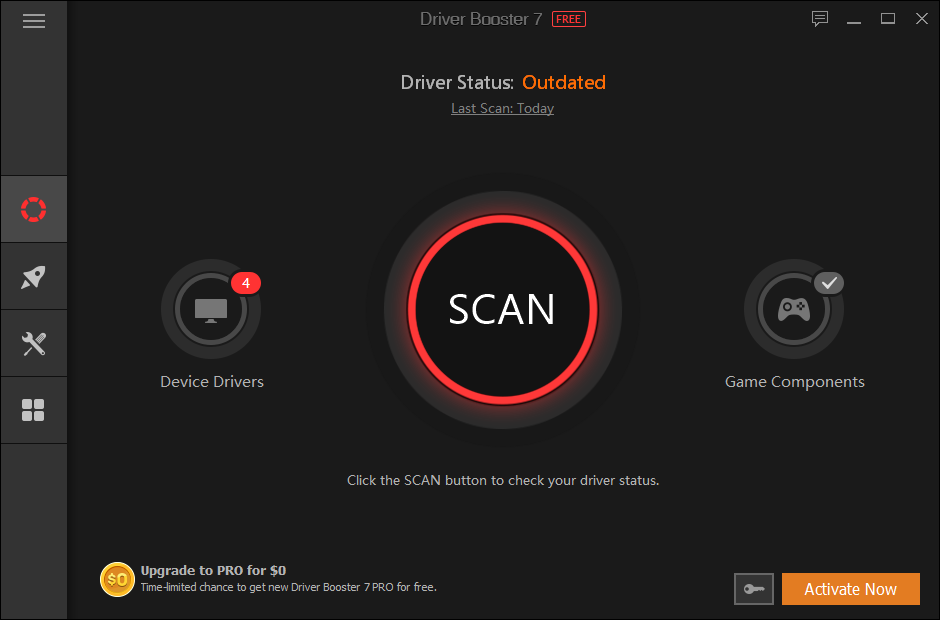
Apps such as Driver Genius, AVG Driver Updater, Driver Reviver, Driver Booster, and DriverFinder have appeared in older roundups. Their features, pricing, and support can change, and a large scan result alone does not prove that each suggested replacement is needed. A wrong or mismatched driver can cause device problems. Use Windows Update or the hardware maker’s official support channel instead of bulk-installing drivers from an unfamiliar catalogue.
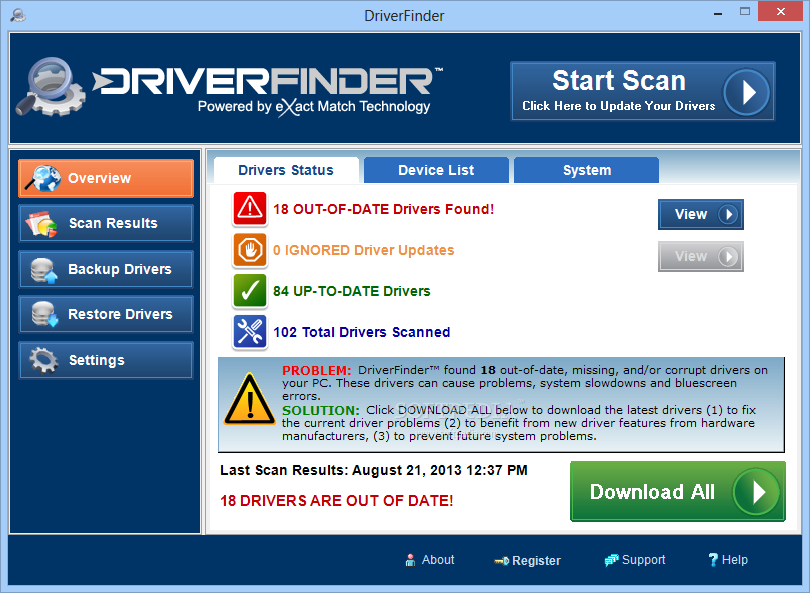
See Microsoft’s guide to recommended and optional drivers or its instructions to update a driver through Device Manager.
Related Articles
 The best driver update software for computers
 Donate key Driver Booster 6 Pro 6 months, activate before October 31, 2018
 How to use Driver Talent for free driver updates
 Summary of free driver backup software
 Update driver, the software automatically finds driver for the computer, Laptop
 Download Driver Booster Free 8.2.0.314
Reader Comments 0
Sign in with email or Google to join the discussion.