Table of Contents
For a free desktop setup, OBS Studio is the clearest starting point: it is open-source software for composing scenes, capturing audio and video, recording, and streaming. Connect it to YouTube or Facebook using that platform’s current live-stream setup. The platform may require account verification, live access, or a stream key; software cannot bypass those requirements.
There is no single best choice for every stream. Consider your operating system, how many cameras and sources you need, and whether you want to broadcast a live camera feed or replay a prerecorded video. Always test audio, video, and network stability in a private or unlisted session before going live.

Streaming software options
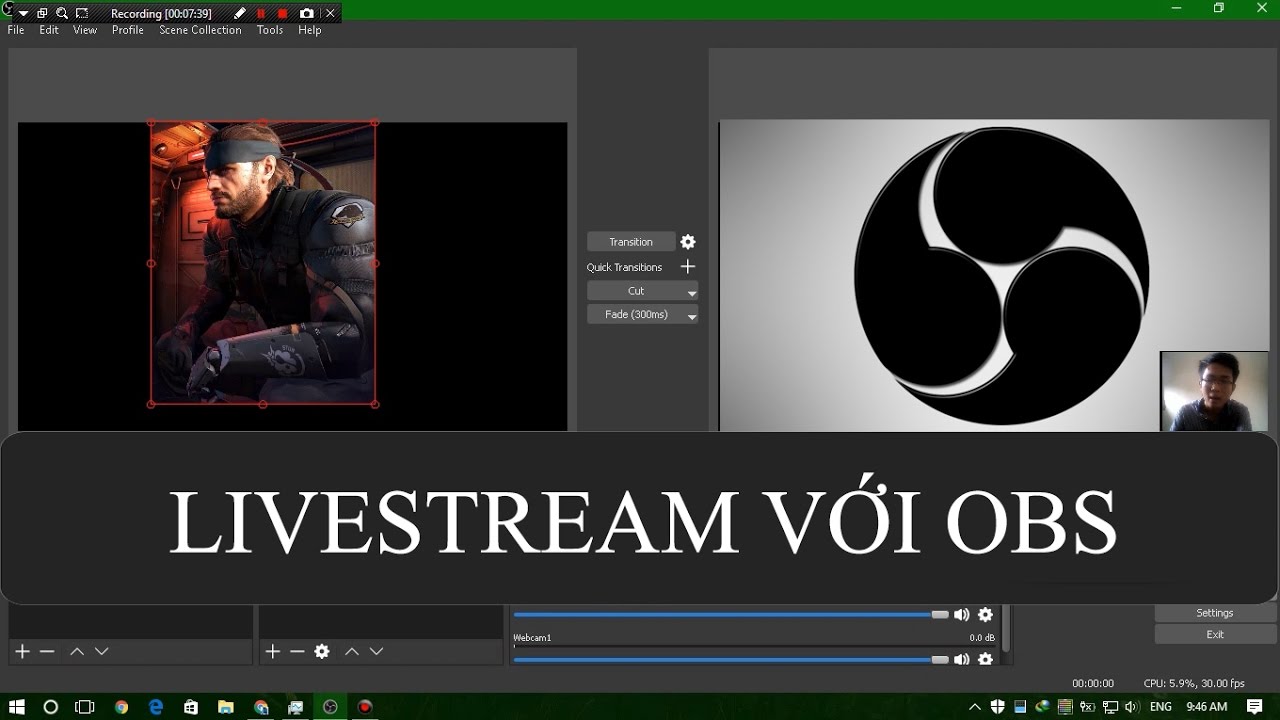
OBS Studio: free production and streaming
OBS runs on Windows, macOS, and Linux. Create scenes from a camera, screen capture, images, text, and audio sources, then select a streaming service or configure a custom destination. It has no subscription fee, but you may need to learn the scene and audio controls. Get it from the OBS Project website.
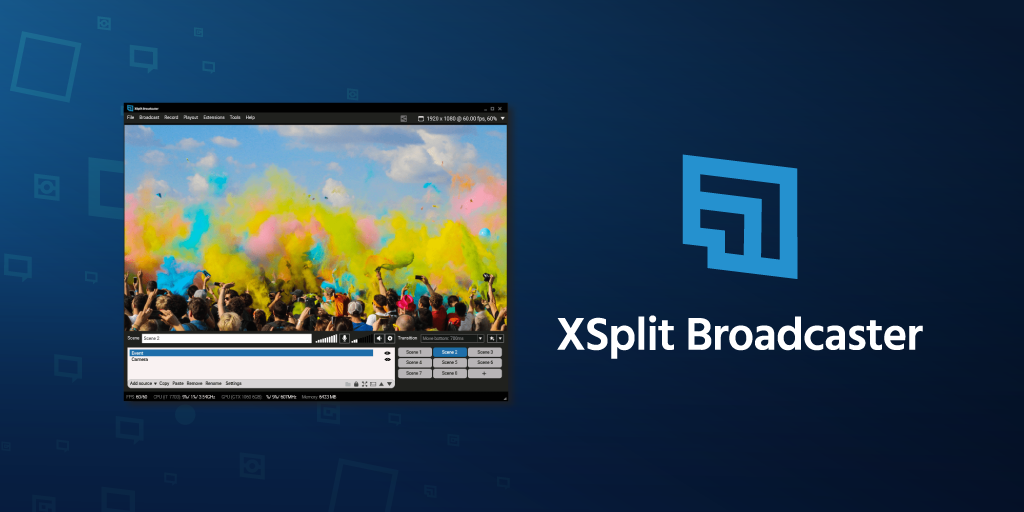
XSplit Broadcaster: free tier with limits
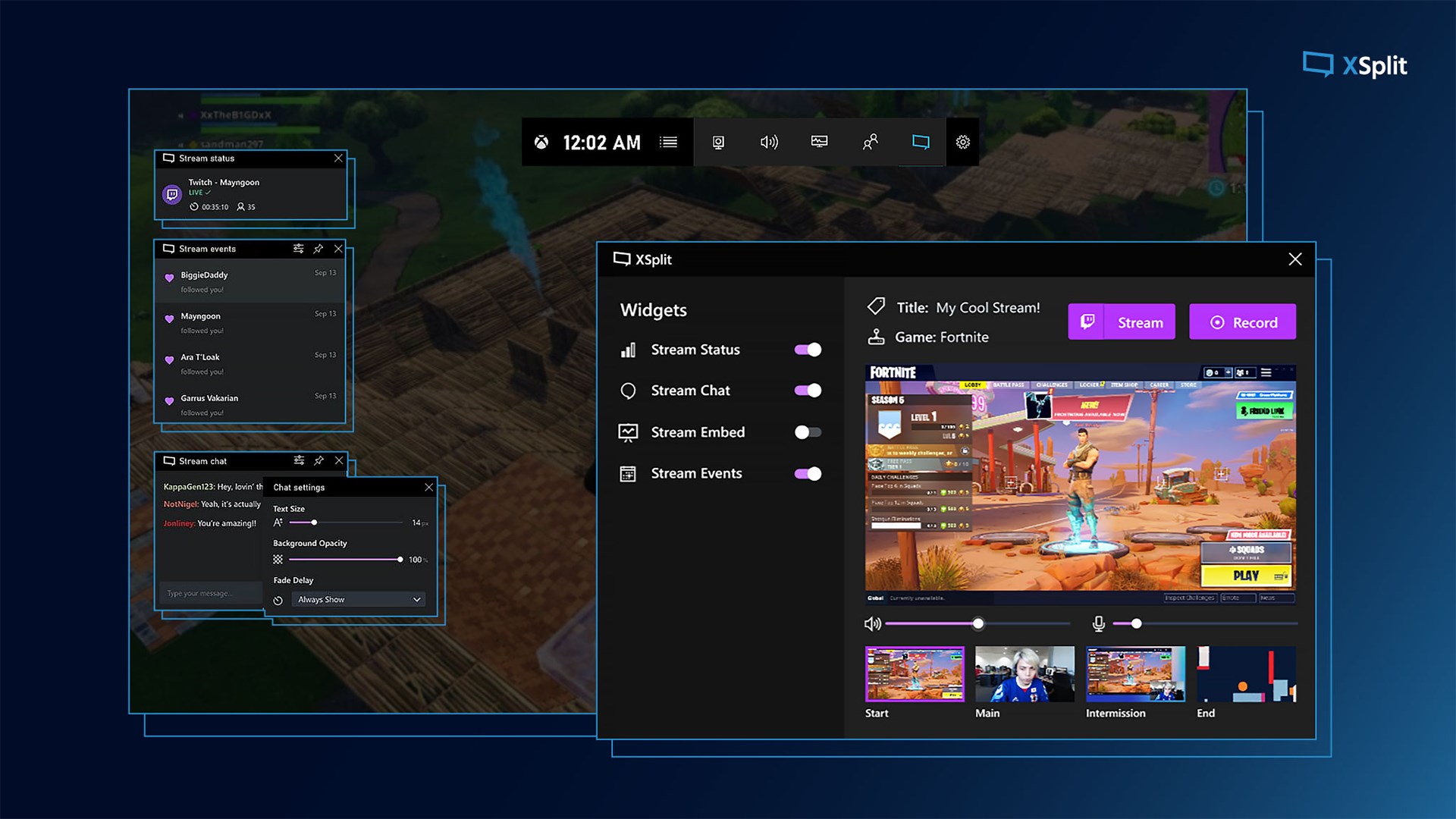
XSplit Broadcaster has a free personal-use tier, while some features are reserved for Premium. XSplit’s current comparison notes that simultaneous broadcasting to multiple services is not included in the free tier, and the free license can add a watermark. Check the current terms before planning a YouTube and Facebook simulcast.
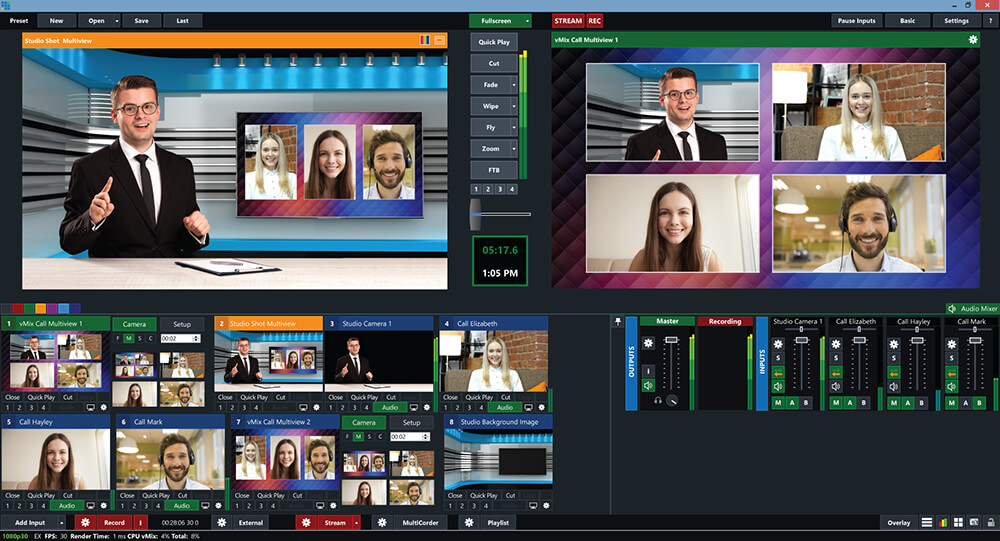
vMix: professional production with a paid license
vMix offers advanced live-production controls for Windows and a time-limited full-featured trial. It is not a permanently free tool. Review the current edition and licensing details before building a workflow around its features.
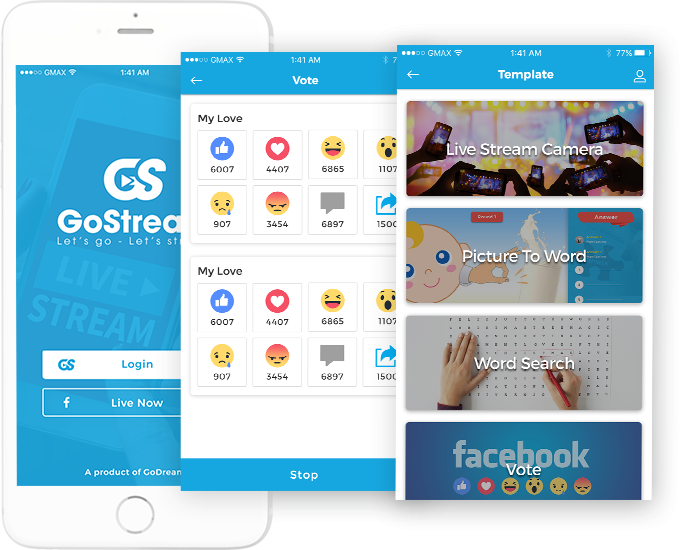
GoStream: schedule prerecorded videos
GoStream focuses on streaming prerecorded videos to social platforms. Check its current destinations, plan limits, and platform permissions before using it for scheduled broadcasts. A prerecorded stream should be clearly presented to viewers in line with the platform’s rules and your audience’s expectations.
Prepare a reliable broadcast
- Choose the stream resolution and frame rate your computer and upload connection can sustain.
- Use headphones and make a short recording to catch clipping, echo, or background noise.
- Check lighting, camera framing, and text size on a phone-sized preview.
- Use a wired network connection when practical, and close apps that compete for bandwidth.
- Keep a local recording if you need a copy of the broadcast.
The source article also mentioned XSplit Gamecaster. That name and its current availability should be checked with the publisher; do not assume an older product label still identifies a supported app.
Related Articles
 YouTube announces new features, enabling users to livestream directly from the computer web browser
 How to livestream Youtube from web browser
 Instructions to play Live stream on Facebook chat group by phone
 YouTube Live will support IFTTT, geotagging and many new improvements
 Facebook enhances the livestream feature control
 Spending 6000 billion dong, English Premier livestream exclusive Facebook in Vietnam and 3 neighboring countries
Reader Comments 0
Sign in with email or Google to join the discussion.