Table of Contents
To burn files to a CD, DVD, or Blu-ray disc, you need a compatible writer and a blank recordable disc. For a simple data disc, Windows File Explorer may be enough; use a dedicated app when you need an ISO image or more control over disc sessions. Burning software cannot recover a hard drive or make a single disc a reliable long-term backup.
Options for burning CDs, DVDs, and Blu-ray discs
Windows File Explorer or Windows Media Player
Windows can burn files to a data disc from File Explorer when the PC has a working disc writer. For an audio CD, Microsoft documents using Windows Media Player: add tracks to a burn list, choose Audio CD, then start burning. A data disc containing music files is different from an Audio CD; older players may require the Audio CD format.

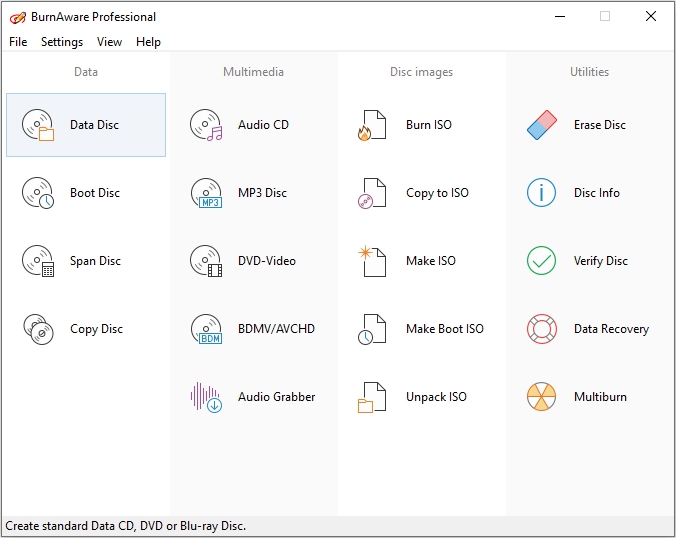
BurnAware Free
BurnAware offers a Free edition for Windows alongside paid editions. Its feature list includes creating and burning ISO images and writing data to optical discs. Compare the current edition list before installing; some advanced tools are reserved for paid versions.
ImgBurn
ImgBurn is a Windows utility for reading, creating, and writing disc images. Its official site lists version 2.5.8.0, so it is an older, infrequently updated option. If you use it, obtain it only from the official site and review every installer screen; skip bundled offers. For a current, actively maintained tool, prefer software whose release and security support you can verify.
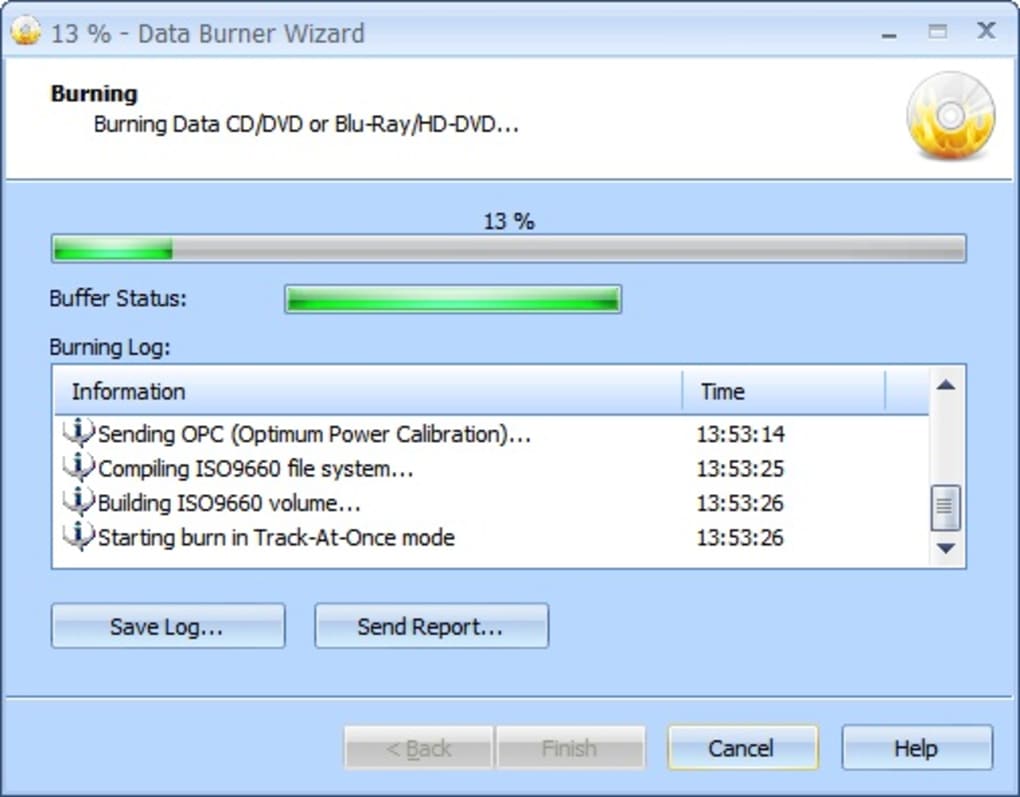
Choose the right disc and project type
- Data disc: stores files and folders for computers or compatible devices.
- Audio CD: uses a format supported by many traditional CD players; it does not simply store MP3 files as files.
- ISO image: a disc image file that burning apps can write to a disc or, in some cases, mount for inspection.
- DVD-Video or Blu-ray video: requires correctly authored video files and suitable playback hardware; copying a video file to a data disc does not automatically make a movie disc.
Check the drive and disc specifications before starting. A CD/DVD writer cannot burn Blu-ray unless it is a Blu-ray writer. Finalize the disc when the intended player requires it, and verify important files after burning.
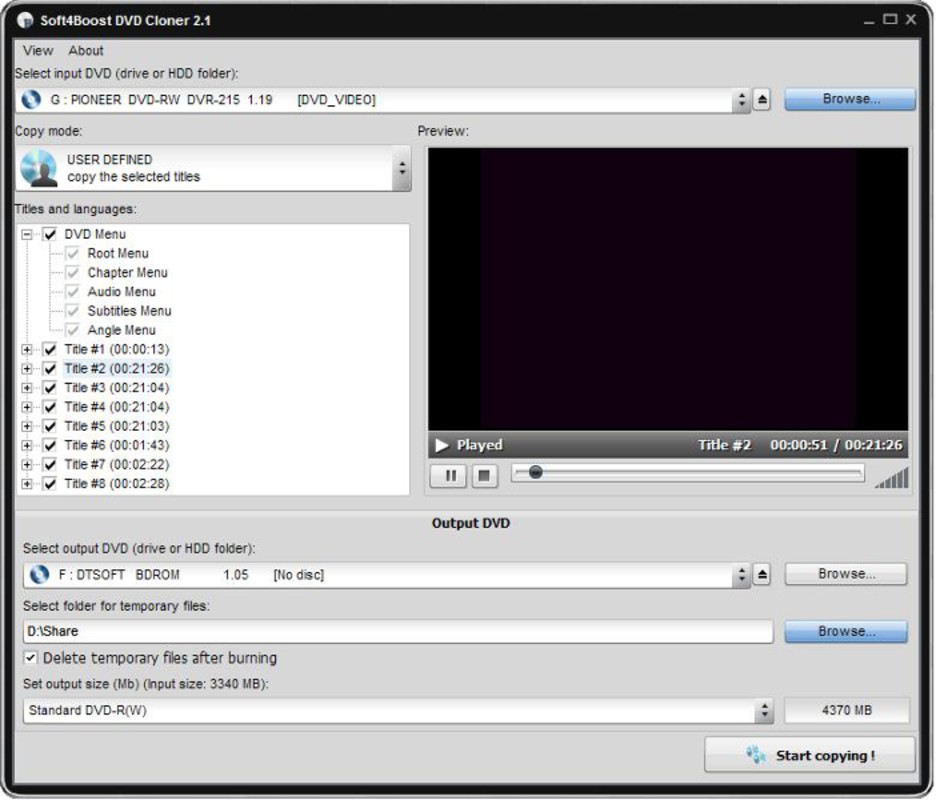
Optical discs can be useful for sharing or offline copies, but they can be scratched, lost, or become unreadable. Keep another copy of important data on a separate drive or backup service.
Related Articles
 Top 10 best CD and DVD burning software today
 Instructions to receive The Burning Leo package in Free Fire
 Top 5 best burning software today
 Quickly download some useful software of Ashampoo which is being free for a short time
 Discover free software
 Download the $ 350 free software package from WonderFox
Reader Comments 0
Sign in with email or Google to join the discussion.