Table of Contents
Deleting ChatGPT is permanent, so take a few minutes to preserve anything you need and separate three different actions: canceling a paid plan, deleting conversations, and deleting the account itself. They do not have the same effect.
1. Decide what you actually want to stop
If cost is the issue, you may only need to cancel a subscription. If you want a cleaner sidebar, archive or delete individual conversations. Delete the entire account only when you no longer want access to that OpenAI account, including associated ChatGPT and API services.
Before making changes, confirm that you are signed in with the correct email address, authentication method, and workspace. Business, Enterprise, Edu, and other managed workspaces can have administrator-controlled retention and export rules.
2. Save preferences you may want elsewhere
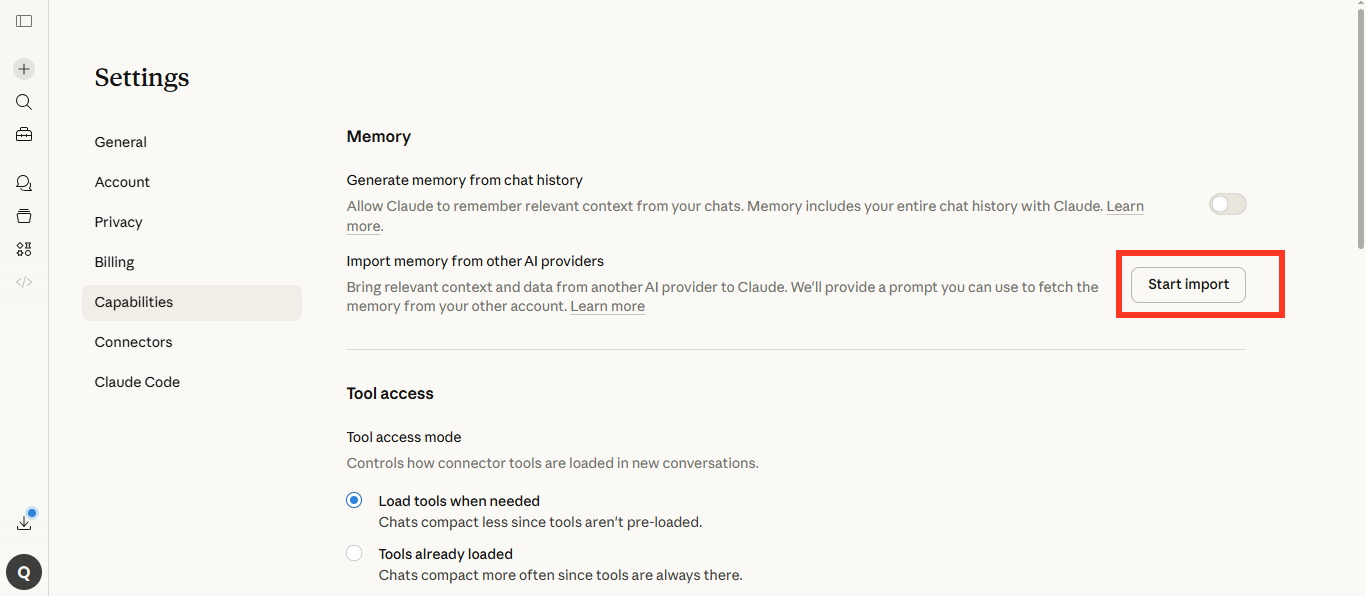
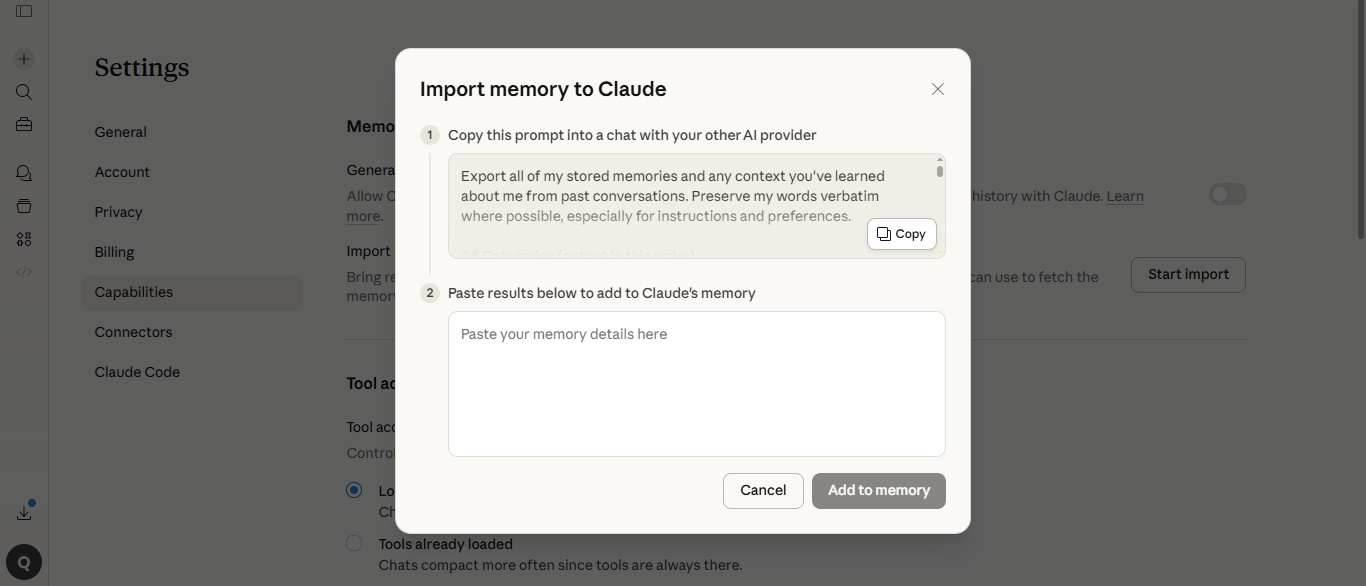
Review any saved memories, custom instructions, reusable prompts, project notes, and files you rely on. Copy only the information you still need into a private document. If you plan to move to another assistant, transfer preferences rather than entire sensitive conversations unless there is a clear reason to do so.
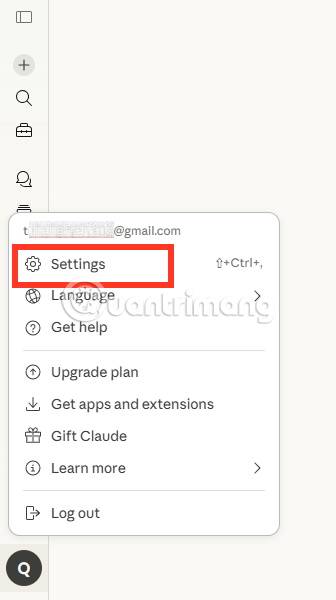
Import tools and menu names can change, and not every plan or workspace offers the same controls. Read the destination service's privacy settings before pasting personal data, workplace information, or confidential prompts.
3. Export your ChatGPT data before deleting anything
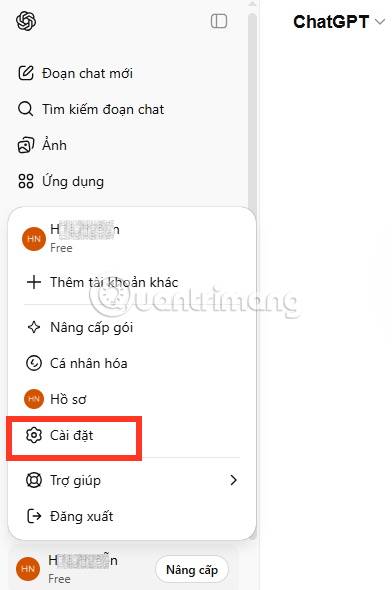
For an eligible personal account, open your profile menu and go to Settings > Data controls > Export data, then confirm the request. You can also use OpenAI's Privacy Portal if you cannot use the in-product option. OpenAI says an export may take up to seven days to arrive and the download link expires after 24 hours.
Download the ZIP while signed in to the account that requested it, store it securely, and open it to confirm that the conversations or files you need are present. The export can contain sensitive account information, and it cannot restore chats that were already deleted. See OpenAI's current data-export instructions for availability and troubleshooting details.
4. Archive or delete chats deliberately
Archiving hides a conversation without deleting it. Deleting removes it from your history immediately and cannot be undone. ChatGPT also provides archive-all and delete-all controls under Settings > Data controls; these actions can include conversations inside projects.
According to OpenAI, deleted chats are scheduled for permanent deletion from its systems within 30 days, subject to limited de-identification, security, or legal exceptions. If a conversation used data from a connected app, deleting that conversation also removes connected-app data retained within it under the same policies. Disconnecting an app prevents future access but does not erase existing conversations.
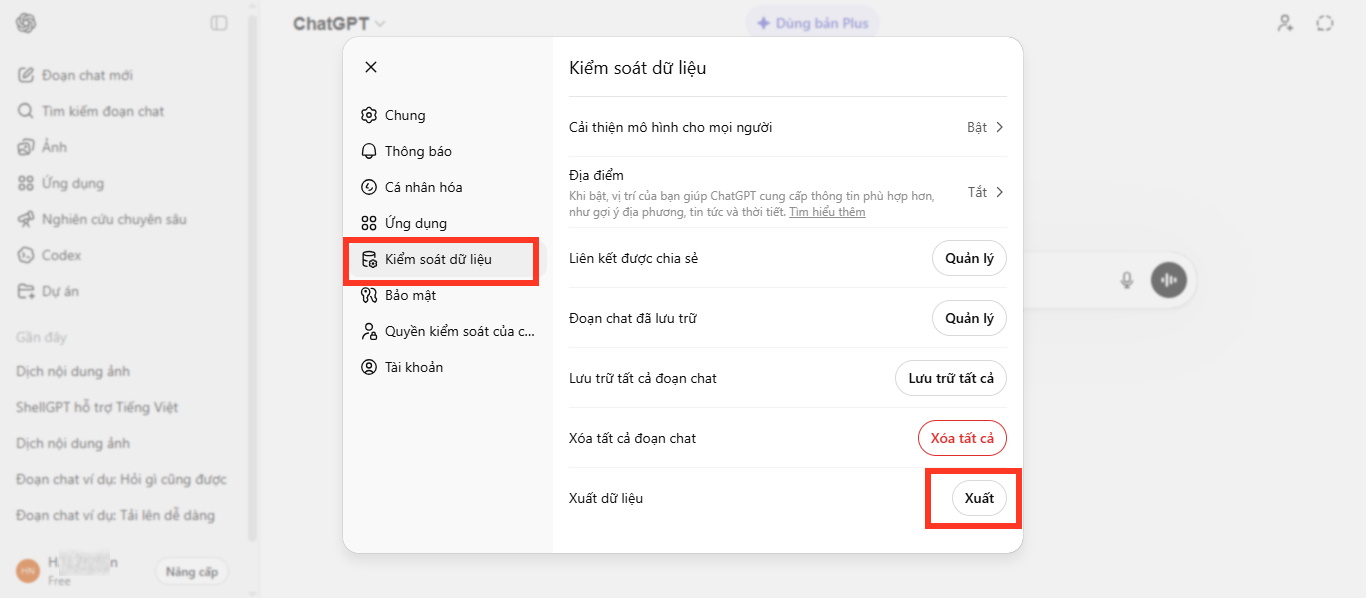
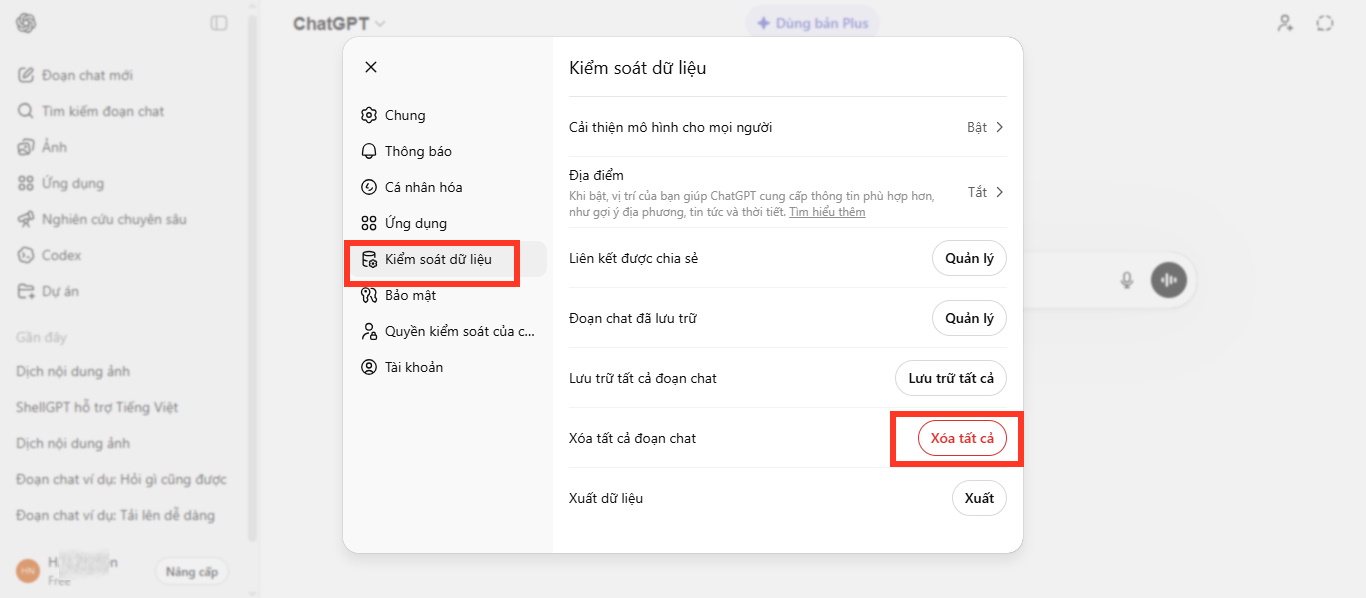
Use OpenAI's chat deletion and archiving guide if the available controls differ from the screenshots.
5. Check billing, then delete the account only if necessary
Canceling a subscription is not the same as deleting an account. If you subscribed through Apple's App Store or Google Play, check and cancel the subscription in that store. In particular, OpenAI warns that deleting an account does not cancel an Apple-billed subscription. Also review any API organization, managed workspace, or ads account that depends on the same login.
To permanently delete an eligible personal account on the web, open Settings > Account, select Delete account, and complete the confirmation. If you cannot sign in, use the OpenAI Privacy Portal. Managed-workspace users should contact their administrator because self-service deletion may not be available.
Account deletion cannot be reversed. OpenAI says account data is generally deleted within 30 days, except for limited information it may retain when required or permitted by law. Review the official account-deletion guide immediately before proceeding because menus and eligibility can change.
Final checklist
- Confirm the correct account and workspace.
- Copy essential preferences and download a verified data export.
- Archive chats you want to keep and delete only what you no longer need.
- Cancel the subscription through the service that bills you.
- Remove connected-app access and review any API or organization dependencies.
- Delete the account only after confirming that permanent loss of access is acceptable.
Related Articles
 Instructions on Creating Mind Maps on ChatGPT: Explained6 minutes read
 Don't Use ChatGPT to Do These 11 Things!9 minutes read
 Top Prompt ChatGPT for Product Groups: Practical Guide9 minutes read
 Learn About ChatGPT-4o: Features, Benefits and How to Use It: Complete Guide7 minutes read
 What Is ChatGPT Pro? Is It Worth It in 2026?8 minutes read
 How to Convert ChatGPT-5 to ChatGPT-4o3 minutes read
Reader Comments 0
Sign in with email or Google to join the discussion.