Table of Contents
The options below offer different strengths for users interested in 10 magisk module 'must have' for your Android device. Review the key details and consider which choice best matches your needs.
And another benefit of using Magisk is that it supports modules. These small apps customize, enhance and add functionality to your Android device. You can use it to increase battery life, install iOS emoticons on Android phones, etc. This guide explains how to install Magisk module and introduce 10 best modules.
How to install Magisk module on Android
If Magisk is not installed, read the article How to root your Android phone using Magisk. If your phone is rooted using the old SuperSu method, you can unroot and then root again with Magisk.
There are two ways to install Magisk modules, automatically and manually. Both use Magisk Manager application and the implementation is very simple.
Method 1: Install Magisk module automatically
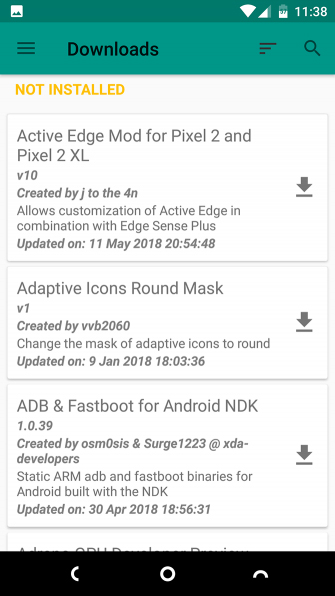
Step 1. Open Magisk Manager, slide the bar to the left of the screen and select Downloads .
Step 2 . You should now see a list of available Magisk modules. click a module to read more information, including any additional instructions on how to install or use it.
Step 3 . To install the module, click the download icon. Here some options are provided:
- Download : save module to phone memory
- Install : download and install the module in one step.
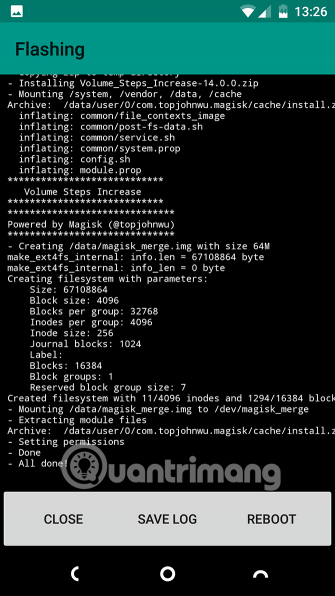
Step 4 . Select Install . This process does not take a long time, although it depends on the size of the module.
Step 5 . Click Reboot When prompted and the phone will restart with the module installed.


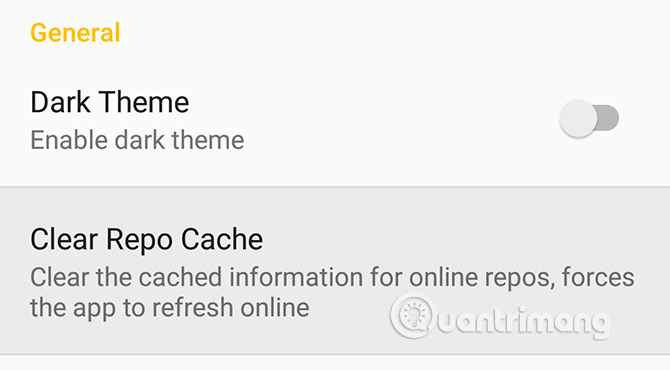
In the case, the Downloads List does not display the module, go to Settings> Clear Repo Cache And try again.
Method 2: Install the module manually
Use this second method if you download the module manually. You can find many modules on Magisk GitHub or XDA Developers forum.
Step 1 . Download the module to phone memory.
Step 2 . In Magisk Manager, open the sidebar and select Modules .
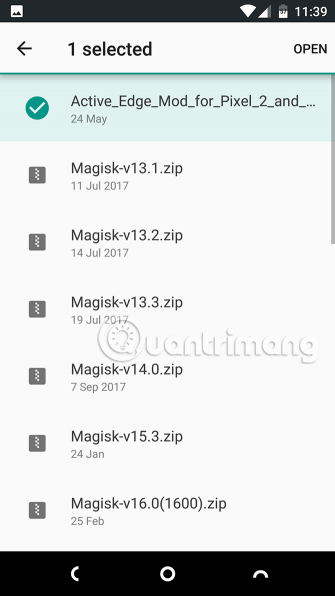
Step 3 . Click the plus icon, then find the downloaded module.
Step 4 . Click and hold on the module and select Open . It will start installing immediately.
Step 5 . Restart the phone when prompted.

How to uninstall Magisk module on Android
To handle problematic modules, install the Magisk Manager module for Recovery Mode so that you can delete any module in Recovery Mode.
To uninstall or disable the module, go to Modules In the Magisk Manager application:
- Uncheck the box next to a module to disable it, then restart.
- Click the trash icon to completely delete the module, then reboot to complete the process.

Now that you know how to use the module, and below are 10 Magisk modules you should consider and install them. To install you just need to search on the Downloads Menu.
1. App Systemizer
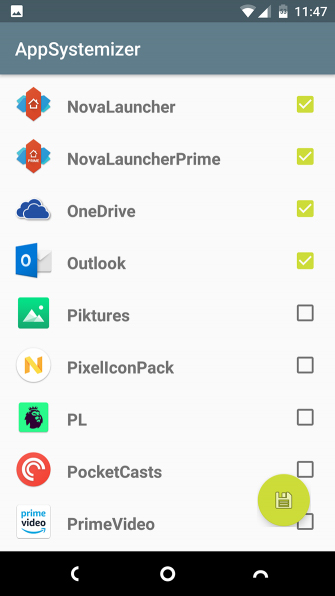
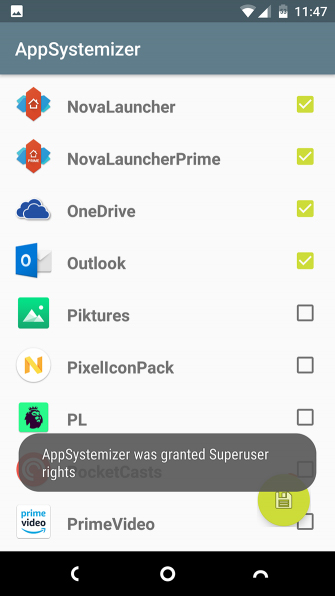
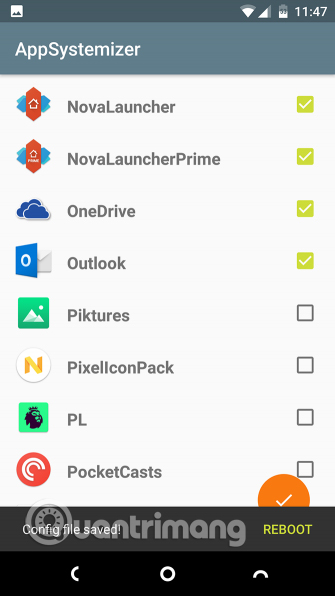
App Systemizer allows users to install certain applications as system apps. There are several reasons you should use this module. As you know, it is not easy to uninstall the system application, so you can add a layer of protection for security applications. Some gadgets like battery optimization work better with additional privileges for system applications.
App Systemizer does not modify the system partition, so you cannot use it to save the phone's internal memory. the app will automatically update via Play Store as usual.
2. Viper4Android FX
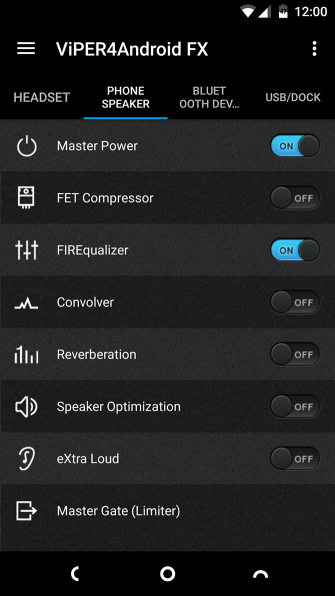
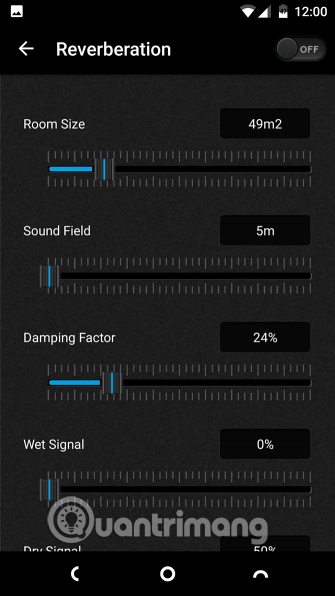
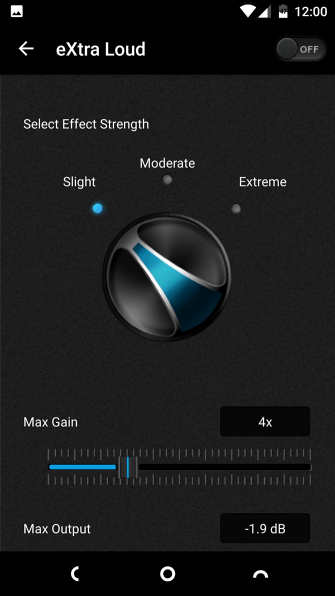
Viper4Android is the best audio adjustment app for Android phones. It allows you to increase bass, treble tones or increase the maximum volume of your phone while minimizing distortion.
Viper4Android's best feature is that it allows users to set audio profiles for different output devices such as headphones or car audio systems.
3. Greenify4Magisk

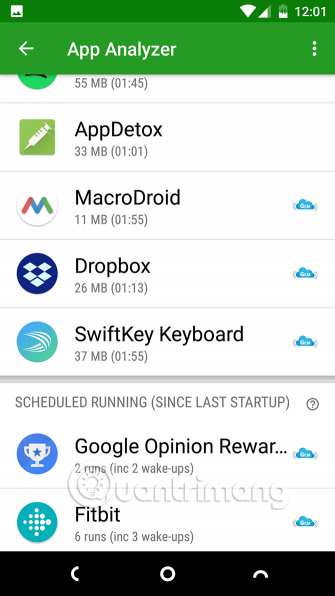
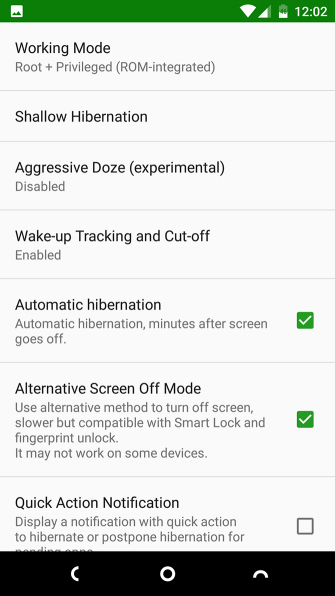
Greenify is one of the most popular root applications. It maximizes battery life by hibernating apps when not using them. It's like an accelerated version of Android's Doze feature, and is especially effective on devices that haven't been updated for years.
Greenify4Magisk allows you to take advantage of the special Boost Mode. This provides a more rigorous and more efficient system integration for closing resource intensive processes.
4. Pixel Experience
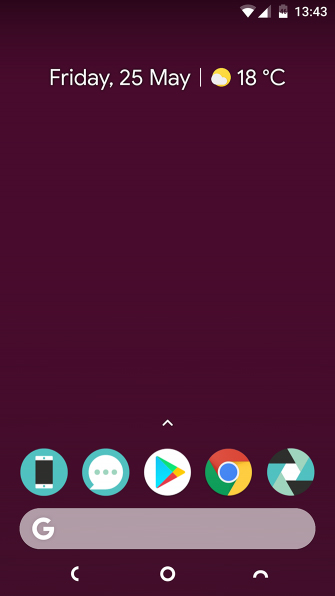

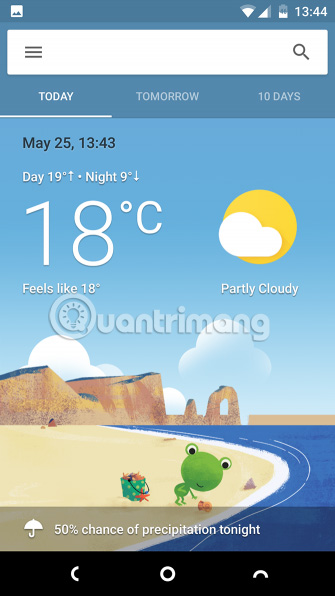
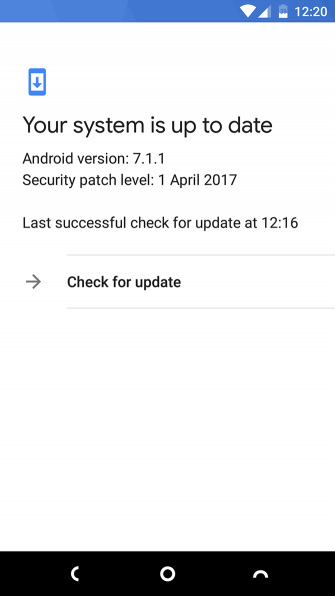
Pixel 2 is the king of Android phones and it is also expensive. when needed to use some great features from Google's flagship flagship but can't upgrade now, you can use the Pixel Experience module.
This module will give you the Pixel, feel and functionality of the Pixel 2. You will own the Pixel 2 launcher, audio files (like ringtones and alarms), Google Sans themes and fonts. In addition, it also supports Camera2API, video stabilization and Google Assistant.
5. Volume Steps Increase

By default, Android volume has 15 levels from quiet to maximum. Sometimes adjusting the volume increases to two levels, which is too big, especially when listening to headphones.
The Volume Steps Increase module doubles the volume level, meaning that there were 15 levels in the past to 30 levels for media and call volume. You will now adjust the volume more accurately.
6. iOS11. x Emoji

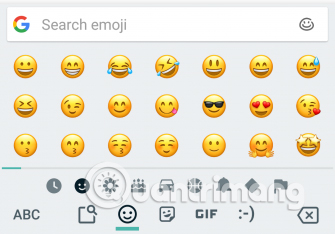
Want to download the latest iOS emoticons on Android? The iOS11.1 Emoji module for Magisk is the fastest and easiest way to do it.
Just install it via Magisk Manager application and when rebooted, you will no longer have to use Google emoticons. And when needed to re-use these icons, just uninstall the module and you're done. You should update the module to be able to own new characters from the latest iOS versions.
7. YouTube Vanced



This version of the YouTube application provides many features such as support for playback in the background. You can also override the video resolution limit, use pinch gestures to zoom and automatically play back videos. Applications are available in standard theme versions and dark themes.
8. CloudflareDNS4Magisk

There are many good reasons to use third-party DNS services and great privacy benefits when using DNS Cloudflare.
- The best top 10 Public DNS Server you should know now
But editing DNS settings on Android is not easy and the methods of implementation vary on each version of the operating system. Now you have a faster way of editing by installing the CloudflareDNS4Magisk module. It will navigate all mobile data and Wi-Fi traffic through the free Cloudflare service.
- Cloudflare's new DNS 1.1.1.1 service, more secure, faster web surfing
9. Nova and GoogleNow Companion
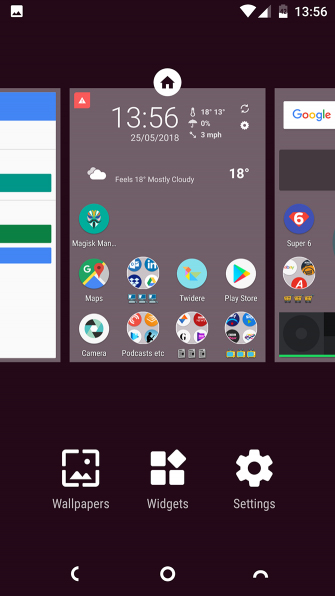
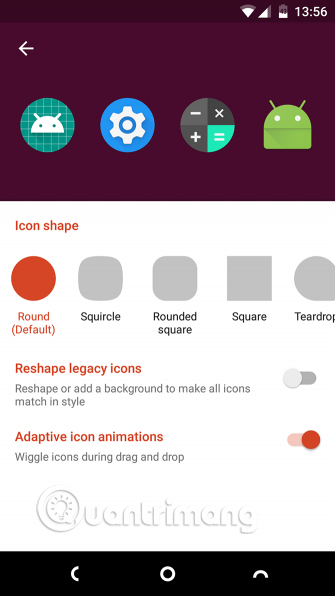
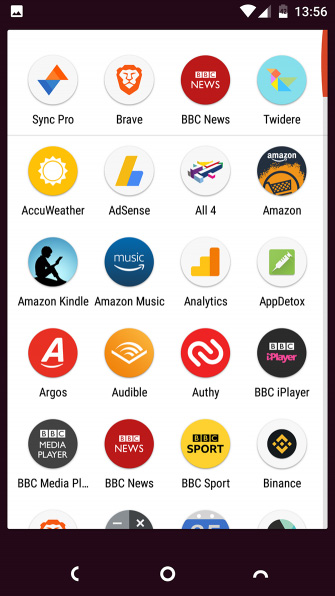
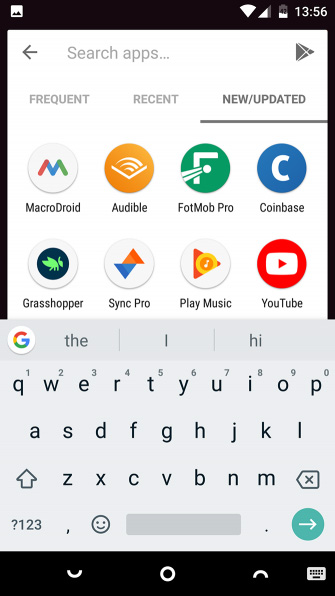
Nova is the best Android launcher you can use. It is fast, full of features, no bloat and brings the original Android interface on any device. The Nova module allows you to install it as a systemless application, replacing the phone's default launcher.
- Evaluate the best Launcher for Android today
Additional Google Now functionality allows you to swipe right to access the latest feeds and information from Google, right from your home screen.
10. Xposed Framework

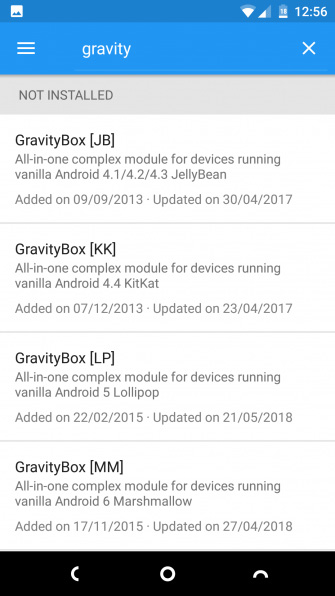

Before Magisk, the common way to run modules on your phone is through Xposed Framework. This is one of the biggest reasons to root your phone and allow you to run GravityBox mod, containing hundreds of editing systems in a single application.
Fortunately, there is an Xposed module for Magisk and it's better than the original. This is systemless application, less likely to cause problems and also does not block Android OS updates.
Magisk is a great way to root your phone. It is fast, secure and does not interfere with security applications. And modules provide you with many useful root features.
- Top 15 best feature enhancement apps for Android
- Top 28 Android tools and apps you should know (Part 1)
- 4 advanced Android customizations don't need root
FAQ
How were the 10 magisk module 'must have' for your Android device options selected?
The options are compared by usefulness, ease of use, core features, and their fit for the situations described in the article.
Which option is best for beginners?
Choose the option with the simplest setup, clear documentation, and the features you actually need. A more advanced option is not always the better starting point.
What should I check before choosing?
Check compatibility, current availability, pricing or licensing, privacy requirements, and whether the product still receives updates and support.
Related Articles
 How to Remove Magisk and Unroot Android Phones8 minutes read
 How to Remove the Magisk Module Using TWRP Recovery7 minutes read
 Magisk - Download the Latest Magisk Here4 minutes read
 Instructions for Rooting Android Phones with Magisk8 minutes read
 How to Install Android Add-on from Magisk Manager4 minutes read
 Paradox, Magisk's Father - Android Root Tool Joins Apple3 minutes read
Reader Comments 0
Sign in with email or Google to join the discussion.