Table of Contents
Quick Overview
Online Video Cutter : Get a clear, practical overview of Online Video Cutter, including Online Video Cutter and Clideo (Video Trimmer - Cut Video Online).
1. Online Video Cutter
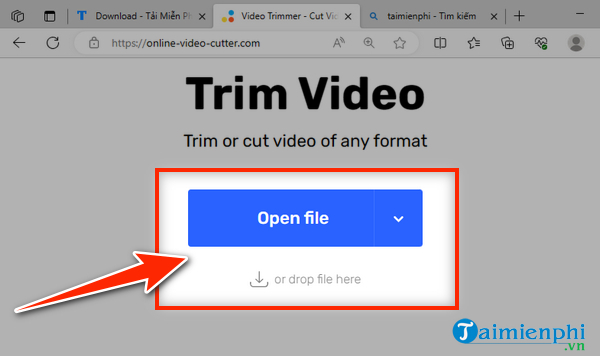
Step 1: Open your web browser and access HERE.
Step 2: Click Open file to find and upload the video you want to edit. Note: Instead of uploading the file, you can drag and drop the video into the browser to save time.
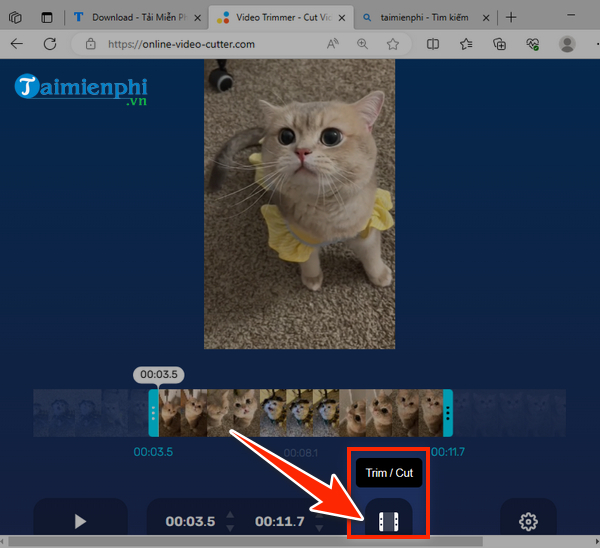
Step 3: Drag the two ends of the video timeline bar to determine the video segment to cut or trim.
Step 4: Select the cut/trim icon to cut the video.
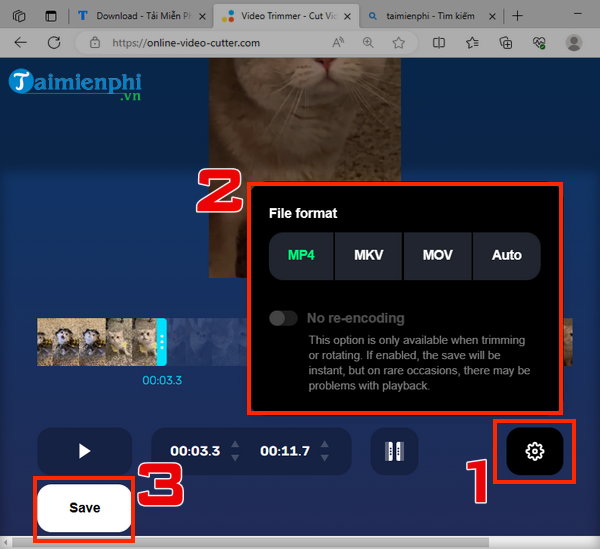
Step 5: Finish: - Click on the gear icon to select the video format - Click " Save " to publish the cut video
online-video-cutter. com increase online video quality
Cutting videos without software is a feature available on Windows 10 operating system that not everyone knows. Instead of looking for external tools, you can cut videos on your computer without installing software according to the following instructions.
2. Clideo (Video Trimmer - Cut Video Online)
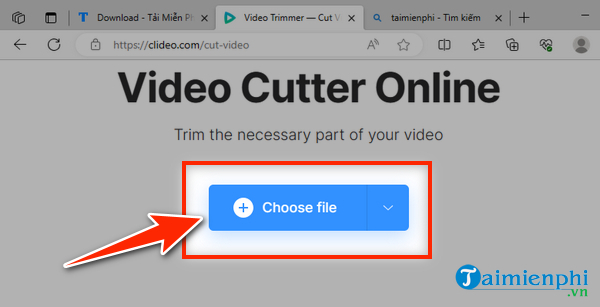
Step 1: Select " Choose file " to upload the video to cut/trim
Step 2: Drag the two ends of the video timeline bar to determine the video segment to cut.
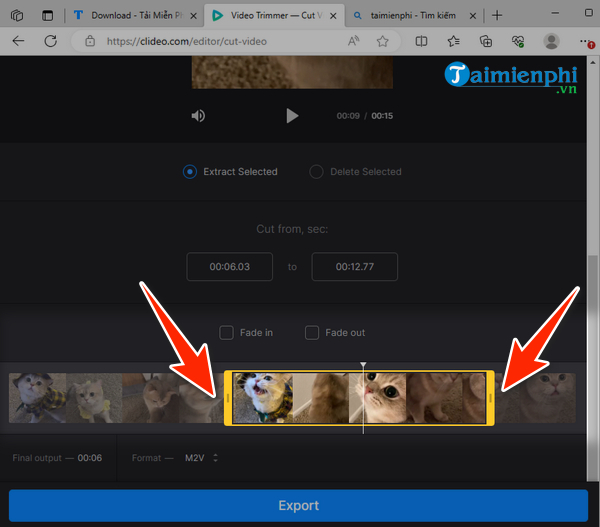 Online Video Cutter Increase Online Video Quality
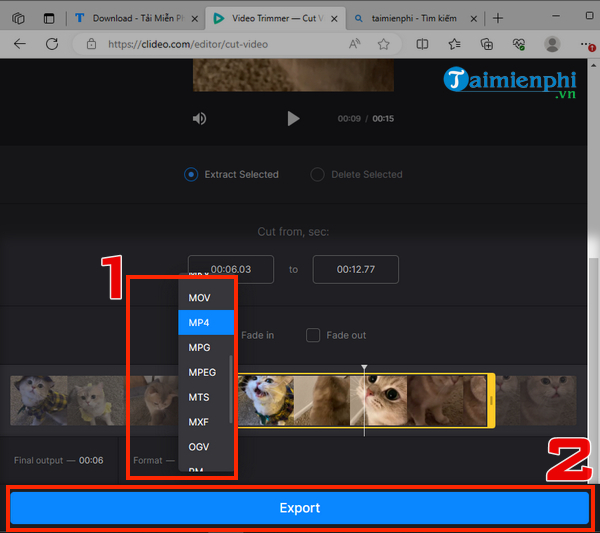
Step 3: In the " Format " section, select video quality, click "Export" to publish
3. I nvideo - Video Trimmer Online
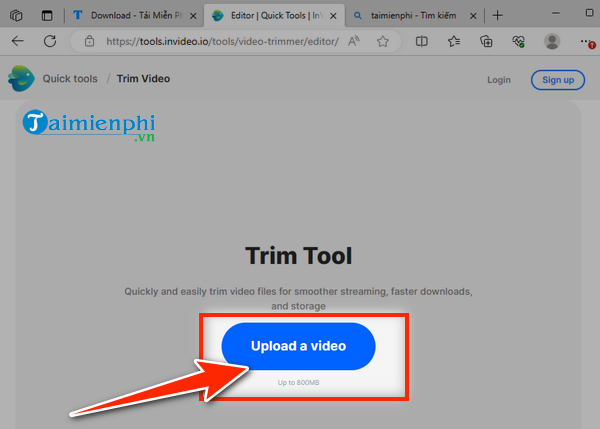
Step 1: Select " Upload a video "
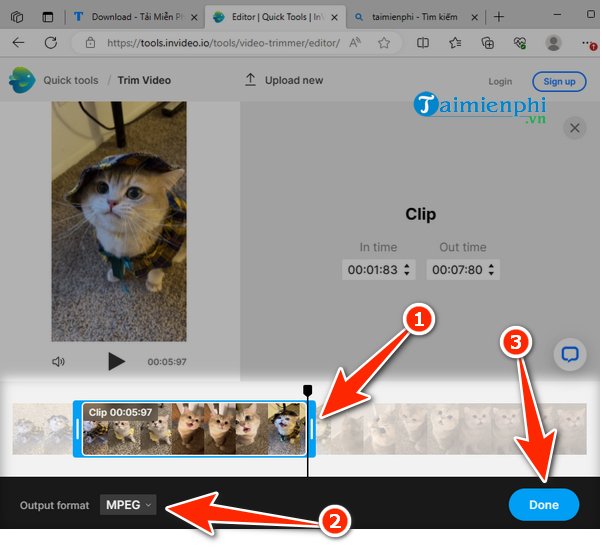
Step 2: Cut video:
- Drag the two ends of the video timeline bar to determine the video segment to cut.
- Select video publishing format
- Click " Done "
 Remove Logo from Video
Step 3: Select " Export video " to download the cut video to your computer.
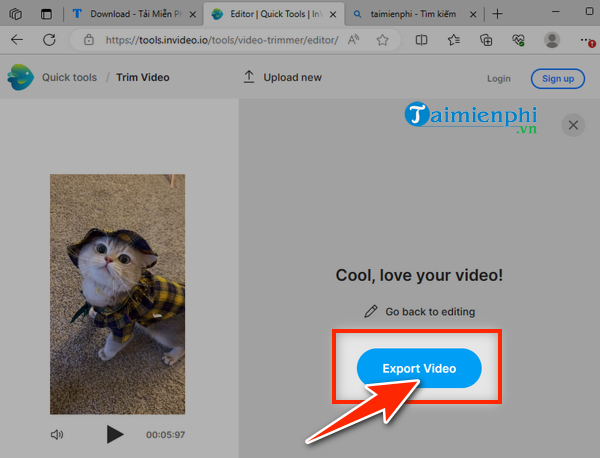
Above are the most popular Online Video Cutter websites today. The usage of these websites is very easy but highly effective. Hopefully this article has brought useful information to you!
FAQ About Online Video Cutter
What is Online Video Cutter?
Step 5: Finish: - Click on the gear icon to select the video format - Click " Save " to publish the cut video online-video-cutter. com increase online video quality Cutting videos without software is a feature available on Windows 10 operating system that not everyone knows
Why is Online Video Cutter important?
Hopefully this article has brought useful information to you!
How can you use or manage Online Video Cutter effectively?
Note: Instead of uploading the file, you can drag and drop the video into the browser to save time
Related Articles
 How to Trim a Video on PC or Mac: Step-by-Step Guide3 minutes read
 How to Trim a Screen Displaying Videos on Camtasia6 minutes read
 How to Trim a Video on iMovie: Clear Instructions6 minutes read
 To Enable Trim, Use the Trim Command on Windows3 minutes read
 TikTok Filter Halloween Crop Video Tutorial4 minutes read
 How to Use the Chrome Extension Trim to Make Netflix Better7 minutes read
Reader Comments 0
Sign in with email or Google to join the discussion.