What you will learn
- Define the reader, purpose and required action before drafting.
- Create a logical heading hierarchy.
- Write sections that each perform one clear job.
- Test navigation through outline and screen-reader-friendly structure.
What you need
- A word processor.
- A short unstructured document or notes to reorganize.
Headings communicate document logic
Microsoft recommends using built-in heading styles to add headings in Word.
Word styles apply consistent formatting and allow related text to change together.
A heading is not merely large bold text. It labels a section’s role in the argument and creates a navigable outline. Heading 1 represents major divisions; Heading 2 belongs under a Heading 1, and levels should not be skipped just to achieve a visual size.
Write the document contract
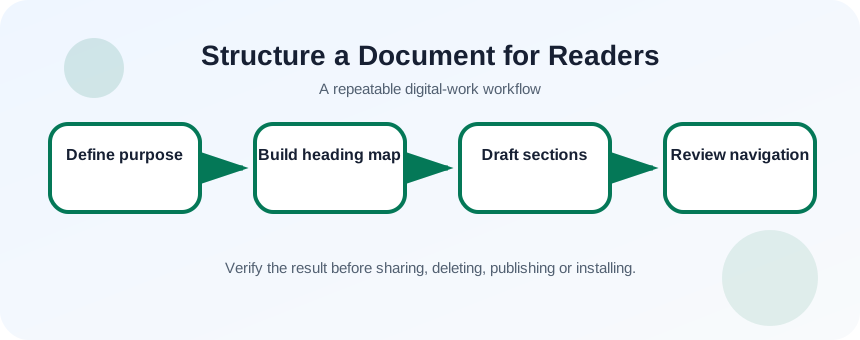
Before drafting, complete three sentences: the reader is…, after reading they should…, and the document must include…. These statements prevent background detail from dominating the action. Then list the questions the reader will ask in order. Each important question can become a heading.
- 1
Name the primary reader.
- 2
State the decision or action required.
- 3
List mandatory facts or evidence.
- 4
Write five reader questions.
- 5
Order the questions from context to action.
- 6
Convert them into draft headings.
Build the document from the outline
Use a descriptive title, a short opening that states the purpose and a heading structure that mirrors the reader’s journey. Put conclusions and requested actions where readers expect them rather than burying them in chronology. Keep paragraphs focused on one point and use lists only when the items are truly parallel.
- 1
Apply Title style to the document title.
- 2
Apply Heading 1 to major sections.
- 3
Use Heading 2 only for subdivisions.
- 4
Write a one-paragraph executive opening.
- 5
Place evidence beside the claim it supports.
- 6
Convert procedures into numbered steps.
- 7
End with decisions, owners or next actions.
Design for scanning and accessibility
Readers often scan headings, first sentences, tables and callouts before reading continuously. Make heading text informative: “Costs increased because…” is more useful than “Discussion.” Use meaningful link text instead of “click here,” and provide alt text for informative images.
Keep layout simple. Multiple manual spaces, empty paragraphs and text boxes can create unpredictable reading order. Use paragraph spacing, proper lists and real tables. A visually attractive page that cannot be navigated by keyboard or outline is not well structured.
- 1
Open the Navigation Pane or document outline.
- 2
Read headings without body text.
- 3
Replace vague headings.
- 4
Check list and table semantics.
- 5
Inspect links and image alt text.
Run a reader-task test
Give the document to someone who has not seen the draft. Ask them to identify the purpose, main conclusion and required action in two minutes. Note where they scroll, hesitate or ask for context. Those observations reveal structural problems more reliably than font changes.
- The heading outline communicates the document’s sequence.
- The opening states purpose and audience value.
- The ending identifies the next action or conclusion.
Rebuild a one-page memo
Turn a block of text into a navigable memo.
- 1
Choose a 500-word draft.
- 2
Write the document contract.
- 3
Create four informative headings.
- 4
Move paragraphs under the correct headings.
- 5
Apply built-in styles.
- 6
Test the outline and revise vague labels.
Common mistakes to avoid
- Using font size instead of heading styles.
- Skipping heading levels for appearance.
- Organizing by the order notes were collected rather than reader needs.
- Ending without a decision or action.
Key takeaways
- Structure starts with reader and purpose.
- Built-in headings create both consistency and navigation.
- A good outline should make sense without body text.
Frequently asked questions
How many headings should a short document have?
Use enough to separate meaningful sections. A one-page memo may need three or four; adding headings to every paragraph creates noise.
Can I change how Heading 1 looks?
Yes. Modify the style rather than formatting each heading manually, so structure and appearance remain consistent.
Sources and further reading
- Add a heading in a Word documentMicrosoft Support
- Use styles in Word for the webMicrosoft Support
Ready to continue?
Mark the lesson complete so your Learning Path progress stays current on this device.