Table of Contents
Microsoft Copilot Studio's code interpreter lets an agent generate and run Python when a question requires calculation over structured data. It is useful for CSV and Excel tasks such as filtering rows, joining files, calculating grouped totals, forecasting, and creating downloadable tables or charts.
Preview status: This capability is prerelease, can change, and is not intended for production use. Confirm the current requirements and limits in Microsoft's documentation before deploying an agent.
What code interpreter adds
A language model can describe a calculation, but it may be unreliable when asked to do arithmetic across many spreadsheet rows. Code interpreter can perform the operation programmatically, making the method more repeatable and allowing the agent to return a table or visualization.
Copilot Studio can receive structured files in two supported ways:
- Conversation upload: an end user attaches CSV or Excel files while chatting with the agent.
- SharePoint knowledge: a maker adds a SharePoint Documents library containing structured files as a knowledge source.
Use code interpreter for cell-level Excel searches. Microsoft's documentation notes that semantic search has limitations when indexing spreadsheet cells.
Requirements and current limits
- Copilot Studio billing and licensing are required. Code generation and execution count as premium text and generative AI tool features.
- The preview is available in public clouds but not currently in sovereign clouds.
- Each analyzed file can be up to 16 MB, regardless of file type.
- A user can upload a maximum of 10 files.
These are preview limits and can change. Large or messy workbooks may still be difficult even when they fall below the file-size limit. Remove unrelated sheets and columns, use clear headers, and keep each column's data type consistent.
Tasks suited to Excel files
| Task | What the agent does | Example prompt |
|---|---|---|
| Lookup in one sheet | Finds a specific value, label, record, or date that already exists in a row or cell | “What was free cash flow in Q4 2024? Cite the worksheet and row used.” |
| Filter rows | Returns records that meet explicit conditions | “List orders over $5,000 that were shipped late.” |
| Aggregate data | Calculates totals, counts, averages, differences, or rankings | “Calculate monthly revenue by region and return a table.” |
| Create a chart | Groups the requested data and renders an appropriate visualization | “Chart quarterly unit sales by product, and include the values behind the chart.” |
Microsoft lists single-sheet lookup as an extensively tested Excel scenario. Other scenarios can work, but a successful test with one workbook does not guarantee the same result for every layout.
Tasks suited to CSV files
| Category | What the agent does | Example prompt |
|---|---|---|
| Lookup in one file | Retrieves a specific record or attribute without aggregating across rows | “Who is listed as the developer of the Sunrise Wind project?” |
| Aggregate one file | Calculates totals, conditional counts, group summaries, or maximum and minimum values | “Show January 2025 sales revenue by region, highest first.” |
| Lookup across files | Joins files on a shared key to retrieve a value or list | “Match the inventory and parts files and list East warehouse stock for each drill bit.” |
| Aggregate across files | Combines multiple exports and calculates a consolidated result | “Total employee hours across the three monthly files and group the result by department.” |
Enable code interpreter for user-uploaded files
- Open the agent in Copilot Studio and select Settings > Generative AI.
- Under File processing capabilities, turn on File uploads.
- Turn on Code interpreter.
- Select Save.
- In the test pane, attach a structured file and ask a question that requires a calculation.
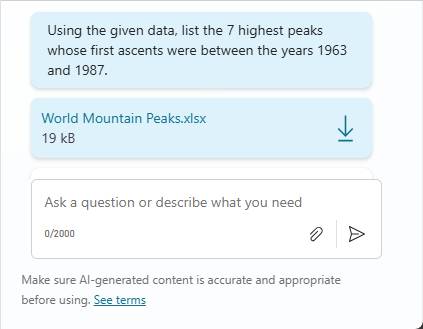
Attach a representative file and test a calculation, not only a simple document summary.
Enable analysis for a SharePoint knowledge source
- Add the SharePoint structured file or its Documents library as a knowledge source if it is not already connected.
- Open Settings > Generative AI and turn on Code interpreter under File processing capabilities.
- Under Search, select Turn on Work IQ.
- Select Save.
- If you added the SharePoint source during this setup, publish the agent.
- Test with a prompt that requires calculation over the connected data.
Access to SharePoint content still depends on the agent's authentication and knowledge-source configuration. Test with accounts that represent the intended audience rather than assuming every user can read the same files.
Write prompts that make the calculation testable
A useful analysis prompt identifies the source, operation, grouping, filters, and output. For example:
Using sales.csv, calculate net revenue by region for January 2025. Exclude rows whose status is Cancelled, sort from highest to lowest, and return a table plus the number of rows included.
For multi-file work, state the join columns:
Join inventory.csv to parts.csv using
part_id. Show each part name and the available quantity in the East warehouse. Report unmatched IDs separately.
Ask the agent to expose assumptions, included row counts, unmatched keys, and calculation definitions. Those details make it easier to spot a wrong sheet, a text-formatted number, duplicate keys, or excluded blanks.
Prepare structured data for better results
- Use one clear header row and unique column names.
- Keep dates, currencies, and numeric values in consistent formats.
- Remove merged cells, decorative blank rows, subtotals inside raw data, and unrelated notes when practical.
- Give tables or worksheets descriptive names.
- For joins, ensure both files use the same key format and explain whether duplicate keys are valid.
- Upload only the rows and columns needed for the task, especially when the source contains sensitive information.
Validate the result before relying on it
Code execution improves arithmetic reliability, but it does not guarantee that the agent interpreted the business question correctly. Check:
- whether the correct file and sheet were selected;
- which rows were included or excluded;
- how missing values and duplicates were handled;
- whether joins produced unmatched or duplicated records;
- whether totals agree with a small independently calculated sample;
- whether the chart labels and units match the underlying table.
Do not use a preview analysis as the sole basis for high-impact financial, legal, safety, employment, or access-control decisions. Add a human review step and an established source of truth.
Security and governance considerations
Before enabling uploads or connecting a library, define which users can access the agent and which data they are permitted to submit. Avoid putting secrets or unnecessary personal data into test files. Follow the organization's Microsoft 365, Power Platform, data-loss-prevention, retention, and regional requirements.
Because the feature is in preview, test it in a controlled environment with representative files, expected-answer test cases, and failure cases such as empty columns, duplicate identifiers, and oversized inputs.
For current availability, limits, and setup steps, refer to Microsoft's code interpreter for structured data documentation.
Related Articles
 Storing Geographic Data in Copilot Studio6 minutes read
 Overview of Copilot Studio11 minutes read
 Key Concepts - Security and Administration in Copilot Studio5 minutes read
 What Is Chatgpt Code Interpreter? Why Is It So Important?8 minutes read
 Ensure Compliance with Copilot Studio's Regulations11 minutes read
 Add unstructured data as a knowledge source for the Copilot13 minutes read
Reader Comments 0
Sign in with email or Google to join the discussion.