Table of Contents
A sandbox can reduce the impact of an untrusted application by running it in a separate environment. It is an extra layer of protection, not proof that a file or website is safe. Keep Windows, browsers and security software updated, and avoid running a suspicious file when you do not need it.
Know what isolation does not prevent
A sandbox does not make a phishing page genuine, stop you from voluntarily entering a password, or guarantee that copied files are harmless. Malware can also behave differently in a test environment. Seeing nothing suspicious during a short session is not a clean bill of health.
For an unexpected account alert, open the service through a known bookmark or its official app instead of using the message’s link. Inspecting the link in a remote browser is not a substitute for checking the actual destination and sender.
Use an online browser only for non-sensitive checks
A remote browser service, such as Browserling, can let you inspect a page without loading its active content directly in your normal browser. However, the provider receives the URL and handles the remote session.
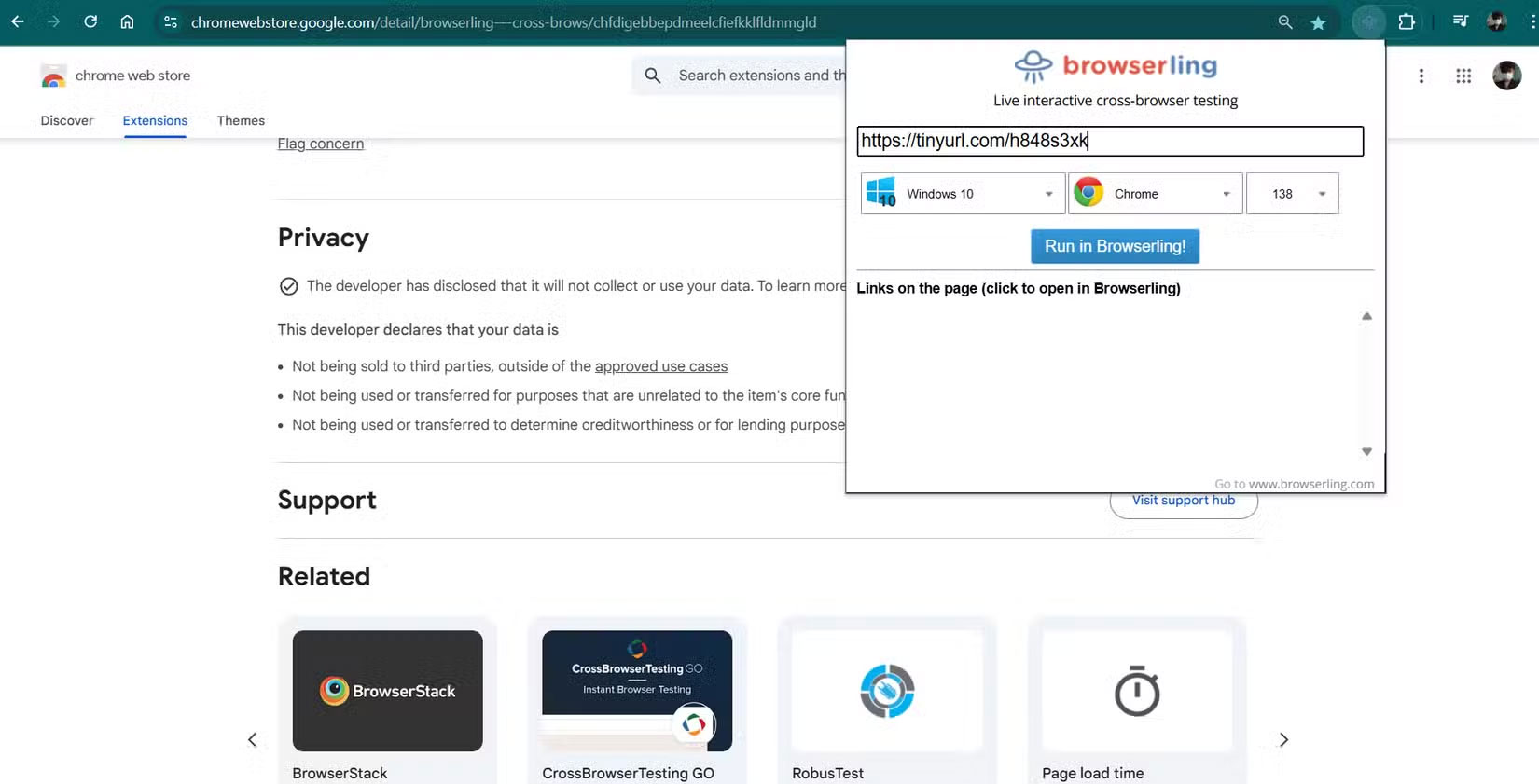
Do not submit private account links, password-reset tokens or confidential documents without understanding the service’s privacy rules. Avoid signing into personal accounts or making payments in an unfamiliar remote testing environment. Check current plan limits rather than relying on an old session-length or price claim.
Enable Windows Sandbox on a supported PC
Windows Sandbox is available on supported Windows editions and requires compatible hardware virtualization. It is not included with every Windows installation.
- Search Start for Turn Windows features on or off, or run
optionalfeatures.exe. - Select Windows Sandbox if it is available and complete the installation.
- Restart if prompted, then launch Windows Sandbox from Start.
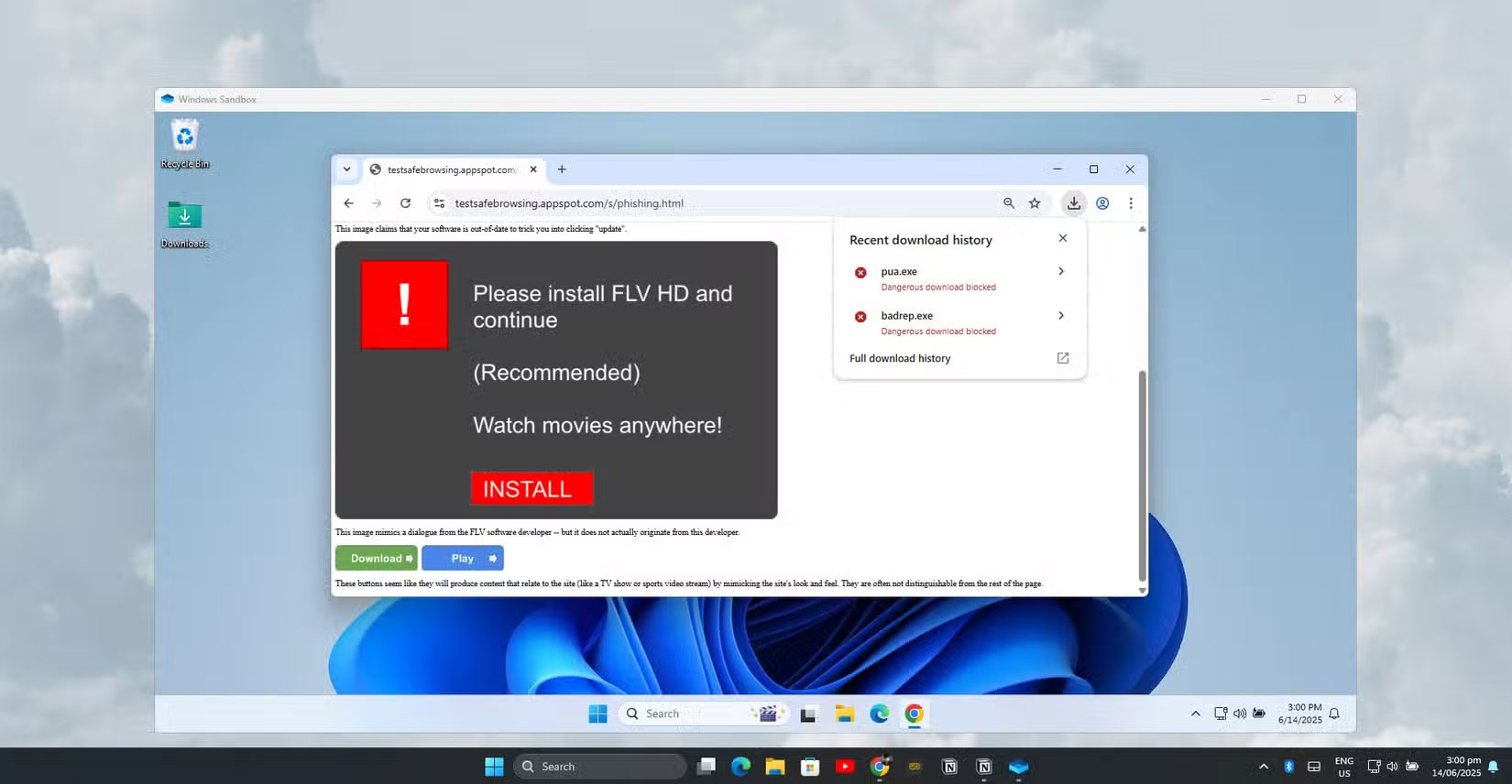
Check Microsoft’s installation requirements if the option is missing. Do not assume that installing a virtualization application automatically provides the same isolation or configuration.
Limit connections between the sandbox and your PC
Windows Sandbox enables networking and clipboard sharing by default. These are useful for ordinary testing but matter when handling untrusted material. A custom .wsb configuration can turn them off. Mapped host folders also deserve care: a writable mapping can allow persistent changes to host files.
Share only a dedicated test folder if necessary, use read-only access where possible, and do not expose personal documents or credentials. Follow Microsoft’s Sandbox configuration reference for the supported controls.
Close the session without carrying the risk out
Closing Windows Sandbox discards its disposable environment after confirmation. That does not undo information sent over the network, changes made through writable host shares, or files you copied out.
Do not move an untrusted executable to your normal desktop just because it appeared to run normally in the sandbox. If a file is unnecessary, discard it; if it is required for work, follow your organization’s review process.
Keep the tools distinct
Application sandboxes, Linux tools such as Firejail and full virtual machines isolate software in different ways. macOS App Sandbox is primarily a framework used by applications, not a universal “open any suspicious file safely” mode. Choose a supported setup you understand and retain ordinary security protections alongside it.






Reader Comments 0
Sign in with email or Google to join the discussion.