Table of Contents
Before giving up, many people have dug through the settings to see if there's anything else they can try. Deep in the menu, they find a hidden control to adjust the animation speed.
Updates can slow down your phone, and heavy apps can make a cheap Android feel sluggish. It's gotten to the point where every touch feels slow. The keyboard lags, the notification bar stutters, and opening an app makes you wait. Each slowdown wears down your patience until you stop reaching for your phone unless absolutely necessary and start wondering if it's time to upgrade.
Before giving up, many people dig into the settings to see if there's anything else to try. Hidden deep in the menu, they find a hidden control for adjusting animation speed. Out of curiosity, they turn it on. While it doesn't solve everything, the difference is obvious. Scenes move faster, screens move smoother, and the phone feels more responsive.
Everyday tasks take too much time
Small delays make using the phone annoying
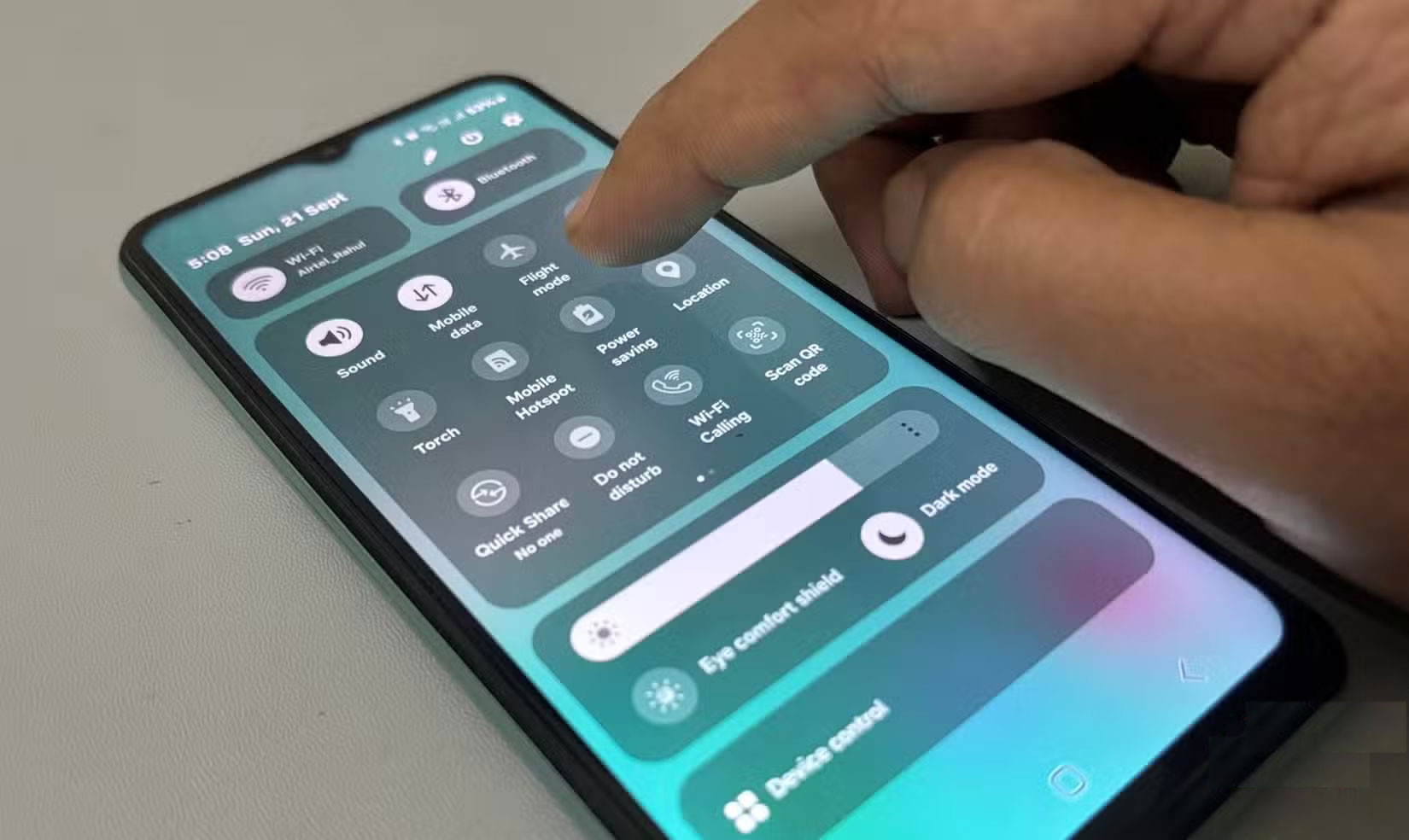
Living with that lag is the hardest part. Simple tasks like replying to a text or opening a notification are interrupted by short pauses that disrupt the flow of using the phone. Each pause only lasts a second or two, but when repeated dozens of times a day, it makes the phone feel sluggish and uncooperative.
The most frustrating moments are when you need your phone to respond immediately. Opening the camera sometimes means waiting so long that you miss the photo entirely. Even notifications pause before loading, turning a quick glance into another wait. Over time, you use your phone less, not because you want to be away from it, but because each interaction feels like too much effort.
Settings to make your Android phone run smoothly again
Adjust animation speed for a smoother feel
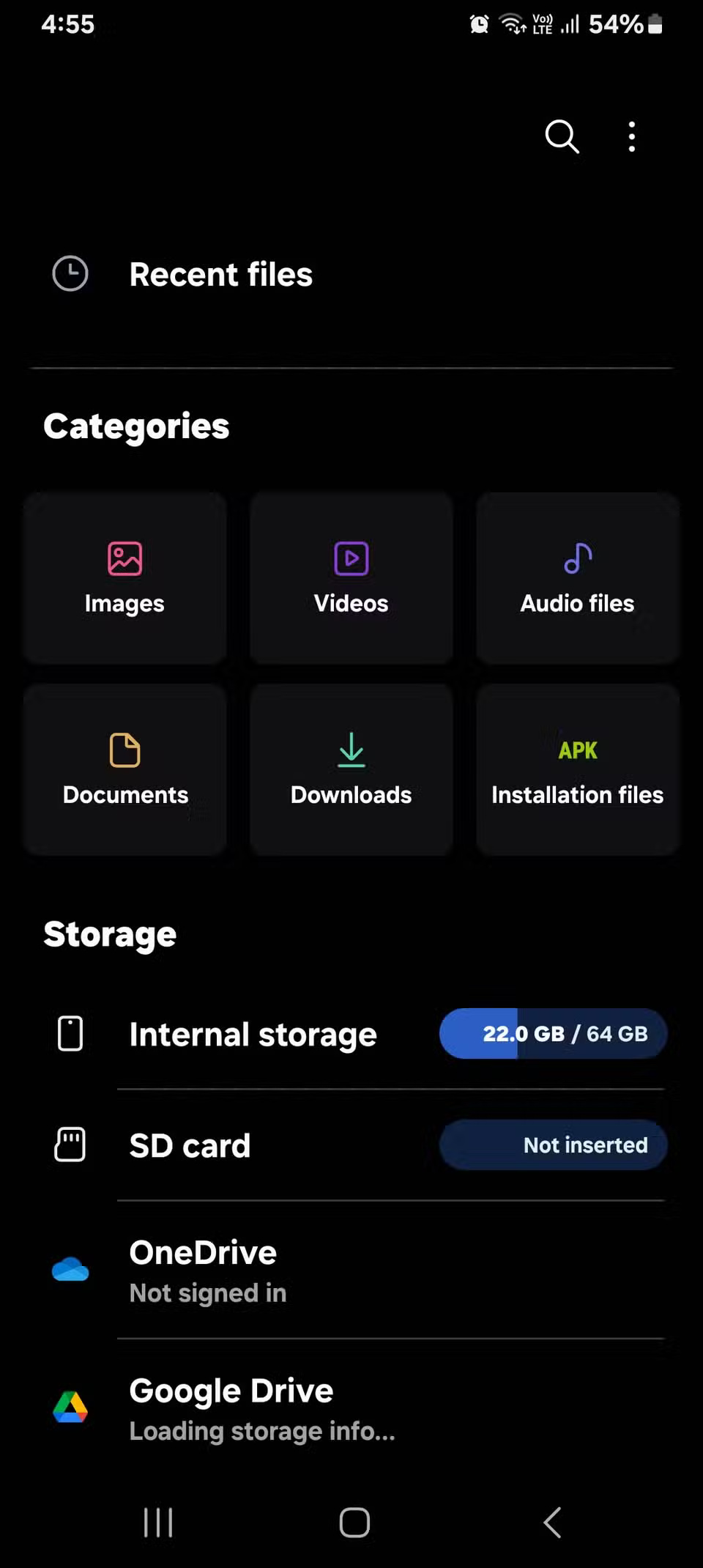
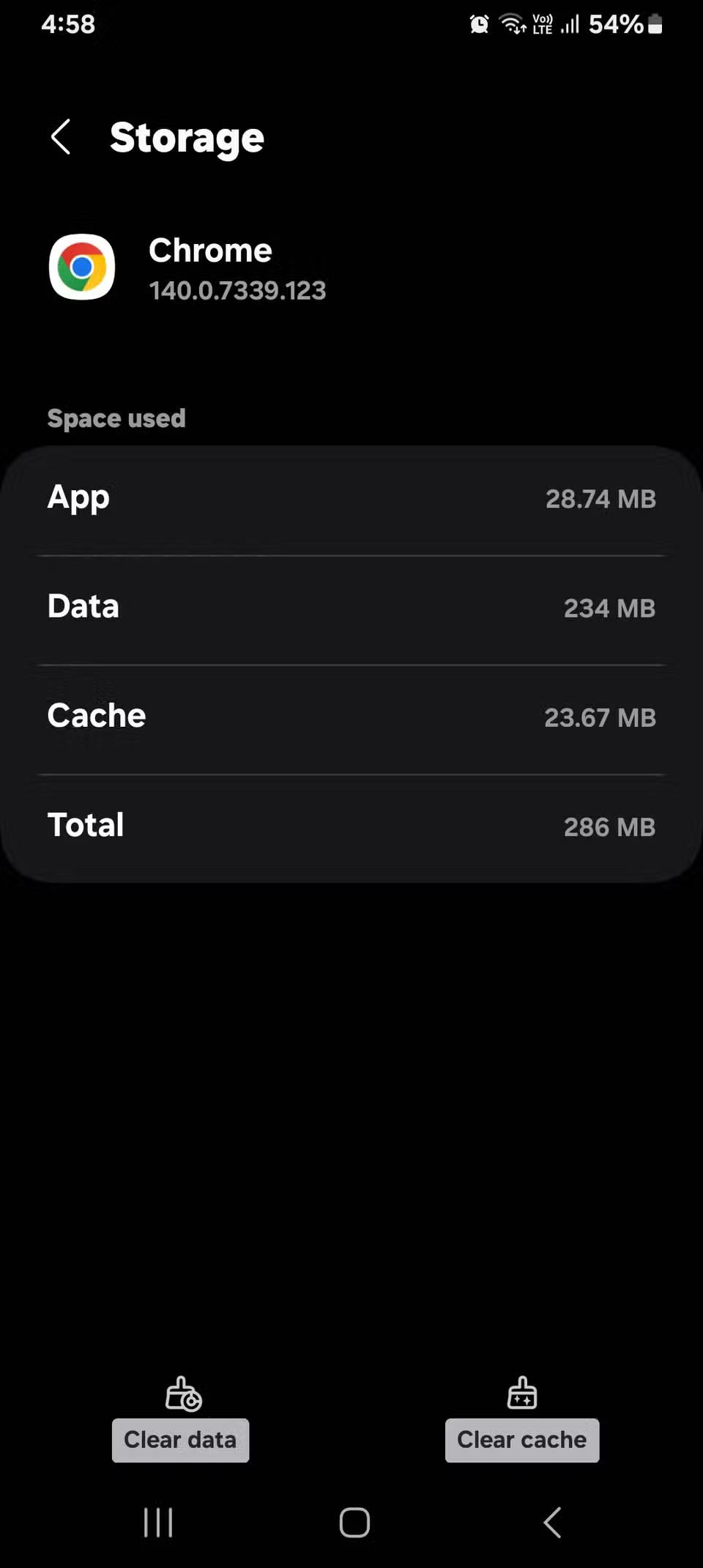
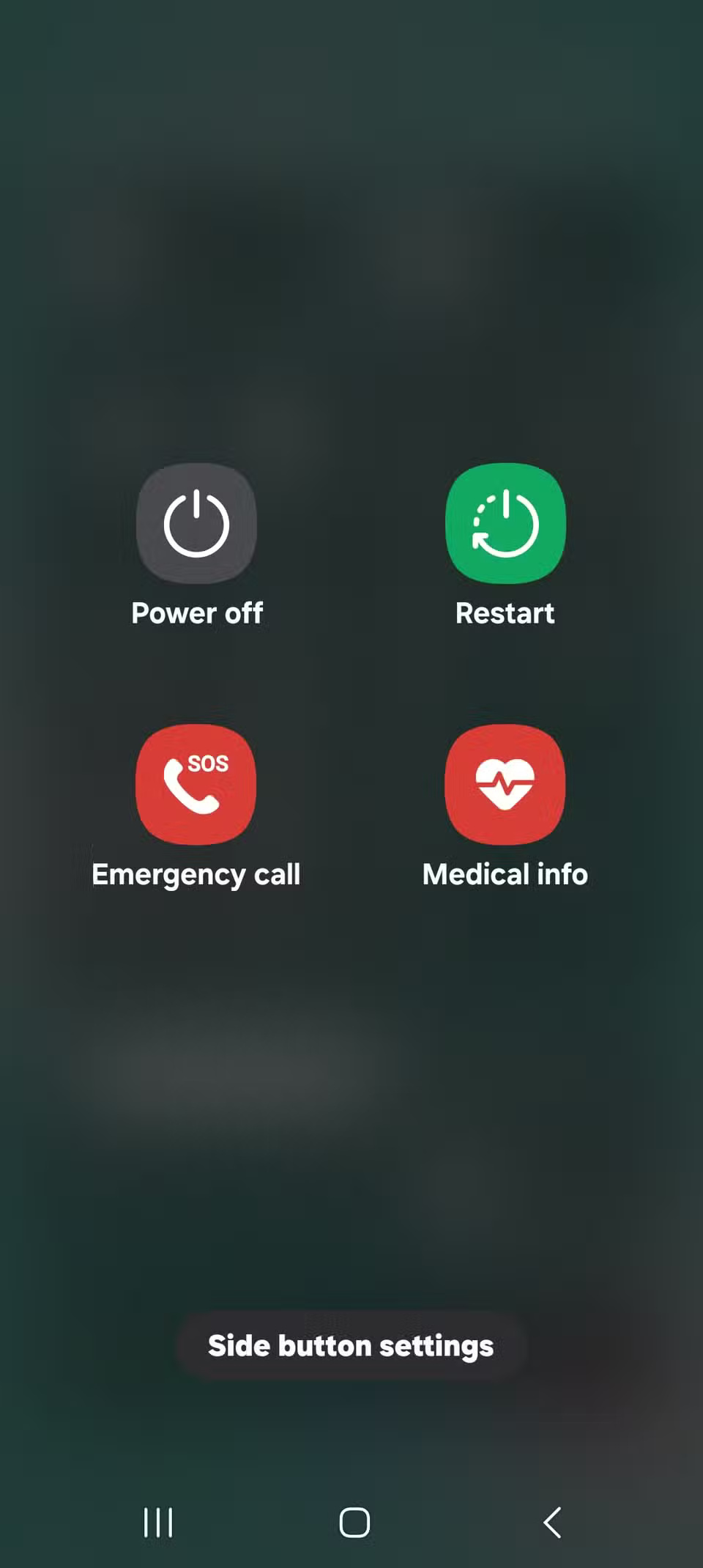
After weeks of sluggishness, some users have tried all the usual fixes to get their phones running faster. They've looked through settings that might be slowing down their Android phones, deleted apps they haven't opened in months, deleted old downloads, and moved photos and videos to cloud storage to free up space. They've also cleared cached data from apps that are using too much memory and restarted their phones regularly, hoping to clear whatever's causing the lag.
That said, the improvement didn't last long, and the phone soon slowed down again. When the lag returned, many people dug deeper into the settings, hoping to find a permanent solution.
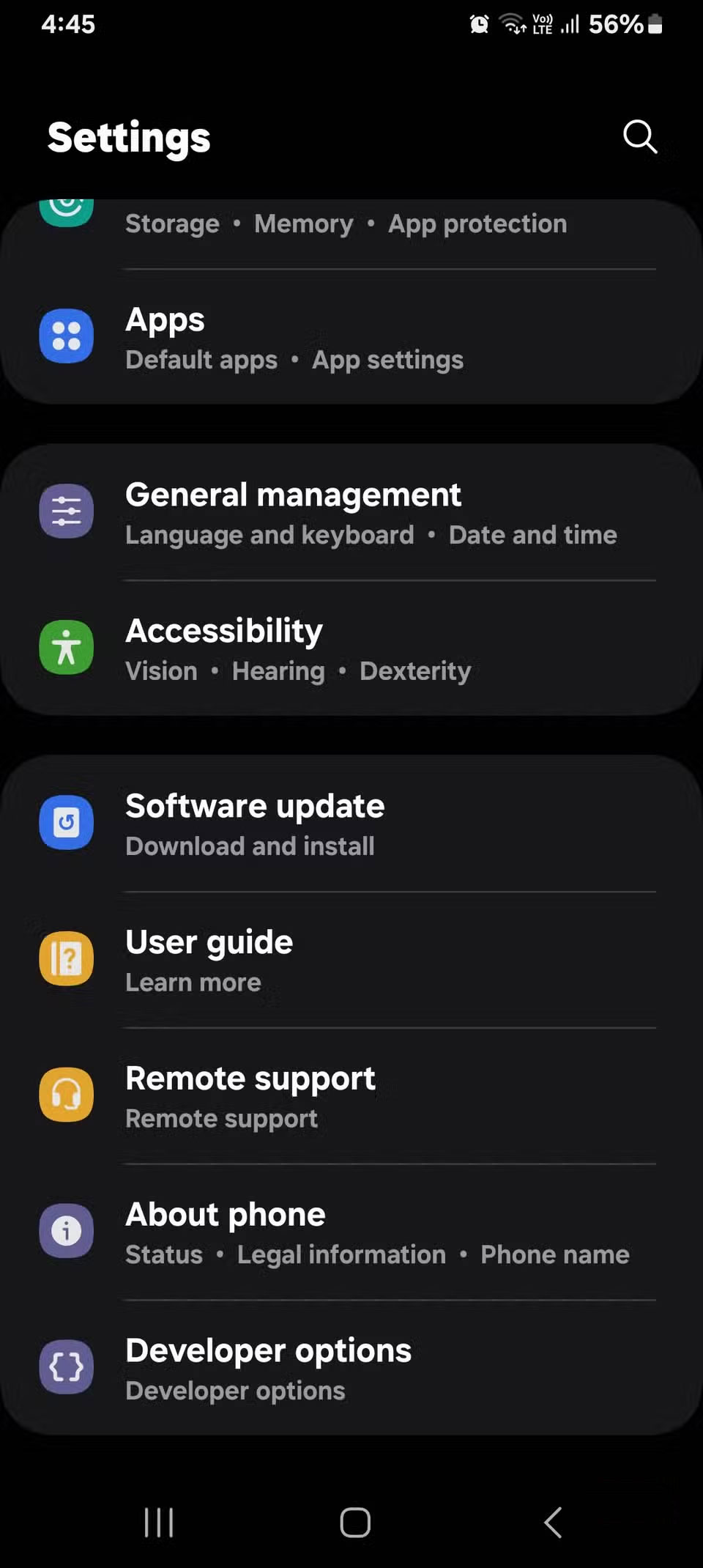
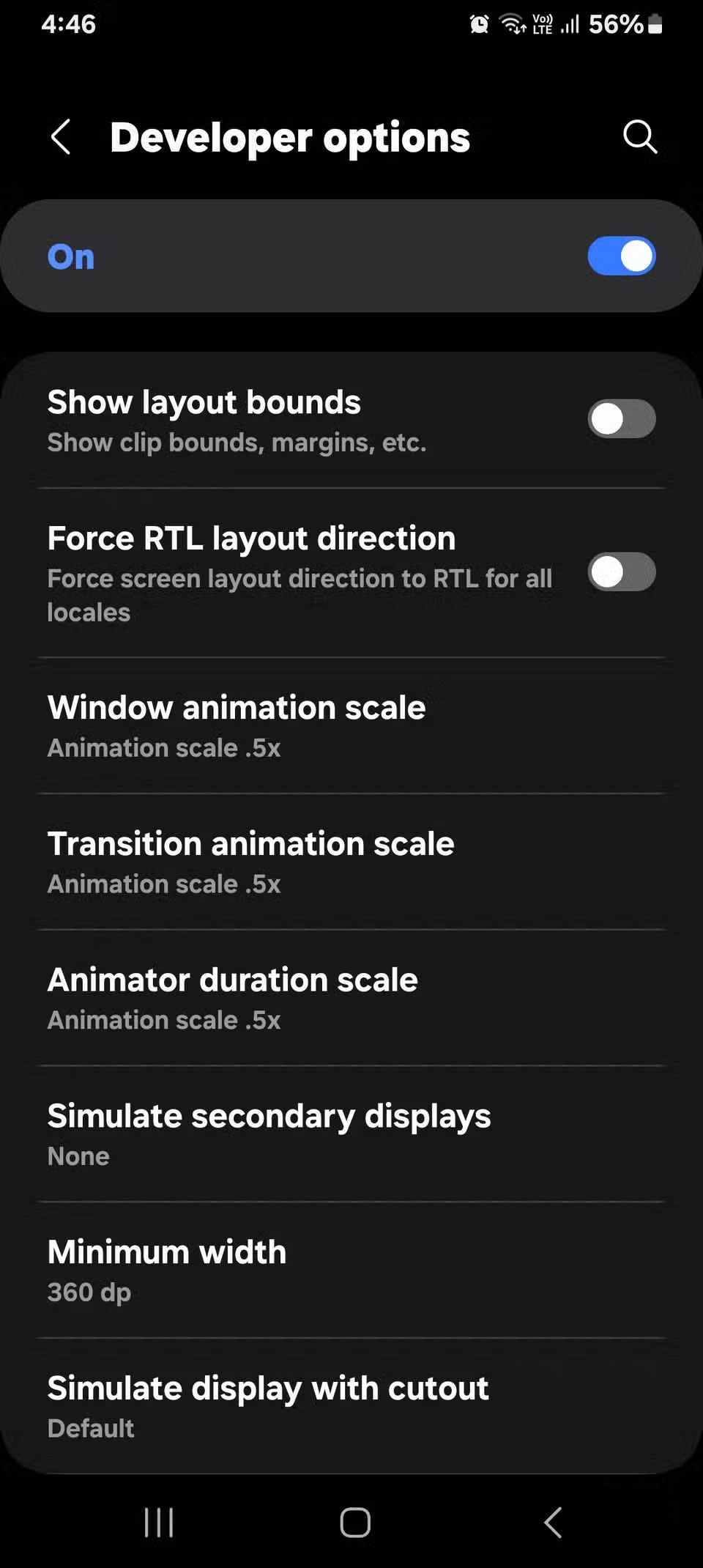
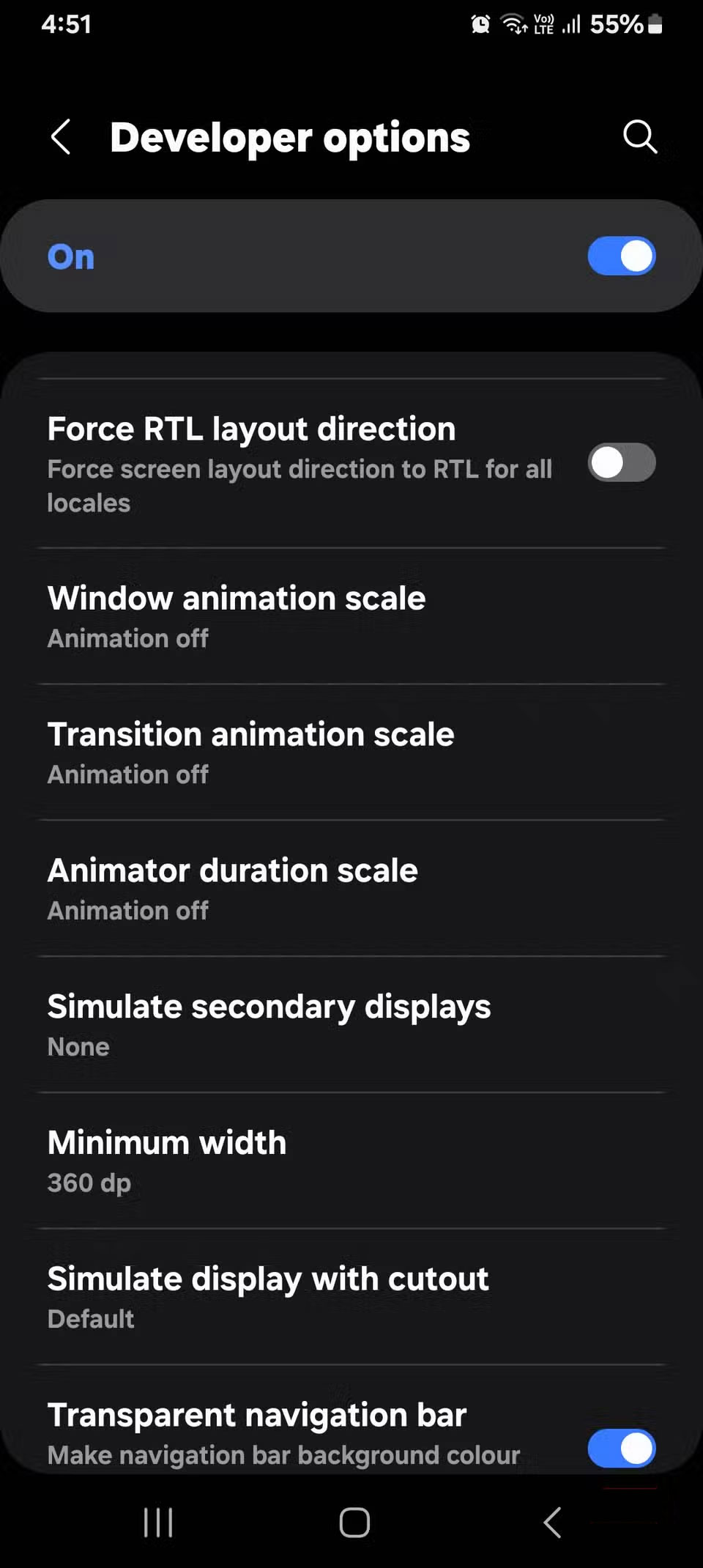
When you go into the settings, there's a toggle for controlling how fast Android animations play. It's in Developer Options, hidden by default. Animations are the little visual effects that play when you open apps, switch screens, or scroll through menus. They make the phone feel smoother, but also create a slight delay before anything happens. Slowing them down won't make the hardware faster, but it will eliminate that extra lag and make the phone more responsive.
This is exactly what needs to change on the phone.
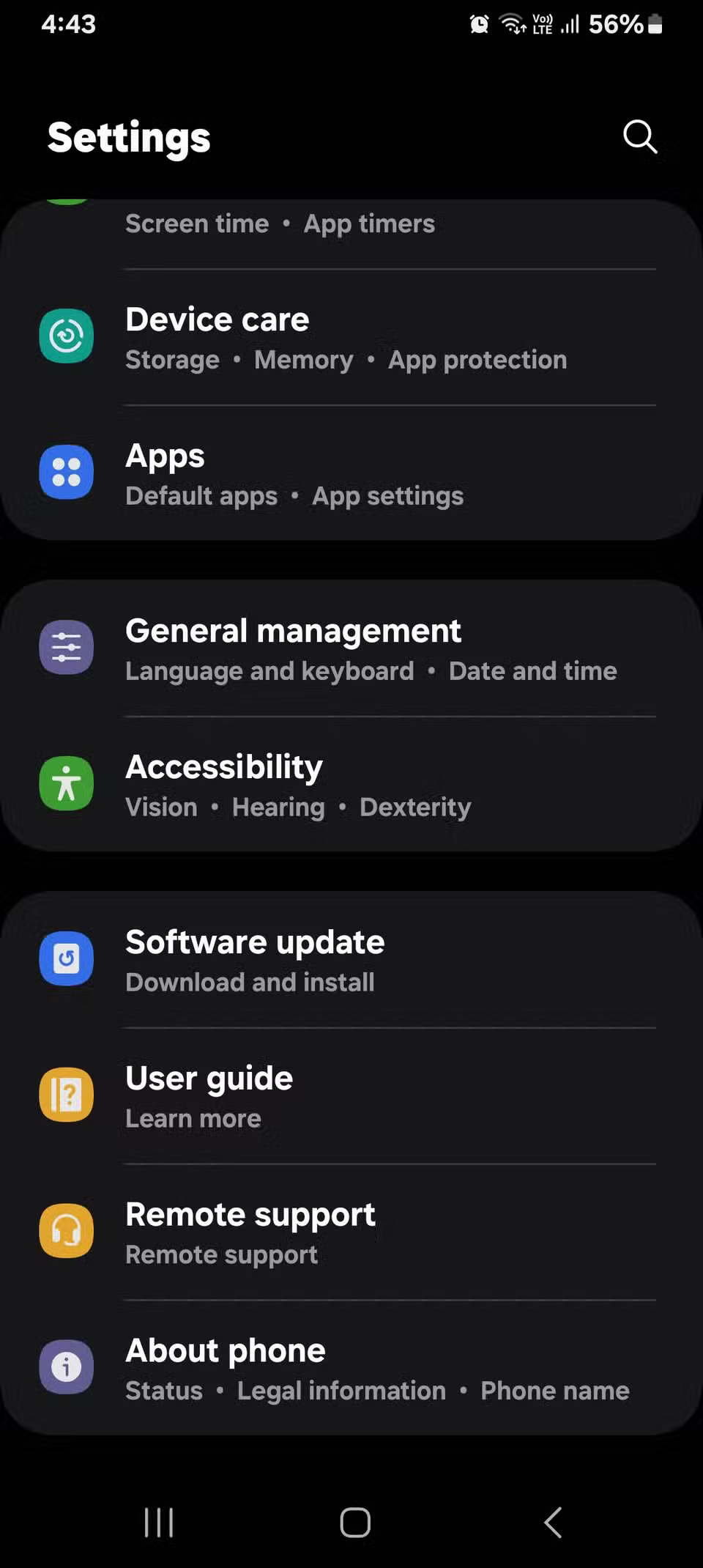
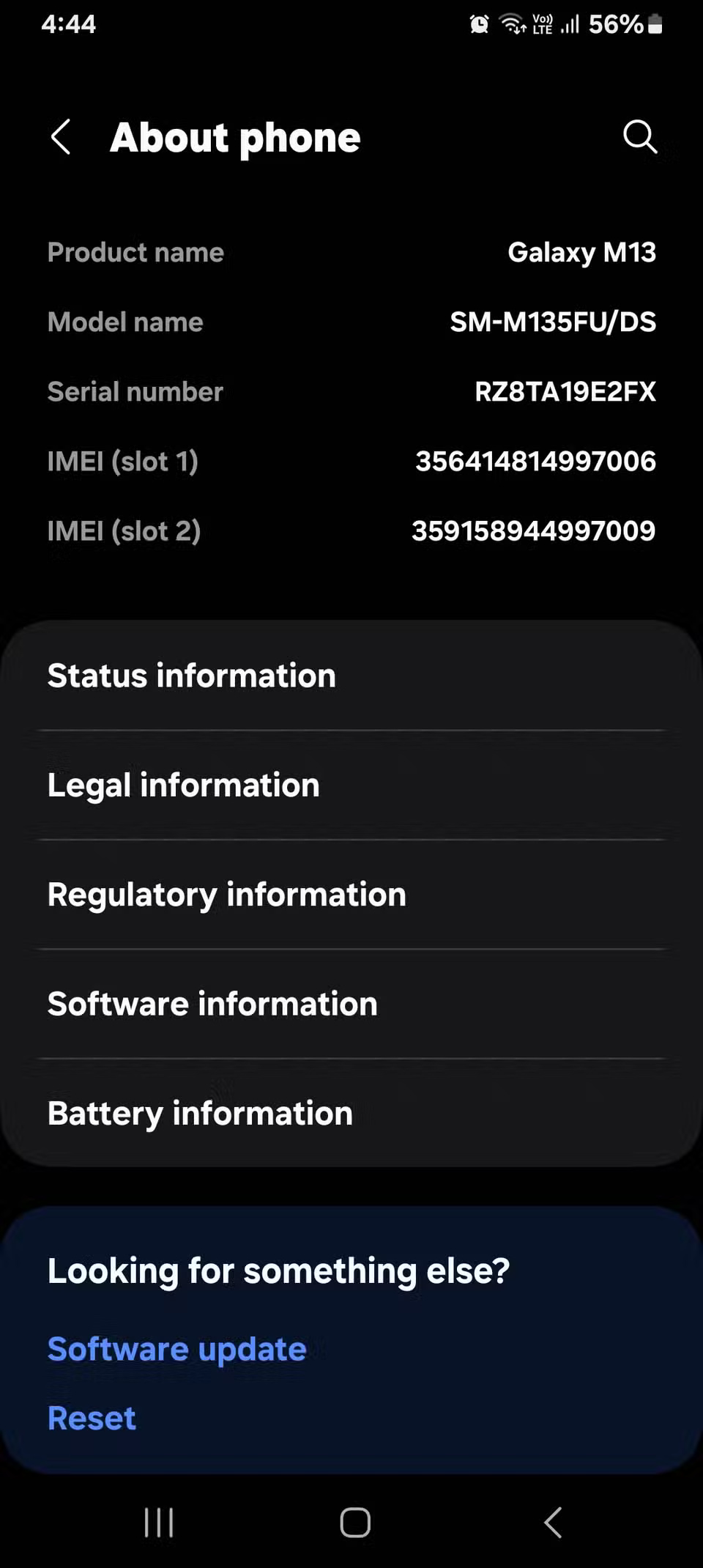
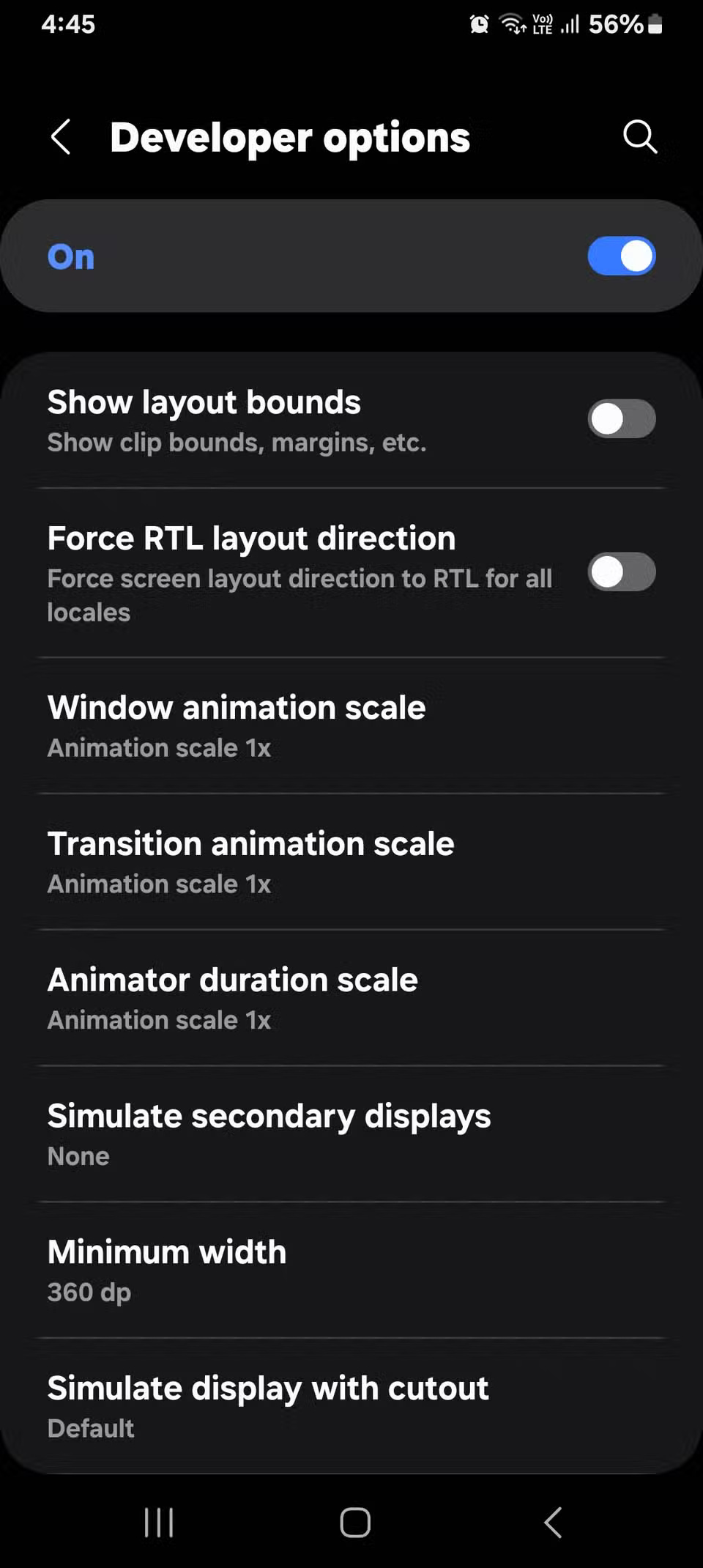
- Open Settings And scroll to About phone .
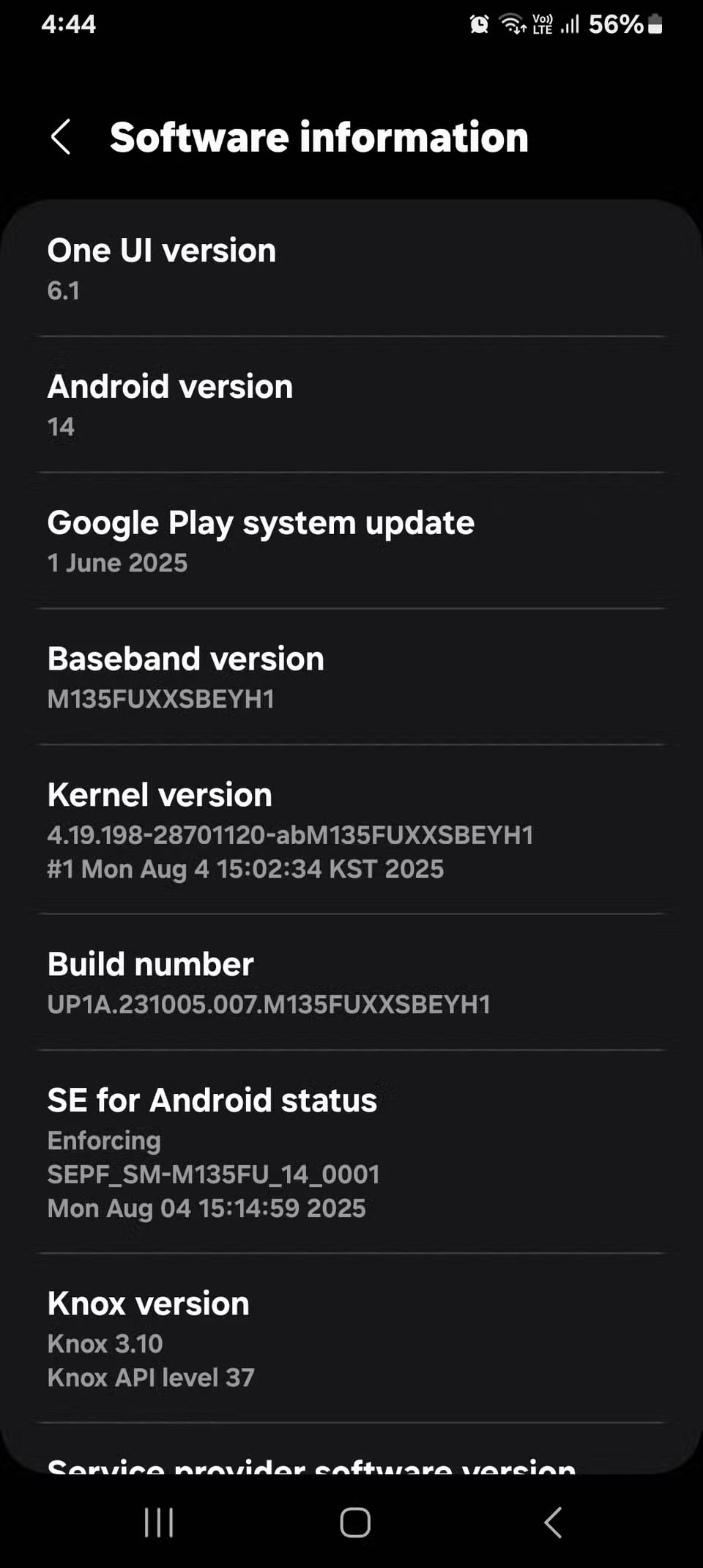
- Tap on Software information And look for Build number .
- Tap Build number 7 times and enter your PIN or password when prompted. Your phone will confirm that Developer Options are now enabled.
- Go back to the main Settings page and open Developer options .
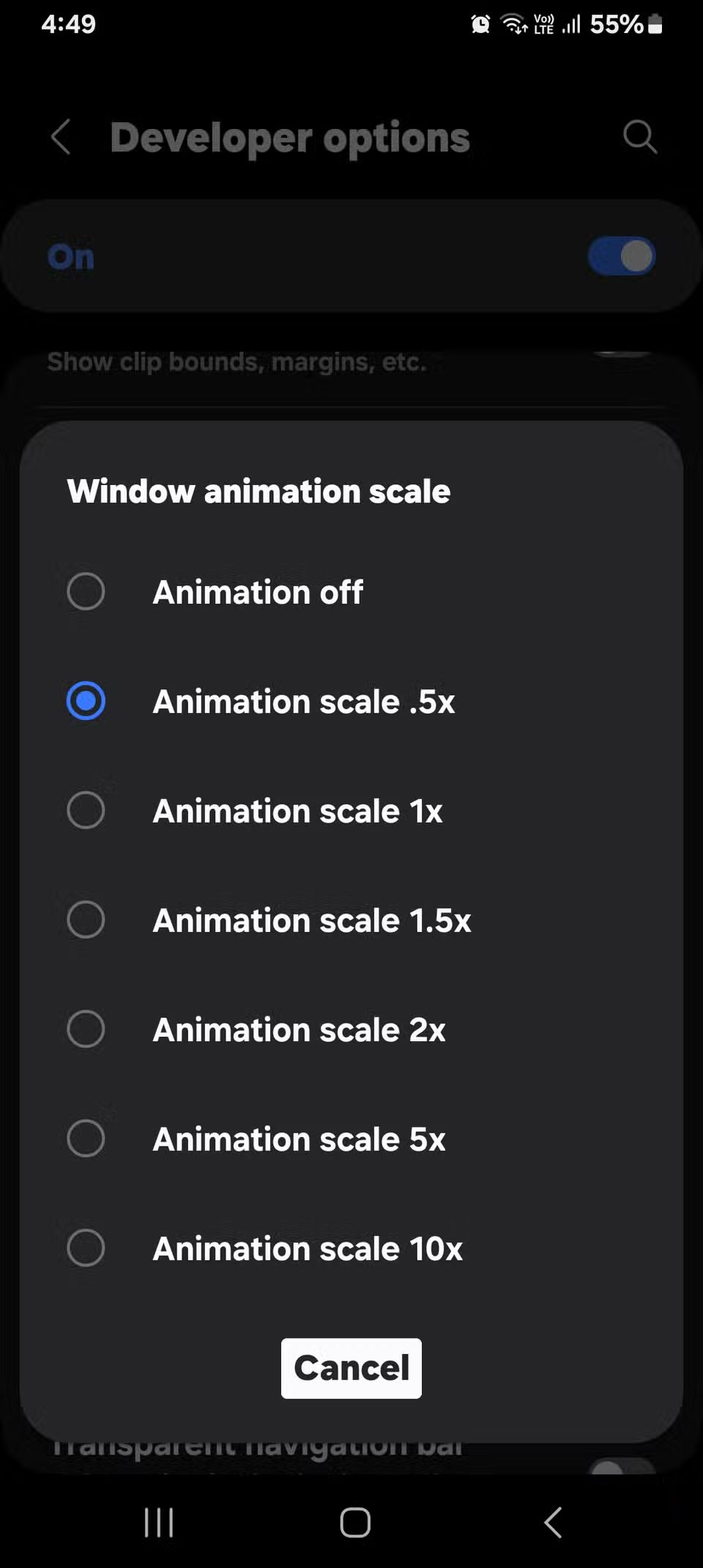
- Scroll until you find Window animation scale , Transition animation scale , and Animator duration scale .
- Change all 3 from 1x To 0.5x.
You can also try turning them off to compare. I prefer 0.5x because it retains some motion while still feeling faster. If you don't see these when scrolling, use the search bar in settings and type "animation scale".
On some phones, the Build number appears inside the About phone section instead of under Software information. Following these steps will make your phone feel brand new again, and there are other ways to make your Android phone feel like new again for anyone who wants to explore more options.
This won't turn your budget phone into a flagship, but it's enough to make you think twice about upgrading. Reducing the animations makes everyday use feel faster and smoother. If your phone is slow, try this tweak before buying a new phone. It only takes a few minutes to set up, and you can always change it back if you don't like it.
FAQ
What should you know about secret settings to fix laggy old Android phones?
In practical terms, before giving up, many people have dug through the settings to see if there's anything else they can try. Deep in the menu, they find a hidden control to adjust the animation speed.
Why does secret settings to fix laggy old Android phones matter?
The article highlights that they've looked through settings that might be slowing down their Android phones, deleted apps they haven't opened in months, deleted old downloads, and moved photos and videos to cloud storage to free up space.
What is the main takeaway?
The main takeaway is that when you go into the settings, there's a toggle for controlling how fast Android animations play.
Related Articles
 How to Reset Android Phone to Restore Factory Settings9 minutes read
 Summary of Secret Codes to Activate Hidden Features on Mobile Phones4 minutes read
 Settings That Help Improve the Security of Your Android Device7 minutes read
 How to Fix Video Lag in Microsoft Teams8 minutes read
 Tricks to Make Android Phones Run Twice as Fast3 minutes read
 Send, Receive Encrypted Messages, Self-destruct Messages, Secure Chat4 minutes read
Reader Comments 0
Sign in with email or Google to join the discussion.