Table of Contents
Mark serves as the perfect choice for anyone who frequently takes screenshots but doesn't want them to pile up.
If you've owned a smartphone for a while, you know the silent shame that lurks inside your screenshot folder. It starts out neat—maybe a meme or two, a booking code, a product you plan to compare later. And then, somehow, it becomes a digital junk drawer.
Half of the photos are things you need in five minutes and immediately forget about. The rest are completely inexplicable. Some people have found their own lock screen screenshots multiple times. You have no idea how or why. For many, adopting a strict phone-cleaning routine is the only way to solve the problem.
That's the mess Mark tries to clean up, and it does it better than any other app used to tackle this problem.
What is Mark?
Mark is perfect for anyone who takes screenshots frequently but doesn't want them to pile up. Every time you take a screenshot, a quick dialog appears with options to automatically delete the image after the time you choose.
Mark will automatically delete your messy screenshot folder
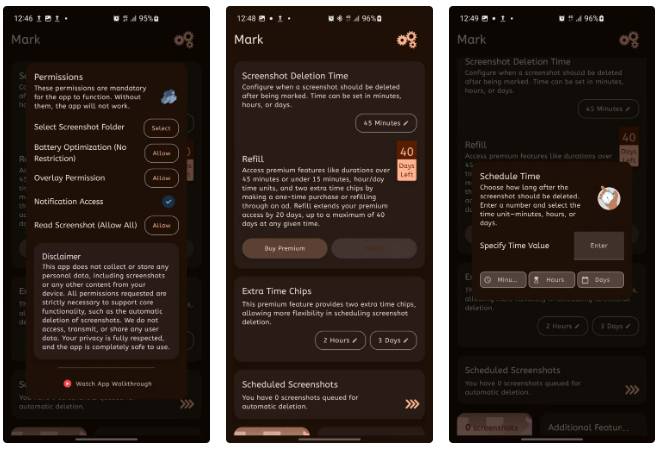
When you first launch Mark, you'll need to grant a few permissions for the app to work properly. Don't worry! The app has a helpful disclaimer explaining that it doesn't collect or store any personal data, including your screenshots. All permissions are absolutely necessary for Mark to detect new screenshots and schedule them to be deleted. As always, you should review an app's permissions before installing it.
The setup screen will walk you through each required permission with clear 'Allow' Buttons. You'll need to select your screenshot folder so Mark knows where to look, allow battery optimization exemptions so the app can run smoothly in the background, grant overlay permissions so pop-ups appear, enable notification access, and allow the app to read your screenshots. Each permission has a specific purpose to help Mark run smoothly.
Once you've granted all the permissions, you're ready to configure how Mark handles your screenshots. The most important setting is Screenshot Deletion Time , which determines how long a screenshot will remain after you mark it for deletion. By default, Mark sets this to 45 minutes, but you can customize it to suit your needs.
Clicking the delete time button opens a scheduling dialog where you can enter any time value and choose between minutes, hours, or days. Maybe you only need to take screenshots every 15 minutes when shopping online, or maybe you prefer a more conservative 2-hour time frame. Consider your screenshot habits when setting this default. If you mostly take screenshots for temporary reference when browsing the web or chatting, a shorter time, such as 30 minutes, might be appropriate. If you frequently save screenshots to review later, consider setting the retention time to a few hours or even a day.
The free version of Mark provides the core functionality, but the premium features, accessible through the reload system, give you more flexibility. The premium version unlocks longer 45-minute or shorter 15-minute delete intervals, in hourly increments, and two additional timers for additional delete settings. The most powerful premium feature is Silent Auto-Delete Mode , which automatically schedules the deletion of every screenshot without displaying any confirmation dialog.
Use Mark's instant decisions to organize your photo library
Each screenshot is processed
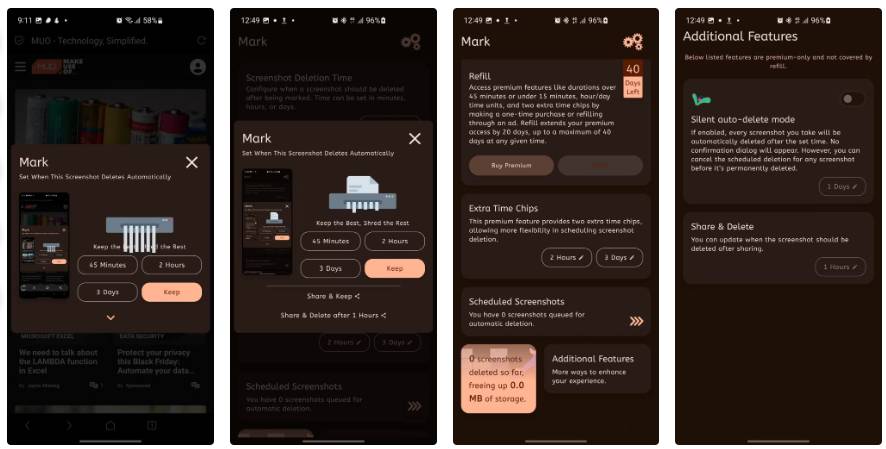
Whenever you take a screenshot, Mark will immediately display a dialog box with the slogan "Keep the Best, Shred the Rest." This pop-up will appear over whatever action you're taking and give you a few options for handling the screenshot you just took.
The dialog box displays a preview of the screenshot along with four quick action buttons. You can choose a default delete time (e.g., 45 minutes), choose an alternative time frame (2 hours or 3 days), or tap Keep To keep the screenshot forever. If you need a custom time frame, tap the drop-down arrow at the bottom of the dialog box. This will reveal additional options, including Share & Keep (which lets you share the screenshot without deleting it) and Share & Delete after 1 Hour (perfect for screenshots You should send to someone but don't want to keep).
Mark's home screen shows a Scheduled Screenshots Section, where you can see exactly how many are scheduled for automatic deletion. This lets you see what Mark is managing on your behalf. And at the bottom, you'll see a storage counter showing how much space you've freed up by allowing Mark to delete old screenshots.
Note : If you enable the premium Silent Auto-Delete Mode, you can still cancel scheduled deletions before they become permanent by checking the list of scheduled screenshots.
FAQ
What should you know about mark?
In practical terms, mark is the perfect choice for anyone who frequently takes screenshots but doesn't want them to pile up.
Why does mark matter?
The article highlights that mark is perfect for anyone who takes screenshots frequently but doesn't want them to pile up.
What is the main takeaway?
The main takeaway is that mark will automatically delete your messy screenshot folder When you first launch Mark, you'll need to grant a few permissions for the app to work properly.
Related Articles
 The Best Way to Organize Socks and Underwear Neatly, According to5 minutes read
 How to Save a Screenshot15 minutes read
 Instructions for Using Screenshot HD to Take Screenshots3 minutes read
 Useful Tips for Organizing Bookmarks in the Browser9 minutes read
 How to Fix a Blinking Question Mark on a Mac on Startup6 minutes read
 How to Find the Process ID of the Application on Windows 107 minutes read
Reader Comments 0
Sign in with email or Google to join the discussion.