Table of Contents
Shopee has previously offered a limited-time “journey” recap that turns account activity into shareable cards. It may show when an account started shopping, the number of orders, and selected purchase milestones. This is a campaign feature, not a permanent account report, so it may disappear or return in a different form.
If you cannot find the recap in the current Shopee app, do not follow an old deep link or sign in through an unofficial page. Check the app’s campaign banners, notifications, and official Shopee communications for your country. Availability, displayed data, sharing options, and rewards can differ by account and campaign.
Open the Shopee journey recap
1. Enter from an official campaign page
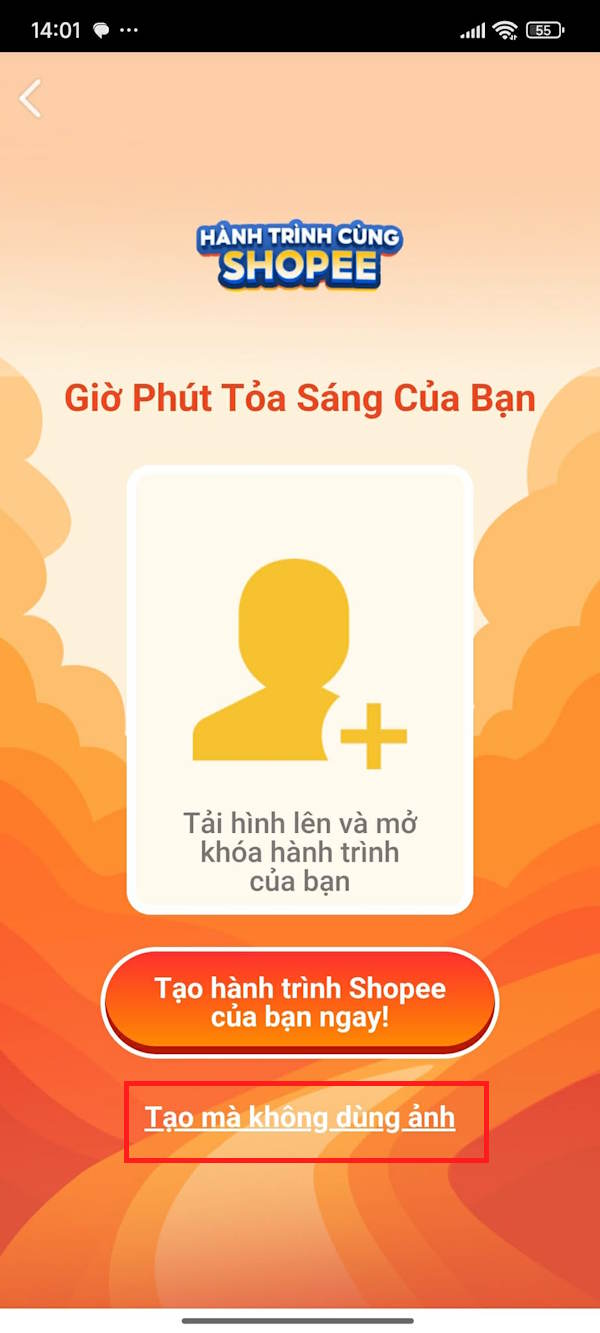
Open the recap from inside the Shopee app or a verified Shopee campaign link. The version shown below allows users to add a profile photo or continue without one. A personal image is optional; skip it if you do not want the campaign card to include your photo.
2. Review the account milestones
Swipe through the cards to view the summary generated for the signed-in account. In this campaign, the recap displayed the account’s starting date, approximate years of use, and total number of orders.


Treat the cards as a promotional summary, not a financial statement. For an authoritative purchase record, use the order history in your account and open individual order details.
3. Decide whether to share a card
Each card may provide a share control. In the interface below, selecting Send opens the phone’s available sharing methods.
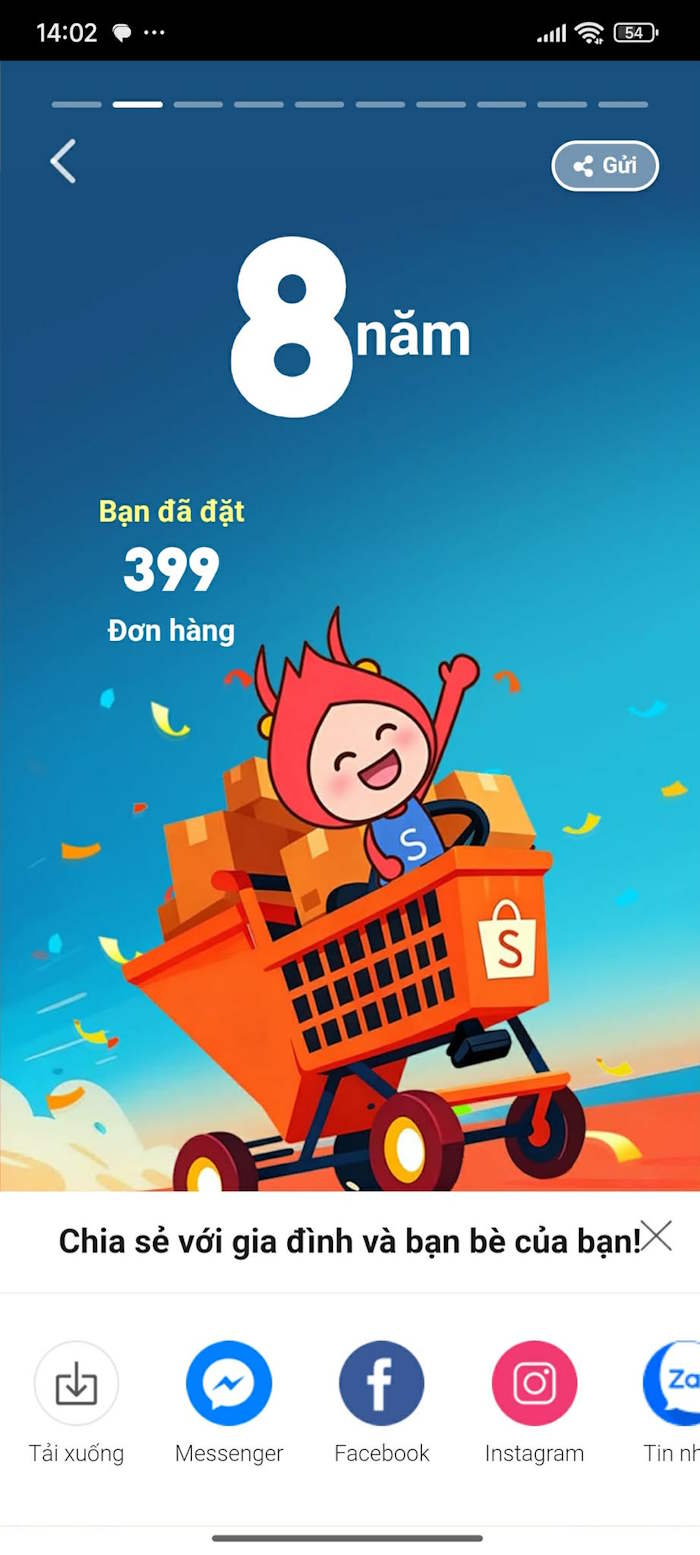
Review the image before sending it. A recap can reveal when you joined Shopee, how often you shop, product details, or the value of an order. Crop or avoid sharing any card that exposes information you would not publish normally. Do not include addresses, phone numbers, order IDs, payment details, or tracking numbers.
4. View purchase highlights
The campaign shown in these screenshots included cards for the first purchase and a high-value purchase. The exact categories can change in another version of the recap.


If a milestone looks wrong, check whether canceled, refunded, archived, or region-specific orders are handled differently. The campaign may use its own eligibility and counting rules.
5. Check the final campaign card
Continue through the recap to reach the final card. Some versions may invite users to share the campaign or claim a reward.

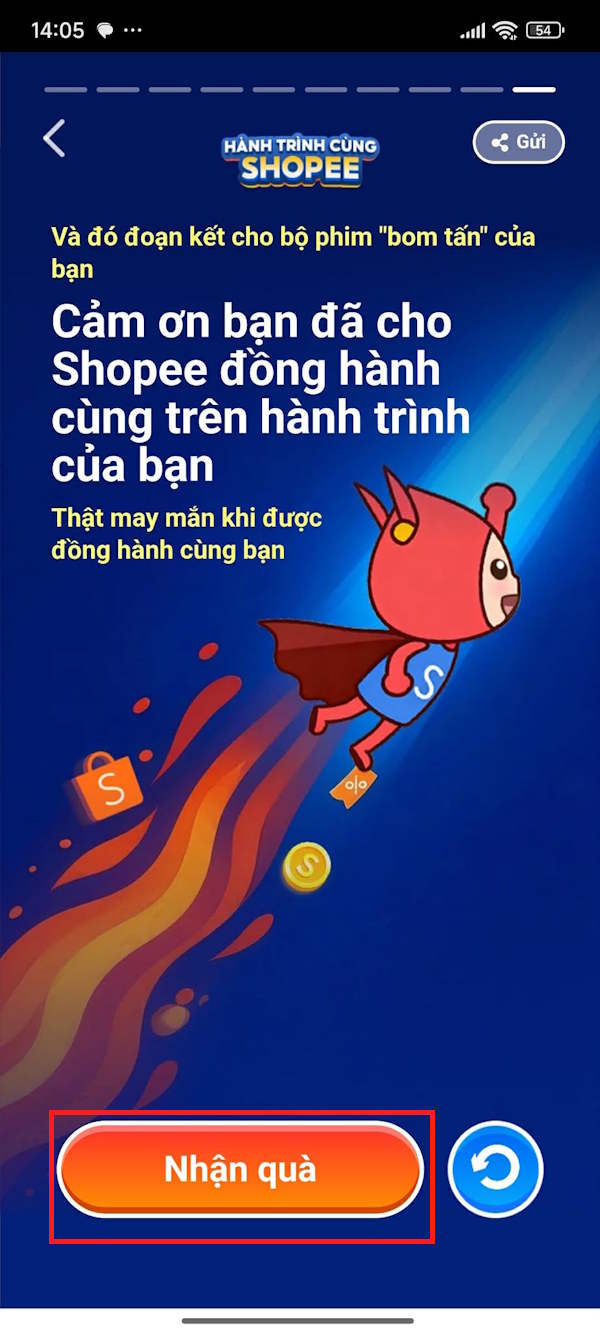
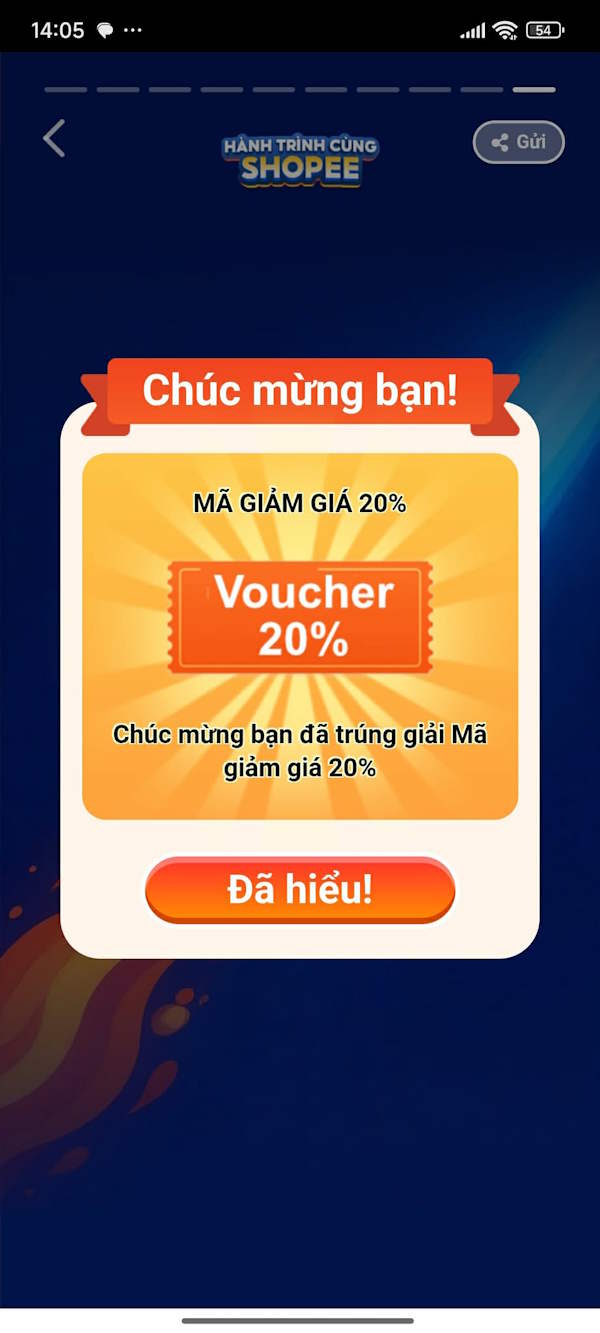
Select Claim Gift only from the in-app campaign screen, then read the reward name, validity period, minimum spend, eligible products, region, and redemption conditions. A chance to receive a reward is not the same as a guaranteed voucher.
If the journey page no longer opens
- Update the Shopee app from your device’s official app store.
- Confirm that you are signed in to the correct regional account.
- Look for the campaign in Shopee’s in-app banners or notifications.
- Check the campaign dates and eligibility rules shown by Shopee.
- Do not enter your password, verification code, or payment details into a third-party “recap” generator.
If none of the official entry points appears, the promotion has probably ended or is not available to that account. You can still review purchases through Me > My Purchases or the equivalent order-history area in the current app.
Related Articles
 A Compilation of Common Errors on Shopee and How to Fix Them13 minutes read
 Shopee Switchboard: Shopee Pbx, Shopee Phone Number4 minutes read
 How to Use Shopee to Register Online Sales7 minutes read
 How to Register a Shopee Account on a Computer6 minutes read
 Purchase Experience on Shopee to Avoid Buying Fake Goods10 minutes read
 How to Retrieve a Shopee Password4 minutes read
Reader Comments 0
Sign in with email or Google to join the discussion.